How to Set Up NovaStar Digital Signage Player?
Learn how to use EasySignage on NovaStar Taurus and TU series LED players using ViPlex Express and the EasySignage web player.
How do I set up my NovaStar digital signage player?
EasySignage works with NovaStar multimedia players by loading the EasySignage Web Player (https://dsplayer.io) inside ViPlex Express.
Before you continue, complete player onboarding, connection, and screen discovery in ViPlex Express using NovaStar official documentation.
- Step 1: Check compatibility
Make sure you are using a NovaStar multimedia player from Taurus or TU series (for example: TB20 Plus, TB30, TB40, TB50, TB60, TU15 Pro, TU20 Pro, TU40 Pro, TU4K Pro).
Standard NovaStar sending cards without a multimedia player are not supported.
- Step 2: Create a playlist and add EasySignage Web Player
- Select the screen and open the Playlist tab.
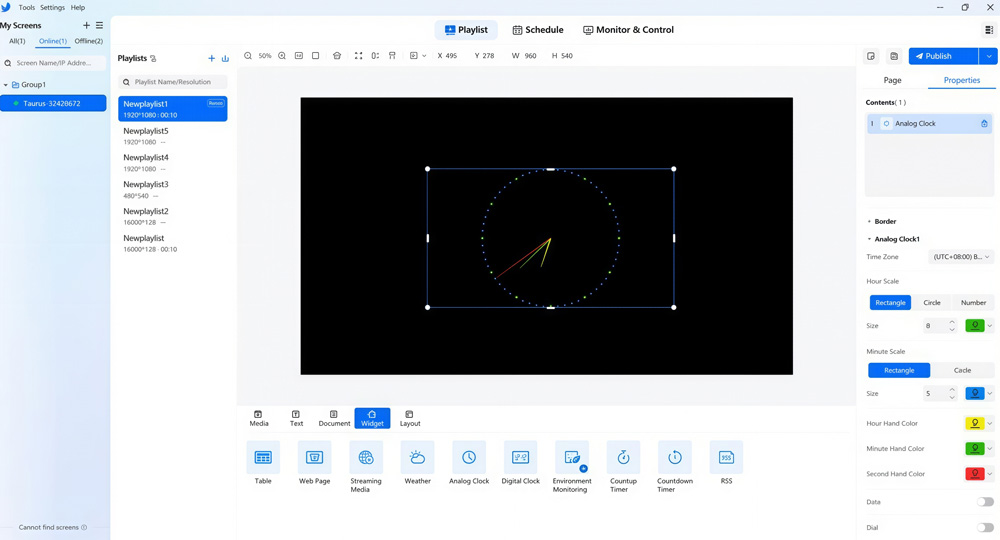
- Create a new playlist with your LED screen resolution.
- Add a Web Page widget.
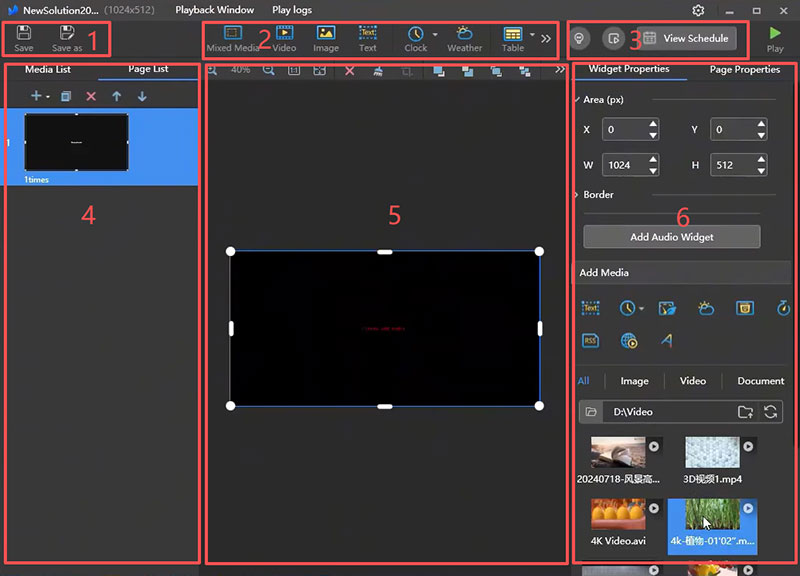
- Resize the widget to full screen.
- Set the URL to:
https://dsplayer.io
You only need one page in this playlist. EasySignage handles content rotation from the cloud.
- Step 3: Publish to the screen
- Click Save, then Publish.
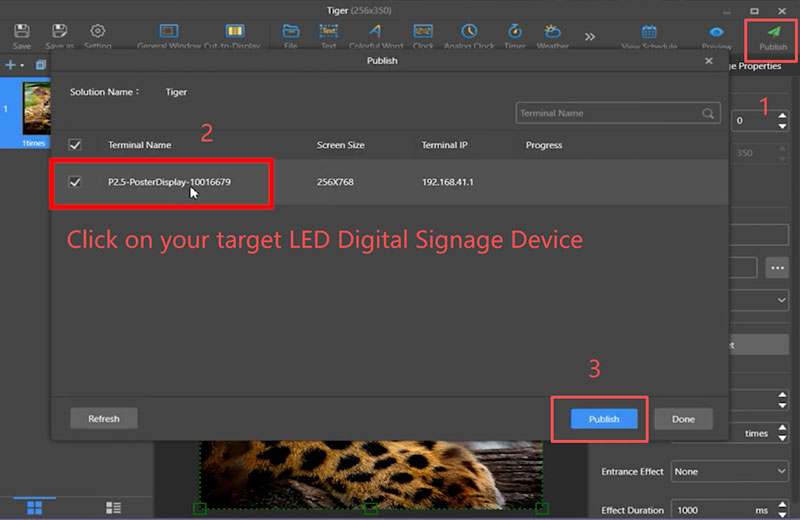
- Select the target screen and confirm publishing.
- After publishing, your LED display should show an EasySignage pairing code.
- Step 4: Pair the screen in EasySignage
- Log in to EasySignage Management Console .
- Go to Screens and click Add Screen.
- Enter the pairing code shown on your LED display.
After pairing, assign content from your dashboard and the screen will start playback.
Troubleshooting
- If the web page does not load, check internet connection and verify the device time settings.
- If the screen is blank/white, update NovaStar firmware and publish again.
- If no pairing code appears, restart the player and republish the playlist.
- If ViPlex cannot find the device, ensure both PC and player are on the same network or connect via the player hotspot.
Need help? Contact our support team or read how to add a screen to your account .