A video wall joins several screens into one large display: one image or video is split across all of them. You set it up in two places:
- A video wall playlist (Playlists > Video Wall) holds the content, at the size of the whole wall.
- A video wall (Screens > Video Wall) says which screen is in which position, and plays the playlist.
Note: Connect the screens to the same wired network for the best result. Wi-Fi might not keep them in step. Only Android, LG webOS and Samsung Tizen screens can join a video wall.
Step 1: Create a Video Wall Playlist
- Click Playlists in the menu on the left, open the Video Wall tab, then click Add Video Wall.
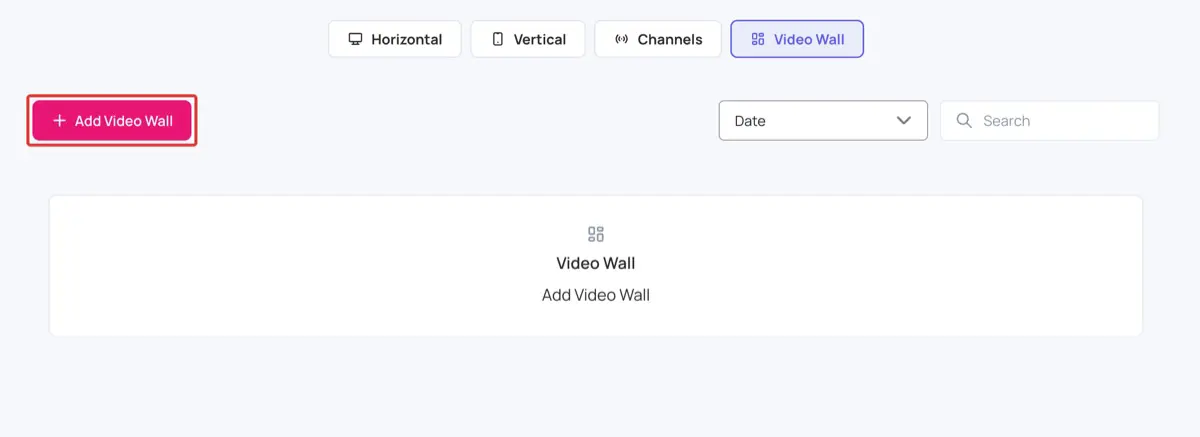
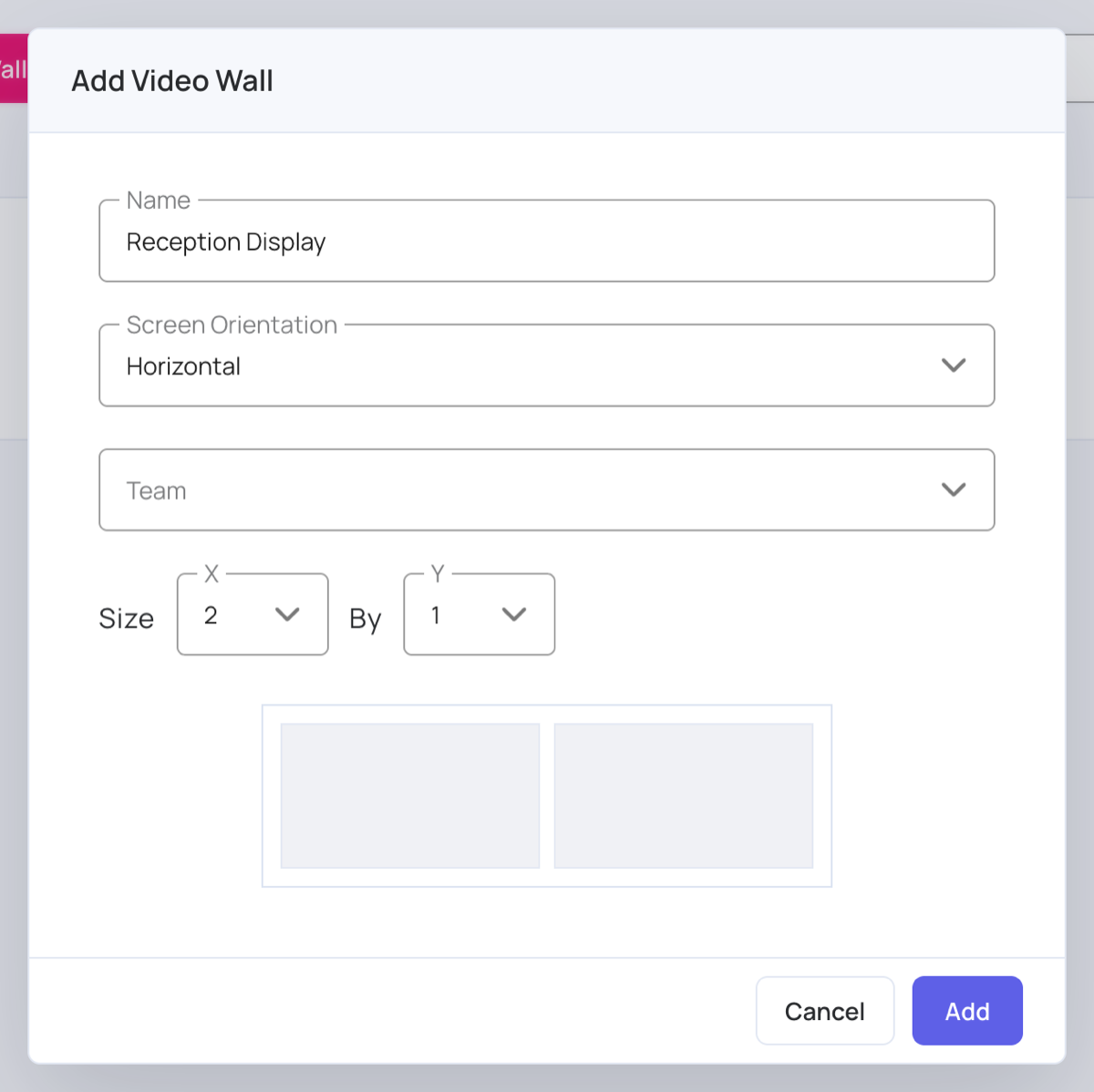
- Type a Name (at least 3 characters) and choose the Screen Orientation.
- If you use teams, choose the Team that can use this playlist.
- Choose the Size: the number of screens across (X) by the number of rows (Y). For example, 2 by 1 is two screens side by side. You can have up to 7 screens in one row, or up to 4 across and 3 rows.
- Click Add, then click the new playlist in the list to open it.
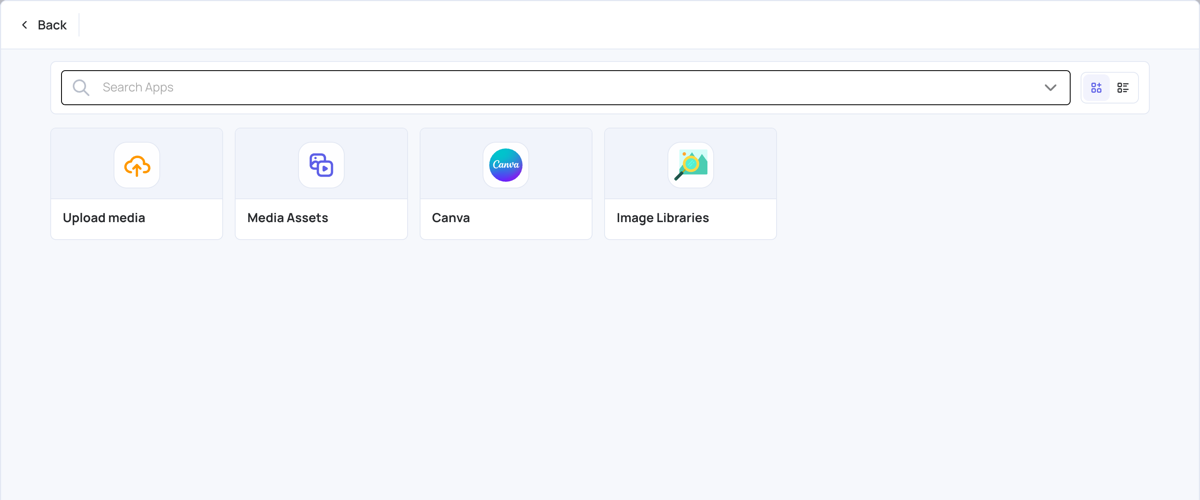
- Add your content. A video wall playlist takes images, videos and documents from Upload media, Media Assets, Canva or Image Libraries. See Upload Media .
- Wait while each file is processed: it is split into one part per screen, named by its position (1-1, 2-1 and so on). Design your content for the full size of the wall, for example 3840 x 1080 for a 2 by 1 wall of HD screens.
- Click Publish changes of this playlist.
Step 2: Add the Screens
Install the player on every screen and add each one to your account. See Screens . A 2 by 1 wall needs 2 screens.
Step 3: Create the Video Wall
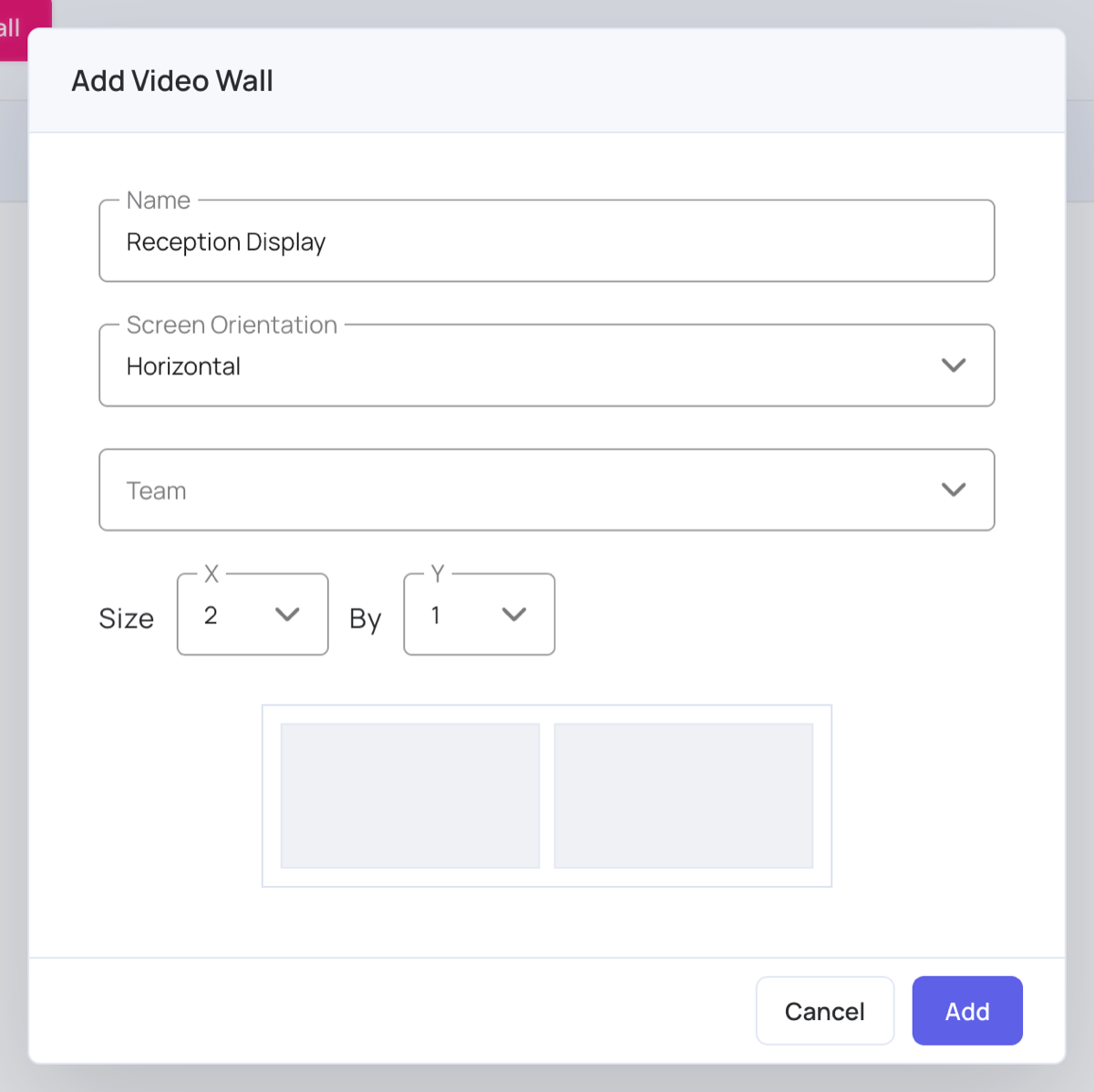
- Click Screens in the menu on the left, open the Video Wall tab, then click Add Video Wall.
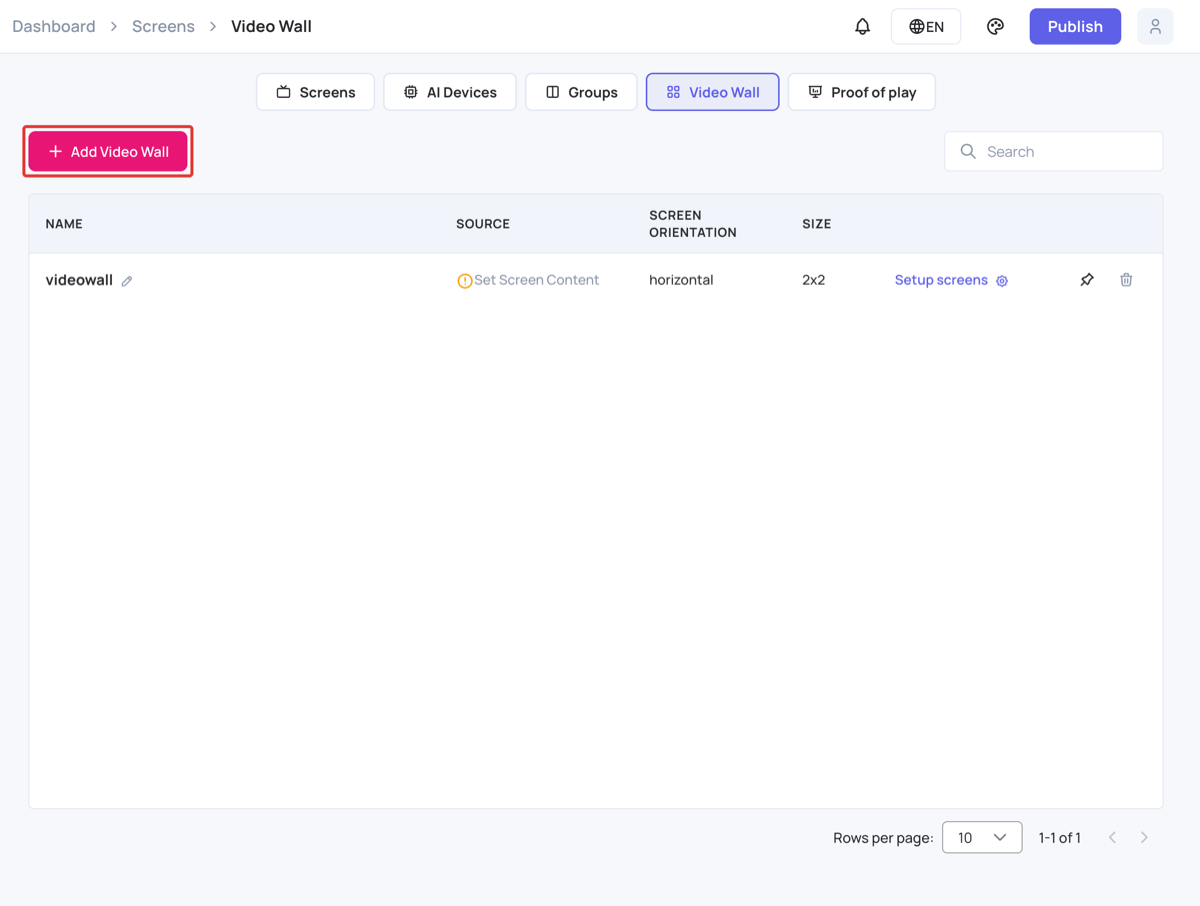
- Type a Name, and choose the Screen Orientation, the Team if you use teams, and the same Size as your video wall playlist.
- Click Add. The video wall opens, with one position for each screen.
Step 4: Assign the Screens
- In position 1-1, click Assign a screen.
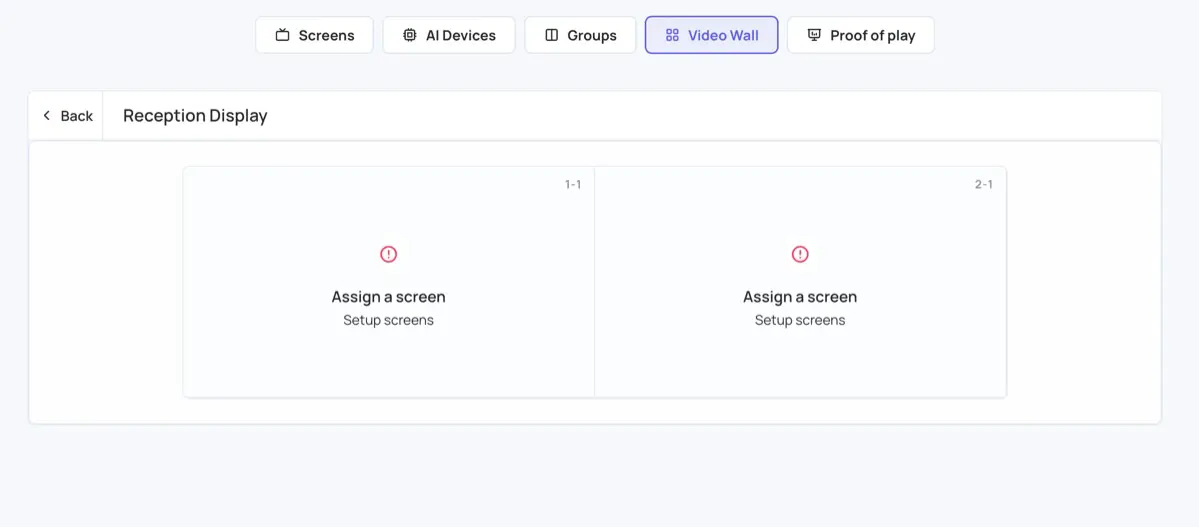
- Click the screen that is in that position. The list shows your screens with the same orientation as the video wall. Type in Search to find one.
- Repeat for every position, for example 2-1.
- Click Back.
Step 5: Play the Playlist
- On the video wall’s row, click Set Screen Content.
- Click the video wall playlist from Step 1.
- Click Publish. The screens download the content and play it together.
To change the screens later, click Setup screens on the video wall’s row.