Teams decide what each user can see and change in your account. Create a team, choose its permissions, then put users in it. You can also keep a team to its own playlists, schedules, channels and screens.
Teams are included on the Premium and Enterprise plans.
The Administrators team
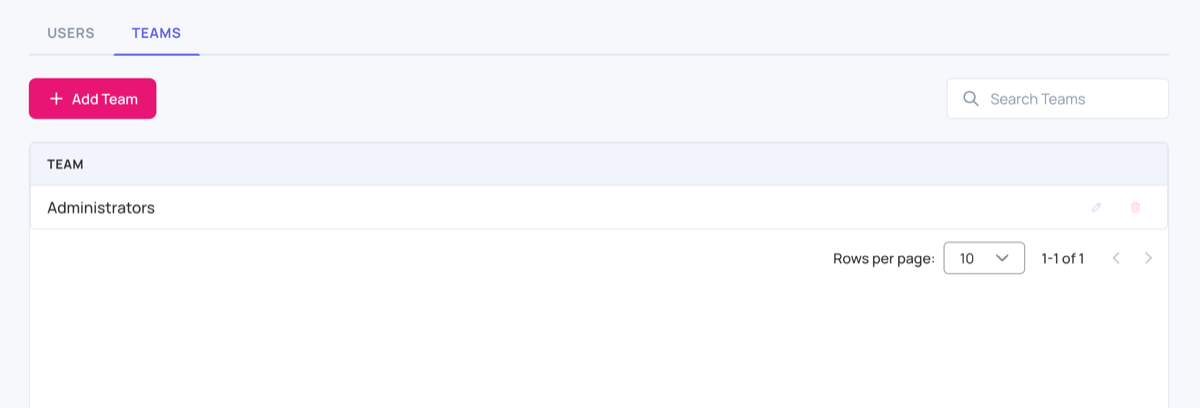
Every account has an Administrators team with full access to everything. It can’t be edited or deleted. Only the account owner and members of this team can open User Management, the Tag manager and API Keys.
How to add a team
- Click Account at the bottom of the menu on the left, then User Management.
- Open the Teams tab.
- Click Add Team.
- Type the team’s name in the first field (3 to 50 characters).
- Under Permissions, tick the areas the team can use. When you tick an area, its extra options appear under it.
- Click Add Team.
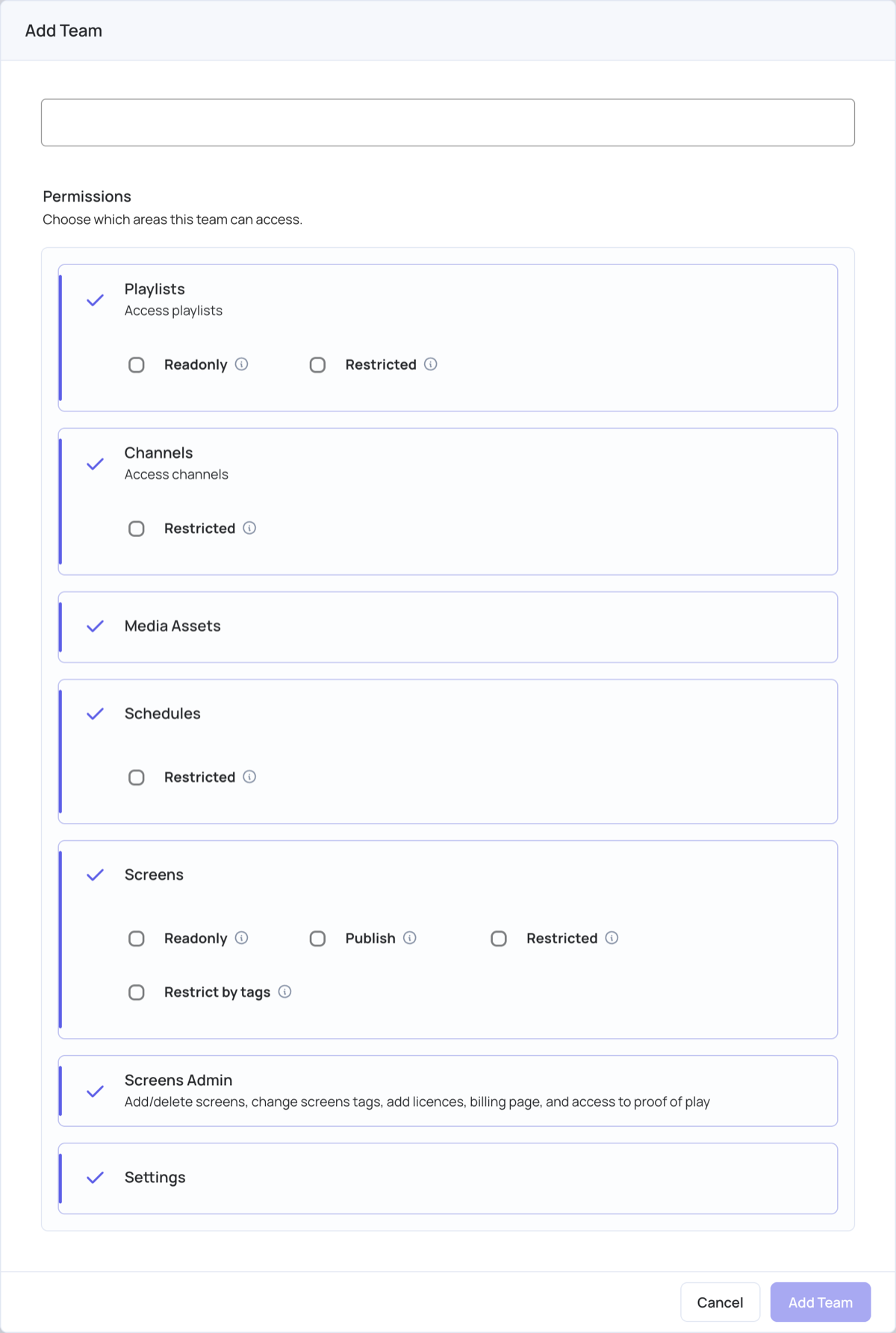
Permissions
| Area | What it gives | Extra options |
|---|---|---|
| Playlists | Access to playlists. | Readonly: can view playlists but not change them. Restricted: only the team’s own playlists. |
| Channels | Access to channels. | Restricted: only the team’s own channels. |
| Media Assets | Access to Media Assets, also when adding content to a playlist. | — |
| Schedules | Access to schedules. | Restricted: only the team’s own schedules. |
| Screens | Access to screens: view them and set their content. | Readonly: can view screens but not change them; Assign to screens isn’t shown in playlists. Publish: can publish to their screens; without it the Publish button is disabled, Publish changes of this playlist isn’t shown in playlists, and Publish now in Assign to screens is greyed out. Restricted: only the team’s own groups and video walls. Restrict by tags: only screens with matching tags, and Publish changes of this playlist isn’t shown to these teams (see below). |
| Screens Admin | Add and delete screens, change screen tags, add licences, open billing and use proof of play. | — |
| Settings | Access to Settings. | — |
An area isn’t shown if your plan, or the account’s Feature Access settings, turn it off.
Give content to a team
A Restricted team only sees items that belong to it. Items that belong to no team are hidden from it.
- Playlists: choose the team in the Team field of the Add Playlist window, or later in the playlist’s settings under Team Access.
- Channels and video walls: choose the team in the Team field when you add them.
- Schedules and screen groups: they belong to the team of the person who creates them.
The Team field is shown to Administrators and to teams whose Playlists permission isn’t Restricted.
Restrict by tags
With Restrict by tags, the team only sees screens that share a tag with the team.
- Under Screens, tick Restrict by tags.
- Click Add and choose one or more tags.
- Give the same tags to the screens the team should see. See Tag manager .
A screen is shown if at least one of its tags is exactly the same as one of the team’s tags, capital letters included. A screen with no tags, or a team with no tags chosen, shows no screens.
Put users in a team
Open the Users tab and add a user, or click the edit icon next to a user and choose the Team. See Users .
Edit or delete a team
- To change a team, click the edit icon next to it, change its name or permissions, and click Save. The change applies to its members straight away.
- To delete a team, click the delete icon and click Yes. A team that still has users can’t be deleted: move them to another team first.