Learn how to add, edit, and manage user accounts in EasySignage, including assigning roles and permissions so team members have the right level of access.
How to manage users accounts in EasySignage
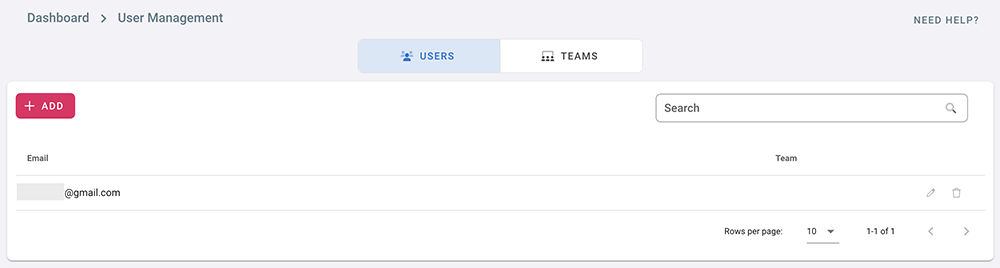
- Click on the profile icon on the top right corner
- Click on User Management
- The first user is the account owner. It can not be removed
How to add users
- To add other users to manage your account click on Add
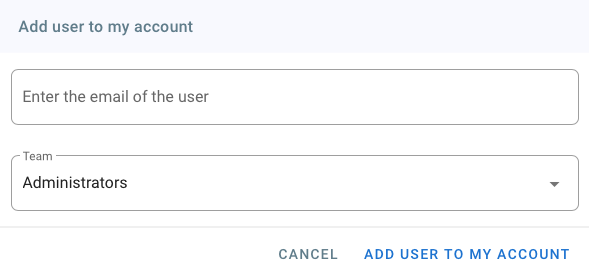
- Type in the email of the user you would like to add
- Choose a team for the user from the Team drop down list
- Click on ADD USER TO MY ACCOUNT
- The added user can sign in to the management console and manage your account according to the access levels granted to the team he belongs to
- Click on delete to remove a user from your account
Sub-users can now sign in to the console using their email, and they can switch to manage your account by following the steps below.
How to switch accounts
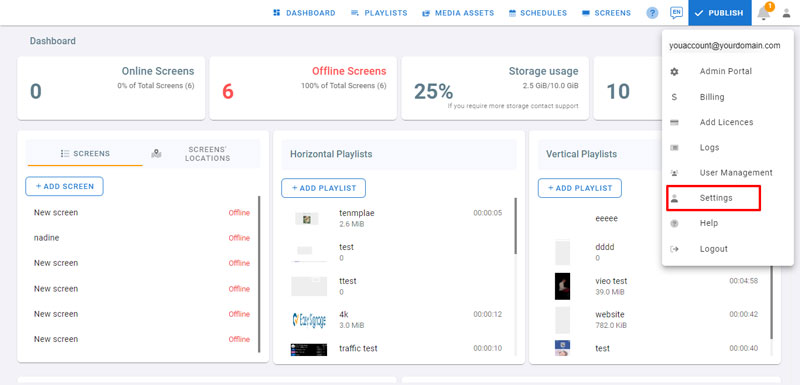
- Open the digital signage management console
- Login to your account
- Click on the profile icon in the top right corner
- You can see that you are logged in with your account
- Click on Settings
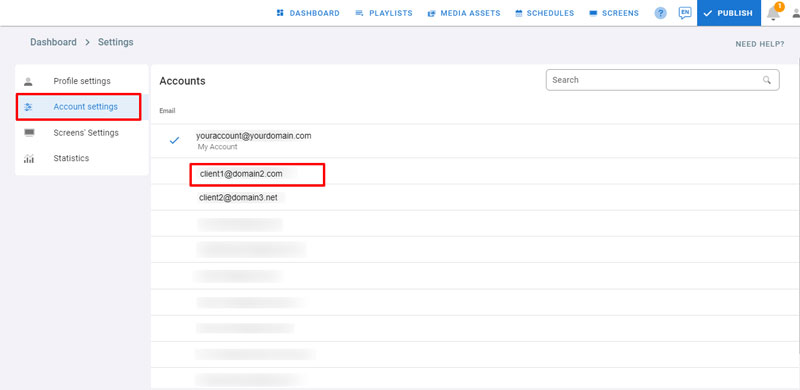
- Click on Account Settings
- The account you are currently managing has a blue checkmark
- Click on the account you want to switch to
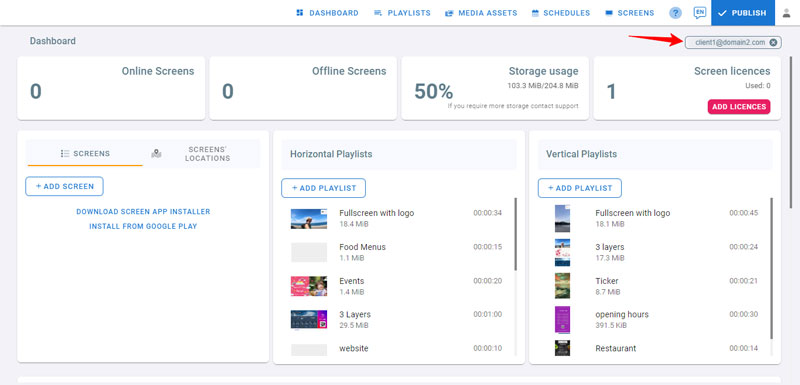
- After the account is switched, you can see in the top right corner, below the navigation bar, the account you are switched to.
- To close it and return to your account, click on the X button