Use the Template Editor to change a template or design your own: edit the text, add menus, QR codes, social media handles and images, and set colors, fonts and positions. When you save, the design is turned into an image that plays on your screens.
Open the Editor
- Add a template to a layer. To start from an empty design, choose Basic, then Blank. See Add Template .
- Click the template in the layer, then click Open Editor.
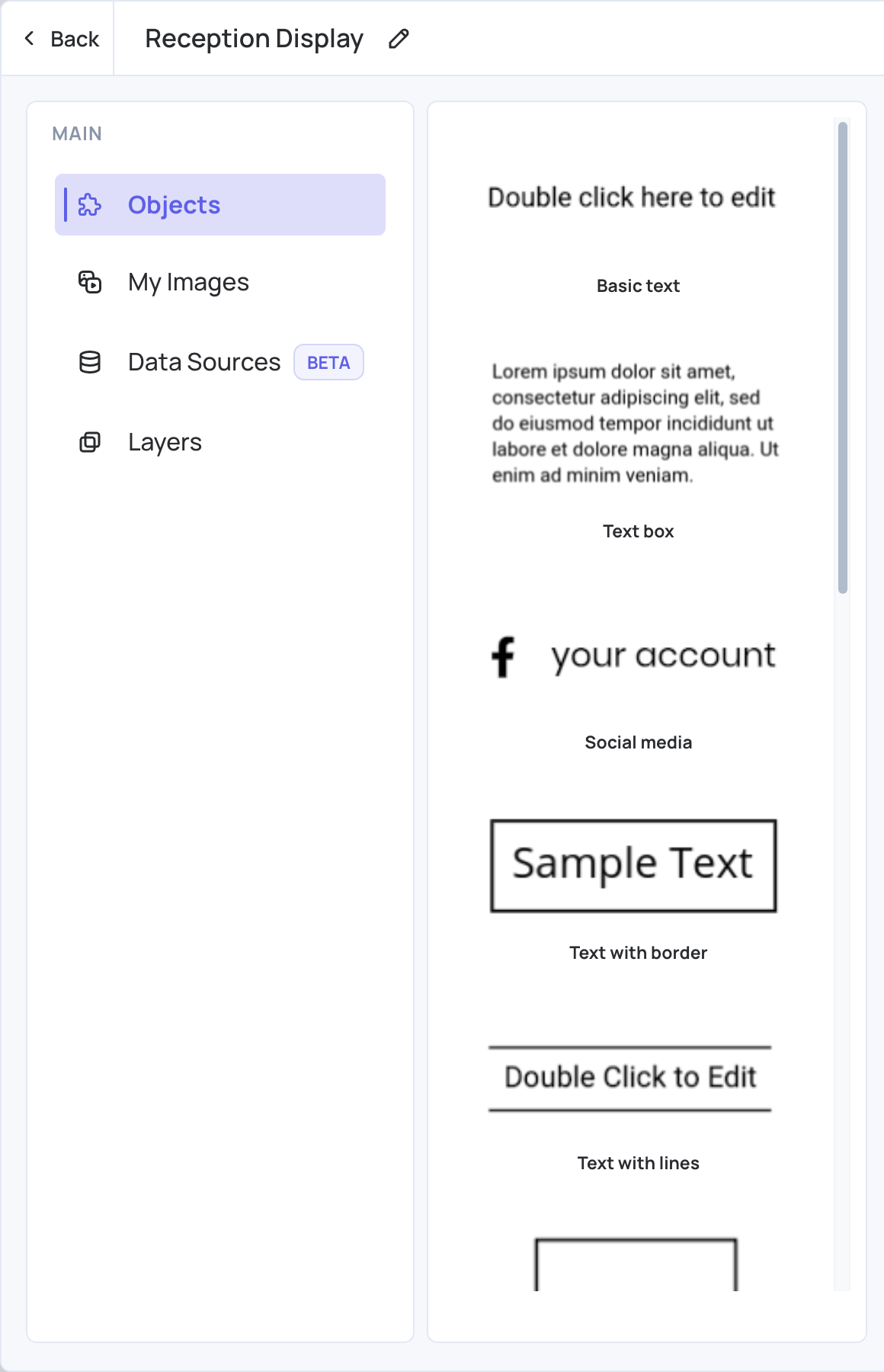
The editor has three parts: the panel on the left (Objects, My Images, Data Sources and Layers), the design in the middle, and the toolbar above it.
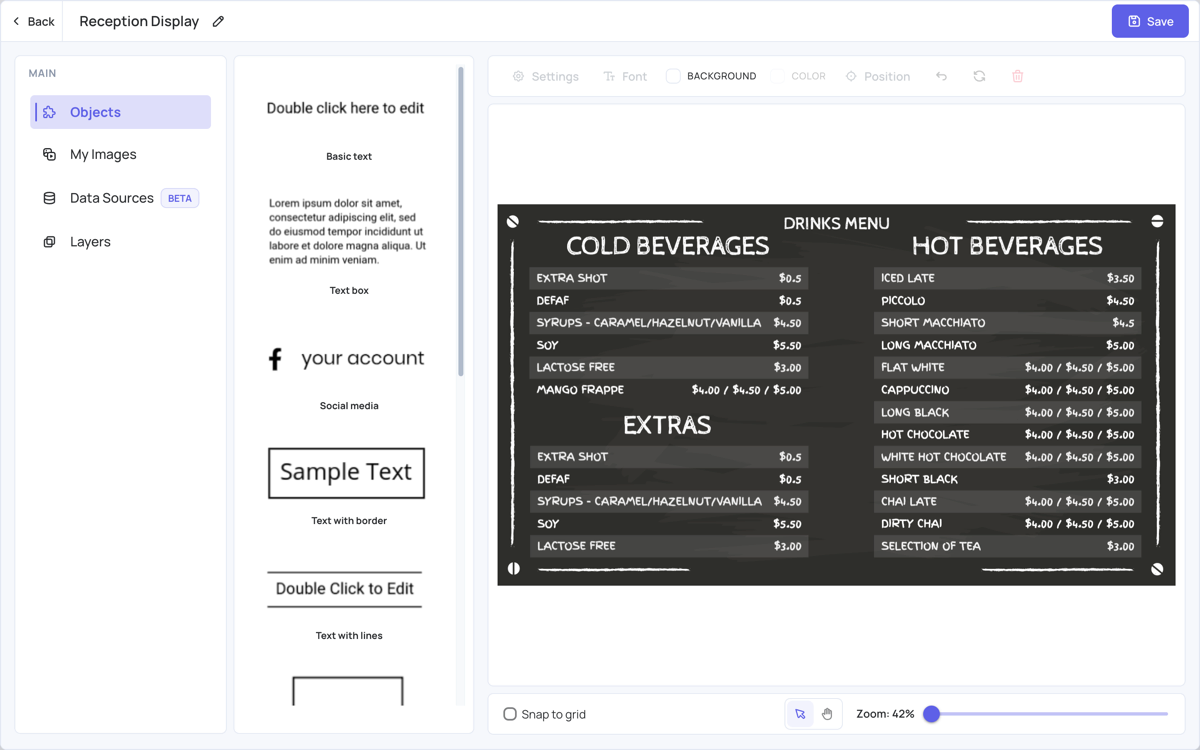
Select, Move and Edit Objects
- Click an object to select it. Drag it to move it, or use the arrow keys on your keyboard.
- Drag the corner handles to resize it, and the round handle at the top to rotate it.
- Double-click a text to change it. For other objects, such as menus or QR codes, double-click them or click the pencil at their top-left corner to open their settings.
- Click the x at the top-right corner, or press Delete, to delete the selected object.
- Shortcuts: Ctrl+C and Ctrl+V copy and paste, Ctrl+Z and Ctrl+Y undo and redo (Cmd on a Mac).
The Toolbar
Select an object to use the toolbar.
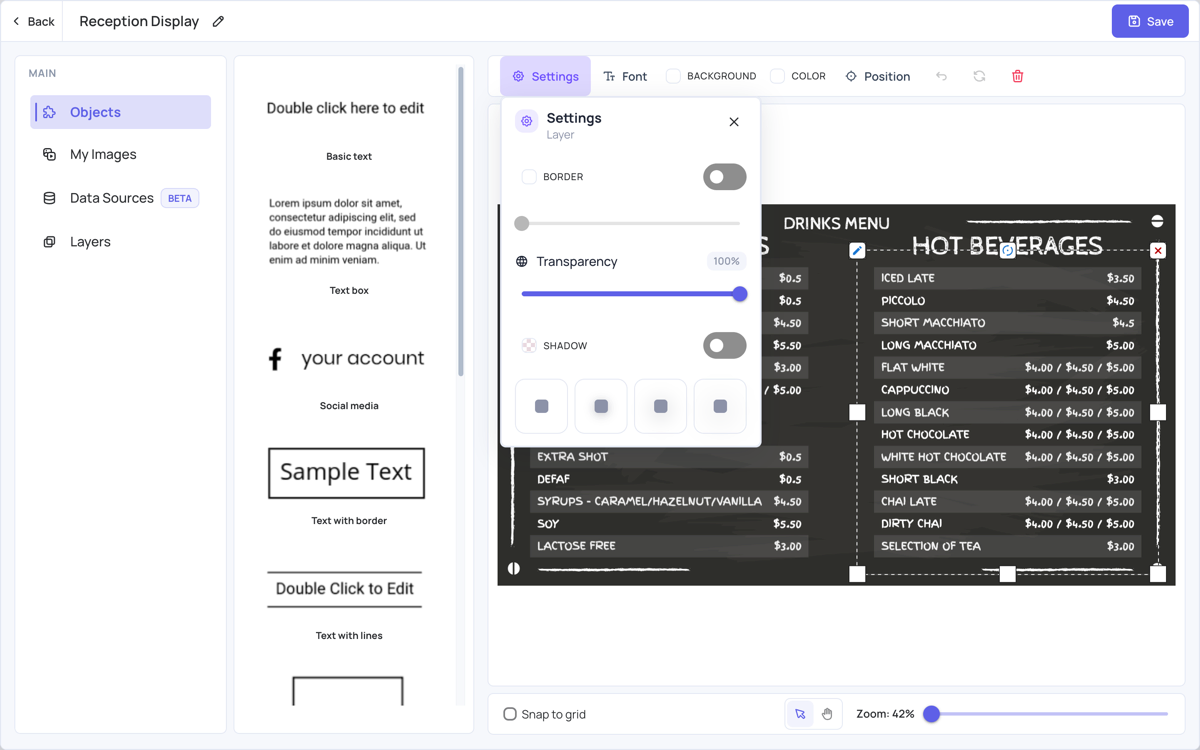
Settings
- Border: turn it on, choose its color and set its size.
- Transparency: from 0% to 100%.
- Shadow: turn it on, choose its color, and pick one of the four presets to set how soft it is.
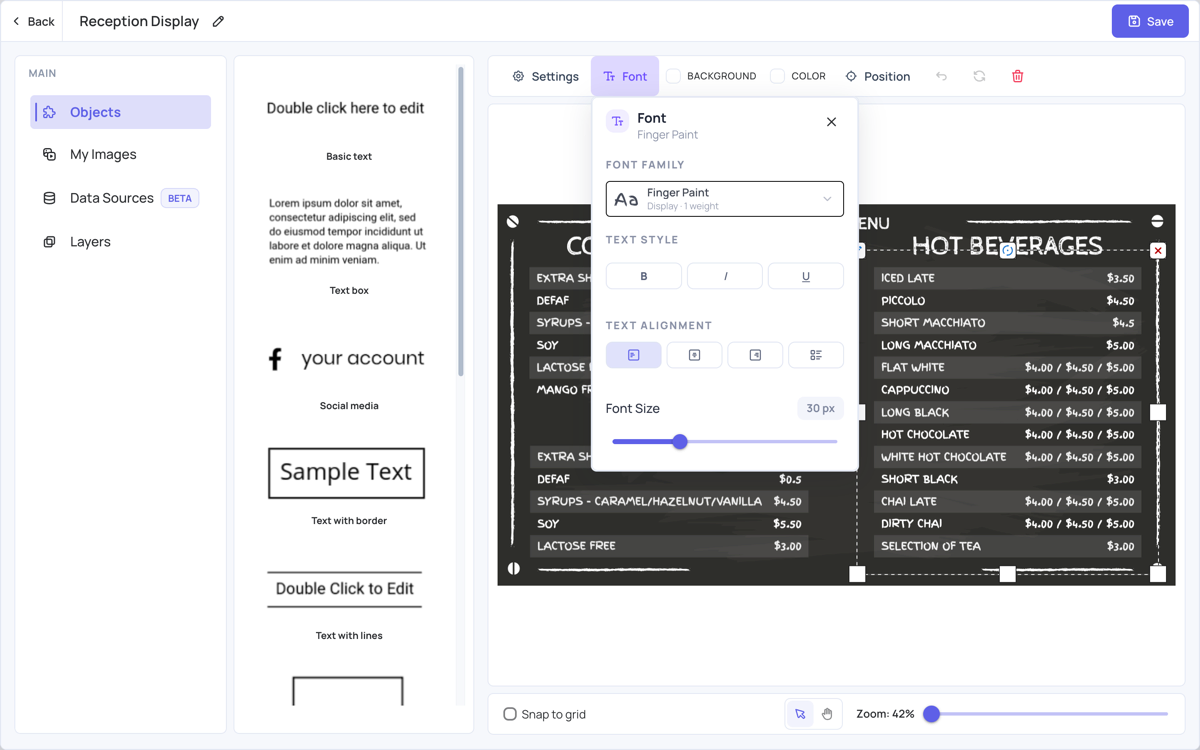
Font
For text objects: the Font Family, Text Style (bold, italic, underline), Text Alignment and Font Size.
Background and Color
- Background: the background color of the whole design. It works without selecting anything.
- Color: the color of the selected object, for example a text.
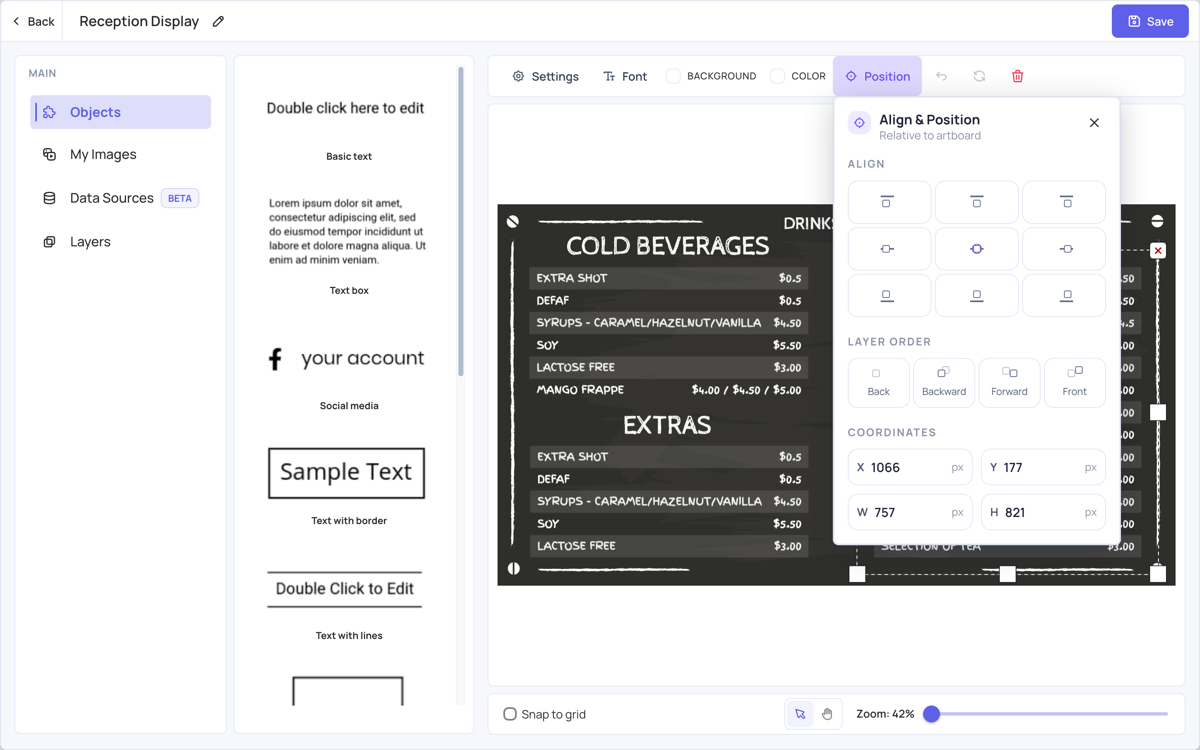
Position
- Align: align the object to the edges or the center of the design.
- Layer Order: Back, Backward, Forward and Front move the object behind or in front of other objects.
- Coordinates: type the exact position (X, Y) and size (W, H) in pixels.
Other Controls
- Undo and Redo, and the trash icon to delete the selected object.
- Under the design: Snap to grid moves objects on a grid instead of freely, the arrow and hand buttons switch between selecting objects and moving around the design, and Zoom zooms in and out.
Objects
Click an object in Objects to add it to the design: texts (Basic text, Text box, Text with border, Text with lines), Social media, Border, menus and QR code.
Social Media
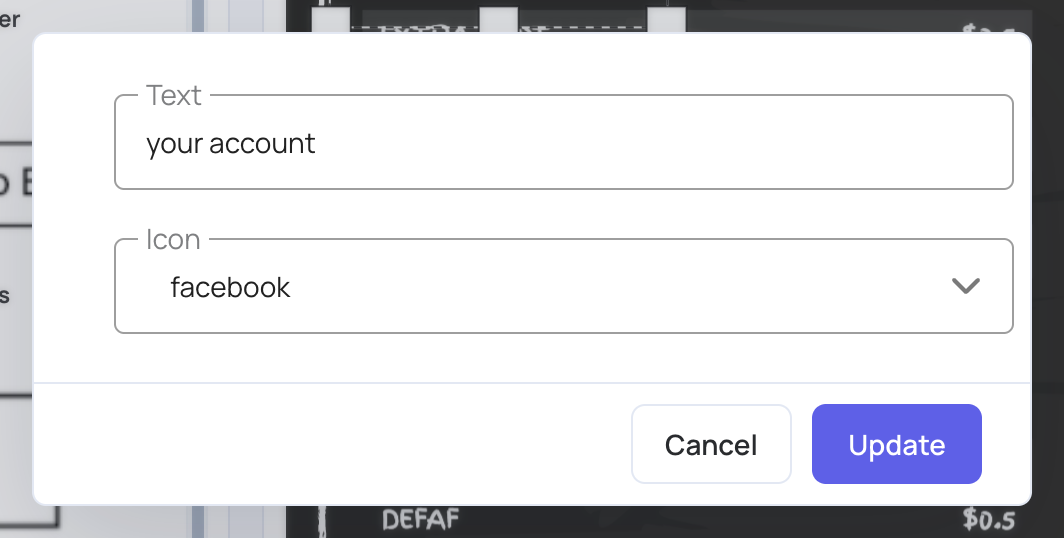
Click Social media. Type your account name in Text, choose the network in Icon, then click Update.
Menus
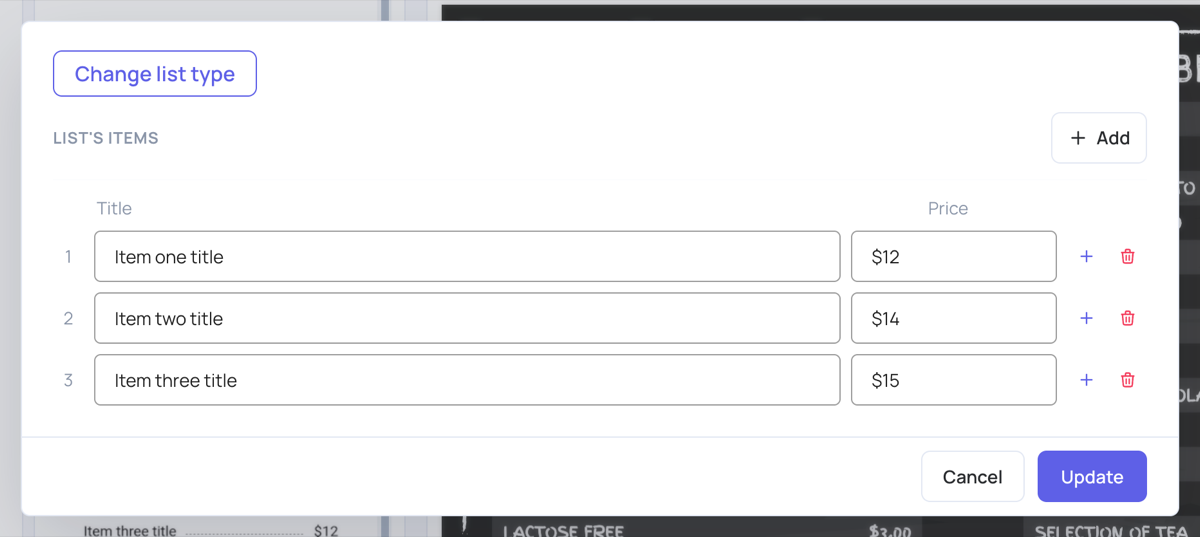
Click a menu design: Basic menu, Alternate menu, Menu with description, Dotted menu or Dotted menu with description.
- Type a Title and a Price for each item.
- Click + next to an item to add one after it, or Add to add one at the end. Click the trash icon to delete an item.
- Click Change list type to switch to another menu design.
- Click Update.
QR Code
See QR Code Generator .
My Images
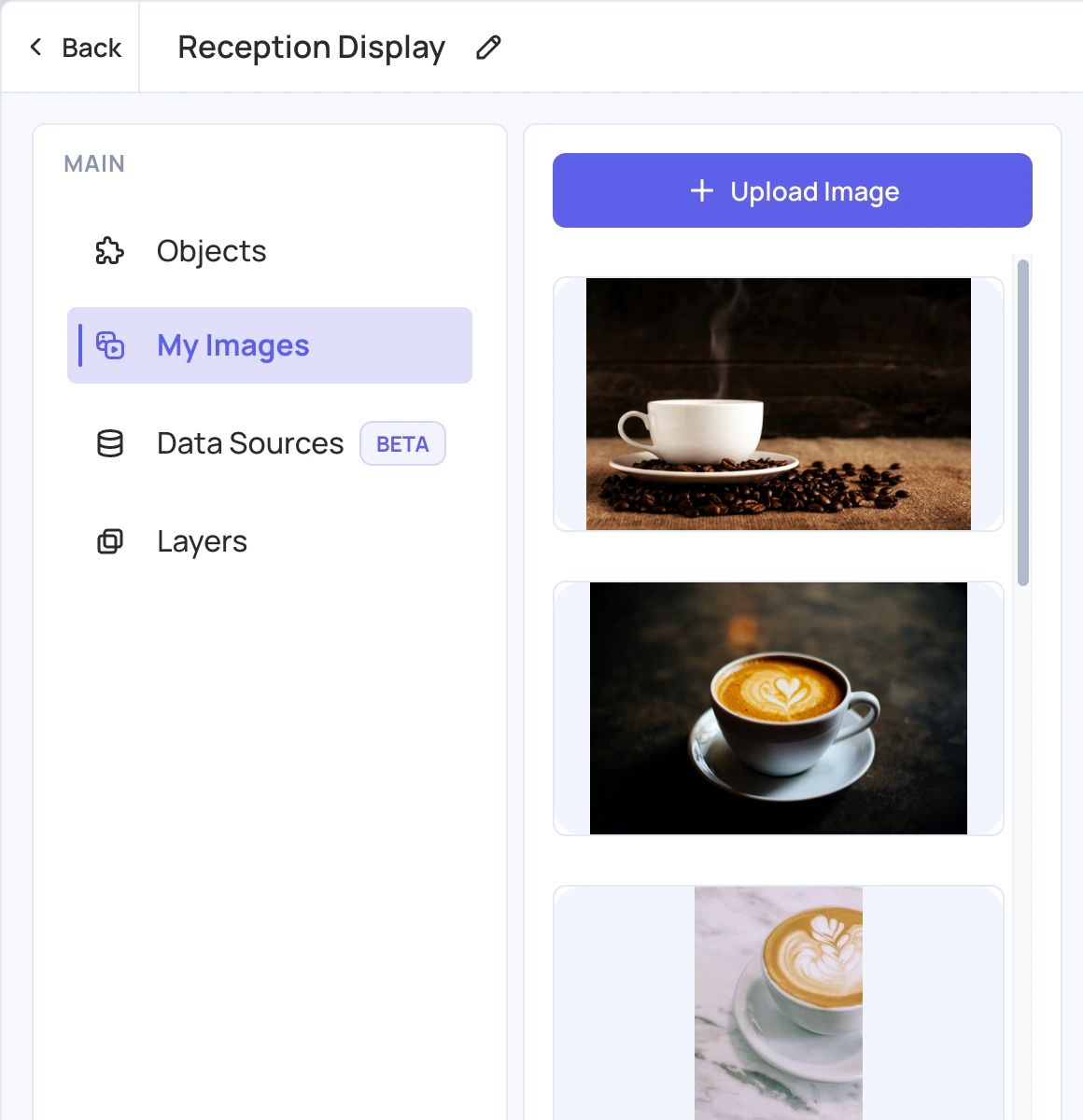
Click Upload Image to add an image from your computer. Your images are listed below it: click one to add it to the design.
Data Sources
Data Sources (beta) fills a design with live data, such as prices from a spreadsheet or a POS system. It only appears when data sources are turned on for your account. See Dynamic Data .
Layers
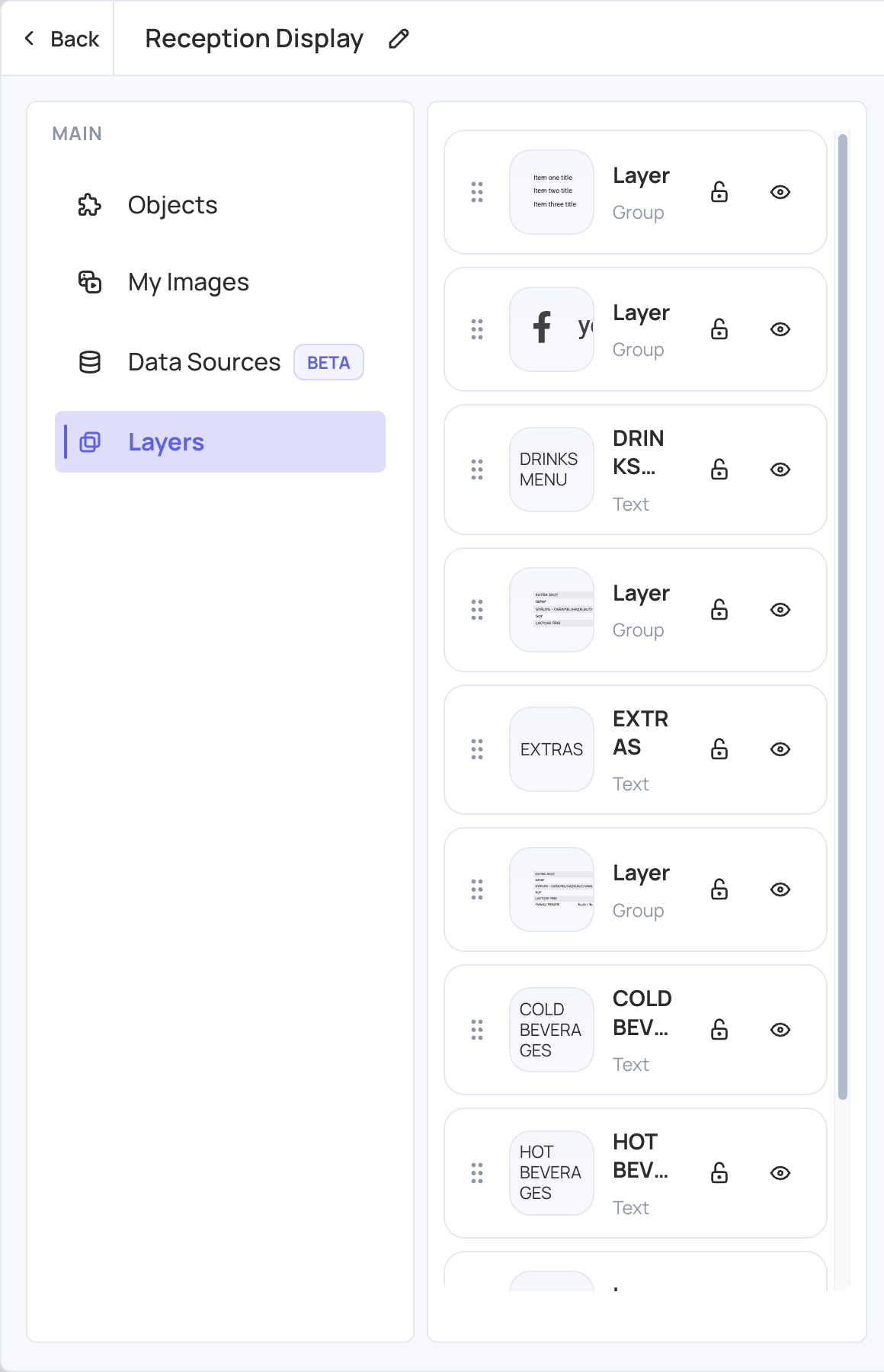
Layers lists every object in the design, once it has some.
- Drag a layer up or down to bring it forward or send it back.
- Click the lock to stop a layer from being moved, resized or changed.
- Click the eye to hide or show a layer.
Save the Design
Click Save. The design is processed and saved as an image in the layer. To change it again, click Open Editor.
If you click Back with unsaved changes, the editor asks whether to save them.