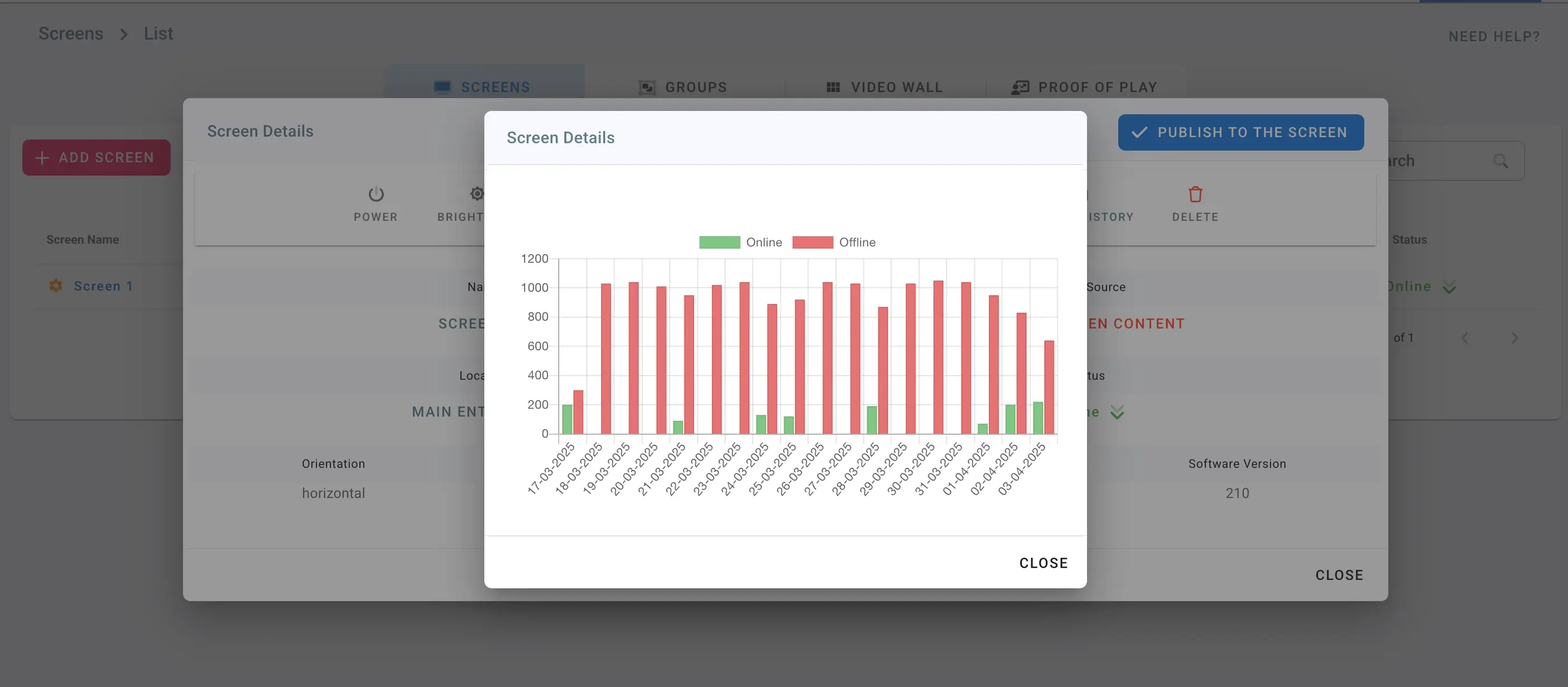
Status History shows how long a screen was online and offline on each day, so you can spot a screen that keeps going offline, or check when a problem started.
Note: Status History is available to users who manage screens.
Open Status History
- Go to Screens and click the Screen Details (gear) icon on the screen’s row.
- Click More > Status History. A chart opens.
- Click Close when you are done.
Read the chart
- Each date along the bottom has two bars: Online (green) and Offline (red).
- The height of each bar is the number of minutes the screen was online or offline that day.
- Point at a bar to see the time in hours and minutes, for example “09 hrs 20 mins (560)”.
- The chart covers about the last 30 days. The last date is today so far.
How the numbers are made:
- The screen’s status is checked every 10 minutes, and each check adds 10 minutes to Online or Offline.
- The chart is updated about once an hour, so the last hour may not show yet.
- The totals are estimates, so a day’s two bars don’t always add up to 24 hours.
If a screen shows a lot of red, see Player Showing Offline on Dashboard .