Take a screenshot of a screen to check what it is showing right now, without going to it. The screen takes the picture and sends it back to the CMS.
To take a screenshot, the screen must be:
- Online. While it is offline, the Screenshot button is greyed out.
- Running a player that supports screenshots. If the player software is too old, the window says “Update your player software to be able to take screenshots of your screen”. See Screen details .
Note: Web players don’t send screenshots, so a request to a web player times out.
Take a screenshot
- Go to Screens and click the Screen Details (gear) icon on the screen’s row.
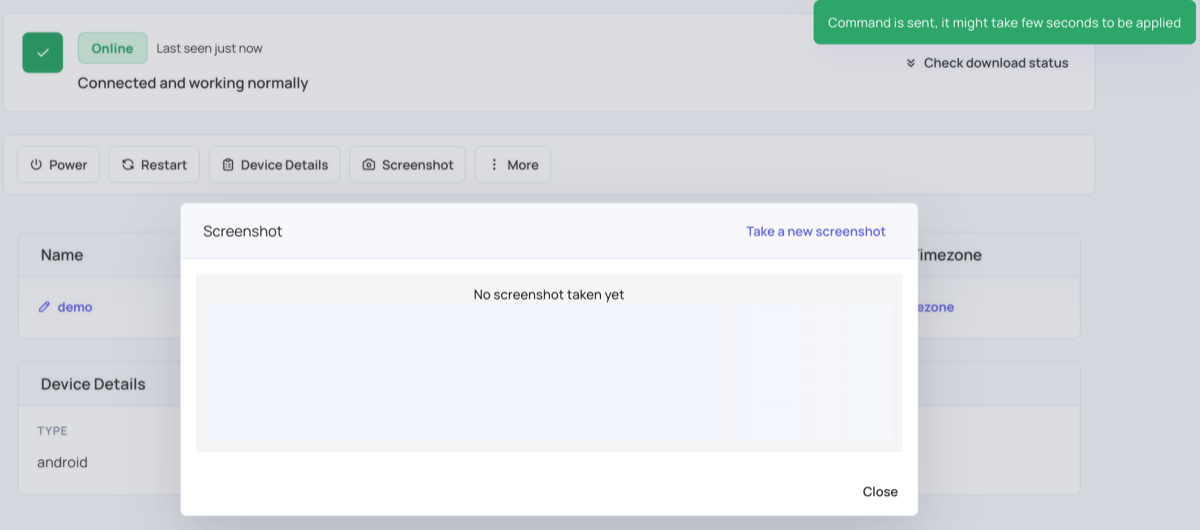
- Click Screenshot. The window shows the last screenshot, with the date and time it was taken, or “No screenshot taken yet”.
- Click Take a new screenshot. The message “Command is sent, it might take few seconds to be applied” appears.
- Wait a few seconds. The new screenshot appears in the window.
- Click Close.
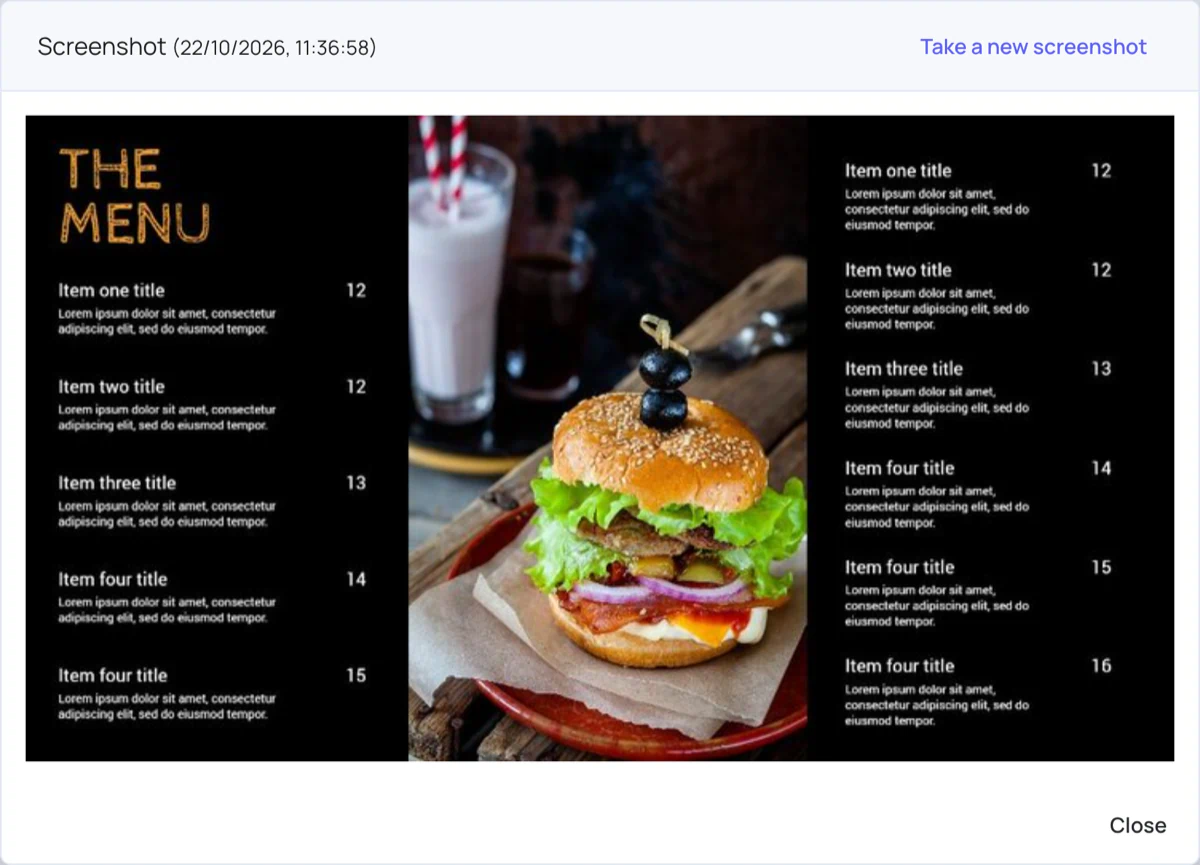
A new screenshot replaces the previous one; only the latest is kept.
If no screenshot arrives
If the screen doesn’t send a screenshot within 30 seconds, the window says “Screenshot request timeout, try again after a moment”. Check that the screen is still online, then click Take a new screenshot again.
Related articles
- Digital Signage Screens
- Player Showing Offline on Dashboard
- Account Logs : each screenshot request is recorded there.