Digital signage screen rotation lets you switch a screen between horizontal (landscape) and vertical (portrait) from the EasySignage management console, without touching the device.
Before you begin
- The screen must be online. The Rotate option is unavailable while the screen is offline.
- The screen’s player software must support remote rotation. If the dialog shows Update your player software to be able to rotate your screen remotely, update the player software first.
Rotate a screen
- In the left sidebar, select Screens.
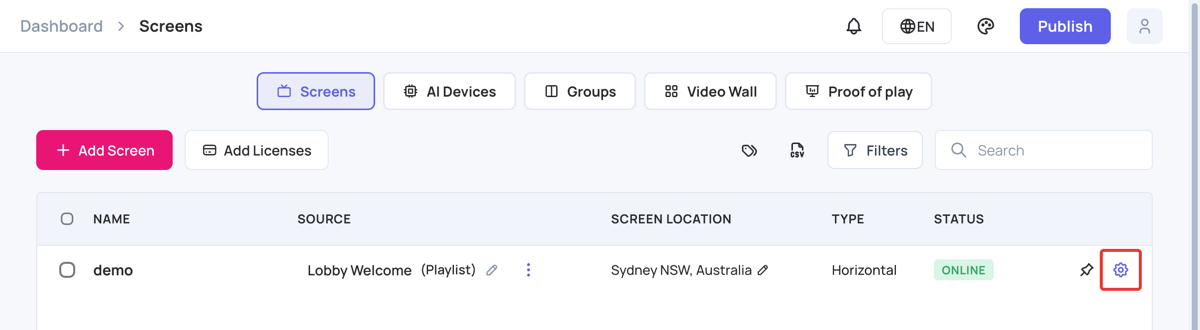
- On the screen’s row, click the Screen Details (gear) icon.
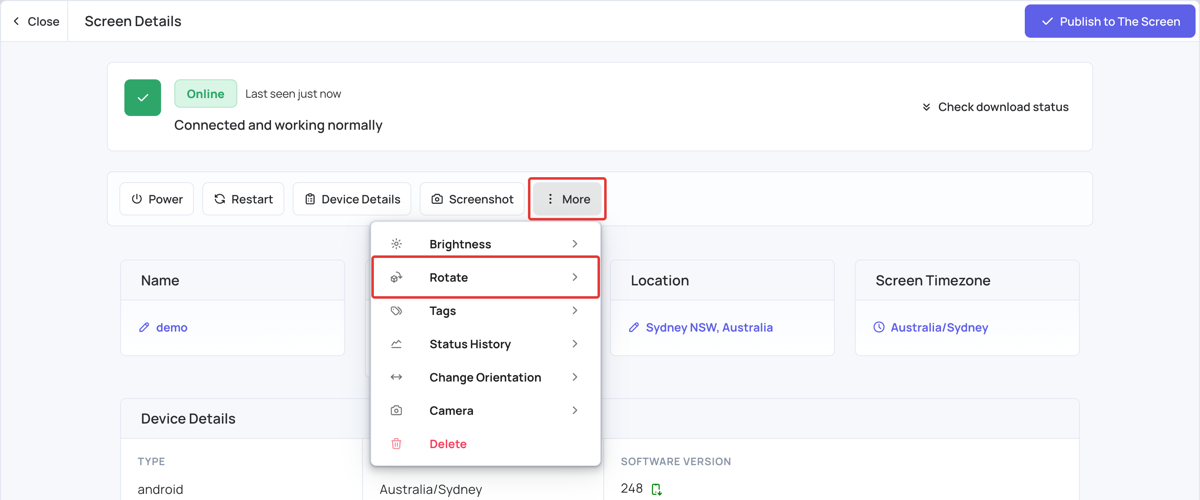
- In Screen Details, click More, and then click Rotate.
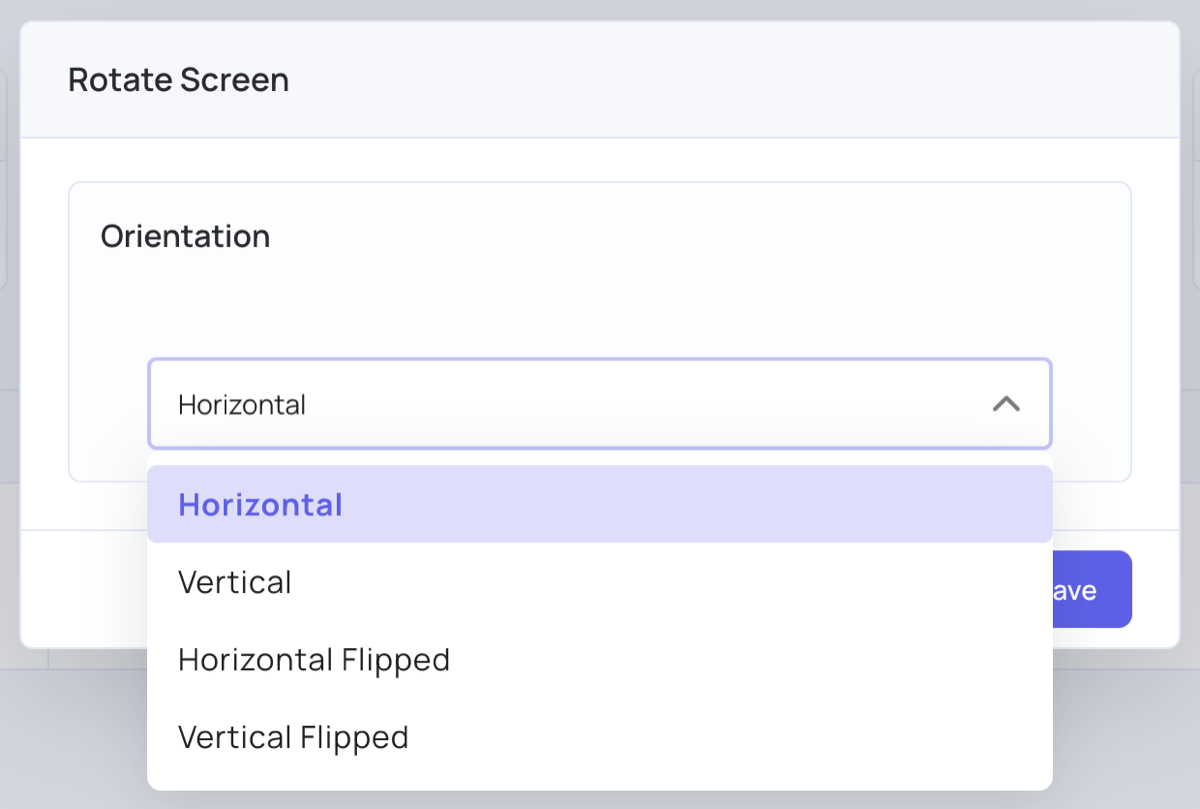
- In the Rotate Screen dialog, open the Orientation list and choose an orientation:
- Horizontal: 0 degrees
- Vertical: 90 degrees
- Horizontal Flipped: 180 degrees
- Vertical Flipped: 270 degrees
- Click Save.
The rotate command is sent to the screen, and the screen rotates to the selected orientation.
What happens next
When you rotate a screen between horizontal and vertical, its type changes too. Horizontal and vertical playlists are separate, so you need to change the screen’s content to match the new orientation.
In the Source column, click the screen’s current source (or Set Screen Content) and assign a playlist, channel, group or schedule that matches the new orientation.
Use fake rotation or swap layer dimensions
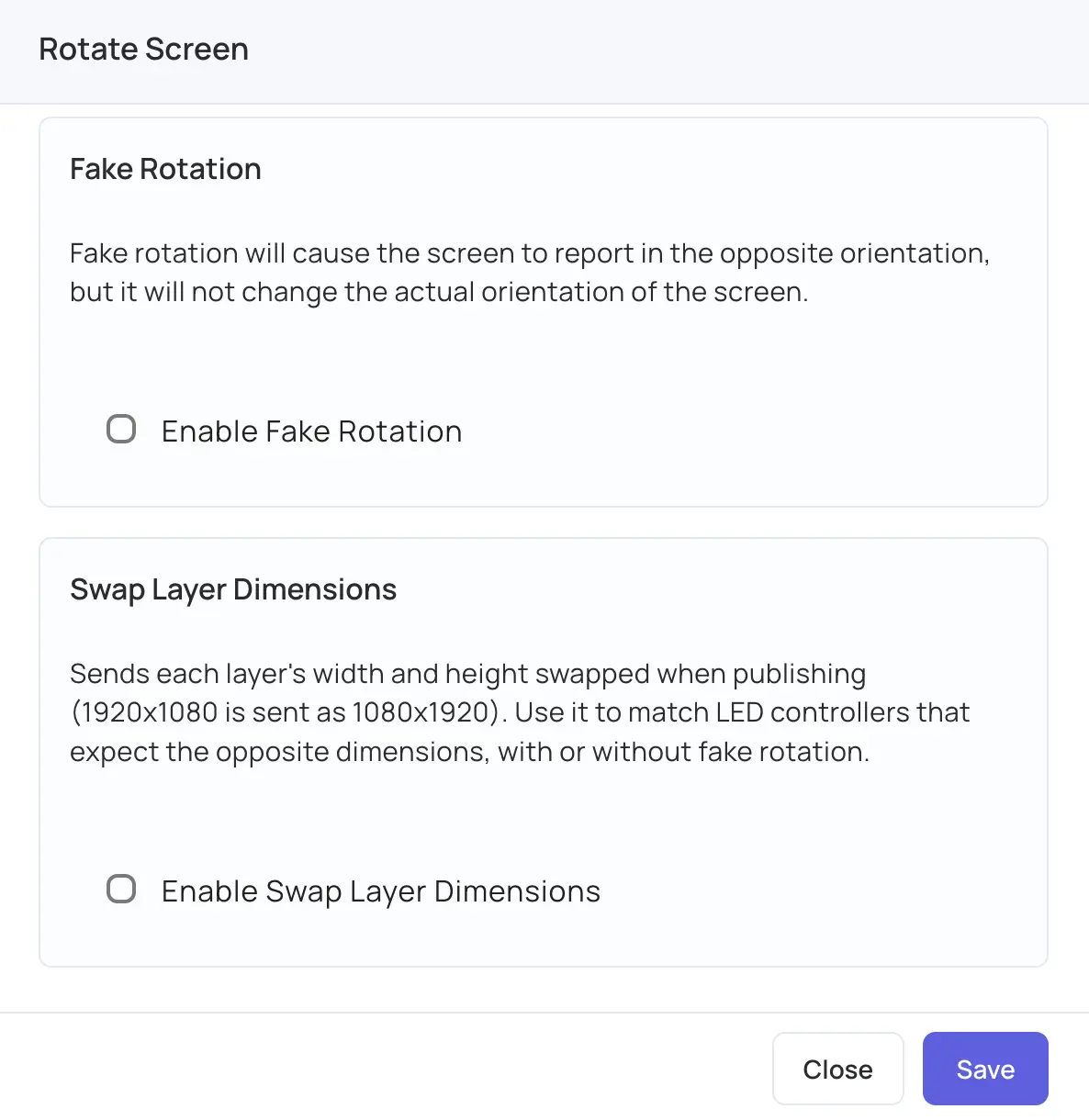
The Rotate Screen dialog also has two options that change how the screen’s orientation and layer dimensions are reported, without physically rotating the screen:
- Fake Rotation: The screen reports the opposite orientation, but its actual orientation doesn’t change.
- Swap Layer Dimensions: Each layer’s width and height are swapped when you publish. For example, 1920x1080 is sent as 1080x1920. Use this option to match LED controllers that expect the opposite dimensions. You can use it with or without fake rotation.
To turn on either option:
- Open the Rotate Screen dialog.
- Select Enable Fake Rotation, Enable Swap Layer Dimensions, or both.
- Click Save.
For Samsung Tizen displays
If you need to change the hardware display orientation and keep the original aspect ratio, follow the Samsung-specific steps:
Changing Display Rotation and Maintaining Original Aspect Ratio for Samsung Tizen Models