Most screens are 16:9, and that is what every screen uses until you change it. If your screen has a different shape, for example a 4:3 or square screen, or a very wide bar screen, set its aspect ratio so content is sent at the right size.
Note: This option is available on Android screens only. The button is called Change Orientation, but it sets the aspect ratio. To turn a screen between horizontal and vertical, use Rotate a Digital Signage Screen instead.
Set the aspect ratio
- Go to Screens and click the Screen Details (gear) icon on the screen’s row.
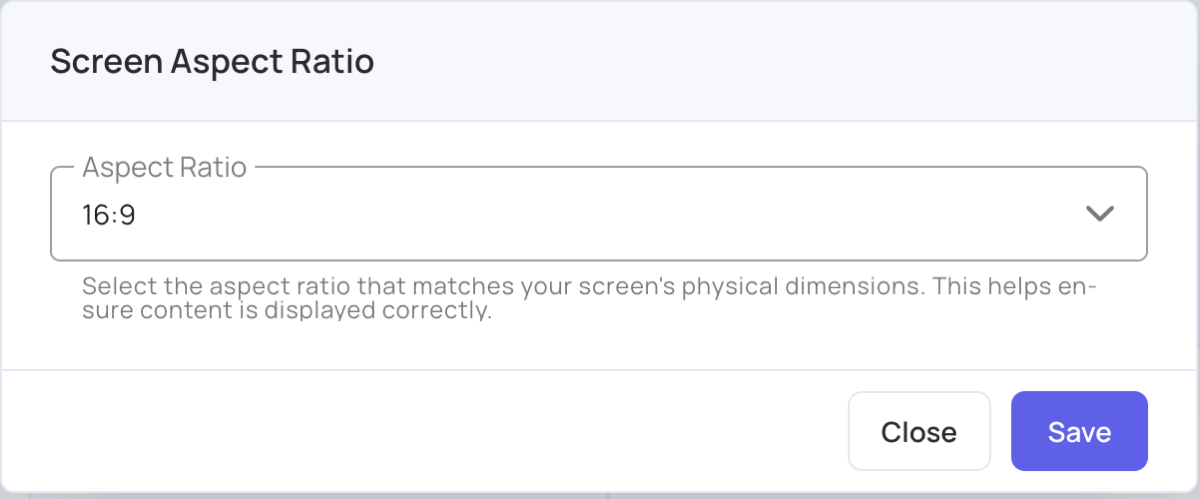
- Click More > Change Orientation. The Screen Aspect Ratio window opens and shows the current ratio.
- Choose the Aspect Ratio that matches your screen’s physical shape.
- Click Save, or Close to leave without changing it.
- Click Publish to The Screen. The new ratio reaches the screen the next time you publish to it.
| Aspect ratio | Size sent to the screen | Use it for |
|---|---|---|
| 16:9 | 1920 × 1080 | Most TVs and monitors. The default. |
| 16:10 | 1728 × 1080 | 16:10 monitors. |
| 4:3 | 1440 × 1080 | Older, squarer screens. |
| 12.5:1 | 1080 × 89 | Very wide, short bar screens. |
| 1:1 | 1080 × 1080 | Square screens. |
Each change is recorded in Account Logs .