To get started, open your browser and go to the EasySignage management console .
You can create an account and sign in in several ways:
- Google or Microsoft (fastest)
- Email and password
- Single sign-on (SSO) with your organisation’s account
- Passwordless login with a link sent to your email
Create a new account

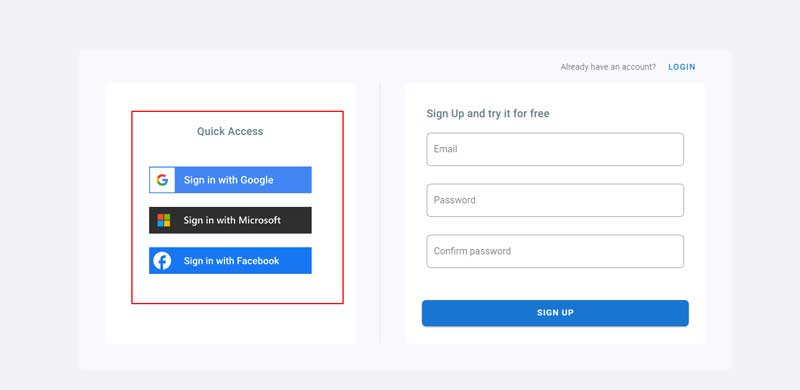
Option 1: Register with Google or Microsoft (fastest)
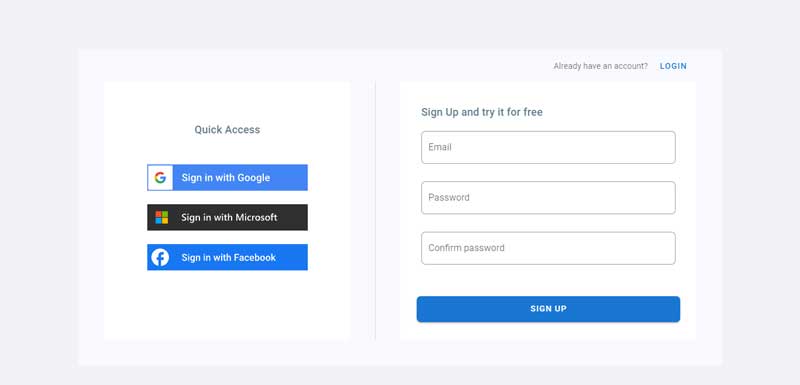
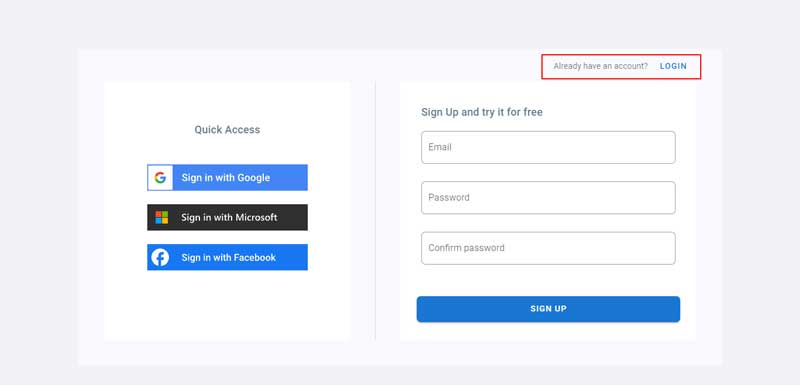
- On the Register New User form, under Or continue with, click Google or Microsoft.
- Choose your account and allow access when asked.
- You’re signed in to EasySignage straight away.
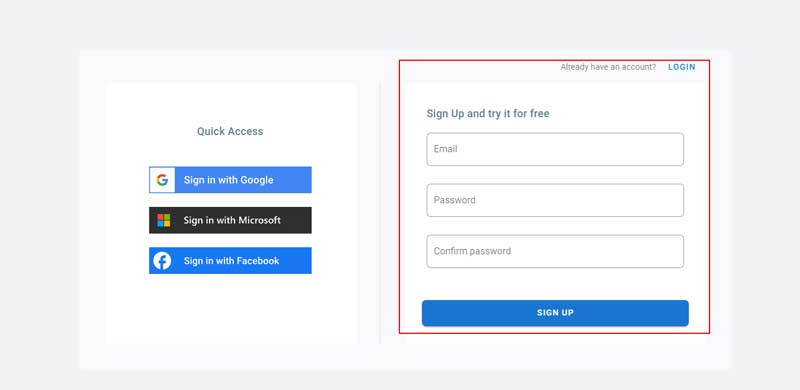
Option 2: Register with your email and password
- On the Register New User form, enter your Email.
- Enter a Password. It must be 8–150 characters and include an uppercase letter, a lowercase letter, a number and a special character.
- Enter the same password again in Confirm password.
- Click Register New User.
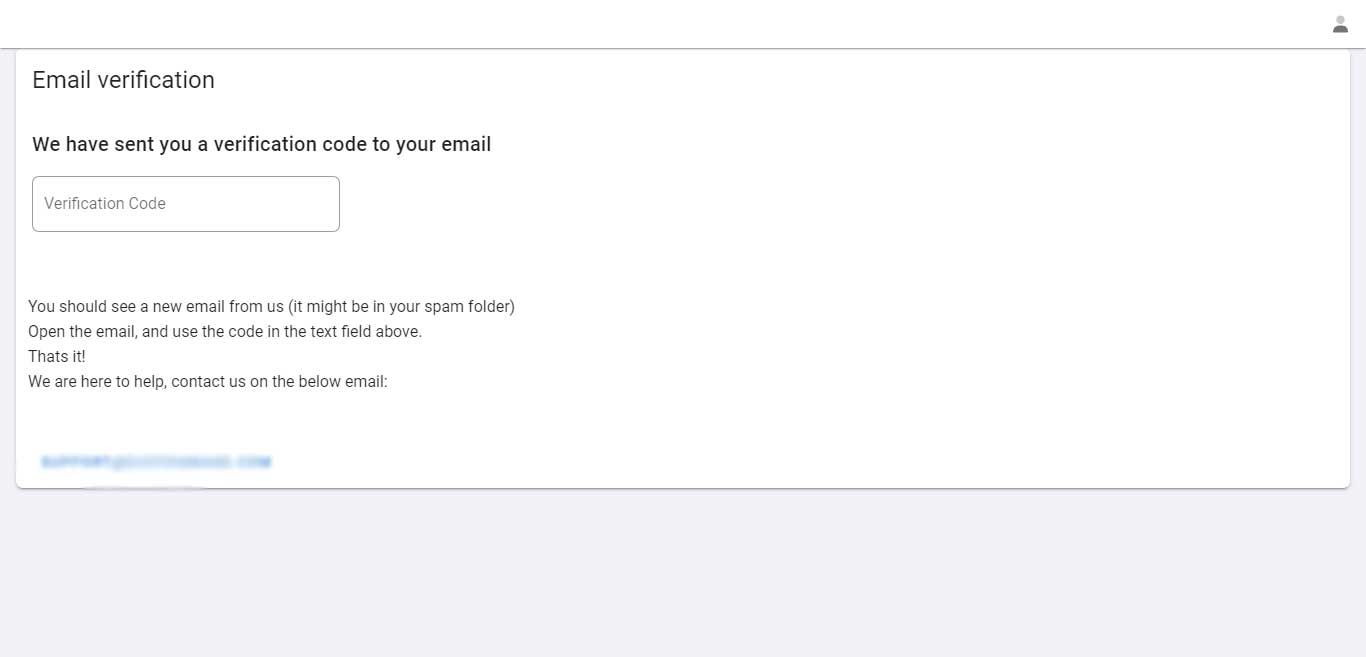
- On the Email verification screen, enter the Verification Code we sent to your email. If you can’t find the email, check your spam or junk folder.
- As soon as you type the code, your email is verified and you’re signed in.
Tip: Click the eye icon in a password field to show or hide what you’ve typed.
Sign in to an existing account
If you already have an account, click Sign in next to Already have an account? at the bottom of the registration form.

Sign in with email and password
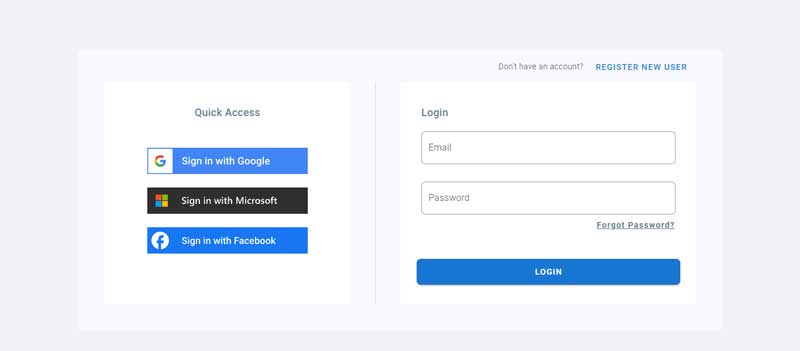
- Enter your Email.
- Enter your Password.
- Click Sign in.
If your organisation uses single sign-on for your email domain, you’re sent to your organisation’s sign-in page instead of signing in with a password.
Sign in with Google or Microsoft
- Under Or continue with, click Google or Microsoft.
- Choose the account you registered with.
Log in with SSO
Use this if your organisation signs you in through its own login system (single sign-on).
- Click Log in with SSO.
- Enter your work Email.
- Click Continue.
- You’re taken to your organisation’s sign-in page. Sign in there, and you’re returned to EasySignage.

Passwordless login
Sign in without a password, using a link sent to your inbox.
- Click Passwordless login.
- Enter your Email.
- Click Passwordless login.
- Open the email from EasySignage and click the access link to sign in.
To return to the sign-in form, click Back.

Reset a forgotten password
- On the Sign in form, click Forgot Password?
- Enter the Email you registered with.
- Click Submit.
- Check your inbox (and spam folder) for the reset email, then follow its instructions to set a new password.

Signed up with Google or Microsoft? You don’t have an EasySignage password. Click Google or Microsoft on the sign-in form instead.