This document explains how to configure and use interactive touchscreen features in EasySignage, including enabling touch functionality, setting up interactive playlists, and assigning touch actions to media elements.
Digital Signage Touchscreen Confirguration Guide
Touch screen features are found under playlist settings, to open playlist Settings:
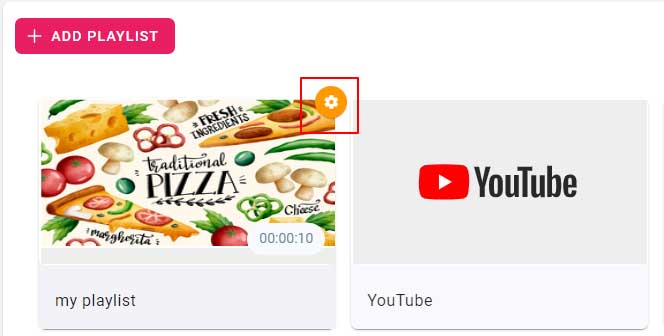
- Go to the playlists page
- Hover on your playlist, you will see the settings button on the top right as shown in the image
- Click on it to open playlist settings
Manual control
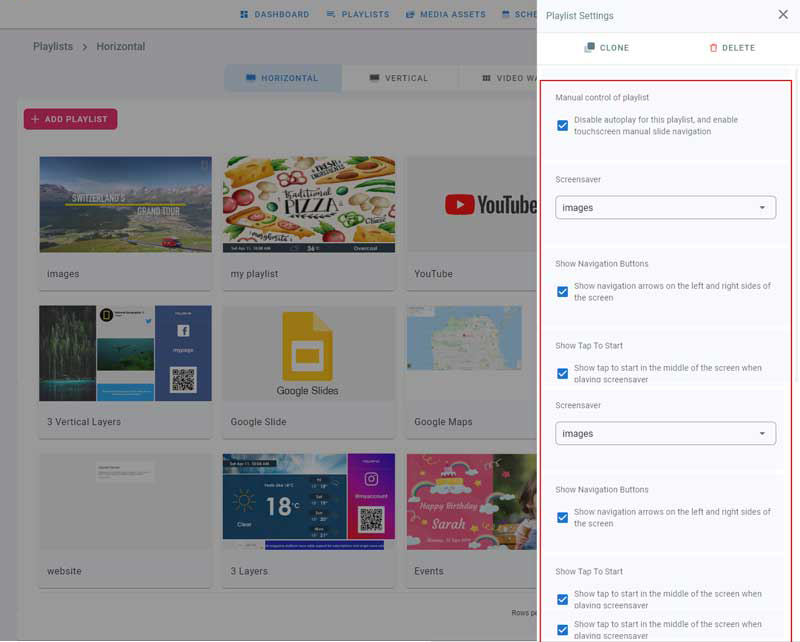
- This feature works on touch screens or using a remote control with a navigation pad
- Check the manual control box to stop automatic playlist playback.
- On your screen, swipe left and right to view the media of your playlist
Screen Saver
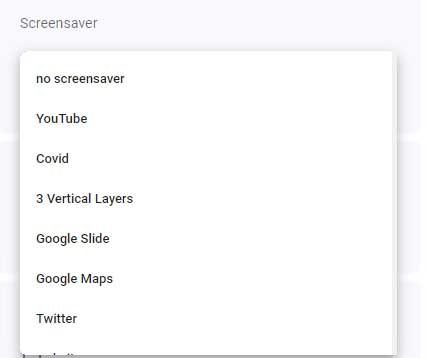
- Screensaver is used with manual control to playback another playlist when the screen is idle
- To assign a screensaver, choose one of your existing playlists from the drop down
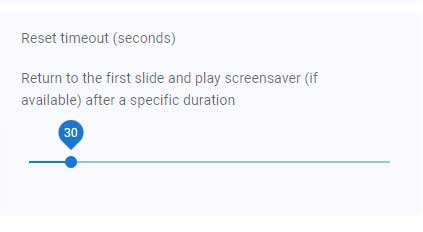
- If the playlist is not on the first media in the playlist, after this timeout, the playlist will return to the first media
- If a screensaver is assigned, the reset timeout is the idle time of the screen before playing the screensaver.
Navigation
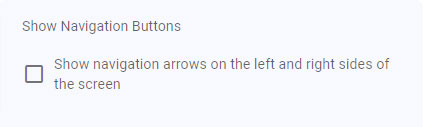
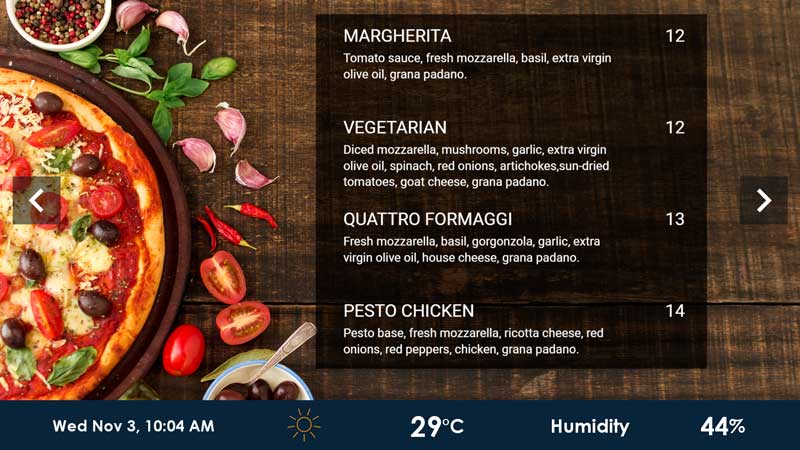
- Check this box if you want to show left and right arrows on your screen while using manual control
- Below is a preview of the navigation buttons on the screen
Tap to Start
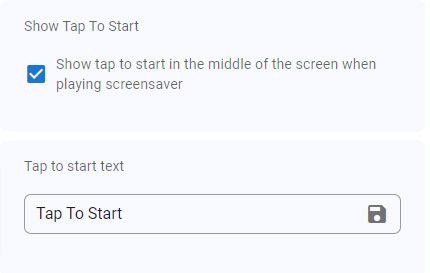
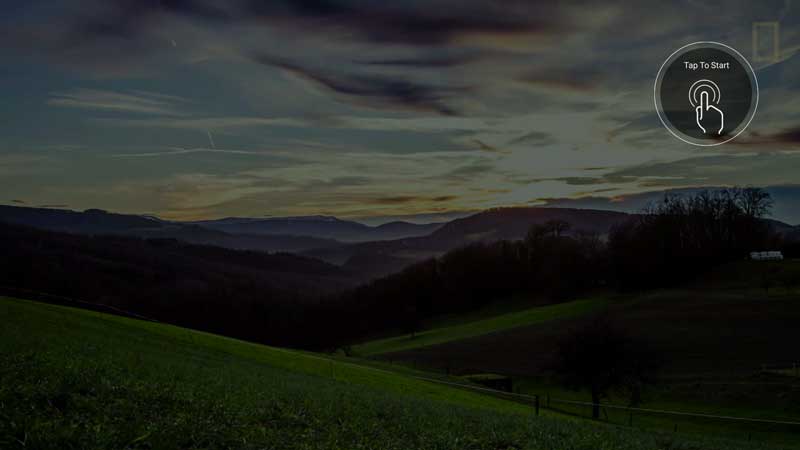
- Check Tap to start box to show it on top of the screensaver
- Type in the tap to start text that will show on the screen on top of the screensaver
- Below is a preview of the tap to start and screensaver playlist