Configure individual media settings within a playlist — including playback duration, stretch-to-fit display, proof of play tracking with tags, and audience targeting. Also covers media management actions such as cloning and deleting items.
Media Settings
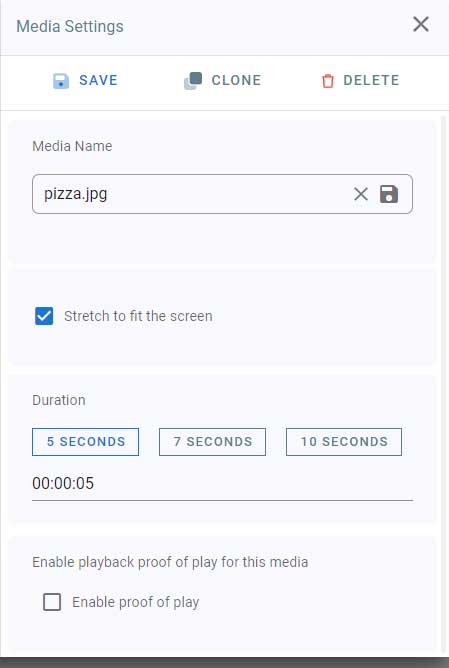
- Media Name: The media name can be used in Statistics collection. Type in a name for your media
- Stretch to fit: Check this box if you want your media (image or video) to fit the whole layer size without respecting the width to height ratio. If you want your media to be displayed with its original size irrespective to the layer size uncheck it.
- Duration: Choose your media playback duration in the layer playlist. Click on 5, 7 or 10 seconds, or, enter a value manually. 00:00:05 means 0 hours, 0 minutes and 5 seconds.
- Save: Click on Save to save your media settings.
- Clone: Click on clone to clone the media with all its properties.
- Delete: You can delete the media from here as well.
- To close the settings, click on the X button in the top right corner.
Proof of Play
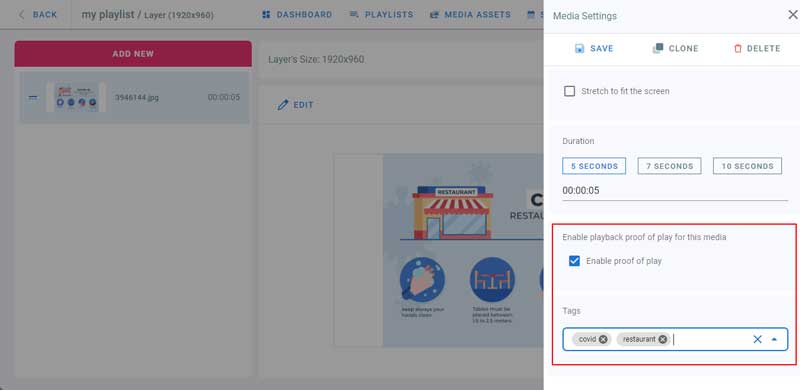
- Proof of play is used for collecting playback statistics. Check this box to enable statistics collection when this media is played back
- Type in tags and Press Enter. This will help filtering the proof of play results
- To delete a tag, click on the x button next to its name, or on the X button at the right to delete all the tags
Tags
Using tags, you can limit media that belong to the same playlist to play on specific screens only.
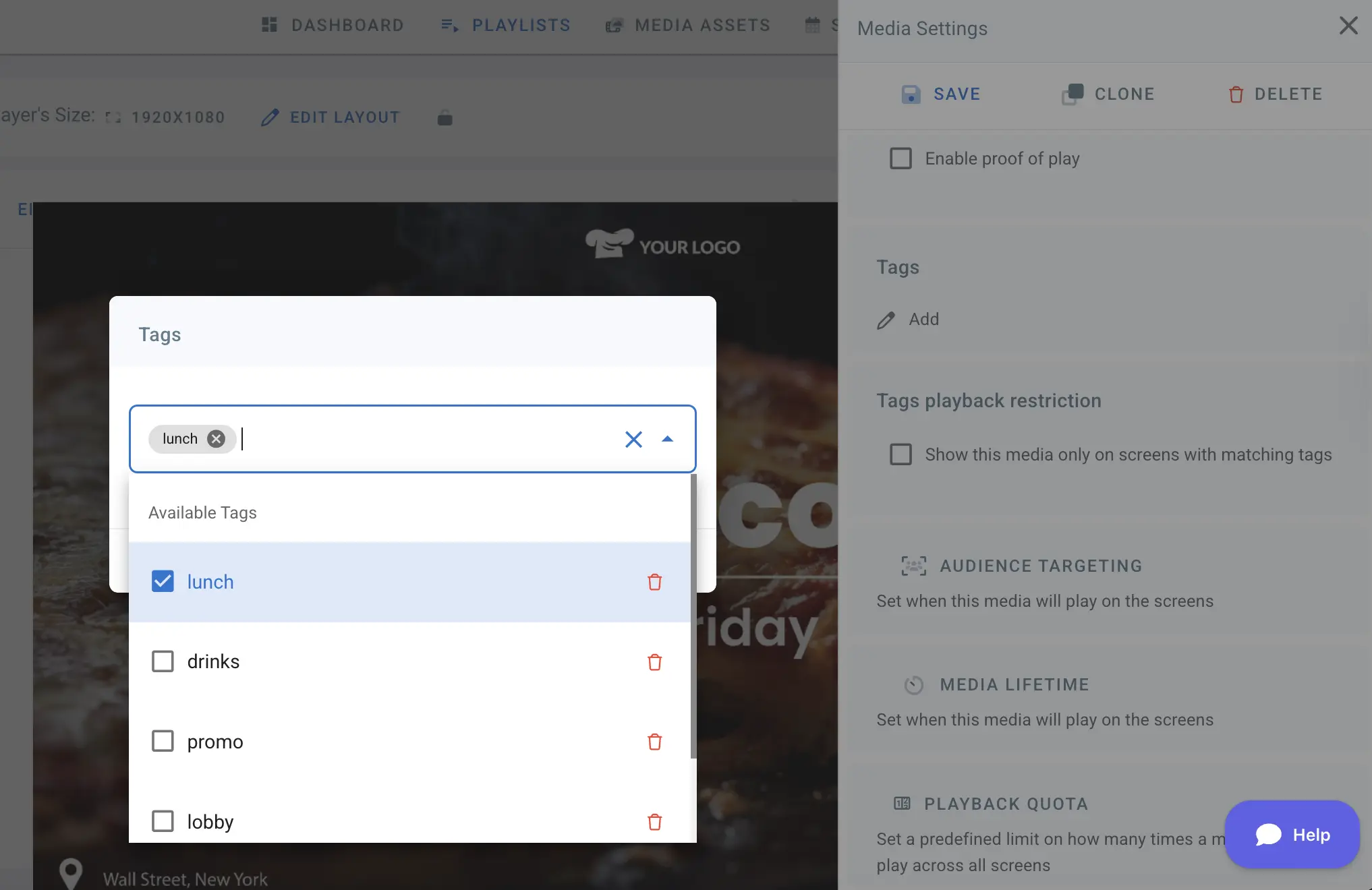
Read more on TAGS .
Audience Targeting
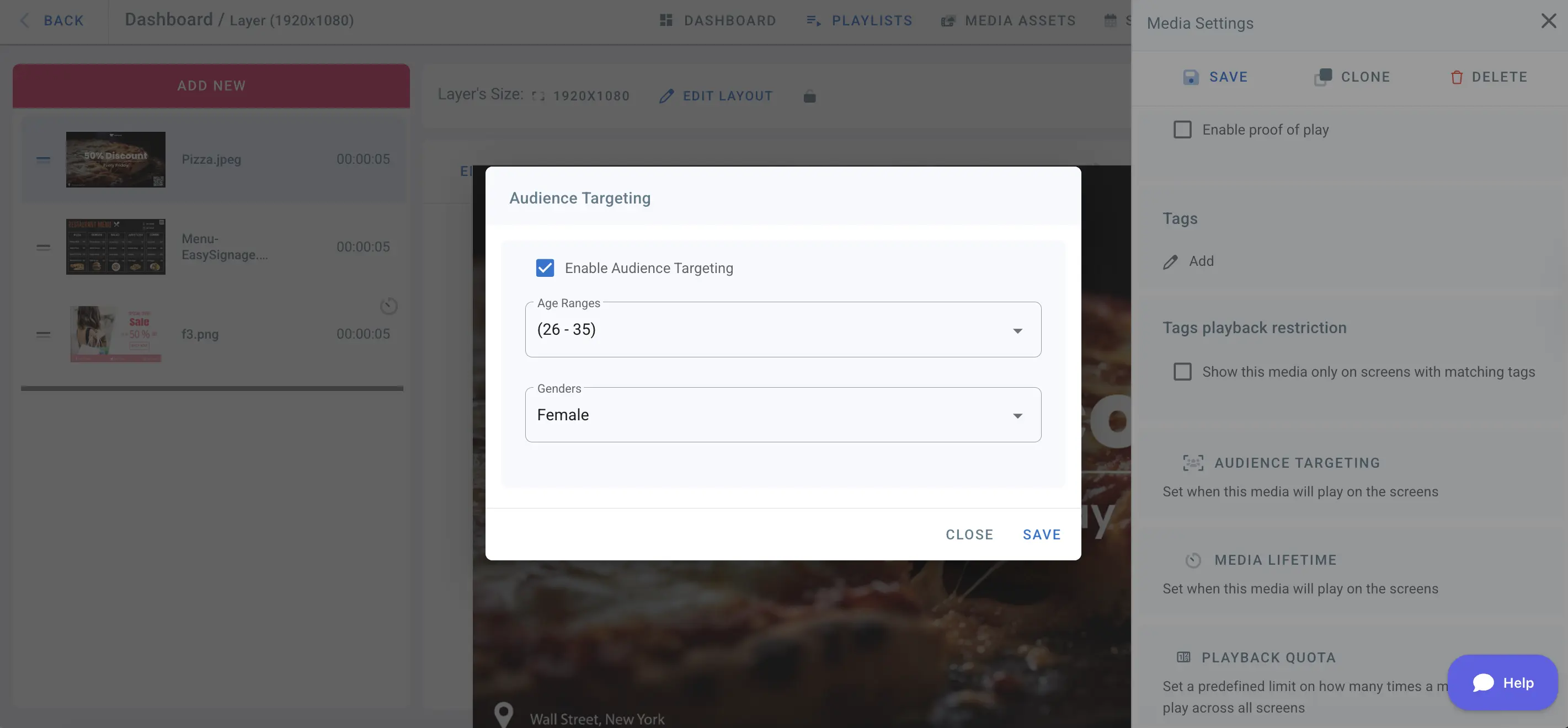
Enable audience targeting to show this media only when the detected viewer matches specific demographic criteria such as age group or gender.
- Check the box “Enable Audience Targeting”
- Choose the age range from the drop down list
- Select the targeted gender, male or female
- Click save
Playback Times
Set a date and time range, or a weekly schedule, for a media item so it automatically starts and stops playing on screen without any manual intervention.
Read more on Playback Times .
Playback Quota
Limit how many times a media item plays per day or per hour — useful for ad campaigns and controlling content frequency.
Read more on Playback Quota .
Click Back to return the layout preview.