Media Assets is your library of files: images, videos, audio, documents (each page becomes an image) and HTML apps. Files you upload to a playlist are kept here too, so you can reuse any file in other playlists without uploading it again, and keep your library organized in folders and with tags.
To open it, click Media Assets in the menu on the left.
Important: deleting a file from Media Assets also deletes it from every playlist that uses it.
The Media Assets Page
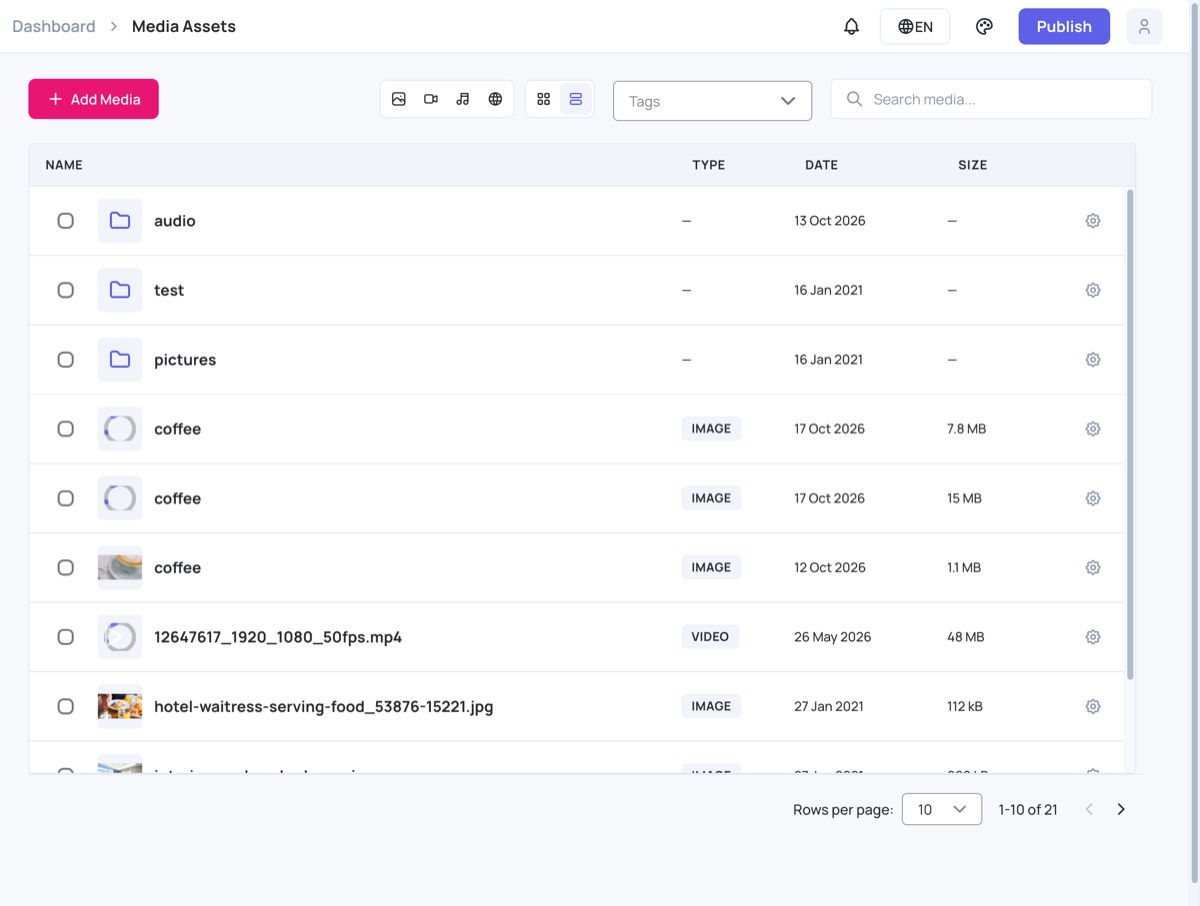
- Add Media: upload files or add a folder.
- Filters: show only images, videos, audio or HTML apps. Click a filter again to show everything.
- Grid and list: switch between large previews and a list with the type, date and size of each file.
- Tags: show only the files with the tags you choose.
- Search media…: find files and folders by name.
- Rows per page, at the bottom: how many items to show on each page.
Upload Files
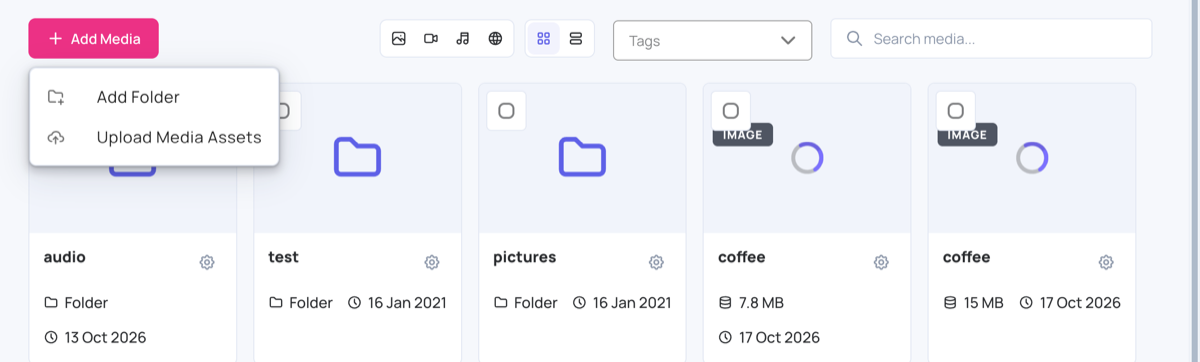
- Click Add Media, then Upload Media Assets.
- Add your files, from your computer or another source, and wait for the upload to finish. See Upload Media .
Create Folders
- Click Add Media, then Add Folder.
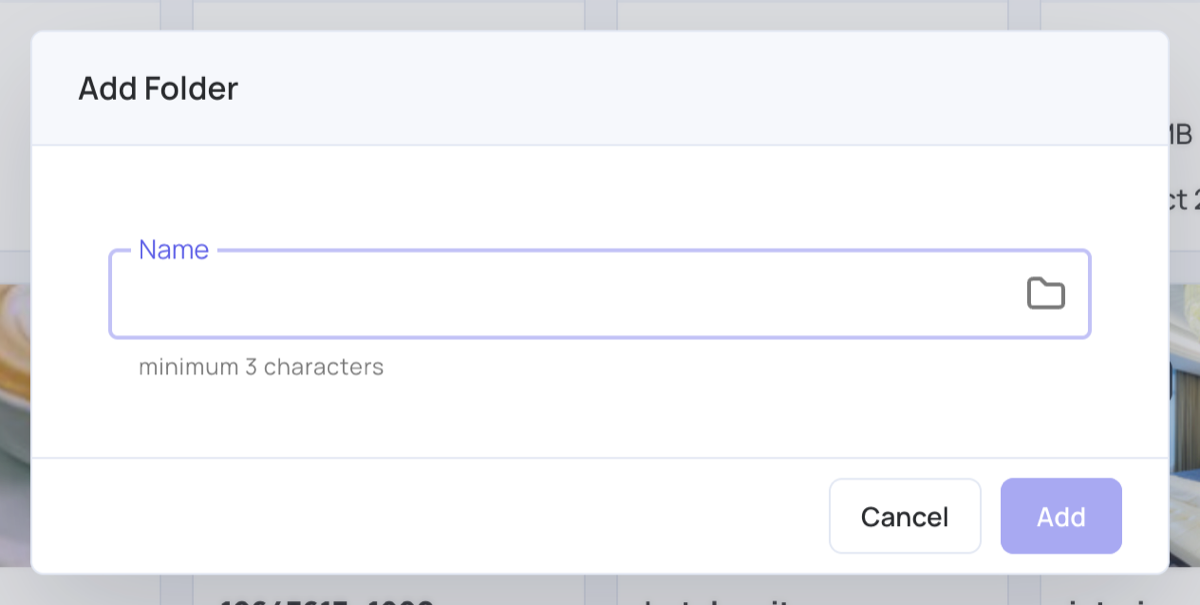
- Type a name (at least 3 characters), then click Add.
- Click a folder to open it. You can create folders inside folders, and upload files straight into the open folder.
- To go back up, click a folder or Media Assets in the path at the top of the page, for example Media Assets > pictures.
- To rename or delete a folder, click the gear icon on the folder.
Select Files
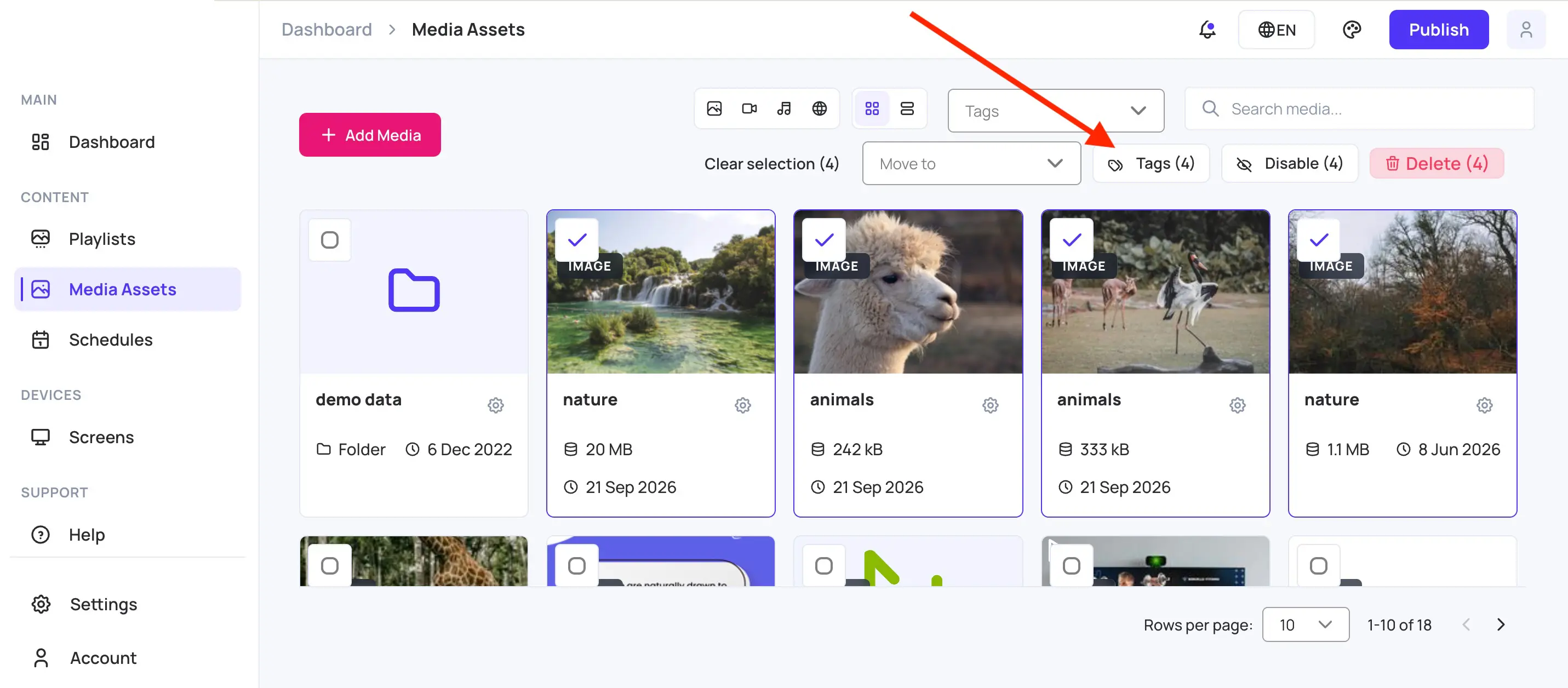
Tick the box on one or more files or folders. A bar appears with actions for the selection:

- Clear selection: untick everything.
- Move to: choose a folder to move the selected items into.
- Tags: add or remove tags on the selected files (below).
- Disable or Enable: stop the selected files from playing on your screens, or let them play again. Disabled files stay in your library and keep their settings.
- Delete: delete the selected items. This also removes them from every playlist that uses them.
File Settings
Click the gear icon on a file to open its settings: its name, whether it plays on your screens, its duration, playback times, tags and proof of play. See Playlist Media Settings .
Add or Remove Tags on Several Files
- Tick each file you want.
- Click Tags. The button shows how many files are selected. Folders aren’t counted, because folders don’t carry tags.
- Choose Add or Remove.
- Type or choose one or more tags.
- Click Save.
- Add: adds the tags to every selected file. Tags already on the files stay. New tags are added to your tag list, so every tag picker offers them.
- Remove: takes only these tags off every selected file. Other tags stay. Capitalization doesn’t matter here: removing
lobbyalso removesLobby.
A message shows how many files were updated. If some can’t be updated, a message shows how many failed, and the files stay selected so you can try again.
To control which screens play tagged media, see Control media playback by tags .
To add files from Media Assets to a playlist, see Media Assets App .