Send to screen puts files from Media Assets on your screens in three steps. It makes a new full-screen playlist with the files you picked, assigns it to the screens you choose, and publishes it.
Warning: The screens you choose stop playing what they play now and play the new playlist instead.
Before you begin
- You need access to Playlists and Screens, without Readonly, and the Publish option on Screens. See Teams.
- Only files that are ready can be sent. Folders, files that are still processing and disabled files are left out.
Send files to screens
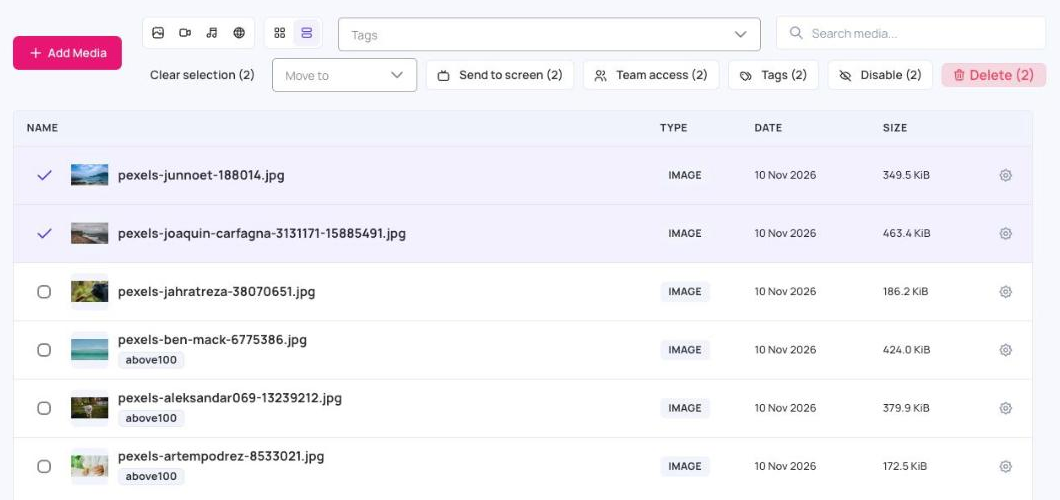
- Go to Media Assets and tick the files you want to show.
- Click Send to screen. The button shows how many of the ticked files can be sent.
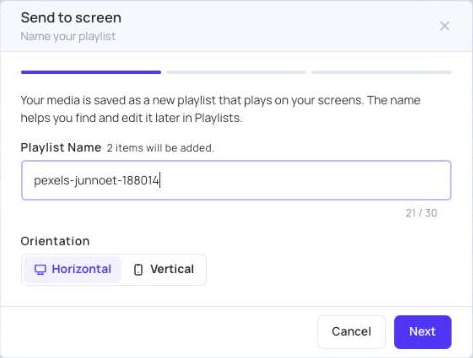
- Name your playlist: check the Playlist Name (3 to 30 characters). It starts with the name of the first file. Choose the Orientation: Horizontal or Vertical. Click Next.
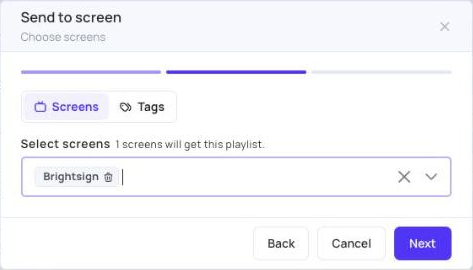
- Choose screens: pick the screens in Select screens. Only screens with the orientation you chose are listed. If your account uses tags, you can click Tags and pick tags instead: every screen with one of those tags gets the playlist. Click Next.
- Ready to publish: check the summary, then click Publish.
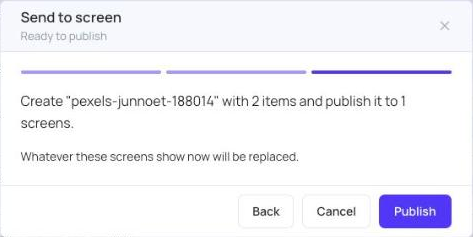
Nothing is changed until you click Publish. Click Back to change an earlier step, or Cancel to stop.
What happens next
The wizard shows its progress: Creating the playlist, Adding media, Assigning screens and Publishing. When it finishes, click Open playlist to edit the new playlist, or Close.
- The files are copied into the playlist. The originals stay in Media Assets.
- The new playlist appears in Playlists, where you can change it like any other playlist.
- If Media approval is on, files that wait for approval aren’t sent until they are approved.
Troubleshooting
“No screens match this orientation.” None of your screens has the orientation you chose. Click Back and choose the other Orientation.
"… items could not be added." or “… screens could not be assigned.” Some steps failed, but the rest went through. Open the playlist from Playlists to add the missing files, or use Assign to screens.
“Something went wrong. The playlist was created, so you can finish it from Playlists.” Open the new playlist in Playlists and finish it there.
“Something went wrong. Nothing was changed.” Try again. If it keeps happening, contact support.