Every screen you add uses one licence. Licences belong to your account, not to a particular screen: you can add screens until you have used them all. Your account includes one free licence forever for your first screen. To add more screens, buy more licences.
1. How to Add Licences
You can start from:
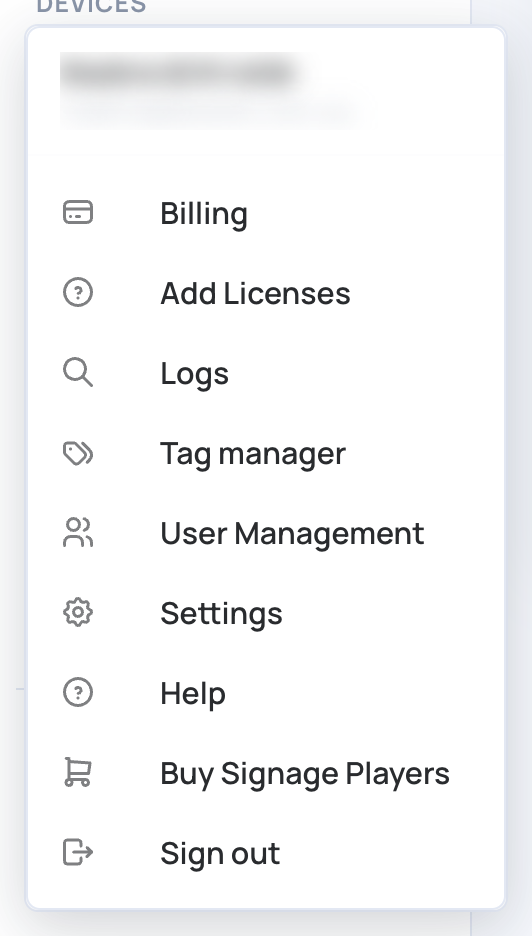
- Account at the bottom of the menu on the left, then Add Licenses.
- The Screens page, then Add Licenses.
- Add Screen on the Screens page, when all your licences are used: the Add Licenses window opens instead.
If you don’t have a paid plan yet
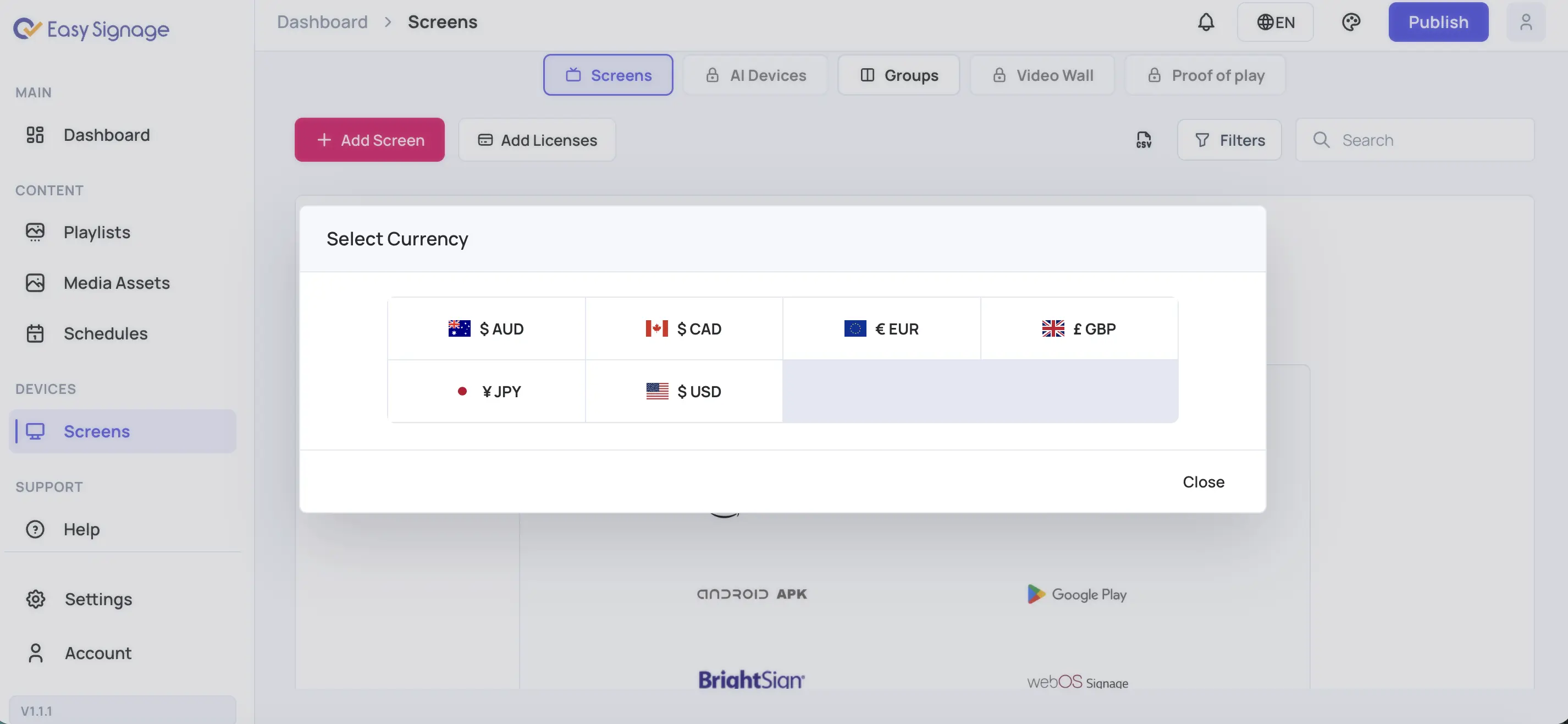
- The first time, choose your currency. This is permanent: it can’t be changed later.
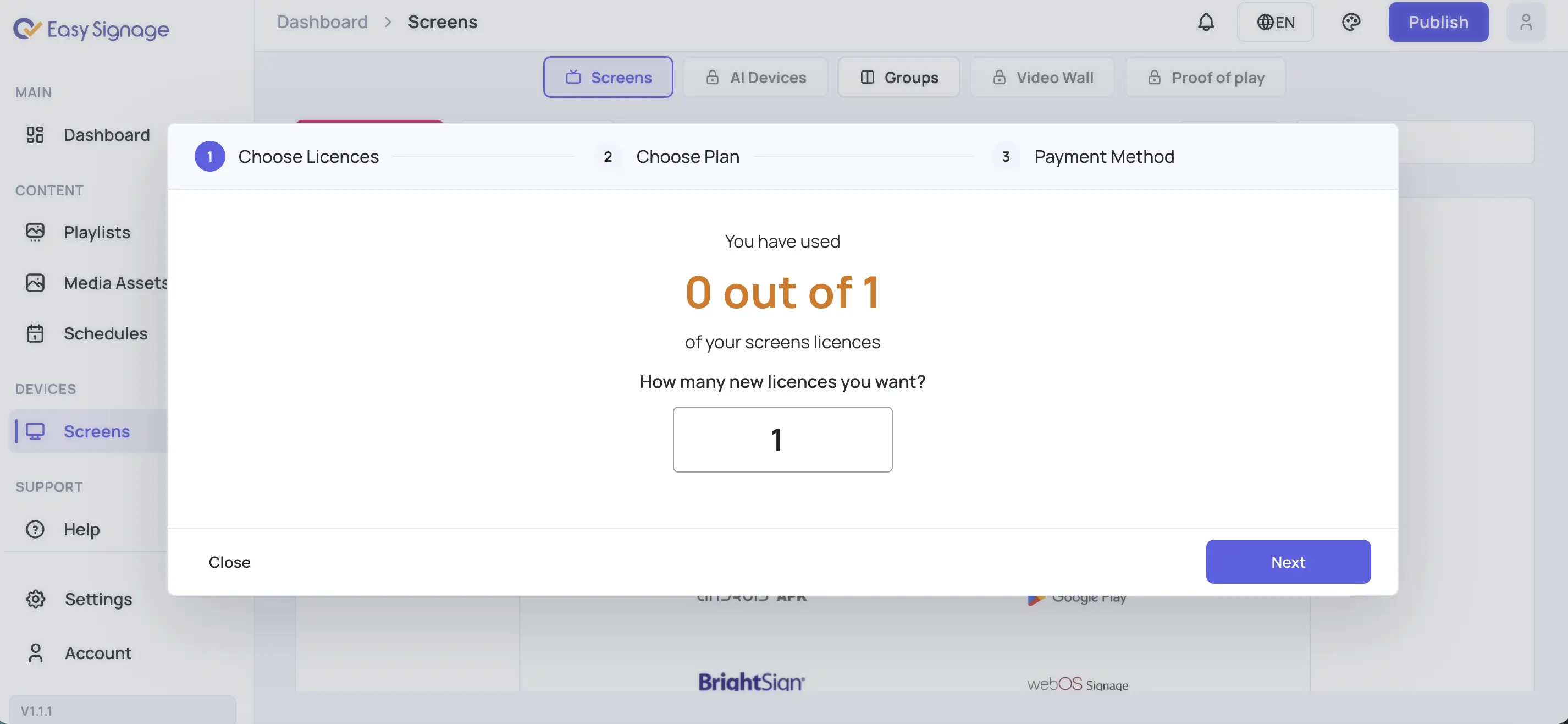
- Choose Licences: the window shows how many of your licences you have used. Enter how many new licences you want and click Next.
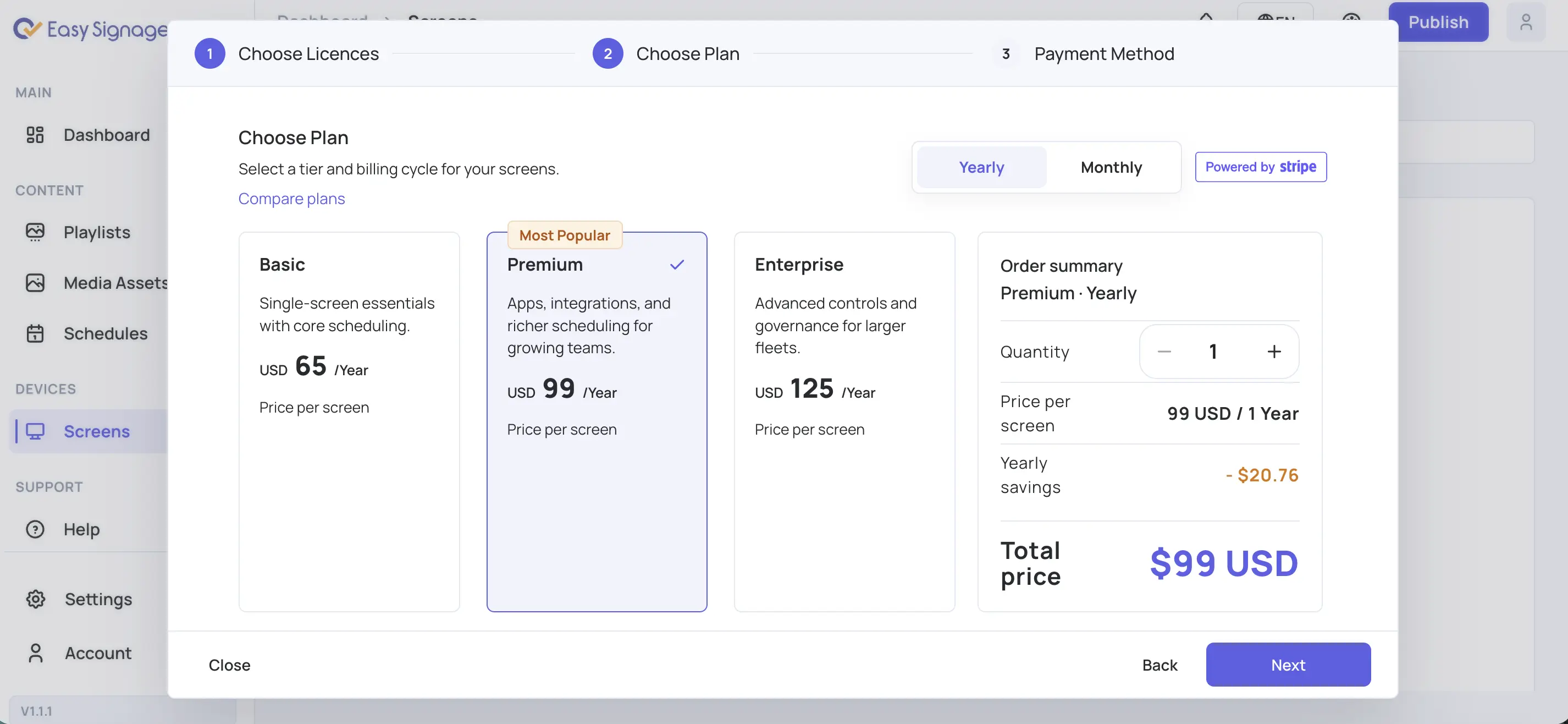
- Choose Plan: choose Basic, Premium or Enterprise, and Monthly or Yearly (yearly is chosen to begin with). The order summary shows the price per screen and the total. Click Next.
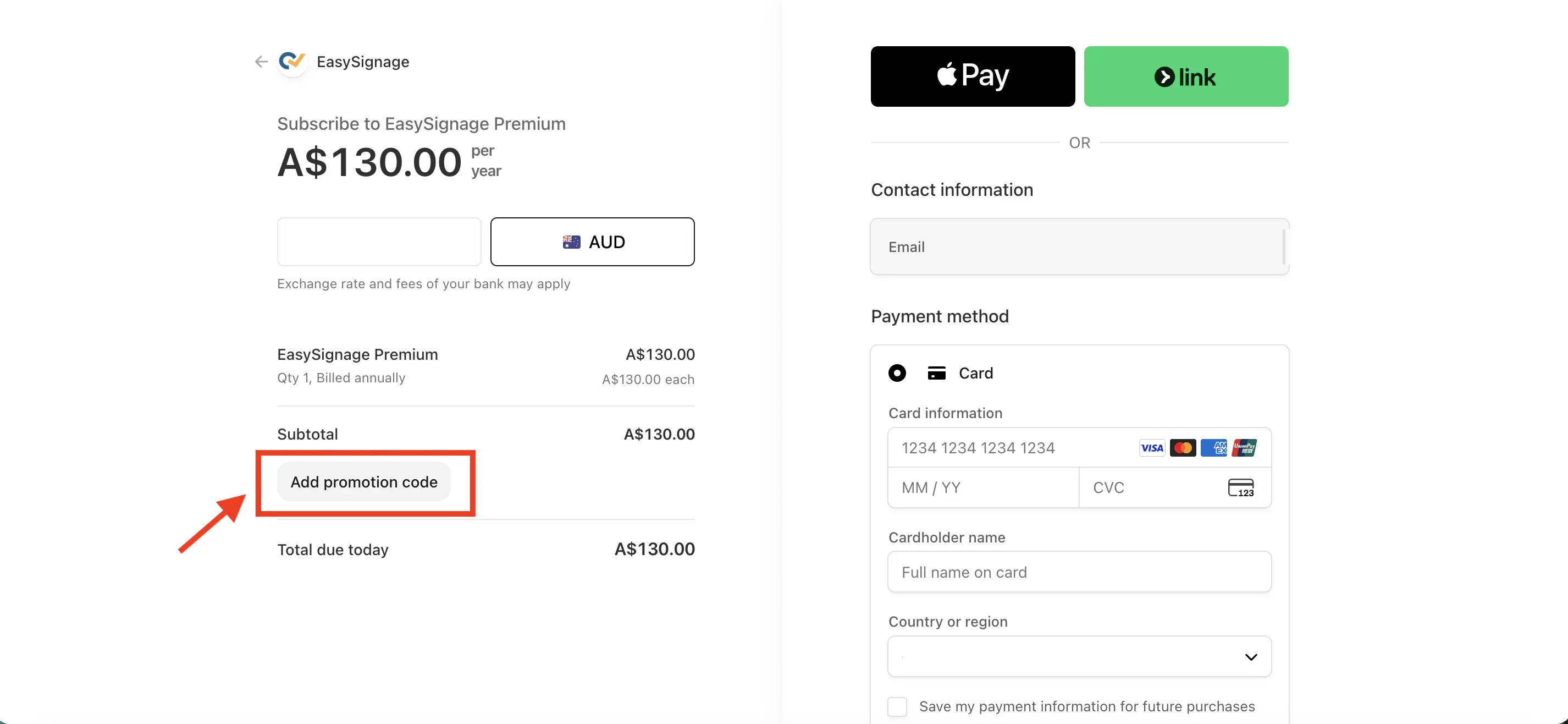
You are taken to the Stripe payment page. Enter your card details there. If you have a promotion code, click Add promotion code (or discount coupon) on that page and enter it. The discount will be applied to your account.
Note: Enter the promotion code before you complete the payment. If you pay first, the discount won’t apply to your subscription.
- After paying, you come back to the Screens page and the new licences are added to your account.
Your email address must be verified before you can pay.
If you already have a paid plan
Add Licenses opens your Stripe billing page in a new tab. Change the number of licences in your subscription there. You can’t start a second subscription.
2. Billing
- Click Account at the bottom of the menu on the left.
- Click Billing. Your billing page opens in a new tab.
Billing is powered by Stripe . On the billing page you can see your current plan, manage your payment methods, update your billing information, see your invoices and update or cancel your subscription.
3. When a Screen’s Licence Has Expired
If your account has more screens than licences, for example after you reduce your subscription, you see the notification “One or more screens has expired licence”. The affected screens show “licence Expired, updates will not be sent to this screen”. Add licences, or remove screens you no longer use, to fix it.