This page shows how to integrate OneLogin with EasySignage to enable Single Sign-On (SSO) using OpenID Connect. This allows users to authenticate into EasySignage with their OneLogin credentials.
OneLogin integration is done using OpenID Connect. To add the digital signage app to your organization catalog, follow the below steps:
How to Enable Single Sign-on
1. Create Custom Connector
Navigate to “Custom Connectors” as per the below screenshot
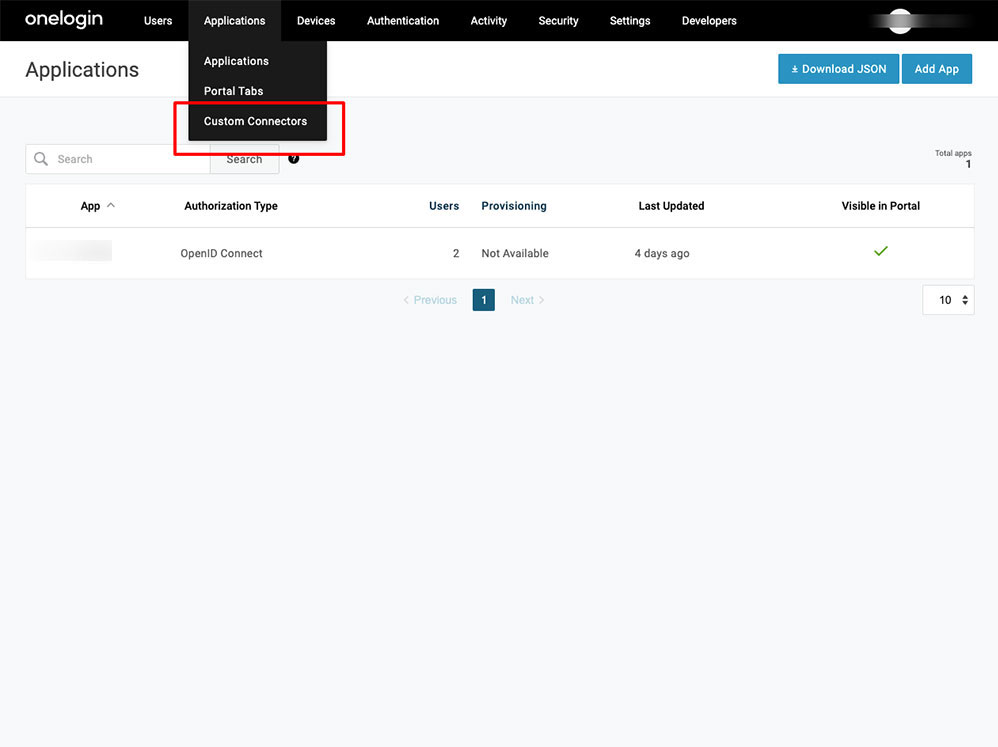
Create a new connector
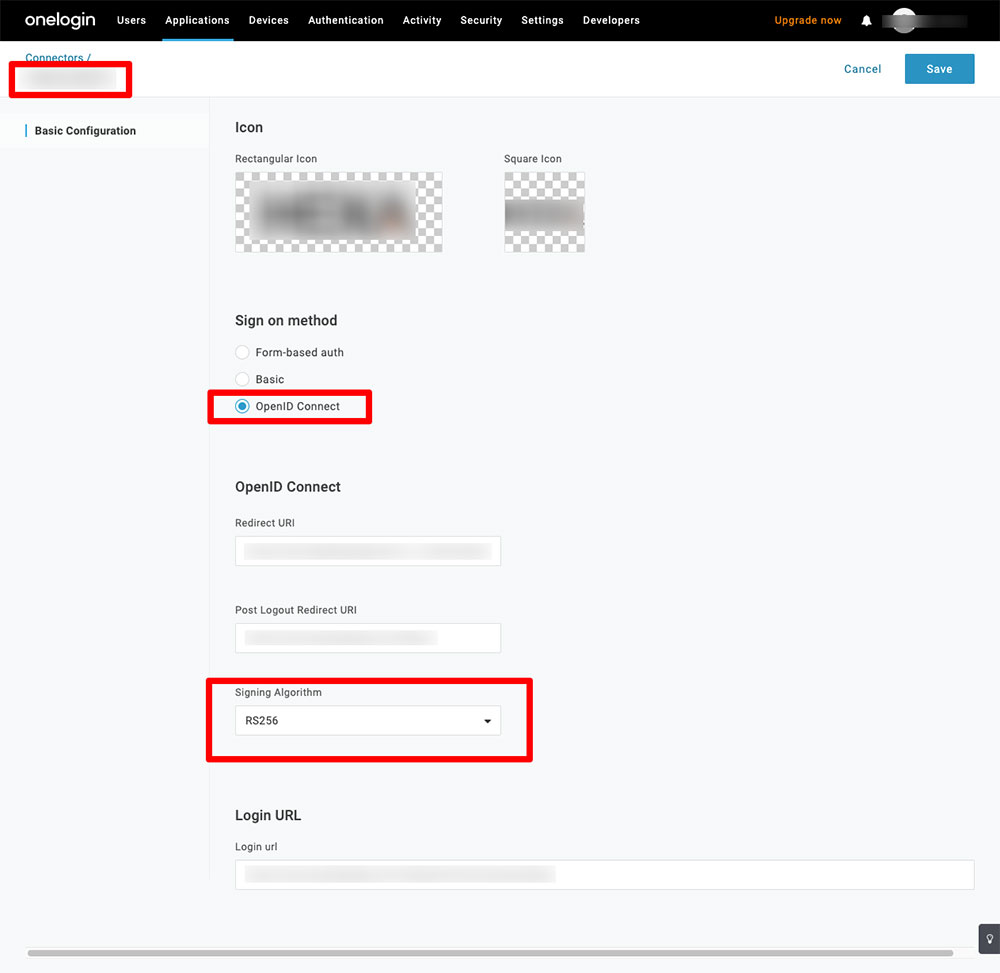
Fill up the connector name
Upload the logos. This logo will be displayed in your app catalog.
Choose OpenID Connect
Your system administrator will share 3 URLs as below:
- Redirect URI
- Post logout redirect URI
- Login URL
Choose RS256 as a signing Algorithm
2. Add the app to your company catalog
- After saving the customer connector, click add “Add App to Connector” to add the App to your catalog
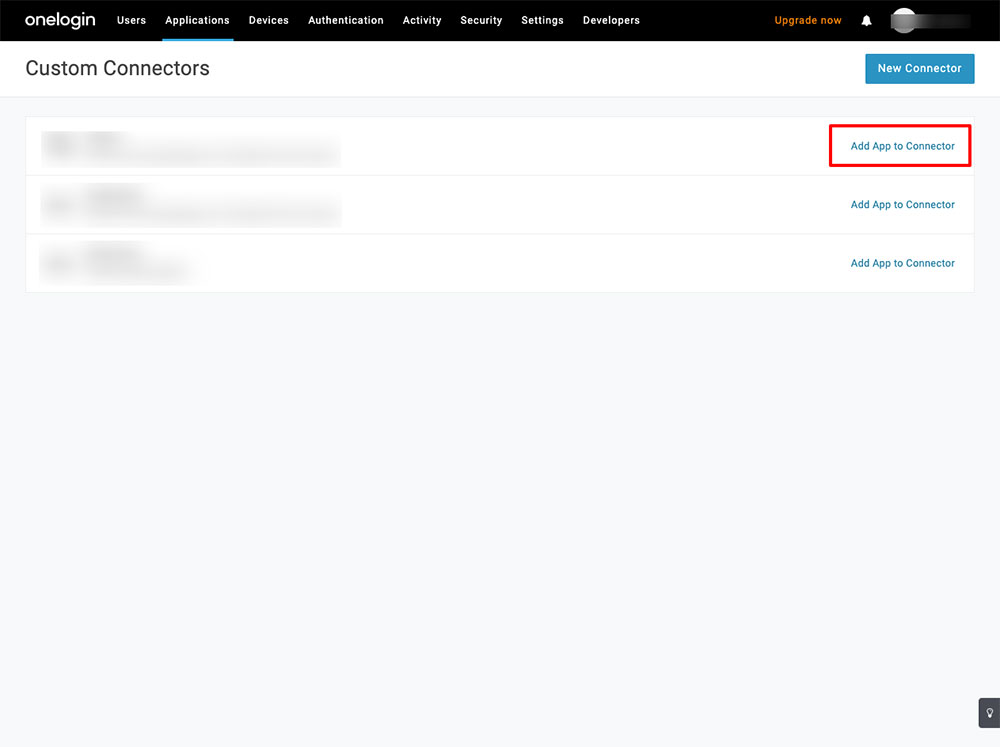
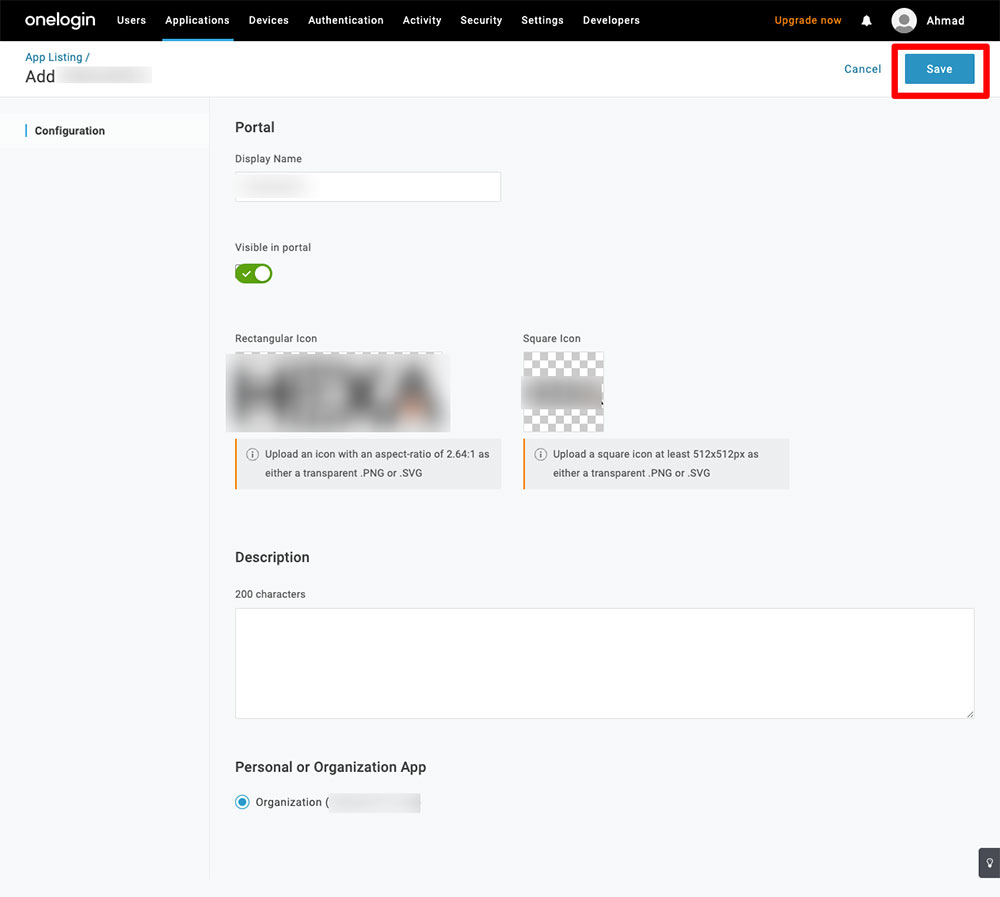
- This will add the app to your company catalog, fill up the needed details and click save.
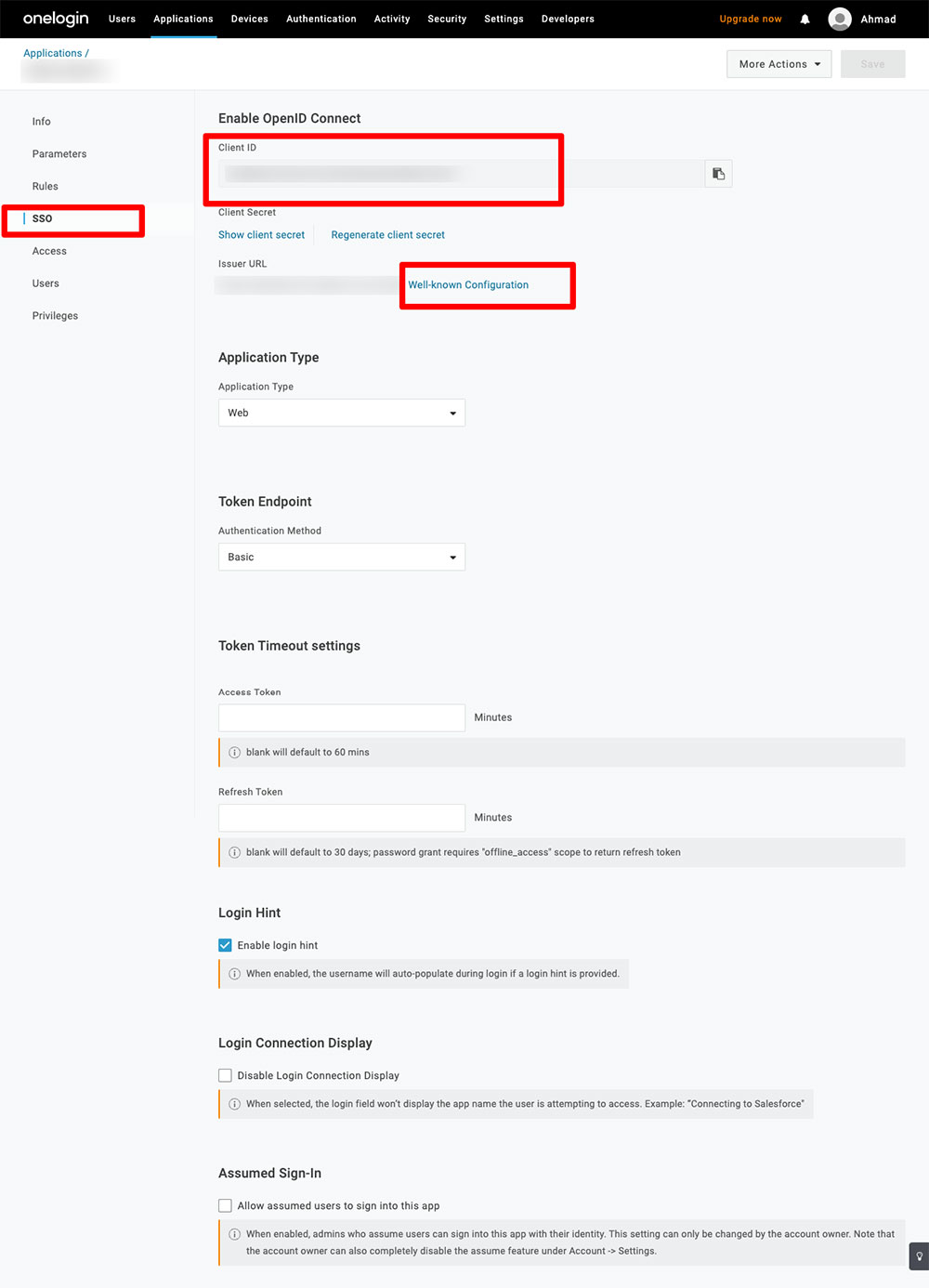
- To finish the configuration, you will need to send the Client ID and the Issuer URL to the system administrator to set them app from the digital signage apps side.
- You can find the Client ID and the Issuer URL under the SSO tab.