Connect your EasySignage account to an AI assistant such as Claude, ChatGPT, or Gemini, then manage your screens, playlists, media, and schedules by asking for it in plain language. The assistant can also answer questions about how the platform works.
The connection uses the EasySignage MCP server. MCP (Model Context Protocol) is an open standard that lets an AI application talk to an external service. You decide, area by area, what the assistant is allowed to see and change.
What You Can Ask the Assistant
A connected assistant does two separate things.
1. Answer questions about how EasySignage works
The assistant searches the EasySignage product documentation and explains the answer in the chat. It does not read your account to do this, so you get the same answer whether your screens are online or not. Ask it things like:
- “How does publishing work in EasySignage?”
- “What is the difference between a playlist and a channel?”
- “Why does the orientation of my playlist have to match the screen?”
- “How do I set up a video wall?”
This is the same product knowledge behind Help > Ask AI in the dashboard, available inside the AI application you already work in.
2. Work on your account
The assistant reads and changes the real content in the account you connected, within the permissions you granted. Ask it things like:
- “Which screens have been offline for more than a day?”
- “Create a playlist called Reception Loop and add the images from the Lobby folder.”
- “Schedule the Summer Sale playlist on the screens in the Sydney group from 1 December.”
Note: Documentation answers describe the product in general. When you need the state of your own account, ask about your screens, playlists, or schedules directly so the assistant reads live data instead.
Before you begin
- Your account needs API access, which is included with the Premium plan.
- Sign in to the EasySignage account you want to connect. The connection is bound to the account you are currently managing, not to every account you can access.
- Install the AI application you want to connect.
Get the server URL
- Go to Settings > AI Assistant.
- Copy the Server URL.
On easysignage.com the server URL is:
https://mcp.easysignage.com/mcp
Copy the URL from the AI Assistant page rather than typing it, because white-label brands use a different address. If your account does not show an AI Assistant tab, the brand you signed in to has no MCP server.
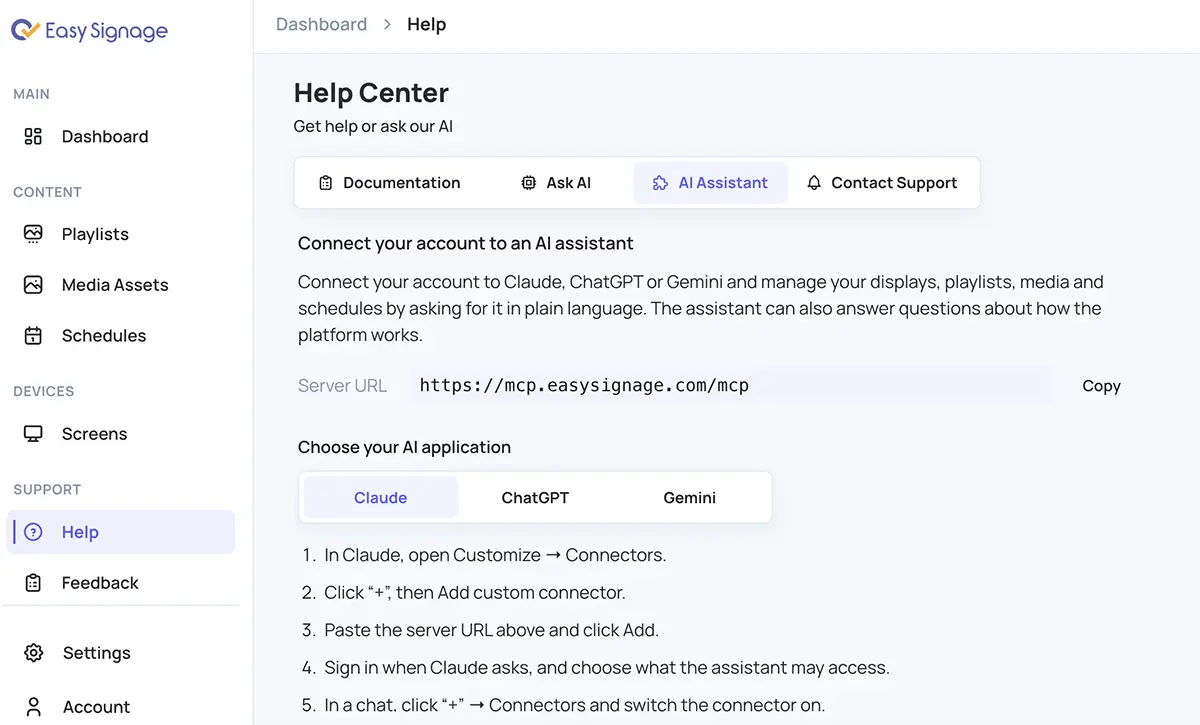
Connect Claude
- In Claude, open Customize > Connectors.
- Select +, then Add custom connector.
- Paste the server URL and select Add.
- Sign in when Claude asks, then choose what the assistant may access.
- In a chat, select + > Connectors and switch the connector on.
Note: On Claude Team and Enterprise plans, an owner adds the connector first under Organization settings > Connectors > Add > Custom > Web.
Connect ChatGPT
- In ChatGPT, open Settings > Connectors > Advanced settings and turn on Developer mode.
- Return to Connectors and select Create.
- Enter a name, paste the server URL, and choose OAuth as the authentication method.
- Sign in when ChatGPT asks, then choose what the assistant may access.
- In a chat, select + > More > Developer mode to use the connector.
Note: On ChatGPT Business and Enterprise workspaces, an admin must allow custom connectors first under Workspace settings > Permissions & Roles.
Connect Gemini
Install Gemini CLI, then run this command:
gemini mcp add --transport http signage https://mcp.easysignage.com/mcpStart Gemini CLI and run
/mcp auth signage.Sign in from the browser window that opens, then choose what the assistant may access.
Note: The Gemini web and mobile apps do not accept custom servers yet. In Gemini Enterprise, an administrator adds EasySignage as a custom MCP server connection instead.
Choose What the Assistant Can Access
After you sign in, EasySignage shows a consent screen naming the AI application that is asking and the account it will connect. Set each area to No access, Read only, or Full access:
- Screens
- Groups
- Video Wall
- Playlists
- Channels
- Zones
- Sync groups
- Schedules
- Folders
- Media Assets
Every area starts at the highest level the AI application asked for, so narrow it down before you continue. Grant at least one area, otherwise Allow access stays unavailable.
If the AI application asked for read-only access, Full access is not offered for any area.
Note: With Full access, the assistant can create and update content. It cannot delete a screen, playlist, or media file.
Find a Connection After You Connect
Each connection is stored as an API key on your account.
- Go to Settings > API Keys.
- Look for a key whose name starts with
MCP:.
The key name also contains the AI application’s name and the email address of the person who approved the connection, so several people can connect the same application to one shared account without replacing each other’s access.
Disconnect an Assistant
- Go to Settings > API Keys.
- Select the key for the AI application you want to disconnect.
- Delete the key.
The assistant loses access straight away.
Key permissions cannot be edited after the key is created. To change what an assistant can access, disconnect it, then connect it again and choose different permissions.
Troubleshoot a Connection
“Connecting an AI assistant is available on the Premium and Enterprise plans.”
The account does not have API access. Check your plan on the pricing page or contact support.
“This connection request has expired or was already used. Start again from your AI assistant.”
A consent link works once and expires. Start the connection again from the AI application instead of reopening the link.
“This account has reached its API key limit. Remove an unused key under Settings → API Keys and try again.”
An account can hold up to 10 API keys. Go to Settings > API Keys and delete a key you no longer use.
“This link points to an unrecognised server, so it was not opened.”
The consent page only sends credentials to EasySignage MCP servers. Always start the connection from the AI application, never from a consent link someone sent you.
“This connection request does not match your account. Start again from your AI assistant.”
You are signed in to a different account from the one the request was made for. Switch accounts, then start again from the AI application.
The AI Assistant tab is unavailable
If the tab appears but cannot be selected, the account has no API access. If the tab is missing, the brand has no MCP server.