The Amazon Signage Display is a 55-inch screen with a built-in media player. This page shows how to set it up, install EasySignage on it, and add it to your EasySignage account.
Note: The Amazon Signage Display is sold in the US only. To buy one, see Buy the Amazon Signage Display .
Before you begin
You need:
- An Amazon account.
- A network connection: a Wi-Fi network name and password, or an Ethernet cable and an active port.
- An EasySignage account. See Registration and Login .
What’s in the box
- Amazon Signage Display
- Remote and 2 AAA batteries
- Power cord
- 2 stand legs and 4 stand screws
- 4 VESA mounting screws (M6 × 12 mm), already fitted to the back of the display
Step 1: Set up the Amazon Signage Display
- Plug the power cord into the display, then into a power outlet.
- If you’re using a wired network, connect the Ethernet cable now.
- Press the power button on the remote or on the display.
The remote comes paired with the display.
Step 2: Install EasySignage
Choose one of the two setup methods:
Amazon Signage mobile app: best when you set up several displays. You can save the Wi-Fi and CMS settings as a profile and reuse it.
Remote and Amazon Signage portal: best for a single display, or when you don’t have a mobile device to hand.
Both methods install EasySignage on the display.
Option A: Use the Amazon Signage mobile app
You need a phone or tablet with internet access and Bluetooth turned on. The app needs a password-protected Wi-Fi network. Open Wi-Fi networks aren’t supported for app setup.
- Download the Amazon Signage mobile app on your mobile device from the App Store or Google Play.
- Open the Signage mobile app. Sign in with your Amazon account. The first time you sign in, the app creates an organization with you as its admin.
- Tap + to add a new device. The app looks for new displays within Bluetooth range.
- Select your display.
- Enter your Wi-Fi settings, and choose EasySignage as the CMS. The Amazon display will automatically download, install, and open EasySignage app in kiosk mode. To set up more displays the same way, save these settings as a profile.
- Choose a location for the display, create one, or tap Skip for now. Skipped displays appear under Unassigned.
The display checks for updates and installs EasySignage. This takes about 5 to 10 minutes.
Option B: Use the remote and the Amazon Signage portal
On the display, use the remote to choose your language and country.
The Amazon Signage Display will scan for available networks. Connect it to your Wi-Fi network. If an Ethernet cable is connected, this step is skipped. Otherwise, choose your Wi-Fi network and enter its password.
A registration code appears on the display.
Amazon provides a Signage Manager console to choose the preferred signage software (CMS) for your device. Open the Amazon Signage portal on a computer or laptop.
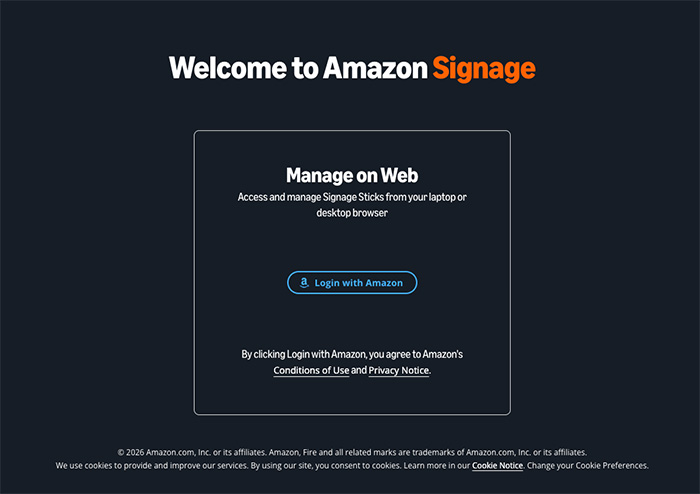
- Select Login with Amazon and sign in with your Amazon account credentials. If you don’t have an account, you will need to create one.
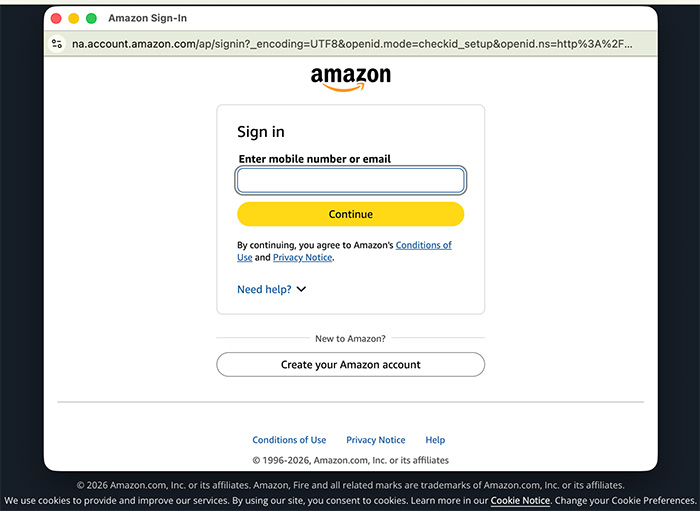
- Add the display:
- For your first display, enter the registration code and choose EasySignage as the CMS.
- For more displays, select + Add Device, choose EasySignage as the CMS, and enter the registration code.
The display installs EasySignage and any software updates. This takes up to 10 minutes.
Step 3: Add the screen to your EasySignage account
When EasySignage finishes installing, it opens on the display and shows a Screen ID.
- Go to app.easysignage.com and sign in.
- Select Screens in the left sidebar, then click Add Screen.
- Enter the Screen ID shown on the display, a Screen Name and a Screen Location.
- Click Add Screen.
The display appears in your screens list. To choose what it plays, see Set screen content .
Troubleshooting
The remote doesn’t respond.
- Check that the batteries are fitted the right way round and aren’t flat.
- Press and hold Home until the light on the remote flashes.
- If it still doesn’t respond, take the batteries out, put them back, and repeat step 2.
The display doesn’t show EasySignage after setup.
Installing the CMS can take up to 10 minutes. Keep the display on and connected to the network.
The Screen ID doesn’t add the screen.
The Screen ID is case-sensitive. Check every character, then try again. See Add a digital signage screen .