---
title: "Digital Signage Custom Apps — EasySignage"
description: "Upload a self-contained HTML app as a .zip and read each screen's ID, resolution, location, and tags, so one custom app adapts to every digital signage screen."
url: https://easysignage.com/help/custom-apps/digital-signage-custom-apps/
---
# Digital Signage Custom Apps
A **custom app** is a complete, self-contained website that you package as a `.zip` file and play on your screens like any other media. Everything is stored on the device, so the app keeps playing when the internet drops. Custom apps were previously called Offline HTML.
EasySignage hands every custom app a set of **player attributes**: the identity and context of the screen it is running on, including the player ID, the screen name, the screen or display-unit ID, the resolution, the location, and your custom tags. Your app reads those values and changes what it shows, so one package behaves differently on every screen. The attributes also use **Broadsign-compatible key names**, so a creative migrated from Broadsign can keep its field names.
With custom apps you can:
- Show the right content per screen, per store, zone, floor, region, or language
- Personalise API and data requests using the screen’s ID or tags
- Keep playing reliably offline, with no server round-trip on every frame
- Reuse one package across hundreds of screens instead of building one for each
> **New to this?** You do not need to write code to try it. Download the ready-made sample package and upload it, and the page displays every value your screen delivered. Developers can then copy one file into their own project to read the same values.
* * *
## Download the sample
To see how custom apps work, run the sample package. It shows every attribute the device delivered, live on the screen.
Ready-made custom app sample
[Download sample.zip](https://media.easysignage.com/help/offline-html/sample.zip)
The `.zip` contains three files:
| File | What it is |
| --- | --- |
| `index.html` | The page itself, and always the entry point. Markup only. |
| `easysignage.js` | The small, reusable **reader** you copy into your own project to get the player attributes. |
| `demo.js` | Throwaway code that draws the values on screen for the sample. Ignore it in real projects. |
> **Required:** the entry point of every custom app must be named **`index.html`** and sit at the top level of the `.zip`. Keep all assets, images, CSS, JS, and fonts, inside the same package and reference them with **relative paths** so the app works with no internet connection.
### More ready-made apps
Our free, open-source [Digital Signage Custom Apps toolkit](https://github.com/easysignage/Digital-Signage-Custom-Apps) on GitHub has more apps you can upload as they are, or change to suit you:
| App | What it shows | Tags it reads | Download |
| --- | --- | --- | --- |
| Player info | Every attribute the screen sends (the same as the sample above). Use it to check a screen. | all | [player-info.zip](https://github.com/easysignage/Digital-Signage-Custom-Apps/raw/main/downloads/player-info.zip) |
| Clock | Full-screen clock and date, fully offline | `clock_format`, `greeting`, `theme`, `accent` | [clock.zip](https://github.com/easysignage/Digital-Signage-Custom-Apps/raw/main/downloads/clock.zip) |
| Countdown | Countdown to an event set per screen | `event_name`, `event_date`, `done_text`, `theme`, `accent` | [countdown.zip](https://github.com/easysignage/Digital-Signage-Custom-Apps/raw/main/downloads/countdown.zip) |
| Menu board | Menu from a data file, chosen per screen | `menu`, `special`, `theme` | [menu-board.zip](https://github.com/easysignage/Digital-Signage-Custom-Apps/raw/main/downloads/menu-board.zip) |
| Zone promo | A different promotion and image per store zone | `zone`, `accent` | [zone-promo.zip](https://github.com/easysignage/Digital-Signage-Custom-Apps/raw/main/downloads/zone-promo.zip) |
| Starter | A minimal template to build your own app | `zone`, `theme`, `accent` | [starter.zip](https://github.com/easysignage/Digital-Signage-Custom-Apps/raw/main/downloads/starter.zip) |
* * *
## Quick start without coding
1. Upload the `.zip` in one of two ways:
- **In a playlist:** open the playlist, click the layer, click **Add New** > **Upload media**, and choose the `.zip`. It is added to the layer straight away. See [Upload Media](https://easysignage.com/help/apps/digital-signage-upload-media/) .
- **In Media Assets:** go to **Media Assets**, click **Add Media** > **Upload Media Assets**, and choose the `.zip`. Then add it to a playlist with **Add New** > **Media Assets**. See [Media Assets](https://easysignage.com/help/media-assets/digital-signage-media-assets/) .
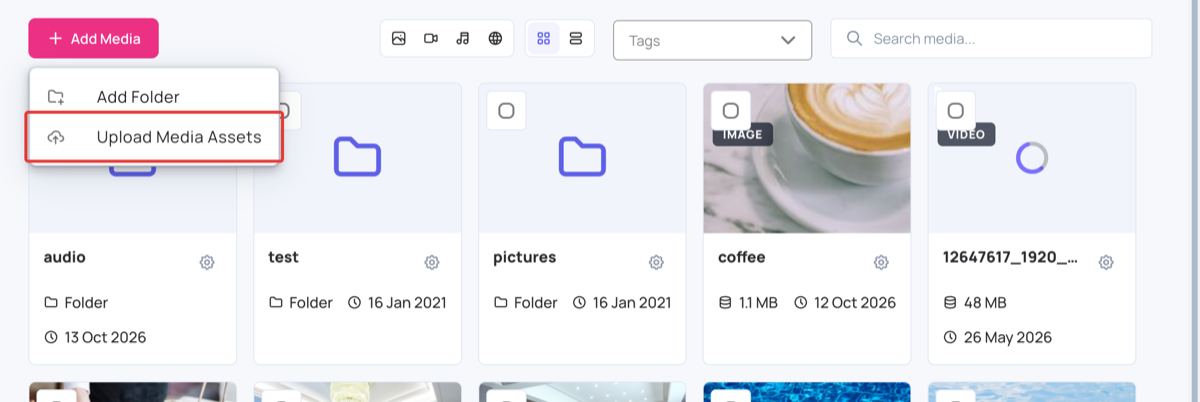
2. Click **Publish changes of this playlist**, and assign the playlist to a **screen**.
The app appears in the layer. In the CMS the preview shows empty values, because only a screen sends its attributes.
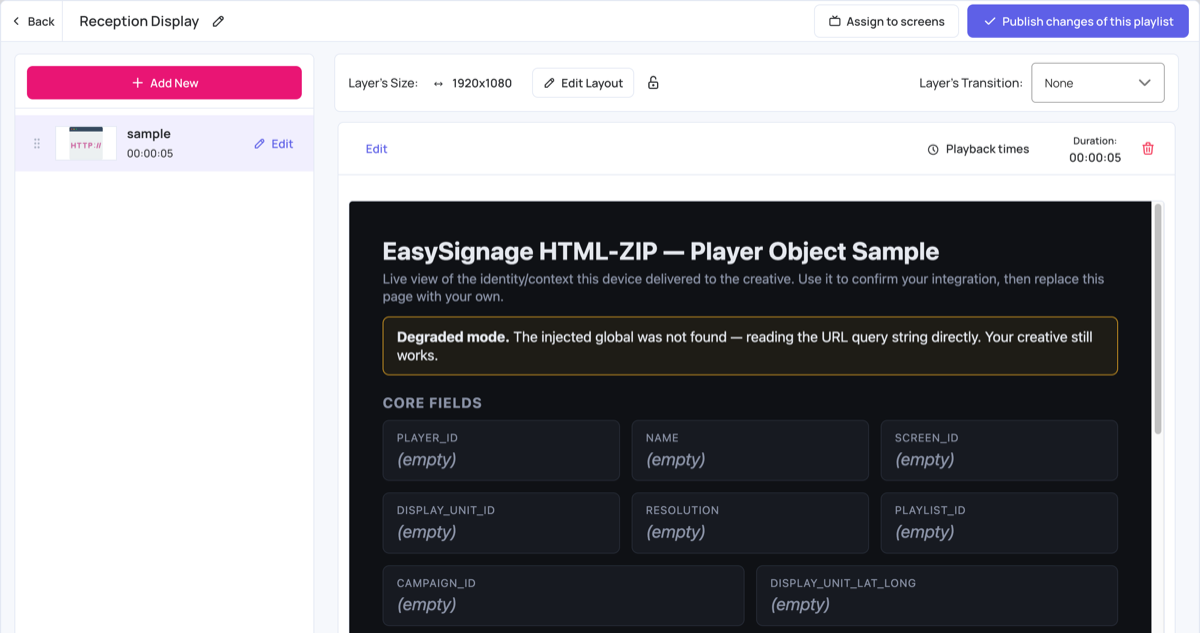
The sample page appears on the screen and lists every attribute the screen sent, with a banner that shows which delivery channel is active. That confirms the integration works end to end.
### Give each screen its tags
Apps that show different content per screen read the screen’s **tags**. Add tags as `key:value`, for example `zone:north` or `menu:lunch`: open the screen, click **More** > **Tags**, type each tag and press Enter, then click **Save**. See [Screen actions](https://easysignage.com/help/screens/digital-signage-screens/#screen-actions) , or [tag several screens at once](https://easysignage.com/help/screens/digital-signage-screens/#add-or-remove-tags-on-selected-screens) .
> Only tags written as `key:value` reach your app as named values (`tags.zone`). A tag without a colon, such as `lobby`, is only included in `tags.all`.
* * *
## Build a custom app with AI
You can build a custom app without writing code: describe the screen you want to an AI tool, and it writes the app for you. The free [Digital Signage Custom Apps toolkit](https://github.com/easysignage/Digital-Signage-Custom-Apps) gives the AI the rules that signage screens need, such as working offline, running on older players, reading tags and keeping secrets out of the code, so what it builds plays on real screens.
For a longer walk-through with example prompts, see our blog post [How to Build a Custom Digital Signage App with AI](https://easysignage.com/blog/26/build-digital-signage-app-with-ai/) .
### Step 1: Connect the toolkit to your AI tool
| AI tool | How to set it up |
| --- | --- |
| **Claude Code** | Run `/plugin marketplace add easysignage/Digital-Signage-Custom-Apps`, then `/plugin install easysignage-custom-apps@easysignage`. It then works in every project. |
| **Claude.ai** (web, desktop, mobile) | Download the [skill zip](https://github.com/easysignage/Digital-Signage-Custom-Apps/raw/main/downloads/easysignage-custom-app-skill.zip) , then go to **Settings** > **Capabilities** > **Skills** > **Upload skill**. Code execution must be on. |
| **Codex, Cursor, GitHub Copilot** | Clone or download the [repository](https://github.com/easysignage/Digital-Signage-Custom-Apps) and open its folder. These tools read its `AGENTS.md` file automatically. |
| **ChatGPT and other chat assistants** | Paste or upload [`SKILL.md`](https://github.com/easysignage/Digital-Signage-Custom-Apps/blob/main/skills/easysignage-custom-app/SKILL.md) and [`easysignage.js`](https://github.com/easysignage/Digital-Signage-Custom-Apps/blob/main/sdk/easysignage.js) into the chat. |
### Step 2: Describe the screen
Say what the screen shows, its orientation, what changes per screen (these become tags), your brand colours and logo, and where the content comes from. For example:
> Build an EasySignage menu board for my cafe with breakfast and lunch menus chosen per screen by a `menu` tag. Works in portrait and landscape. Package it as a zip and tell me which tags to set on each screen.
A coding agent creates the files for you. With a chat assistant, save the files it gives you into one folder.
### Step 3: Preview in your browser
Open the app’s `index.html` in a browser and add test values to the address to see what a screen would show:
```text
index.html?name=Lobby&resolution=1920x1080&tags.menu=lunch
```
Change the values and reload to check each version. Ask the AI for any changes, for example “make the prices bigger”.
### Step 4: Check and package it
With a coding agent in the toolkit folder, ask it to “check and package the app”. It runs the toolkit’s checks for the problems that break apps on signage players, then creates a `.zip` in the `dist` folder with `index.html` at the top level. You can also run it yourself:
```bash
./scripts/package.sh my-app
```
With a chat assistant, zip the **contents** of the app folder, not the folder itself.
### Step 5: Upload it and set the tags
Upload the `.zip` and add it to a playlist as in the [quick start](#quick-start-without-coding) , then give each screen the tags the AI listed.
> **Review what the AI built.** Check the text on screen carefully and test on one screen of each player model before you roll it out. Never give the AI real API keys or passwords to put in the app: the app is copied onto every screen.
### Build it yourself from the starter
If you prefer to code it yourself, start from the toolkit’s starter template:
```bash
git clone https://github.com/easysignage/Digital-Signage-Custom-Apps.git
cd Digital-Signage-Custom-Apps
cp -R templates/starter my-app # 1. copy the starter
# 2. edit my-app/app.js and style.css
./scripts/package.sh my-app # 3. check and zip it -> dist/my-app.zip
```
The toolkit’s [getting started guide](https://github.com/easysignage/Digital-Signage-Custom-Apps/blob/main/docs/getting-started.md) covers each step.
* * *
## How the data reaches your app
EasySignage delivers the **same** player attributes through **two channels**, so your app keeps working no matter how the creative is built or secured:
You don't choose a channel, `easysignage.js` reads whichever is available.
### 1\. A global JavaScript object
EasySignage injects a small script into your `index.html` that defines a global object before any of your own scripts run:
```js
window.easysignage // the player object, e.g. { player_id: "...", tags: { zone: "north" }, ... }
```
### 2\. A URL query string
The same values are also appended to the page URL on every render:
```text
index.html?player_id=PL-abc123&name=Main%20Lobby&display_unit_id=SC-9&tags.zone=north&...
```
The query string is **always** present. If a strict security policy on your creative blocks the injected script and the global is missing, your app still reads the values from the URL. Keys that start with `tags.` (for example `tags.zone`) rebuild into a `tags` object.
> **You normally don’t choose between them.** The `easysignage.js` reader uses the global when it is available and falls back to the URL automatically. You call one function.
* * *
## For developers: read the attributes
Copy **`easysignage.js`** from the sample into your project and load it with a plain script tag **before** your own code:
```html
```
That is the whole integration. `EasySignage.read()` returns the player object. You can also read `window.easysignage` directly.
**Migrating from Broadsign:**
EasySignage uses the same Broadsign key names (`display_unit_id`, `display_unit_resolution`, `frame_resolution`, `campaign_id`, `display_unit_lat_long`), so your field names carry over. Read them from the EasySignage player object:
```js
var panelVariables = EasySignage.read();
if (panelVariables) {
this.playerId = panelVariables.player_id || "";
this.screenId = panelVariables.display_unit_id || "";
this.latLong = panelVariables.display_unit_lat_long || "";
}
```
> **Warning:** `window.BroadSignObject` was removed. A creative that reads that global no longer receives player attributes. Update it to use `EasySignage.read()` or `window.easysignage`.
> **Load `easysignage.js` as a classic script (`
```
* * *
## Troubleshooting
- **Nothing shows up:** Confirm the entry file is named `index.html` and sits at the top level of the `.zip`, and that every asset uses a relative path.
- **The injected global is missing:** A strict `Content-Security-Policy` in your page can block the injected script. Use the `easysignage.js` reader, or read the URL query string, and your app still gets the values.
- **The app fails on older devices:** Keep your scripts as classic scripts, with no `type="module"`, so they run on older Tizen, webOS, and BrightSign webviews.
- **A tag doesn’t work:** Upload [player-info.zip](https://github.com/easysignage/Digital-Signage-Custom-Apps/raw/main/downloads/player-info.zip) to the screen to see every value it sends. Tag names are case-sensitive, and only `key:value` tags arrive as named values.
- **Test locally first:** Open `index.html` in a browser with a query string appended, for example `index.html?player_id=TEST&display_unit_id=SC-1&resolution=1080x1920&tags.zone=north`, to preview how your app reacts before you upload it.
* * *
## Related articles
- [Website Dynamic URL Variables](https://easysignage.com/help/apps/digital-signage-website-dynamic-url-variables/) : pass the same player attributes into an online URL.
- [Upload Media](https://easysignage.com/help/apps/digital-signage-upload-media/) : how to add media to EasySignage.
- [Screens](https://easysignage.com/help/screens/digital-signage-screens/#screen-actions) : how to add tags to a screen.
- [Digital Signage Custom Apps toolkit](https://github.com/easysignage/Digital-Signage-Custom-Apps) : examples, the starter template and AI agent skills on GitHub.
- [How to Build a Custom Digital Signage App with AI](https://easysignage.com/blog/26/build-digital-signage-app-with-ai/) : a step-by-step guide with example prompts.
[Previous ##### Integrate Google Sheets with Digital Signage Templates](https://easysignage.com/help/dynamic-data/google-sheet-digital-signage/)
[Next ##### EasySignage FAQs](https://easysignage.com/help/faq/faq/)