Use the Upload Media app in EasySignage to add your own images, videos, and other files to your media library for use in playlists and displays.
Supported File Formats
Files Formats that are supported and can be uploaded are:
- Files: PDF
- Images: GIF, JPG, PNG, BMP
- Videos: AVI, MP4, MOV, GIF, M4V, MKV, WEBM, MPEG
The maximum allowed size for video uploads is 200 MB and 40 MB for images.
How to Upload Media to Digital Signage
- Go to the management console
- Click on the playlist then the layer where you will upload media.
- If the layer has no media, the apps dialog will open. Otherwise, click on Add New
- Click on Upload Media
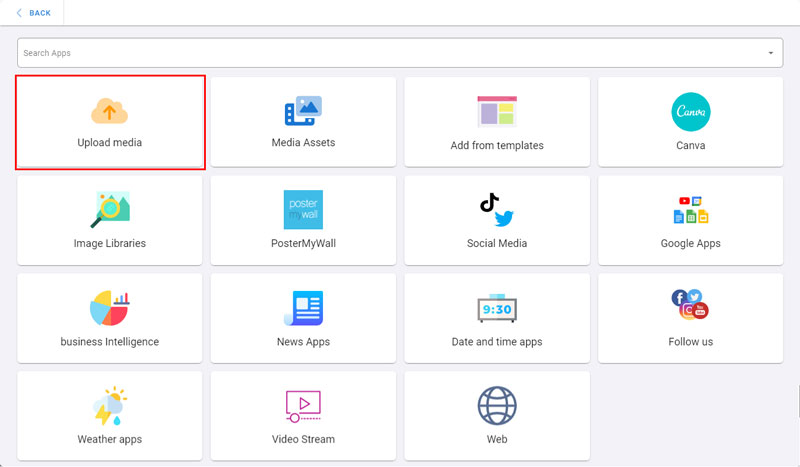
1- Upload from Device
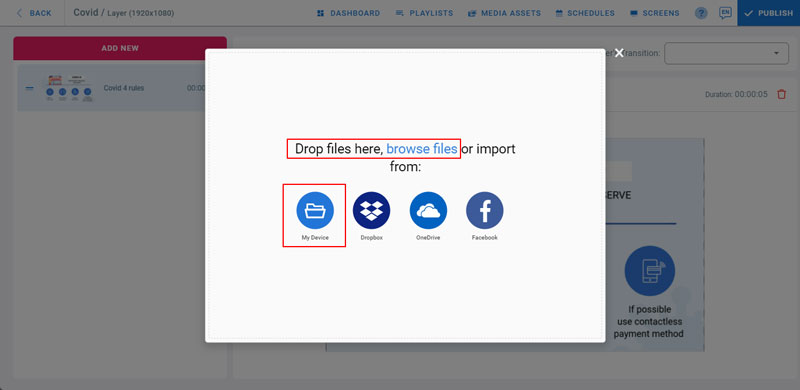
- To upload files from your local storage, drag and drop files from your PC to this dialog, or click on Browse Files, or click on My Device
- Select your files
- Wait for the upload to complete and Click on Done
2- Upload from Dropbox
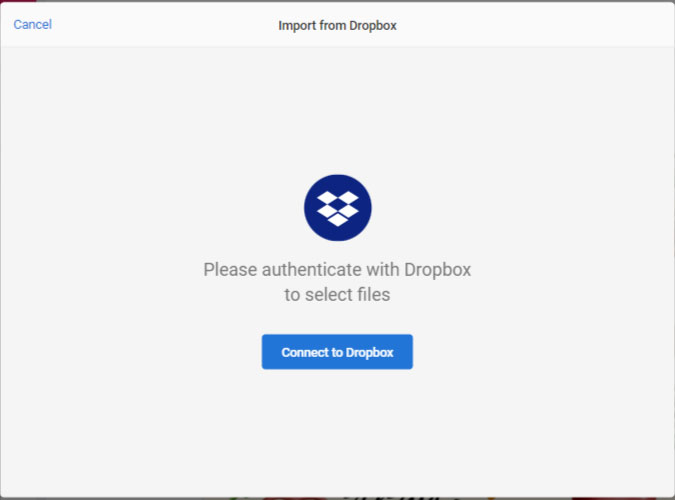
- Click on Dropbox from the upload media dialog
- Click on Connect to Dropbox
- Sign in to your Dropbox account
- Choose your files and click on Select
- Wait for the upload to complete and Click on Done
3- Upload from OneDrive
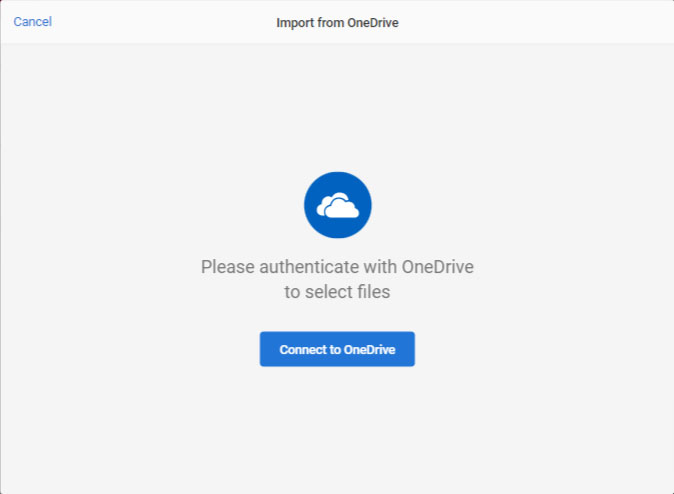
- Click on OneDrive from the upload media dialog
- Click on Connect to OneDrive
- Sign in to OneDrive
- Choose your files and click on Select
- Wait for the upload to complete and Click on Done
4- Upload from Facebook
- Click on Facebook from the upload media dialog
- Click on Connect to Facebook
- Login to your Facebook account
- Browse your facebook media files and choose your files
- Wait for the upload to complete and Click on Done
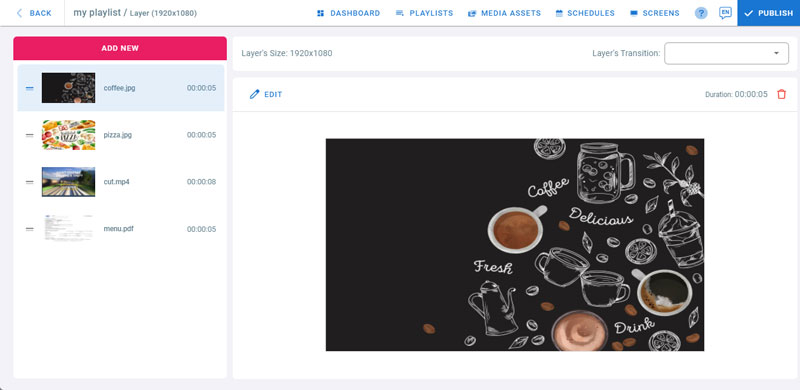
All the uploaded files will show in the layer’s playlist
Media Settings
- Click on Edit to change the added media settings
Click Back to return to layout preview