Show a Tableau dashboard on your screens. A public dashboard only needs its link. A secure dashboard also needs a Tableau connected app, so that the screen can sign in to Tableau as a dashboard viewer.
Public Dashboards
- Open the dashboard in Tableau, click Share and copy the link.
- Open the playlist, then click the layer. See Playlist Media Management .
- If the layer is empty, the content apps open. If it already has media, click Add New.
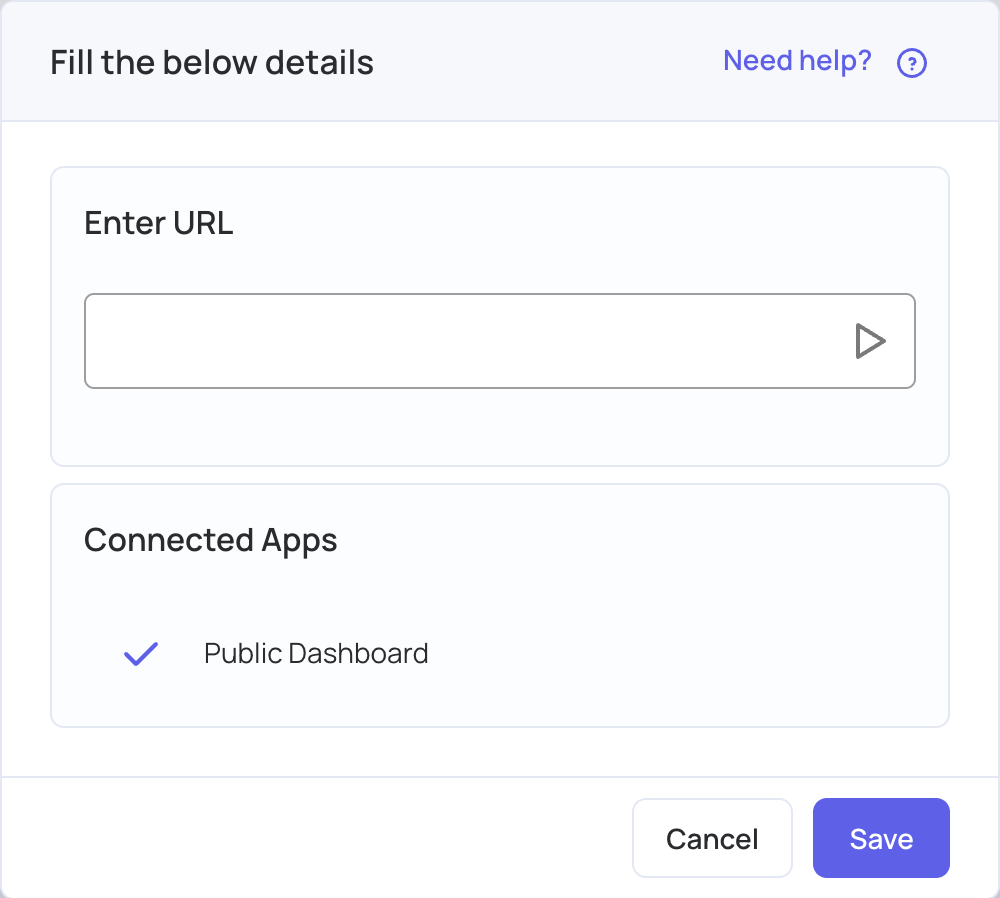
- Click business Intelligence, then Tableau.

- In Enter URL, paste the dashboard link. Leave Public Dashboard ticked.
- Click Save, check the dashboard in the preview, then click Publish changes of this playlist.
Secure Dashboards
For a dashboard that needs a sign-in, first create a connected app in Tableau, then add it in the CMS. You need a Tableau Cloud admin account.
Step 1: Create and enable a connected app in Tableau
- Sign in to Tableau Cloud as an admin.
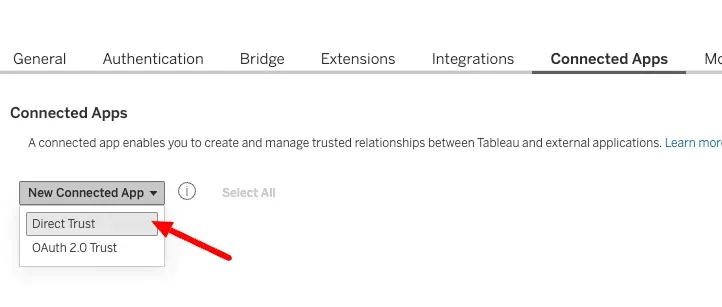
- Go to Settings, then Connected Apps.
- Click New Connected App and choose Direct Trust.
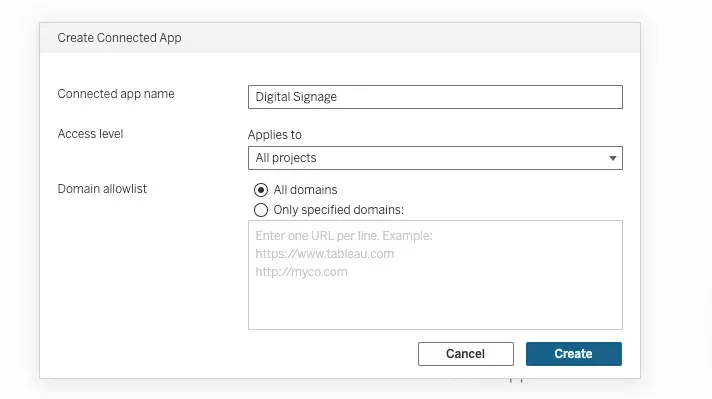
- Name the connected app, for example
Digital Signage, choose its access level, and click Create.
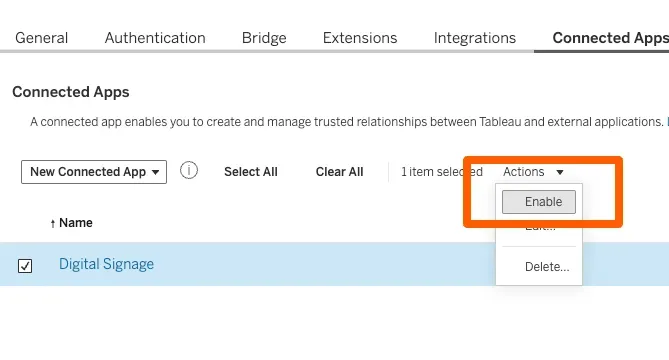
- Back in the list of connected apps, select the new app, open Actions and click Enable.
Step 2: Get the connected app details
- Click the new connected app.
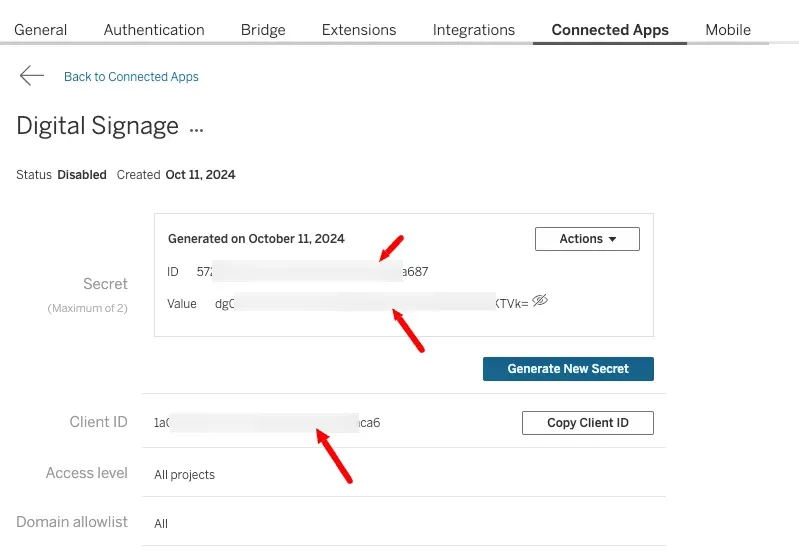
- Click Generate New Secret. The page shows the secret’s ID and Value, and the app’s Client ID. You copy them in Step 4.
Step 3: Copy the dashboard link
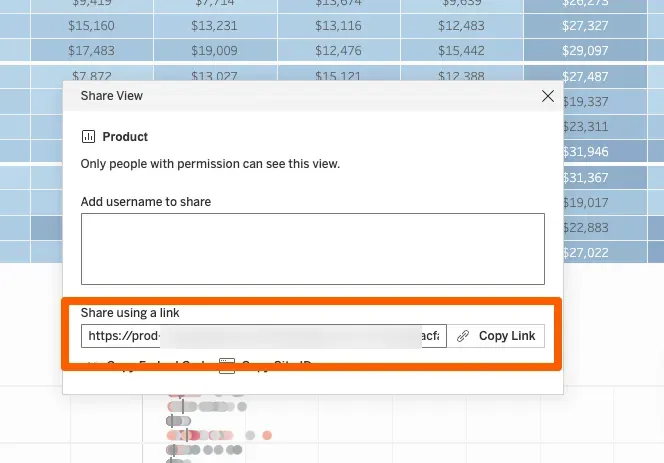
Open the dashboard in Tableau, click Share, then Copy Link.
Step 4: Add the dashboard in the CMS
- Open the playlist and the layer, click Add New if needed, then business Intelligence and Tableau, as for a public dashboard.
- In Enter URL, paste the dashboard link.
- Untick Public Dashboard, then click Add Connected App.
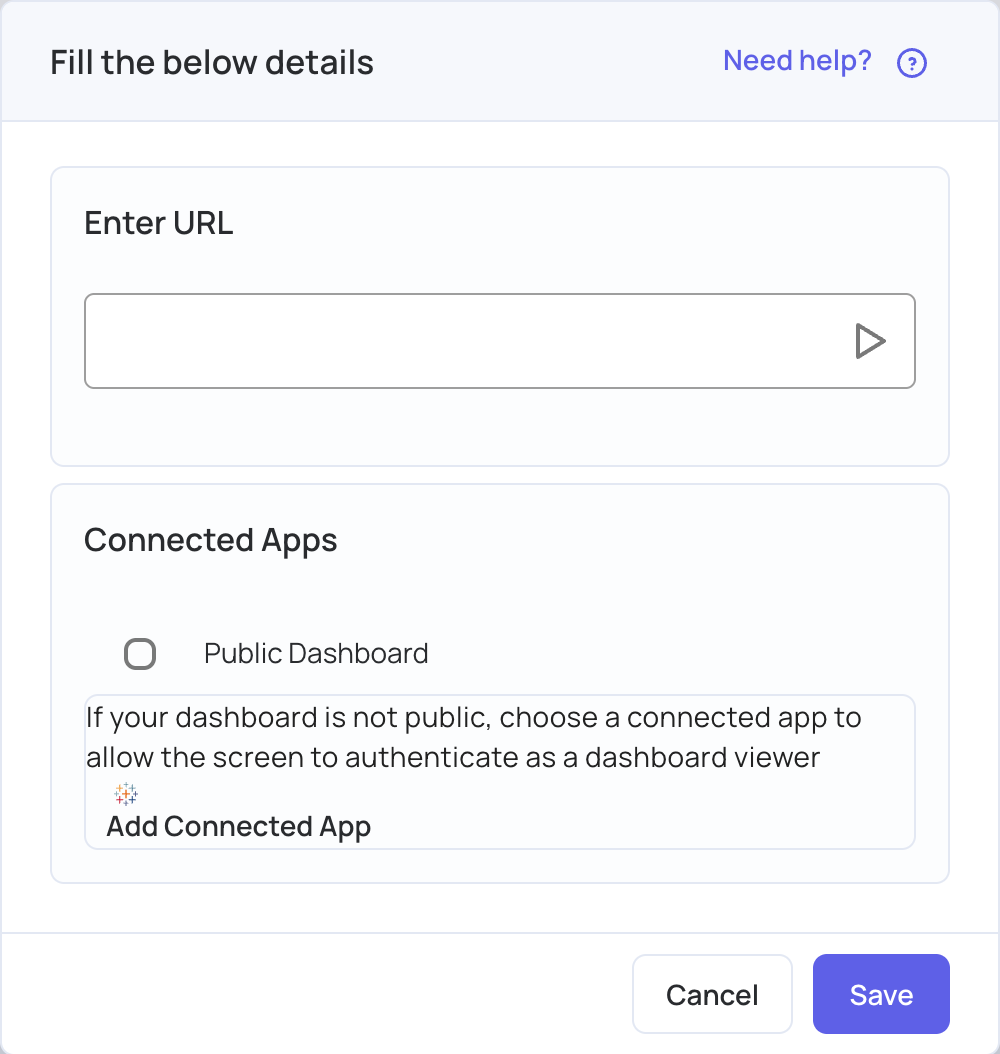
- Fill in the connected app details:
- App Name: any name, so you can recognise it later.
- Secret ID: in Tableau, open Actions next to the secret and click Copy ID.
- Secret Value: in Tableau, open Actions and click Copy Value.
- Client ID: in Tableau, click Copy Client ID.
- User Email: the email of the Tableau user who can view the dashboard.
- Click Add.
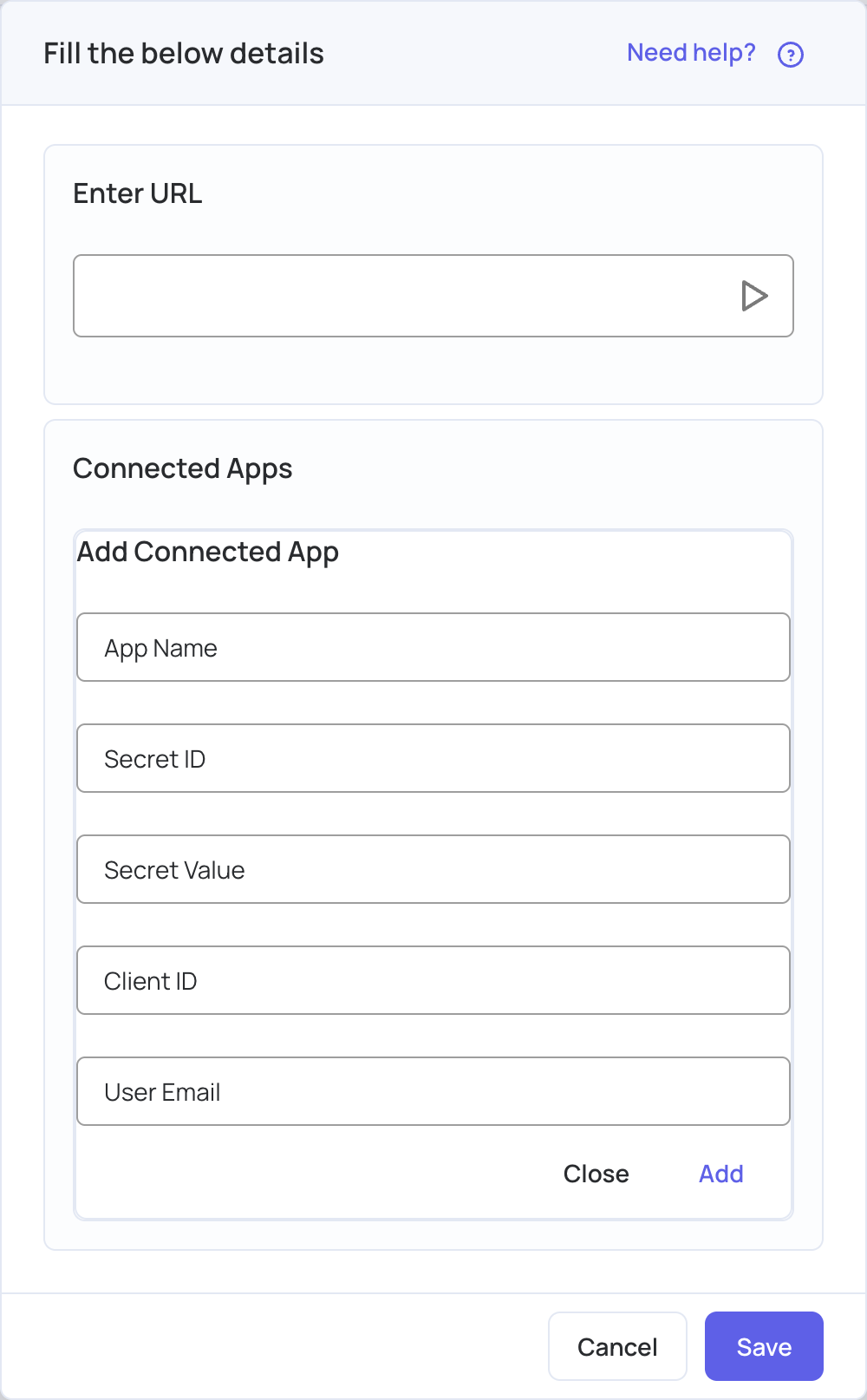
- The connected app now appears in a list under Connected Apps, and is selected. If you have added more than one, choose the one for this dashboard. Each account can keep several connected apps, for example from different Tableau sites; the trash icon next to an app deletes it.
- Click Save, check the dashboard in the preview, then click Publish changes of this playlist.