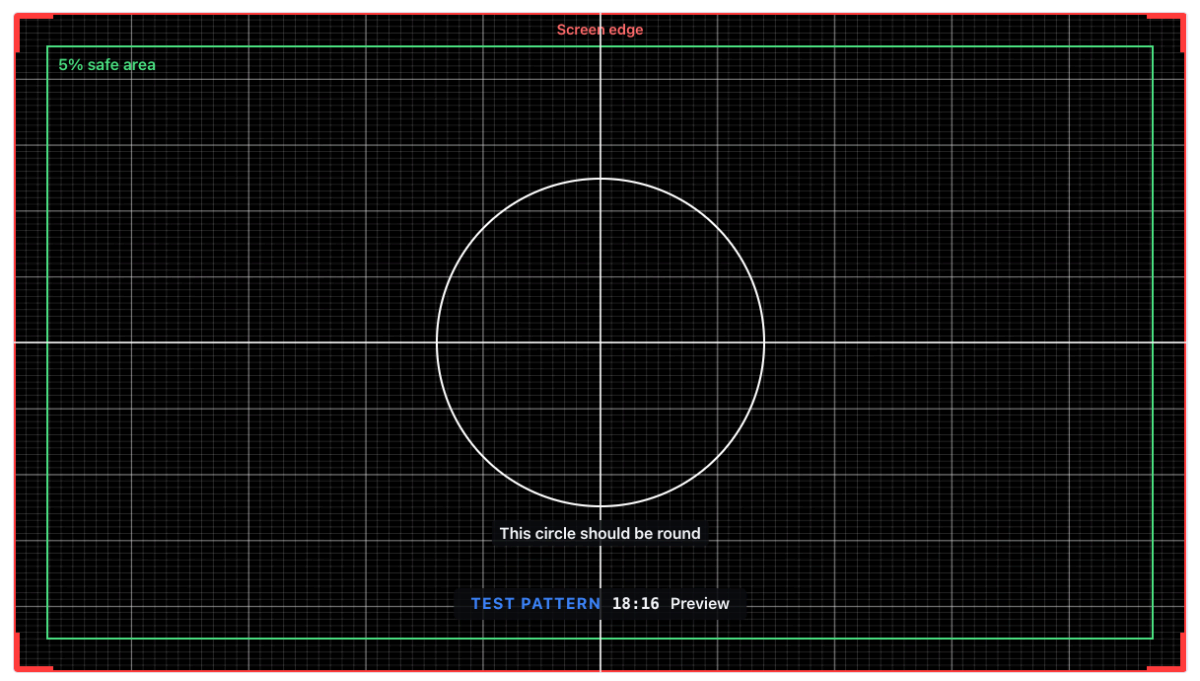
The Safe Area Test app shows where the edges of the picture are: a fine grid, red corners at the very edge, the safe area frame that apps keep their text inside, and a circle in the centre. Use it to check that the screen shows the whole picture without cropping or stretching.
The app has no settings. It runs on the screen without an internet connection, in landscape and portrait, and in any layer size.
Note: The Safe Area Test app isn’t offered in video wall playlists.
When to use it
- Setting up a TV as a screen: many TVs crop the edges by default. Change the TV’s picture size or overscan setting until all four red corners show.
- Content is cut off at the edges: check whether the screen crops the picture before you change the content.
- The picture looks stretched: check that the circle is round, and correct the screen’s or the player’s aspect ratio setting if it isn’t.
- Fitting a screen into a frame or kiosk: check that the frame doesn’t cover the safe area.
Add the Safe Area Test app
- Open the playlist, then click the layer. See Playlist Media Management.
- If the layer is empty, the content apps open. If it already has media, click Add New.
- Click Screen tools, then Safe Area Test. You can also type its name in Search Apps. The app has no settings, so it goes straight into the layer.
- Click Publish changes of this playlist to send it to your screens.
When you finish testing, remove the item from the layer and publish the playlist again.
What the screen shows
- Screen edge: a red line and red corners at the very edge of the picture. If you can’t see all four corners, the screen crops the edges (overscan).
- 5% safe area: a green frame 5% in from the edges. Apps keep their text and important content inside it.
- Grid: lines every 1% and every 10% of the width and height.
- Centre cross and circle: the circle should be round. An oval means the picture is stretched.
A label near the bottom always says Test pattern, with the time and the screen name, so a screen left on the pattern is easy to notice.
The words on the screen use the screen’s own language when it is one of the languages EasySignage supports, and English otherwise.