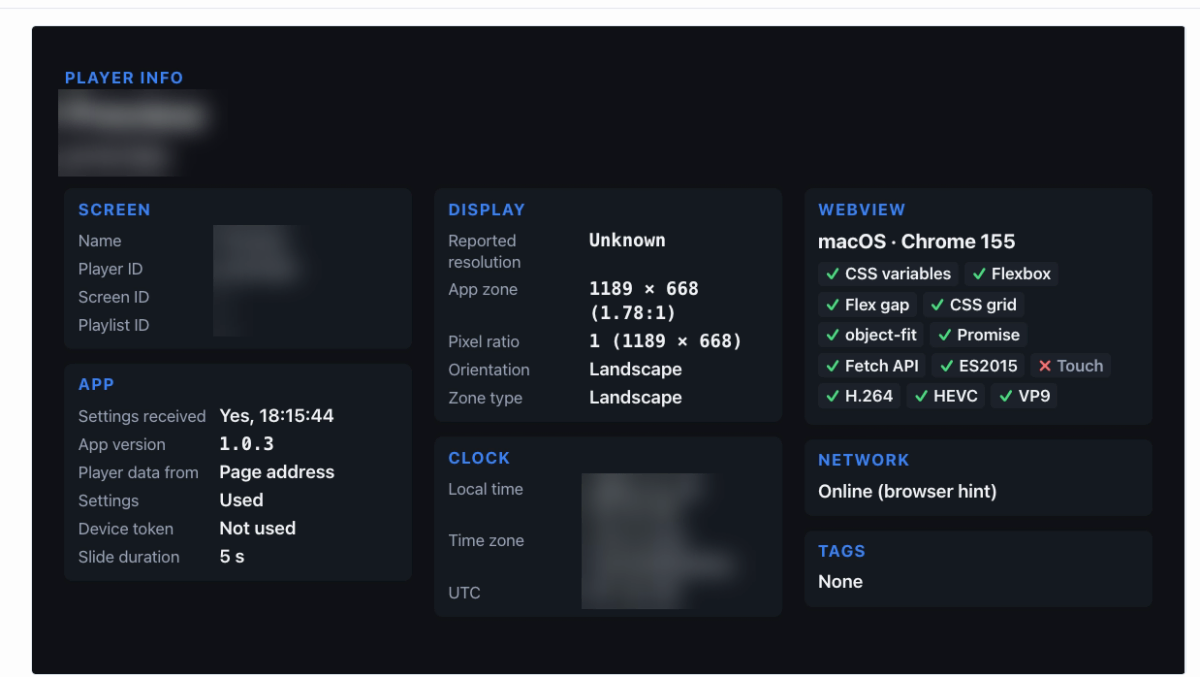
The Player Info app shows what a screen tells apps about itself: its name, its player ID, the resolution, the real size of the layer the app plays in, what the screen’s web browser can do, and the clock. Use it while you set up a screen, or when an app looks wrong and support needs the facts.
The app runs on the screen without an internet connection, in landscape and portrait, and in any layer size. It never shows the device token, and it shows the screen’s location only if you turn that on.
Note: The Player Info app isn’t offered in video wall playlists.
When to use it
- Installing a new screen: check that the screen shows the right name and player ID before you leave the site.
- Contacting support: read the player ID, the screen ID and the web browser version from the screen instead of looking them up.
- Checking a layout: put the app in each layer of a layout to see that layer’s real size in pixels and the layout type apps pick for it, such as Strip or Sidebar.
- An app looks wrong on one screen: compare the web browser version and the feature checks with a screen where the app looks right. Older players can lack features that newer apps use.
- Times are wrong: check the screen’s local time, time zone and UTC offset.
- Settings don’t reach the screen: check whether Settings received says Yes, and when.
Add the Player Info app
- Open the playlist, then click the layer. See Playlist Media Management.
- If the layer is empty, the content apps open. If it already has media, click Add New.
- Click Screen tools, then Player Info. You can also type its name in Search Apps.
- Choose the settings. See Settings.
- Click Save.
- Click Publish changes of this playlist to send it to your screens.
To change the settings later, click Edit next to the item in the layer.
What the screen shows
- Screen: the screen’s name, Player ID, Screen ID and Playlist ID.
- Display: the Reported resolution, the App zone (the layer’s size in pixels and its ratio), the Pixel ratio, the Orientation and the Zone type.
- Webview: the screen’s operating system and web browser, such as
Android 5.1 · Chrome 39, with a check mark (✓) or a cross (✗) for each feature apps can use. - App: whether Settings received and when, the App version, where the player data came from, and the Slide duration.
- Clock: the Local time, the Time zone with its UTC offset, and UTC.
- Network: Online or Offline, as the web browser reports it. Treat it as a hint.
- Tags: the screen’s tags, up to 20, if Show the player’s tags is on.
In a small layer or a thin strip, the app shows only the screen name, the player ID, the layer size and the web browser.
To protect the screen from burn-in, the information moves slightly every minute.
Settings
- Show the player’s tags: lists the screen’s tags as
key = value. On by default. - Show the player’s location: shows the screen’s location. Off by default, because anyone passing a public screen could read it. Turn it on only while you check the setup.
- Language: the language of the labels. The values show as the screen sends them.