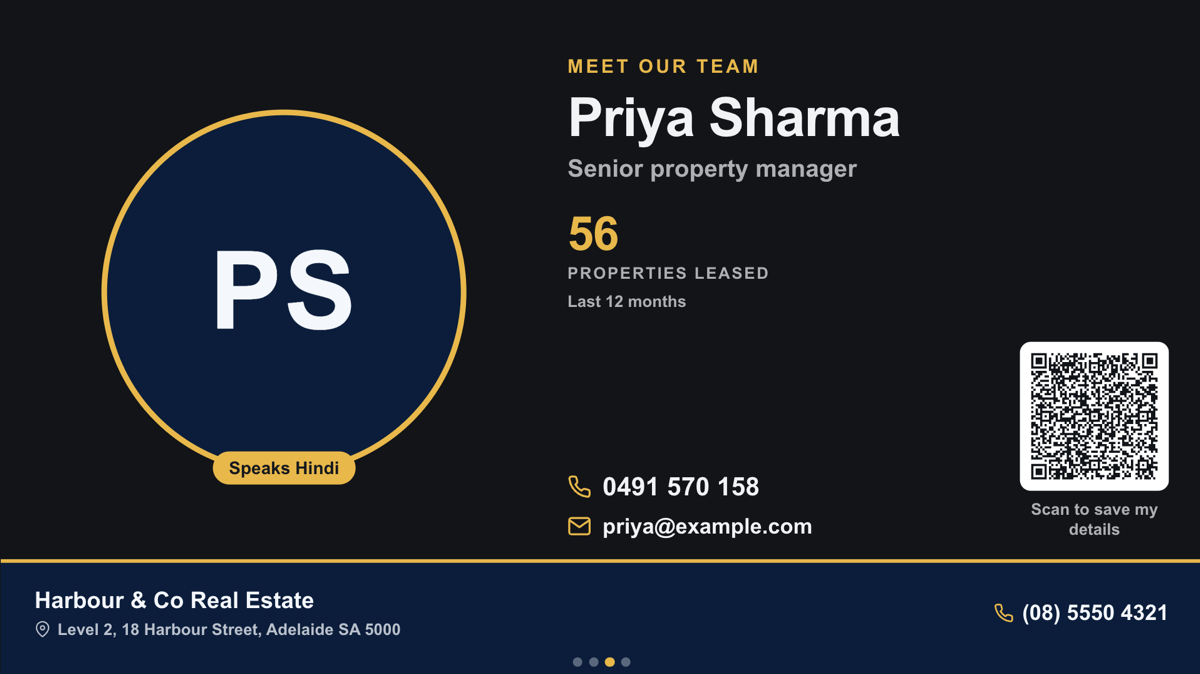
The Our Agents app shows your real estate team on your digital signage: each agent’s photo, name, job title, results and contact details, with a QR code that people can scan to save the agent’s details on their phone. It suits agency windows, receptions and waiting areas.
You type in your agents once. The app runs on the screen without an internet connection, in landscape and portrait, and in any layer size.
With the Our Agents app you can:
- Show one agent at a time, the whole team, or the team and then each agent.
- Show each agent’s properties sold and leased in the last 12 months.
- Add a short badge, such as “Agent of the month” or “Speaks Mandarin”.
- Add a QR code that saves the agent’s contact details, or opens their profile page.
- Use your agency colours from your real estate settings, or choose colours for one screen.
Note: The Our Agents app isn’t offered in video wall playlists.
Add the Our Agents app
- Open the playlist, then click the layer. See Playlist Media Management.
- If the layer is empty, the content apps open. If it already has media, click Add New.
- Type
Our Agentsin Search Apps, then click Our Agents. You can also find it in the Real estate and Local info categories. - The editor opens. It has three tabs: Agents, Appearance and Playback. The Live preview shows your changes as you make them.
- Replace the sample agents and office with your own. See Add your agents.
- On each tab, change the settings you need, then click Next.
- Click Add to playlist. To skip the remaining tabs, click Add now.
- Click Publish changes to send the playlist to your screens.
To see a larger preview, click Expand preview.
To change the settings later, click Edit next to the item in the layer.

Add your agents (Agents)
The Agents tab holds your team, your office and the QR code.
Agents
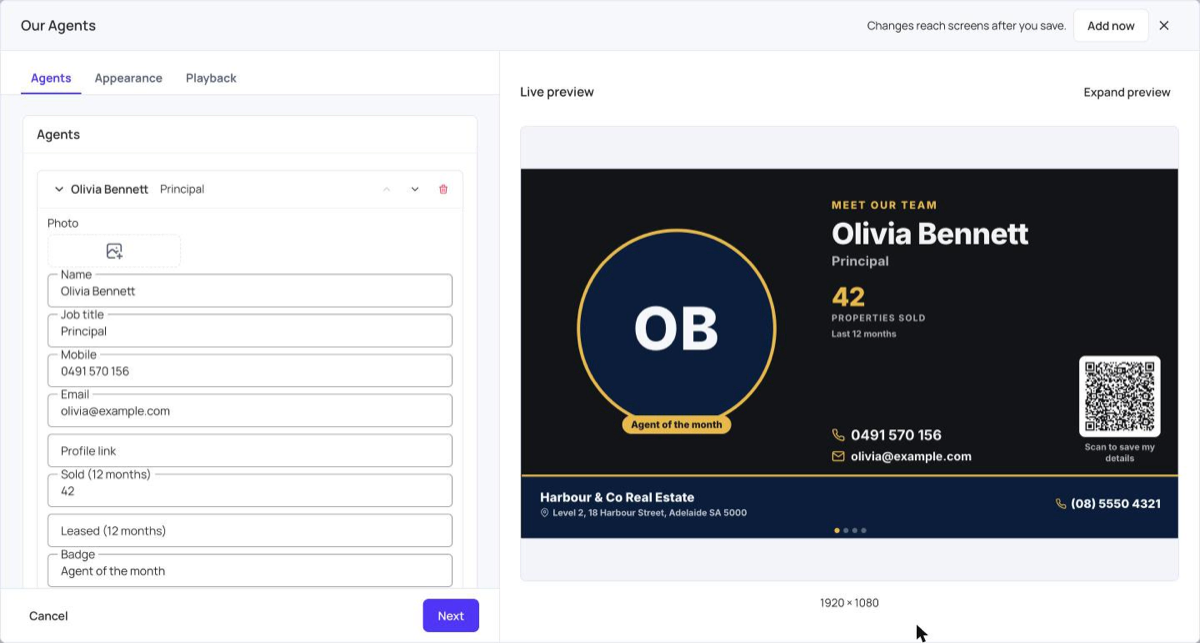
The app starts with four sample agents. Click an agent to open it, change the details, or click the bin to delete it. Click Add item to add an agent. Use the arrows to change the order.
You can add up to 40 agents. Only Name is required: anything you leave empty doesn’t show on the screen.
- Photo: a head-and-shoulders photo. Without a photo, the app shows the agent’s initials on a disc in your brand colour.
- Name and Job title.
- Mobile and Email.
- Profile link: the agent’s page on your website. Used by the QR code when The QR code is Opens the agent’s profile link.
- Sold (12 months) and Leased (12 months): the number of properties sold and leased in the last 12 months. The screen shows them as “Properties sold” and “Properties leased”.
- Badge: a short tag on the photo, such as “Agent of the month” or “Speaks Hindi”.
Your office
The office details show in the band at the bottom of the screen.
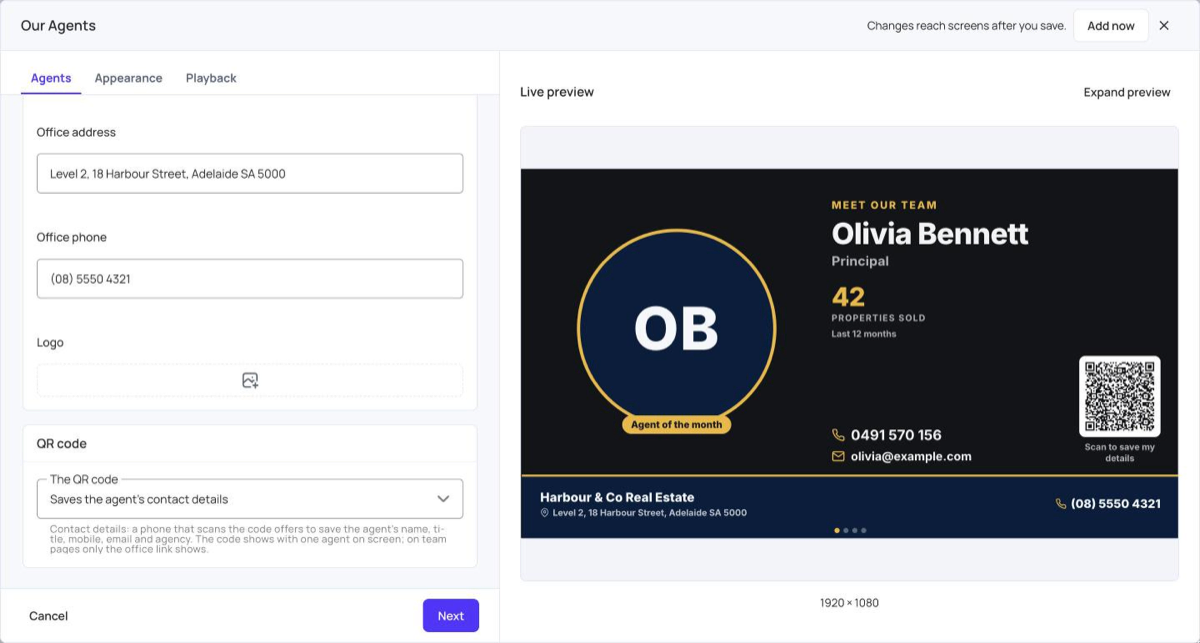
- Agency name: also saved in each agent’s contact card. Leave it empty to show no name.
- Office address and Office phone.
- Logo: a PNG with a transparent background works best.
QR code
The QR code sets what happens when someone scans the code:
- Saves the agent’s contact details (the default): the phone offers to save the agent’s name, job title, mobile, email and agency.
- Opens the agent’s profile link: opens the agent’s Profile link.
- Opens one link for the whole office: opens the Office link, for example your website’s team page.
- No QR code.
With Opens the agent’s profile link, agents without a profile link use the Office link. If that is empty too, those agents show no code.
The code shows when one agent is on the screen. Team pages show only the office link’s code.
Choose the look (Appearance)
The Appearance tab sets the theme and the colours.
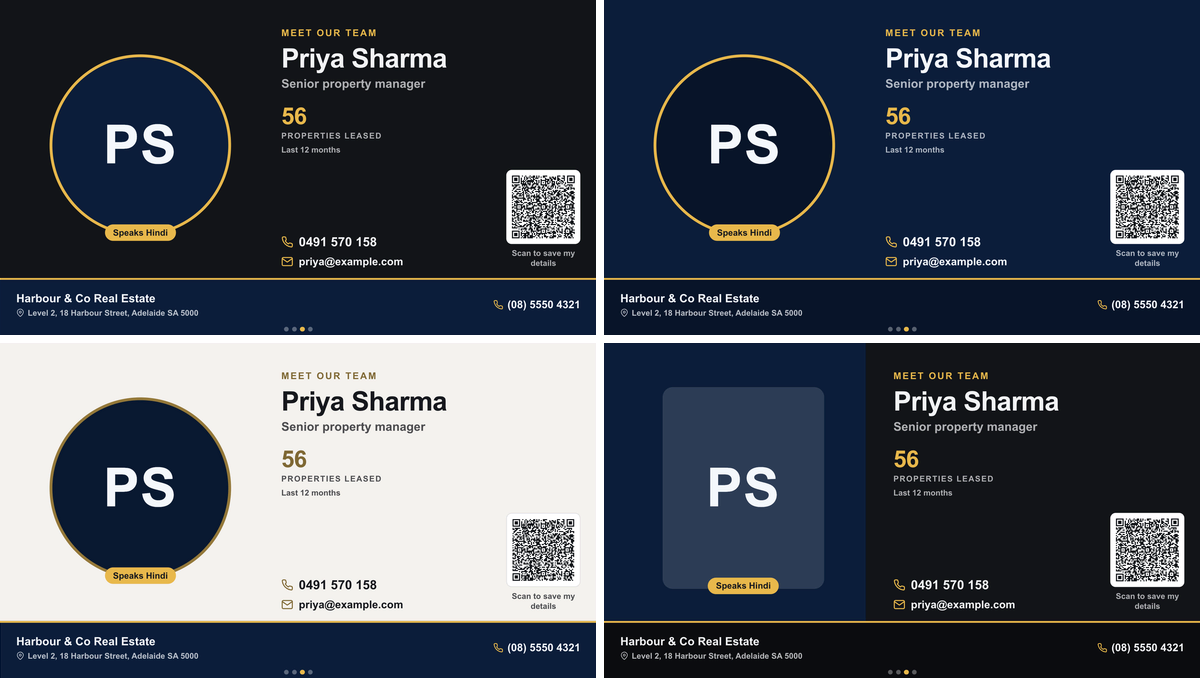
- Theme:
- Classic dark: charcoal, with your colours in the band.
- Brand color: the whole screen in your brand colour. Works best with a darker colour.
- Light: for bright shop windows.
- Split: the photo on a panel in your brand colour.
- Colors:
- My agency colors (the default): the colours from Settings > Real Estate, if your account has real estate settings. Without agency colours, the app uses navy and gold.
- Navy and gold: the app’s own colours.
- Choose colors for this screen: shows Brand color, Text on the brand color and Accent color. They start from your agency colours.
If a colour would be hard to read on the screen, the app makes it lighter or darker.
Choose what plays (Playback)
The Playback tab sets what the screen shows and for how long.
- Show:
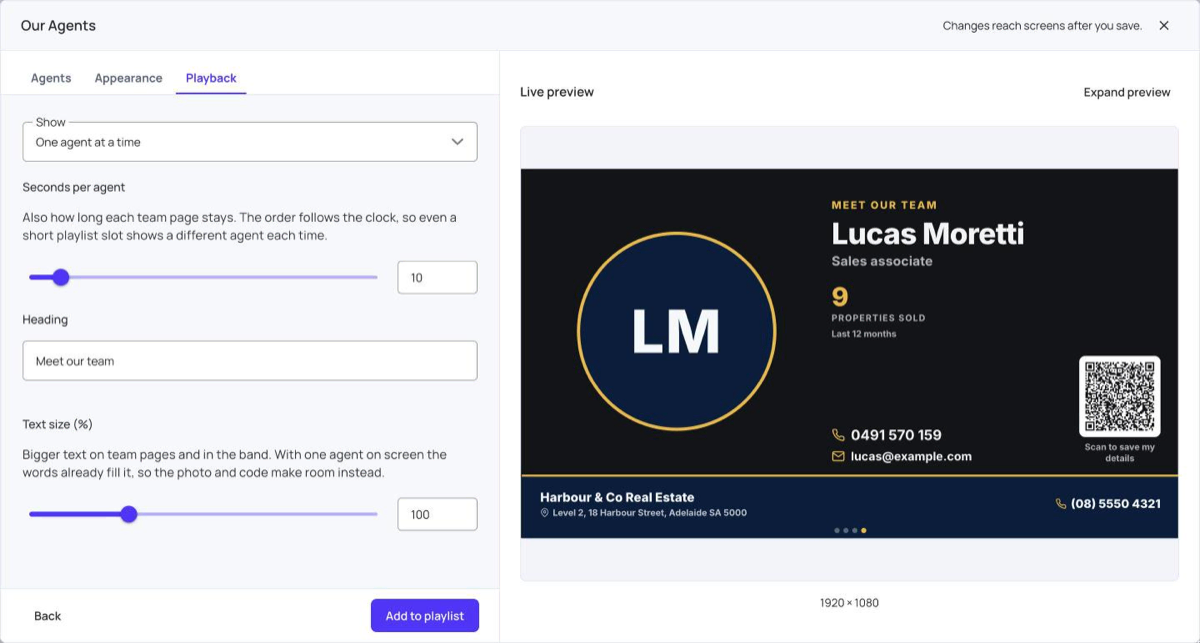
- One agent at a time (the default): one agent fills the screen, with the QR code.
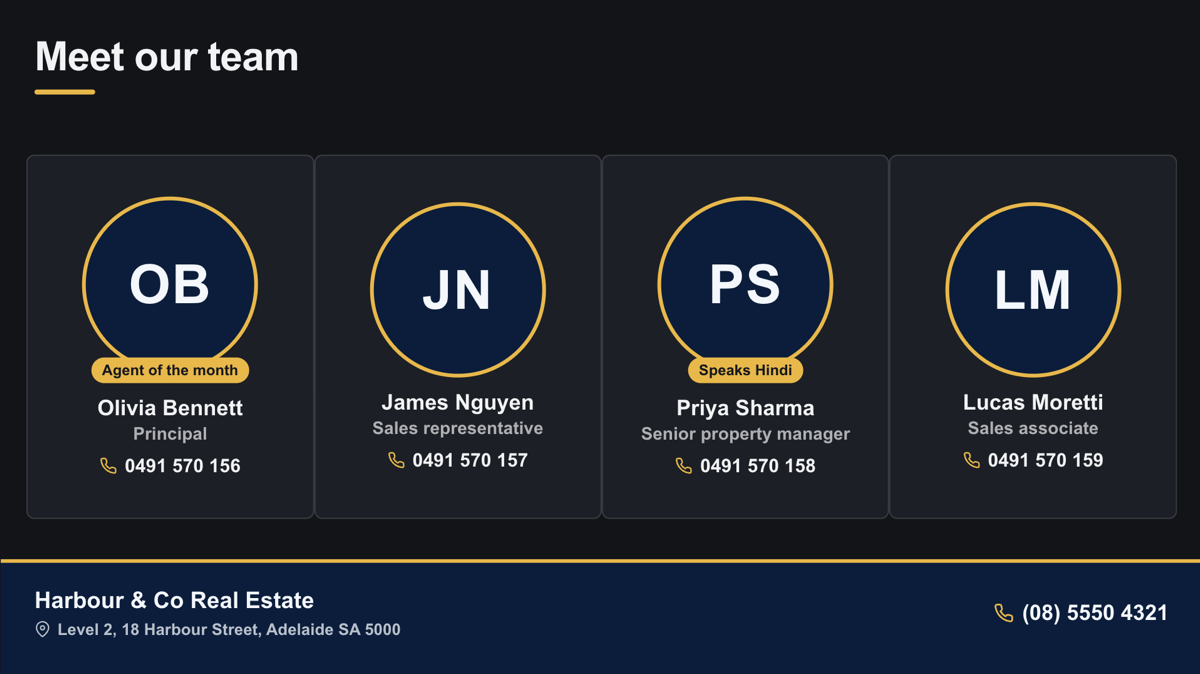
- The whole team: up to 8 agents on a page, with photo, name, job title and mobile. A larger team is spread over several pages.
- The team, then each agent: the team pages first, then each agent on their own.
- Seconds per agent: how long each agent or team page stays, from 5 to 60 seconds. The default is 10.
- Heading: the line above the team and each agent, up to 40 characters. The default is “Meet our team”. Leave it empty to show no heading.
- Text size (%): makes the text on team pages and in the band larger, from 80% to 150%.
How the agents take turns
The order follows the clock, not the start of the playlist item. So even when the item plays for only 10 seconds in a longer playlist, the screen shows a different agent each time it comes round.
To show every agent in one pass, set the item’s duration in the playlist to the number of agents times Seconds per agent. For example, 6 agents at 10 seconds need 60 seconds.
Layer shapes
The app fits its layer:
- Landscape: the photo on one side, the details on the other.
- Portrait: the photo above the details.
- Footer or ticker layer: the photo, name, job title and mobile on one line, without the band, QR code or heading.
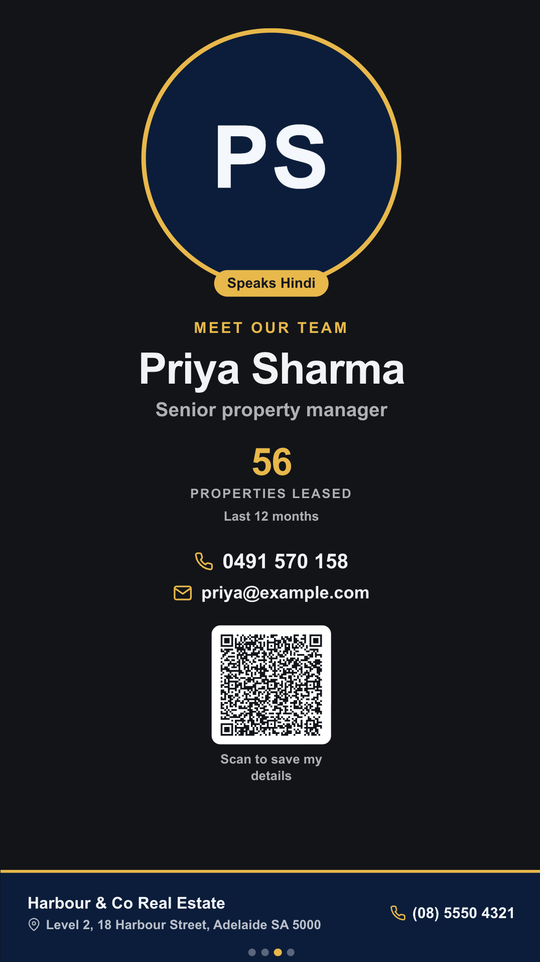
Note: The words the app adds on the screen, such as “Properties sold” and “Scan to save my details”, are in English. Your own text, such as job titles, badges and the heading, shows as you type it.
Tips for a team board people can read
Use clear, recent photos:
Head-and-shoulders photos with a plain background look best in the round frame.Keep badges short:
Two or three words read well from a distance, for example “Agent of the month”.Use the QR code in windows:
People outside after hours can scan the code and save the agent’s details without coming in.Match the theme to the room:
Light suits bright shop windows. Classic dark and Brand color suit receptions and screens that run all day.
Troubleshooting
The screen still shows the sample agents:
Replace or delete the four sample agents on the Agents tab, save the item, then publish the playlist.An agent shows initials instead of a photo:
The agent has no Photo, or the photo couldn’t be loaded. Add the photo again, save the item, then publish the playlist.The QR code doesn’t show:
- Check that The QR code isn’t No QR code.
- On team pages, only the Office link code shows. Set Show to One agent at a time to show each agent’s code.
- With profile links, add a Profile link to the agent, or an Office link.
- The code isn’t shown in a footer or ticker layer.
The same agent shows every time:
Check Seconds per agent on the Playback tab. If it is longer than the item’s duration in the playlist, the screen may show the same agent again. Use a shorter Seconds per agent.The colours aren’t my agency colours:
Check Colors on the Appearance tab, and the colours in Settings > Real Estate.