The Open for Inspection app shows your agency’s open for inspection times on your digital signage. Each row has the start and end time, the street and suburb, the beds, baths and car spaces, and the price. The list comes from your real estate listings and updates by itself, so the board in your window or reception needs no upkeep.
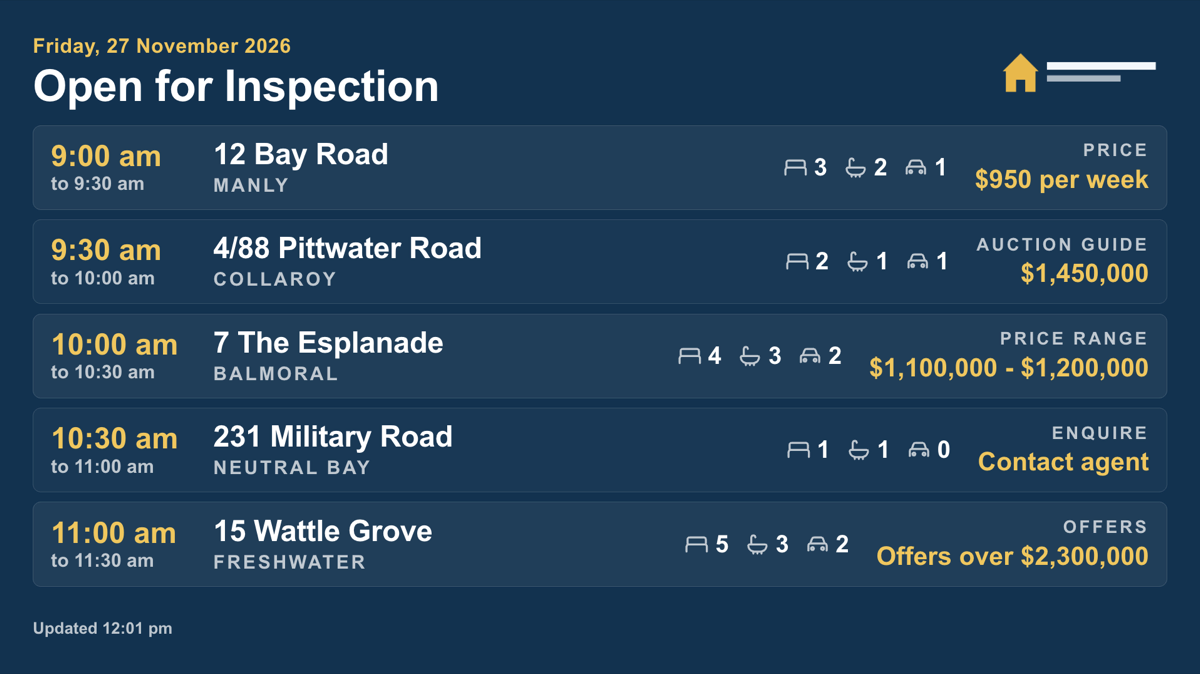
With the Open for Inspection app you can:
- Show today’s inspections, or the next day that has inspections.
- Choose rentals, sales, commercial or rural listings.
- Split a long list over two screens.
- Use your agency’s logo, colours and font, or choose colours for one screen.
- Show the board full screen, in portrait, or as a strip in a footer layer.
Note: The Open for Inspection app isn’t offered in video wall playlists.
Before you begin
The app shows the listings of the agencies in your account’s real estate settings. Before you add it:
- Go to Settings > Real Estate.
- In Agency ID, check that your agency IDs are listed. Separate more than one with commas.
- Optional: set your agency’s look on the same page. The app uses:
- Logo: shown at the top of the board.
- Theme Color: Background Color, Font Color and Secondary font color (used for the times and prices).
- Custom Font: the font of the board.
If you can’t find Real Estate in Settings, or the app in the app picker, the real estate features are switched off for your account. See Feature Access, or contact your account administrator.
Add the Open for Inspection app
- Open the playlist, then click the layer. See Playlist Media Management.
- If the layer is empty, the content apps open. If it already has media, click Add New.
- Type
Open for Inspectionin Search Apps, then click Open for Inspection. You can also find it in the Real estate category. - The editor opens with two tabs: Listings and Appearance. The Live preview shows your listings as you change the settings.
- Change the settings you need. Every setting has a ready-to-use default. See Choose the listings and Choose the look.
- Click Add to playlist.
- Click Publish changes to send the playlist to your screens.
To see a larger preview, click Expand preview.
To change the settings later, click Edit next to the item in the layer.
Choose the listings (Listings)
The Listings tab sets which inspections show.
- Agency ID: the agencies to show. The list holds the agency IDs from Settings > Real Estate, and all of them are selected on a new item. Remove an agency to leave its listings off this screen.
- Listings to show: Rentals, Sales, Rentals and sales, Commercial, Rural or All. The default is Rentals.
- Skip the first listings: how many inspections to leave out at the start of the list, from 0 to 90.
- How many listings: how many inspections to show after the skipped ones, from 1 to 90. The default is 5.
Split the list over two screens
To show 10 inspections on two screens side by side:
- On the first screen’s item, set Skip the first listings to
0and How many listings to5. - On the second screen’s item, set Skip the first listings to
5and How many listings to5.
The second screen starts where the first one ends.
Choose the look (Appearance)
The Appearance tab has two cards.
Look
- Title: the heading of the board, up to 60 characters. The default is “Open for Inspection”.
- Seconds per page: when the inspections don’t fit on one page, the board shows them page by page. This sets how long each page stays, from 8 to 60 seconds. The default is 15.
- Use my agency branding: uses the logo, colours and font from Settings > Real Estate. When it’s off, the board uses its own navy, white and gold, with no logo.
Colours
- Choose colours for this screen: uses your own Background color, Text color and Accent color on this screen only. The colours start from your agency colours. The logo and font still follow Use my agency branding.
The accent colour is used for the date, the times and the prices. If a colour would be hard to read against the background, the board switches the text to white or black.
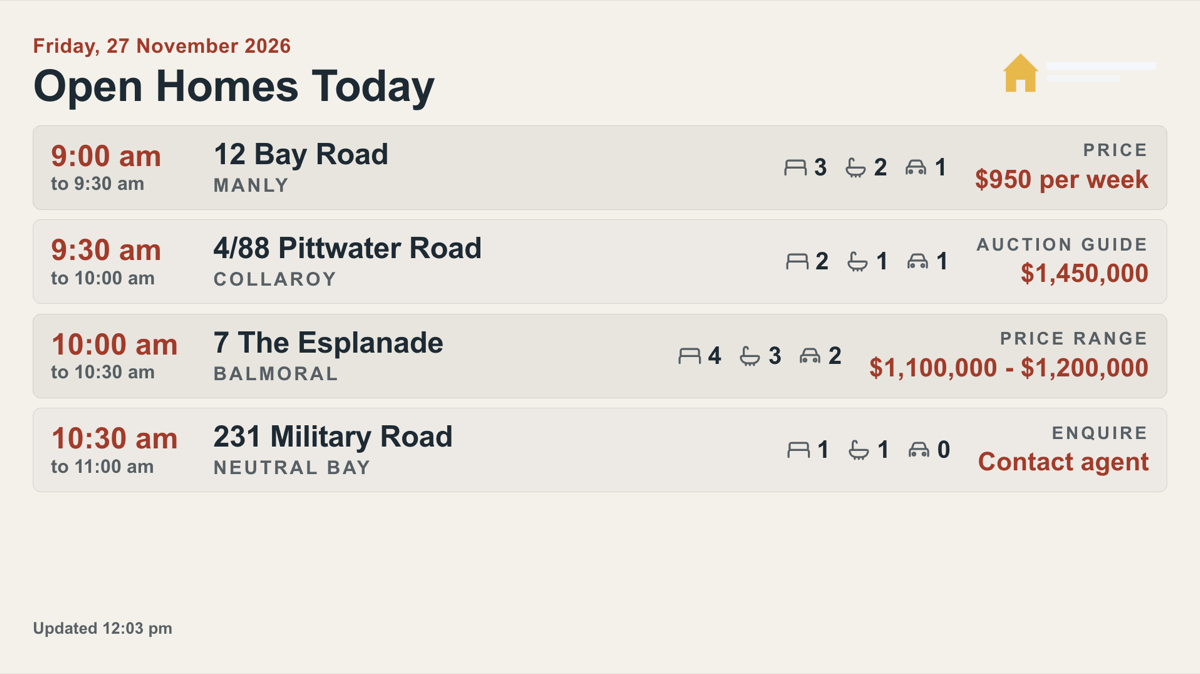
What the board shows
- The day: today’s inspections, until midnight. If there are none today, the board shows the next day that has inspections. The date is at the top.
- Each row: the start and end time, the street and suburb, the beds, baths and car spaces, and the price with a label such as Price, Auction guide, Price range, Offers or Enquire. When a property has more inspections that day, the row shows “+1 more” or similar.
- Updated: the time of the last update is in the bottom corner, for example “Updated 2:05 pm”.
- Layer shape: the board fits its layer. A portrait layer shows each inspection on two lines. A footer or ticker layer shows one inspection at a time on one line.
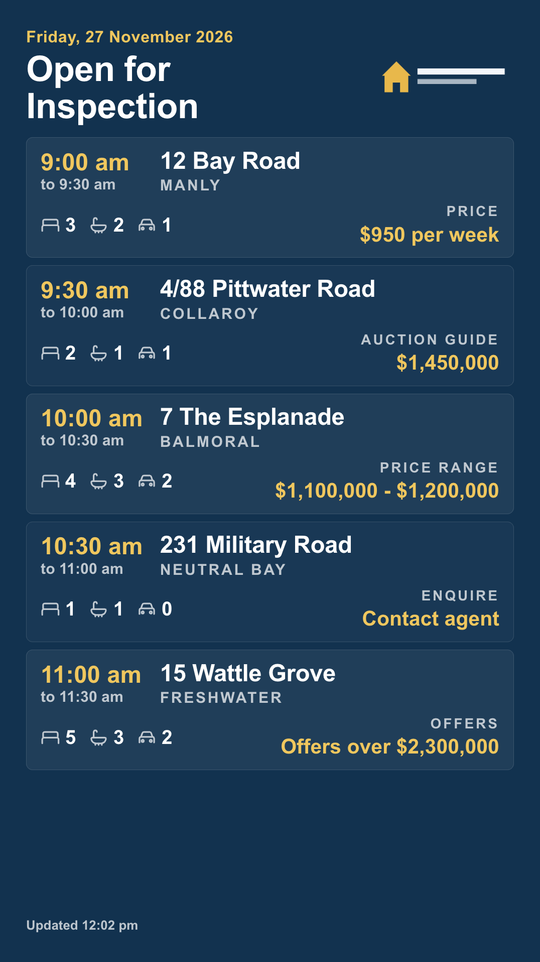

The board checks for new listings every 10 minutes. It keeps the last list it received, so the screen keeps showing the inspections if the internet connection drops.
Note: The words on the board, such as “Price” and “Updated”, are in English.
Tips for a window display
Keep each page short:
People walking past read a few rows at a glance. On a window screen, show 5 or 6 inspections, and use a second screen for more.Use your agency colours:
Set your colours once in Settings > Real Estate, and every Open for Inspection board uses them.Use a strip over other content:
Put the app in a footer layer under your listing slides. The strip shows one inspection at a time.
Troubleshooting
The board shows “Inspection times will appear when the screen is online”:
The screen hasn’t received the list yet. Check that the screen is connected to the internet. The board fills in once the screen is online.The board shows “No inspections scheduled”:
None of the selected agencies has an inspection today or later for the chosen Listings to show.- Check Agency ID on the Listings tab.
- Set Listings to show to All to check whether the inspections are under another type.
- Check that the inspection times are in your listings.
The times are an hour or more out:
The board shows times in the screen’s own time zone. Check the date, time and time zone on the screen, and set them to your agency’s time zone.The logo or colours are wrong:
Check Use my agency branding on the Appearance tab, and the Logo and Theme Color in Settings > Real Estate. If your Font Color is hard to read on your Background Color, the board uses its own navy, white and gold instead. After you change the settings, save the item and publish the playlist again.I can’t find the app:
The app is listed only when the real estate features are on for your account. See Before you begin.