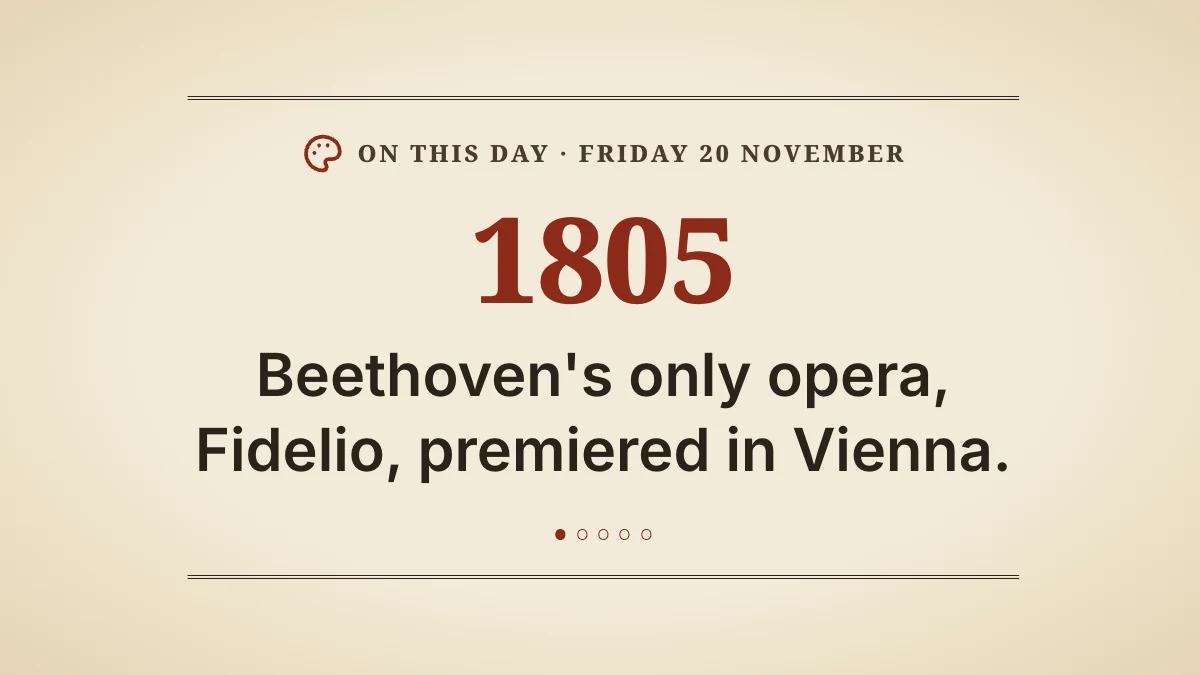
The On This Day app shows short events from history that happened on today’s date: the year in large type, one line about what happened, and a small “On this day” line with the date. It picks up a new day at midnight by itself, so it needs no upkeep. It suits receptions, waiting rooms, schools, libraries, cafés and break rooms.
Every event is built into the app: 4 to 6 family-friendly events for each of the 366 days of the year. The app runs on the screen without an internet connection, in landscape and portrait, and in any layer size.
With the On This Day app you can:
- Show one event at a time, changing every few seconds, or one event for the whole day.
- Show a timeline of three of today’s events.
- Limit the events to topics such as sport or science.
- Add your own anniversaries, for example the day your company opened. They show first on their date every year.
- Show the app in 13 languages.
Note: The On This Day app isn’t offered in video wall playlists.
Add the On This Day app
- Open the playlist, then click the layer. See Playlist Media Management.
- If the layer is empty, the content apps open. If it already has media, click Add New.
- Type
On This Dayin Search Apps, then click On This Day. - The editor opens. It has four tabs: Content, Appearance, Playback and Advanced. The Live preview shows your changes as you make them.
- On each tab, change the settings you need. Every setting has a ready-to-use default. See Choose the events and Choose the look.
- Click Add.
- Click Publish changes to send the playlist to your screens.
To see a larger preview, click Expand preview.
To change the settings later, click Edit next to the item in the layer.
Choose the events (Content)
The Content tab sets which events show and in which language.
- Topics:
All topics, Science, space and nature, Sport, Arts and culture or Inventions and exploration. On a day with no events in the chosen topic, the app shows events from every topic, so the screen is never empty. - Change the event:
- Every few seconds: the app moves through today’s events, with dots that show which event is on screen.
- Once a day (the same on every screen): one event stays on screen all day. Every screen that plays the app shows the same event.
- Language:
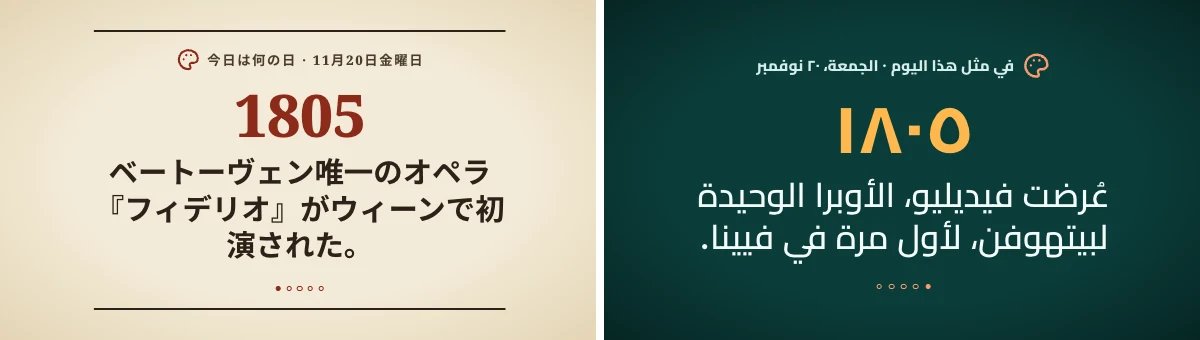
the language of the events, the “On this day” line and the date: English, Spanish, Arabic, Portuguese, Japanese, German, Turkish, French, Italian, Dutch, Greek, Swedish or Korean. Arabic reads from right to left.
Playback
The Playback tab has View:
- One event at a time: the year over one event.
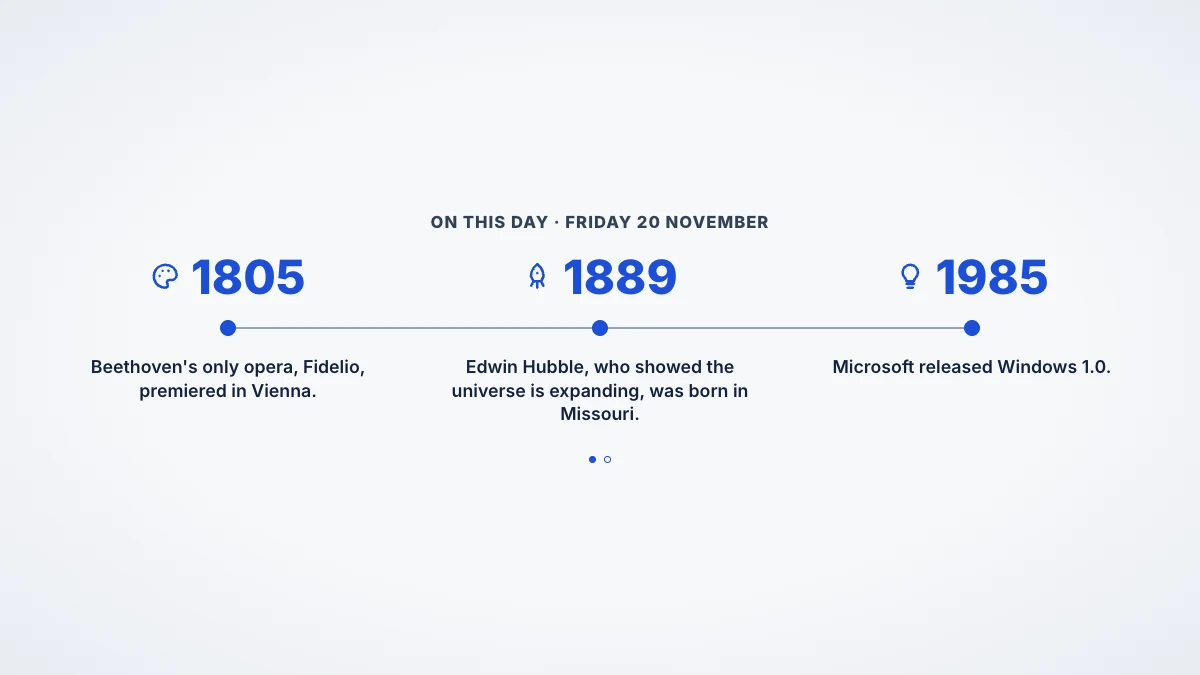
- Timeline of three: three of today’s events on a line, oldest first. When a day has more than three events, the timeline changes to the next three. The timeline needs the Full screen or Card layout and a layer at least 900 pixels wide or tall. A smaller layer shows one event at a time.
The events are short, family-friendly and leave out wars, disasters, crimes, politics and religion.
Add your own anniversaries
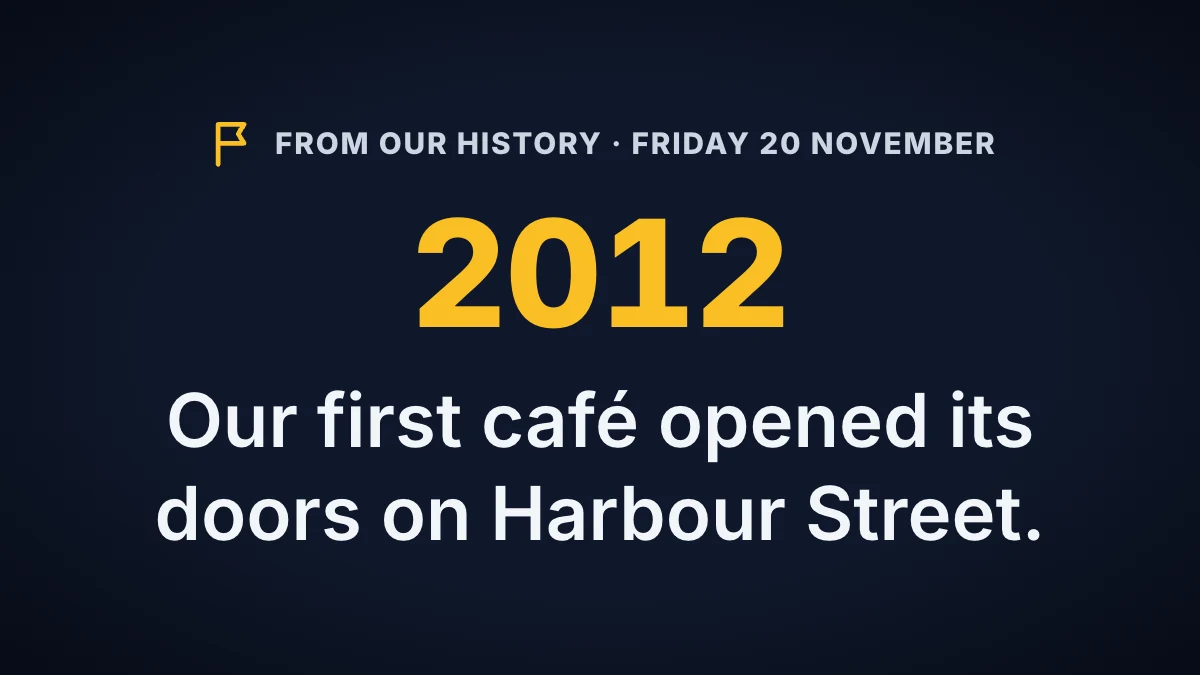
On the Advanced tab, Your own history holds your own events, for example the day your company opened or your school’s first graduation. On their date they show first, every year, with a flag icon and “From our history” in place of “On this day”.
- Under Your own history, add a row.
- In Date (MM-DD), type the month and day, for example
03-14for 14 March. You can also type3/14or a full date such as2015-03-14. - In Year, type the year it happened.
- In What happened, type one short line. Lines under 100 characters read best; longer lines are cut at 140 characters.
You can add up to 50 rows. Rows without a date, a year or a line, or with a date that doesn’t exist, are skipped. Your lines show as you typed them, in any language.
Choose the look (Appearance)
The Appearance tab sets how the app looks.
Theme
- Theme:
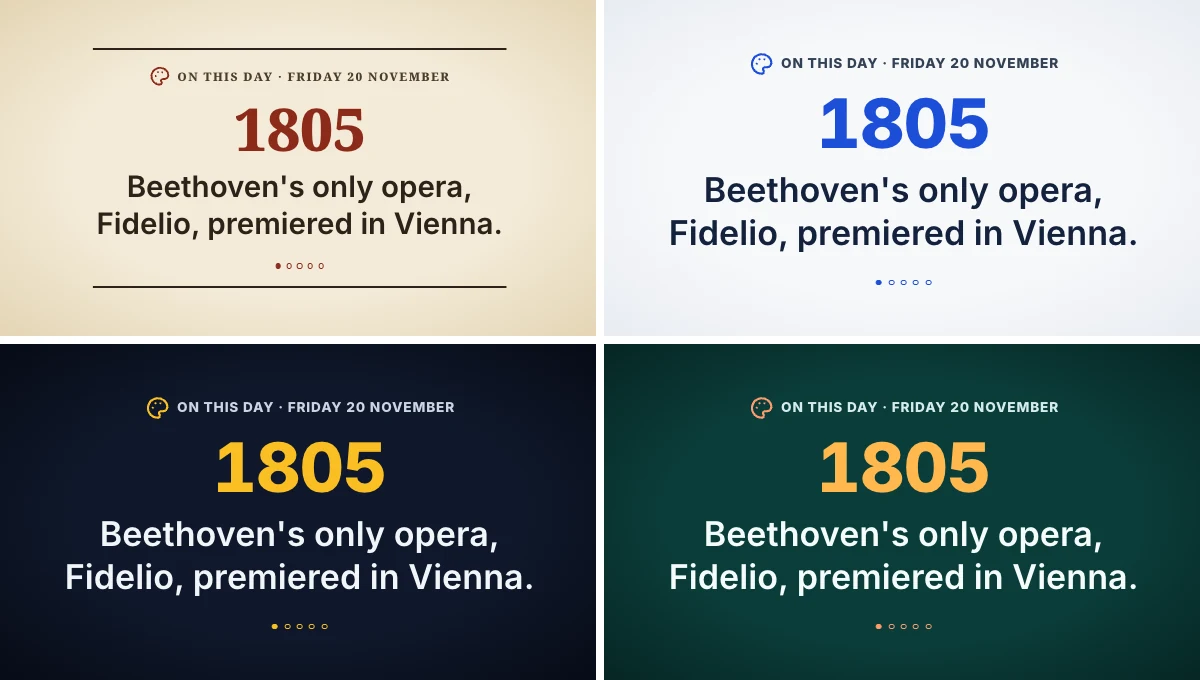
- Newspaper: cream paper, dark ink and a red serif year between double rules.
- Clean: light grey-white, navy text and a blue year.
- Dark: deep navy, white text and an amber year.
- Bold: deep teal, white text and an orange year.
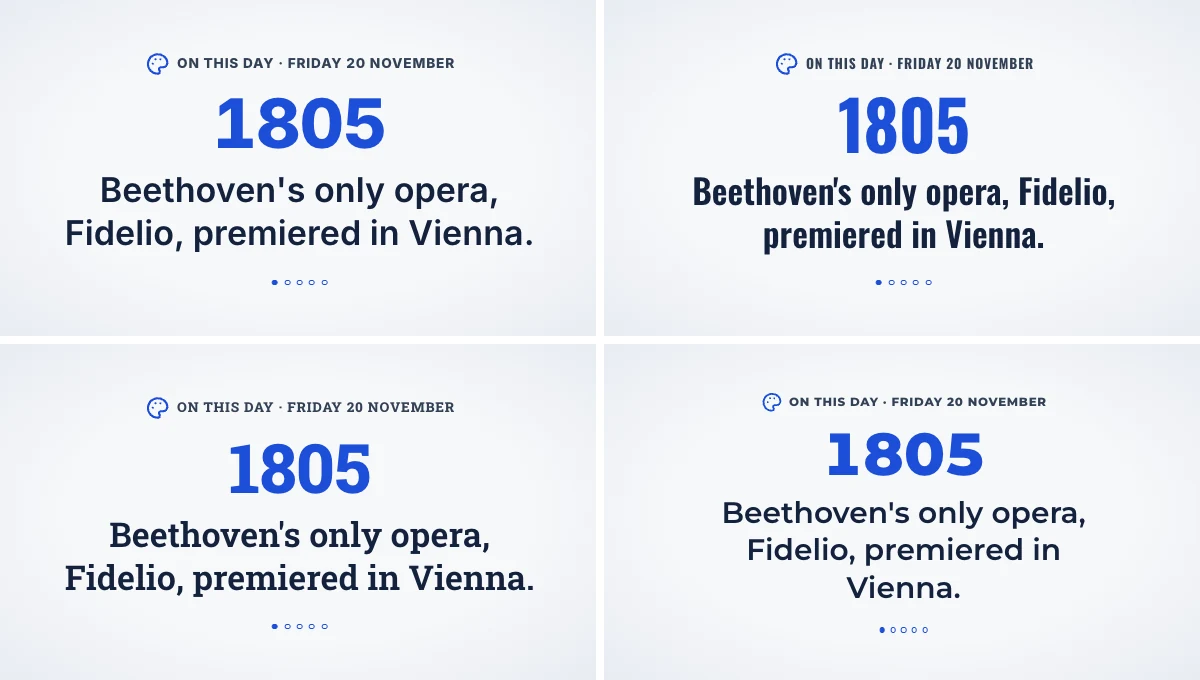
- Font: the typeface for all text. The theme’s font keeps each theme’s own choice. You can also choose Inter, Noto Serif, Roboto Slab, Montserrat, Oswald (narrow, so long lines show larger) or Cairo. Every font is part of the app, so the text looks the same on every screen and works offline, in all 13 languages.
Style
- Layout:
- Full screen: fills the whole layer.
- Card: a panel in the layer.
- Strip: a band for a footer or ticker layer, with the label, the year and the event on up to two lines.
- Badge: a small block for a corner, with the year and the first six words of the event.

- Position: where the event sits in the layer: Center, Top, Bottom or one of the four corners.
Background
- Background: Style background (the theme’s own background), Solid color or Transparent (the layers underneath show through).
- Background color: the colour used when Background is Solid color. With Style background, the theme’s background stays.
- Background opacity (%): below 100%, the layers underneath show through the background. The text stays solid.
- Readability on a transparent background: with a transparent background, adds a Text shadow, Text outline or Panel behind the text so it stays readable. Panel opacity (%) sets how solid the panel is.
Colors & size
- Use my own colors: replaces the theme’s colours with your Text color (the event and the small line) and Accent color (the year, icons and dots). If a colour would be hard to read against the background, the app makes it lighter or darker.
- Size (%): makes everything larger or smaller, from 60% to 140%. The app still fits the event in the layer.
Advanced settings
The Advanced tab also has:
- Seconds per event: how long each event shows when Change the event is Every few seconds, from 8 to 40 seconds. The default is 12.
- Show “On this day”: shows the small line with “On this day”.
- Show the date: adds today’s date to the small line.
- Show the topic icon: shows a small icon for the event’s topic, such as a trophy for sport.
- Numerals: 0123 (Western digits) or ٠١٢٣ (Arabic-Indic digits).
- Time zone: The screen’s time zone (the default), or A fixed time zone that you pick in Timezone. The app uses this to decide what today’s date is.
Tips for a screen people can read
Keep your own lines short:
People passing a screen read about seven words at a glance. One short sentence works best.Use the timeline where people wait:
A timeline of three suits a reception or a waiting room, where people look for longer. In a corridor, keep One event at a time.Match the theme to the room:
Newspaper and Clean suit bright rooms. Dark and Bold suit dim rooms and screens that run all day.Use Strip for a footer:
Over a video or another app, choose the Strip layout with a Transparent background and a Panel behind the text.
Troubleshooting
The screen shows the wrong day’s events:
The app uses the screen’s own clock. Check the date, time and time zone on that screen, or set Time zone to A fixed time zone.The timeline shows only one event:
The timeline needs the Full screen or Card layout and a layer at least 900 pixels wide or tall. Choose a larger layer, or change the layout.My own anniversary doesn’t show:
- Check that the date is in Date (MM-DD) as month then day, for example
11-20for 20 November. - Check that the row has a Year and a line in What happened.
- The anniversary shows only on its date, by the screen’s clock. To check how it looks, set its date to today’s date in the Live preview, then set it back before you save.
- Check that the date is in Date (MM-DD) as month then day, for example
The events show in English:
Check Language on the Content tab. An item saved in an older version of the app with a language that is no longer in the list, such as Chinese or Russian, shows English. Choose a language from the list, save the item, then publish the playlist.The event changes too fast or too slowly:
Change Seconds per event on the Advanced tab. To show one event all day, set Change the event to Once a day (the same on every screen).