Use the Occasions app to celebrate birthdays, work anniversaries, retirements and other dates on your screens. You keep a list of people and their dates, choose a design, and on each person’s day the screen shows a slide with their name, your message and, if you like, their photo and how many years it has been. On a day with no entries, the app shows nothing.
Note: Occasions is included on the Premium and Enterprise plans. It isn’t offered in video wall playlists.
Important: The Occasions app is supported on Android players only.
How to Add the Occasions App
- Open the playlist, then click the layer. See Playlist Media Management .
- If the layer is empty, the content apps open. If it already has media, click Add New.
- Click Occasions. The setup window opens.
Use one Occasions item per kind of occasion, for example one for birthdays and one for work anniversaries.
Choose the Design
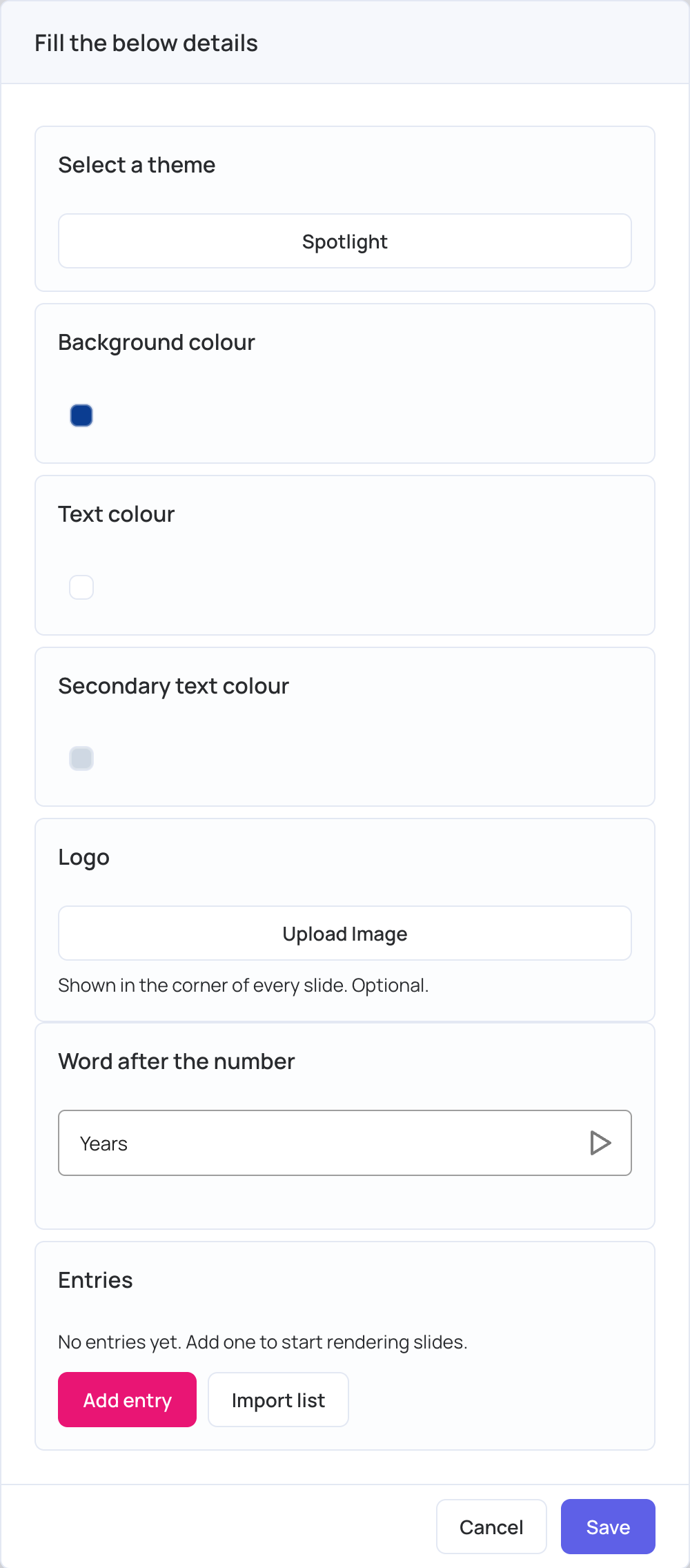
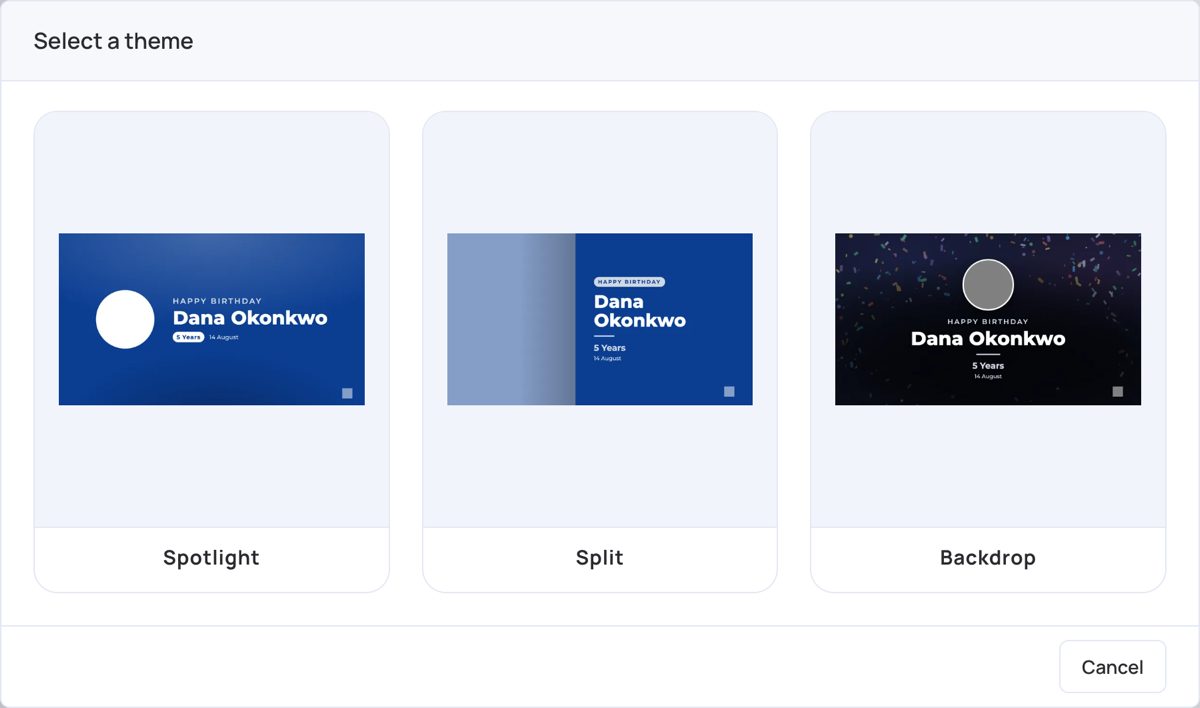
- Select a theme: click the theme to choose another one.
- Spotlight: a round photo beside the text.
- Split: the photo on the left and the text on the right.
- Backdrop: an optional Background image behind the text, with a round photo.
Background colour: the colour of the slide. On Backdrop it tints the background image: the more transparent the colour, the more of the image shows.
Text colour: the colour of the name.
Secondary text colour: the colour of the message and the date.
Logo: shown in the corner of every slide. Optional.
Word after the number: shown after the year count on entries that show it, for example Years gives “5 Years”. Leave it empty to show the number alone.
Images can be JPG, PNG, WEBP or GIF.
Add People
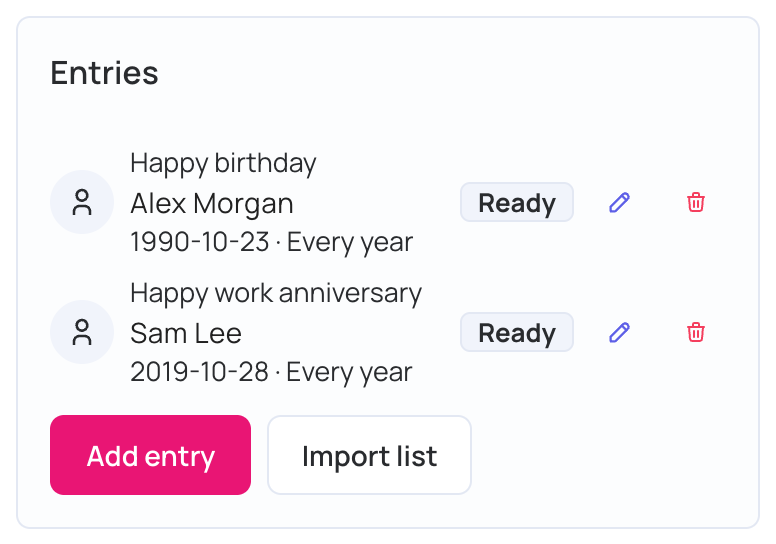
- Under Entries, click Add entry.
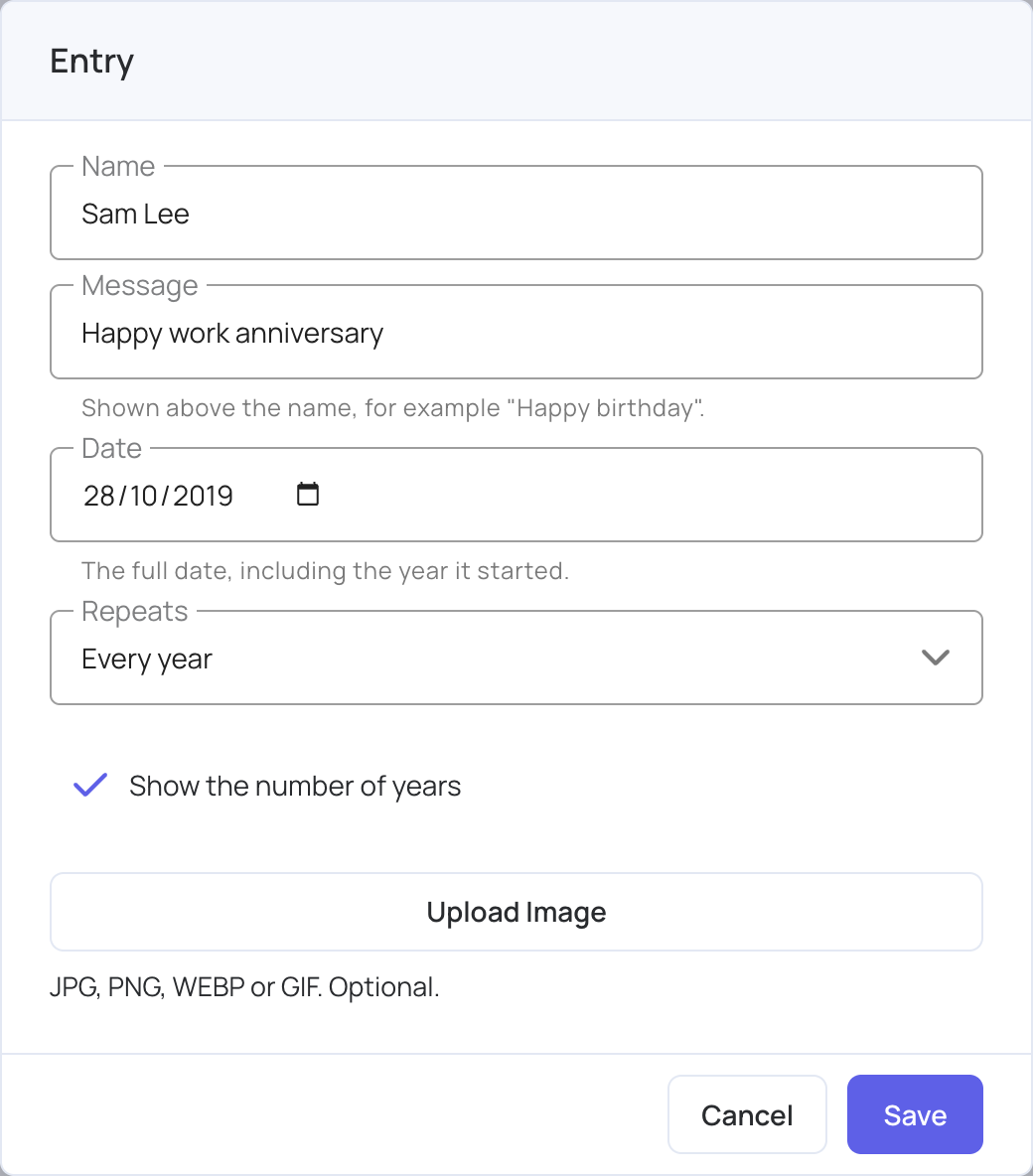
- Fill in the entry:
- Name: the person’s name, up to 60 characters.
- Message: shown above the name, for example “Happy birthday”. Up to 60 characters. Optional.
- Date: the full date, including the year it started, for example the date of birth or the start date.
- Repeats: Every year for birthdays and anniversaries, or Once for a single date.
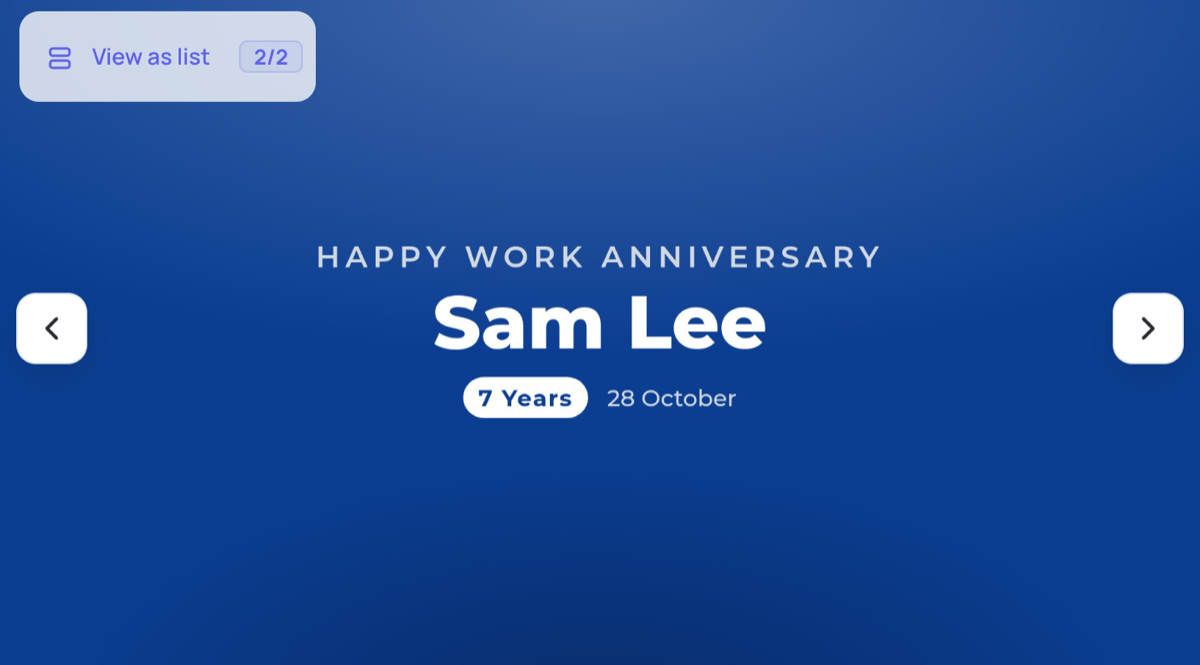
- Show the number of years: adds the year count, for example “7 Years” for a work anniversary.
- Upload Image: the person’s photo. Optional.
- Click Save.
To change an entry, click its edit icon. To remove it, click its delete icon: it is removed straight away, without a confirmation. An Occasions item can hold up to 200 entries. For more people, add another Occasions item.
Import a List
To add many people at once:
- Under Entries, click Import list.
- Paste your list, or click Load from file to load a CSV file.
- Click Import.
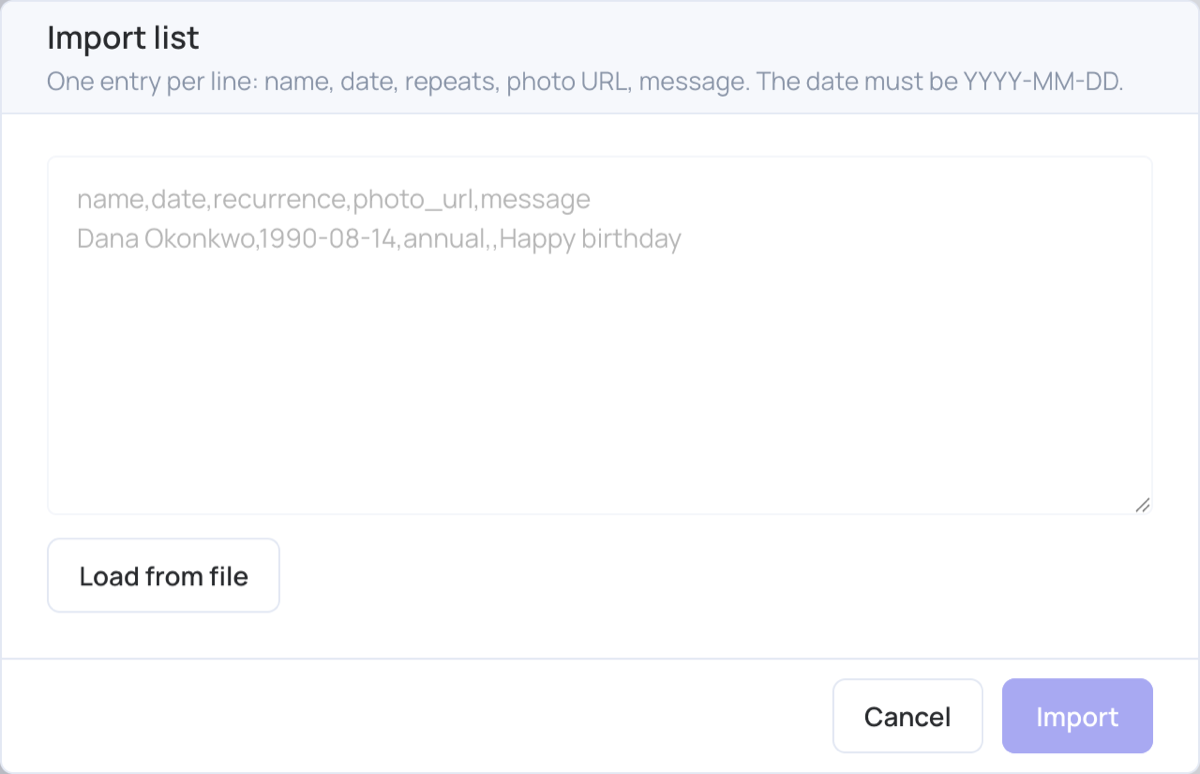
Put one entry per line, in this order: name, date, repeats, photo URL, message. For example:
name,date,recurrence,photo_url,message
Dana Okonkwo,1990-08-14,annual,,Happy birthday
- Only the name and the date are needed. The first line can be a header; it is detected automatically.
- Write dates as
YYYY-MM-DD, for example1990-08-14. - For a single date, write
oncein the repeats column. Anything else means every year. - A photo URL must be a public
https://link to a JPG, PNG, WEBP or GIF.
A message tells you how many entries were added and how many lines couldn’t be read.
Save and Publish
- Click Save. The slides are made for each entry. For a long list this can take a few minutes, and the entries can’t be edited until it finishes.
- Click Publish changes of this playlist to send the slides to your screens.
Each entry shows its status:
| Status | What it means |
|---|---|
| Ready | The slides are made. |
| Not rendered | The slides aren’t made yet. Click Save. |
| Failed | The slides couldn’t be made. Click Save to try again. |
| Past | The entry happens Once and its date has passed, so no slide is made. |
If you see “Rendering did not finish. Save again to continue where it stopped.”, open the item and click Save again. It continues from where it stopped.
What Plays on the Screen
On each entry’s day, the screen shows its slide. The preview in the playlist shows the next slide for each entry.
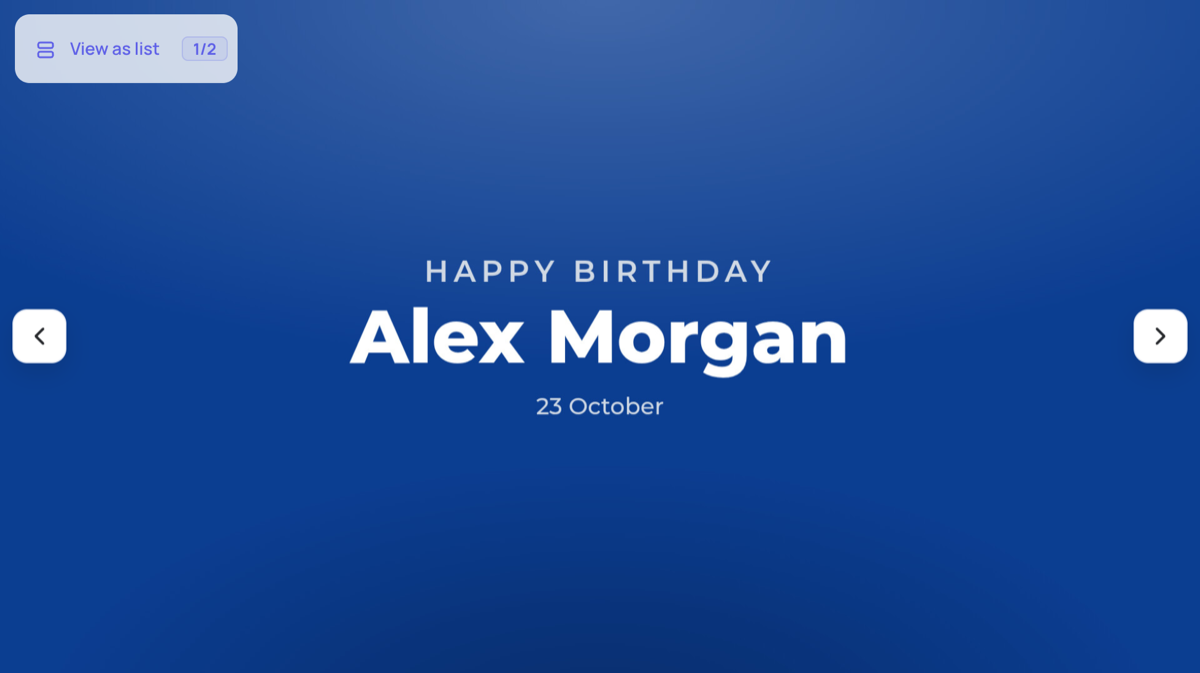
- Which day: the day is taken from the screen’s own clock.
- How long: each slide plays for the item’s Duration.
- No entries that day: nothing from this app plays. If it is the only item in the layer, the layer has nothing to show that day.
- 29 February: in years without one, the slide plays on 28 February.
- Number of years: counted from the year in the entry’s date.
Slides are made for the next two occurrences of each entry. When they are about to run out, the entries show “Slides run out on {date}. Save to extend them.”: open the item, click Save, then publish.
Changing the theme, the colours, the logo, the background image or the Word after the number remakes every slide when you save.