MRSS (Media RSS) is an RSS feed that lists images and videos. Point a layer at your MRSS feed and the CMS downloads its media and keeps it in sync: when you change the feed, your screens update by themselves, with no uploads. If you prefer JSON, use Media JSON , which works the same way.
Use it for content that another system already produces, such as promotions, announcements, menus or product images.
How to Add an MRSS Feed
- Open the playlist, then click the layer. See Playlist Media Management .
- If the layer is empty, the content apps open. If it already has media, click Add New.
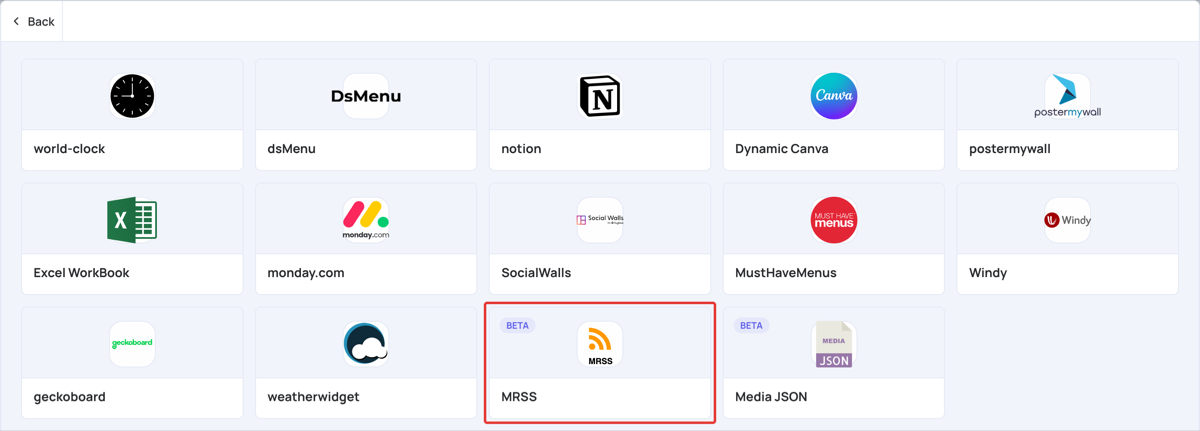
- Click General Apps, then MRSS. It is also in Video Apps and News Apps.
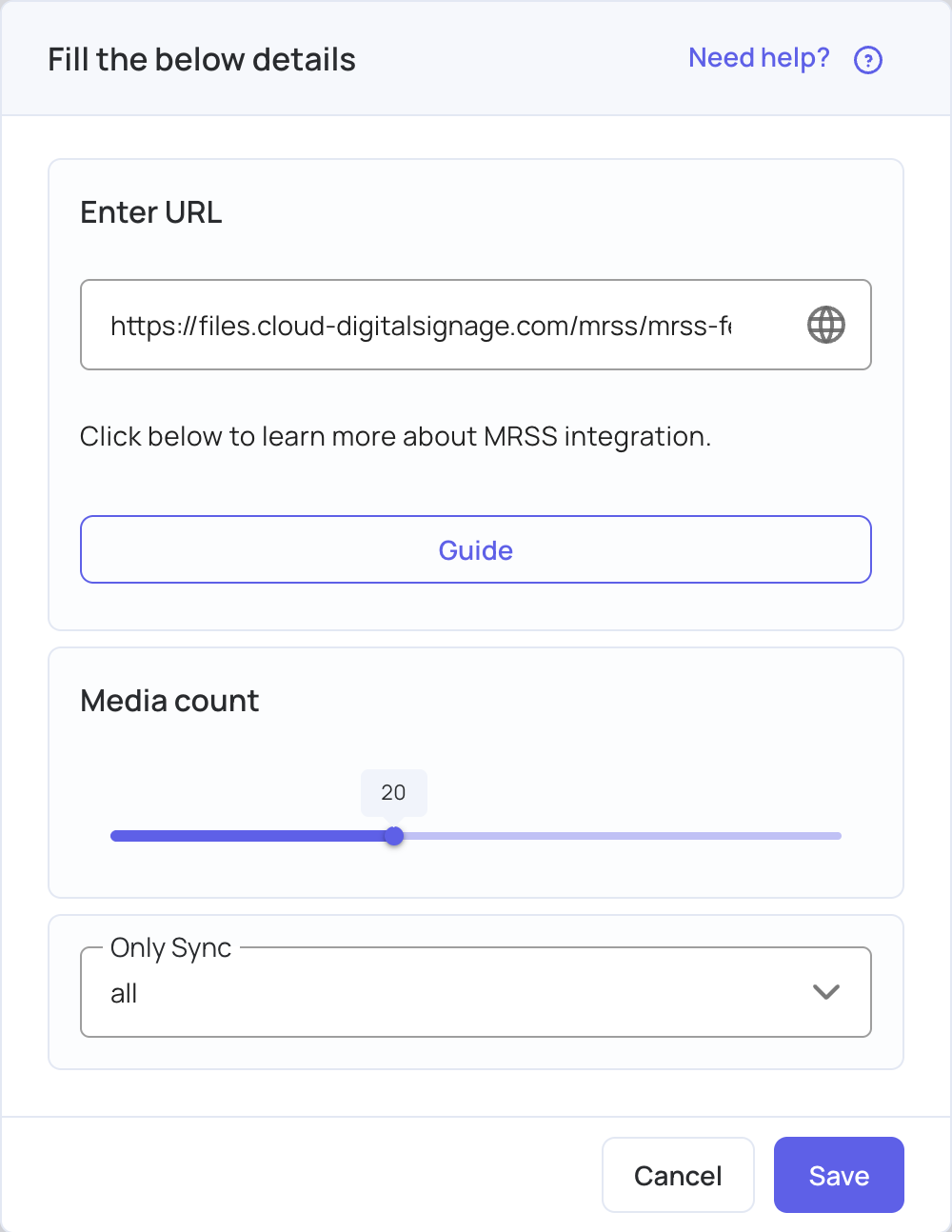
- In Enter URL, paste the address of your feed. To try it first, use the example feed:
https://files.cloud-digitalsignage.com/mrss/mrss-feed.xml - Set Media count: the number of items to take from the feed, from 1 to 50 (20 by default). Items are taken from the top of the feed.
- In Only Sync, choose All Media, Videos Only or Images Only. A new app shows
all, which means all media. - Click Save.
- The CMS downloads the media from the feed and adds the items to the layer. Click Publish changes of this playlist to send them to your screens.
Feed Format
The feed must be an XML file or API response that is publicly reachable over HTTPS. Media files must be public HTTPS links too.
<rss xmlns:media="http://search.yahoo.com/mrss/" version="2.0">
  <channel>
    <title>Media RSS</title>
    <description>Media RSS Feed</description>
    <item>
      <title>Image 1</title>
      <media:content
        url="https://your-domain.com/path/image1.jpg"
        type="image/jpeg"
        medium="image"
        key_change="hash1"
        duration="10"/>
    </item>
    <item>
      <title>Video 1</title>
      <media:content
        url="https://your-domain.com/path/video1.mp4"
        type="video/mp4"
        medium="video"
        key_change="hash2"
        duration="10"/>
    </item>
  </channel>
</rss>
Download the example feed: https://files.cloud-digitalsignage.com/mrss/mrss-feed.xml
Elements
| Element | Required | Description |
|---|---|---|
<rss> | Yes | The root element. Include xmlns:media="http://search.yahoo.com/mrss/" and version="2.0" |
<channel> | Yes | Holds the feed’s <title>, <description> and items |
<item> | Yes | One per image or video |
<title> | Yes | The name of the feed or item |
<media:content> | Yes | The media file details, below |
<media:content> attributes
| Attribute | Required | Description |
|---|---|---|
url | Yes | Direct HTTPS link to the image or video file |
type | Yes | The file’s MIME type, for example image/jpeg or video/mp4 |
medium | Yes | image or video. Items with any other value are skipped |
duration | Recommended | How long the item plays, in seconds. If it is missing, the item uses the duration set for the app in the CMS |
key_change | Recommended | A unique value for the file, for example its MD5 hash. Change it whenever you replace a file at the same URL |
If an item has more than one <media:content>, only the first is used.
How Updates Work
- The feed is checked about every 5 minutes. When the feed has changed, the CMS syncs it again and updates your screens.
- Files are downloaded to cloud storage and then to your screens, so they keep playing offline.
- Items that are already downloaded, with the same
key_change, are not downloaded again. - If you replace a file but keep its URL, change its
key_change. Otherwise the screens keep the old file.
Tips
- Use common formats that your screens can play, such as JPG or PNG images and MP4 videos.
- Keep files small and host them on a fast server or CDN.
- Put the items you want to show first at the top of the feed: Media count takes them from the top.
Need help with your feed? Contact the EasySignage support team.