Players with an HDMI input can show live video from another device, such as a TV receiver, a camera, a computer or a media player, inside your playlist. The video can fill the screen or play in a smaller layer next to your other content (picture in picture, or PiP).
- Supported Players
- Set Up the Player
- Add External Video Source to a Playlist
- Switch Between Full Screen and PiP
Supported Players
- Android digital signage player with HDMI input and 4G LTE (APC390K)
- Giada Android digital signage player with HDMI input
- BrightSign XT-series players, the only BrightSign models with an HDMI input:
- Series 5: XT1145, XT2145
- Series 4: XT1144, XT1144-T, XT2144
- Series 3: XT1143
Set Up the Player
- Connect the player to power, and connect the video source to its HDMI IN port.
- Connect the player’s HDMI OUT port to the screen.
- Connect the player to the internet and open the digital signage app.
- Add the screen with its screen ID. See Add a Screen .
Add External Video Source to a Playlist
- Open the playlist, then click the layer for the video. Use a full-screen layer, or a smaller layer for picture in picture. See Playlist Media Management .
- If the layer is empty, the content apps open. If it already has media, click Add New.
- Click Video Apps, then External video source.

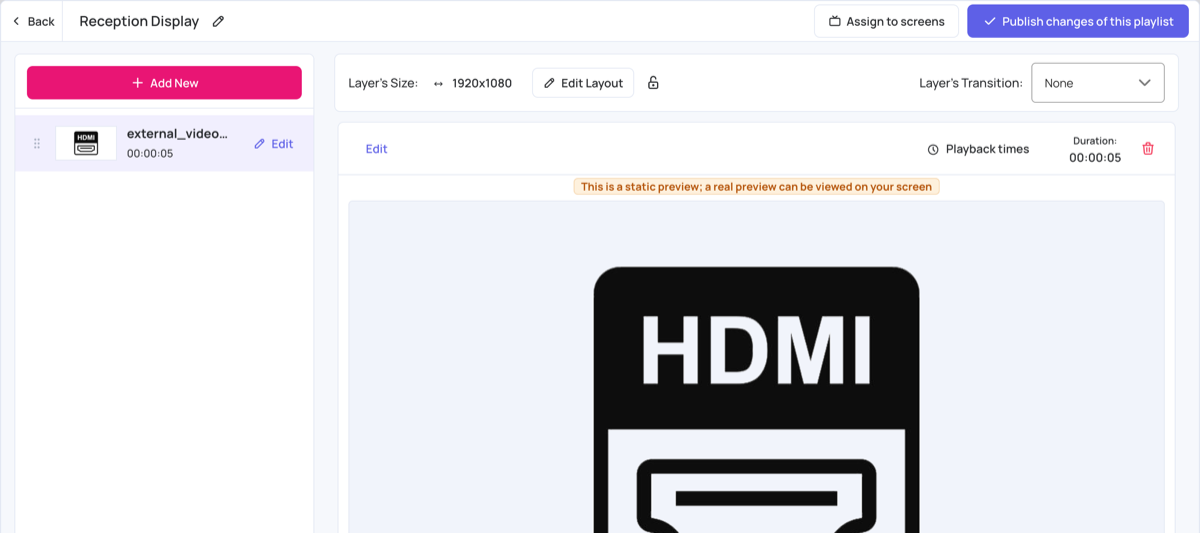
- The app is added to the layer straight away. The CMS shows an HDMI icon as a static preview; the live video shows on the screen.
- Click Publish changes of this playlist, and assign the playlist to the player. See Playlist Management .
Switch Between Full Screen and PiP
To switch between full screen and Picture in Picture (PiP):
- Create two playlists: one with the external video in a full-screen layer, and one with the video in a small layer next to your other content.
- Create a Channel.
- Add both playlists to the channel and assign the channel to the player. See Channels .