This document explains how to use the Door Label application in EasySignage to create and manage digital door signs, which include displaying room names, schedules, and status information from your Google and Microsoft Calendars.
How to Use Door Label App in Digital Signage
The Door Label app displays the room’s status and upcoming meetings and events from your Microsoft and Google Calendar.
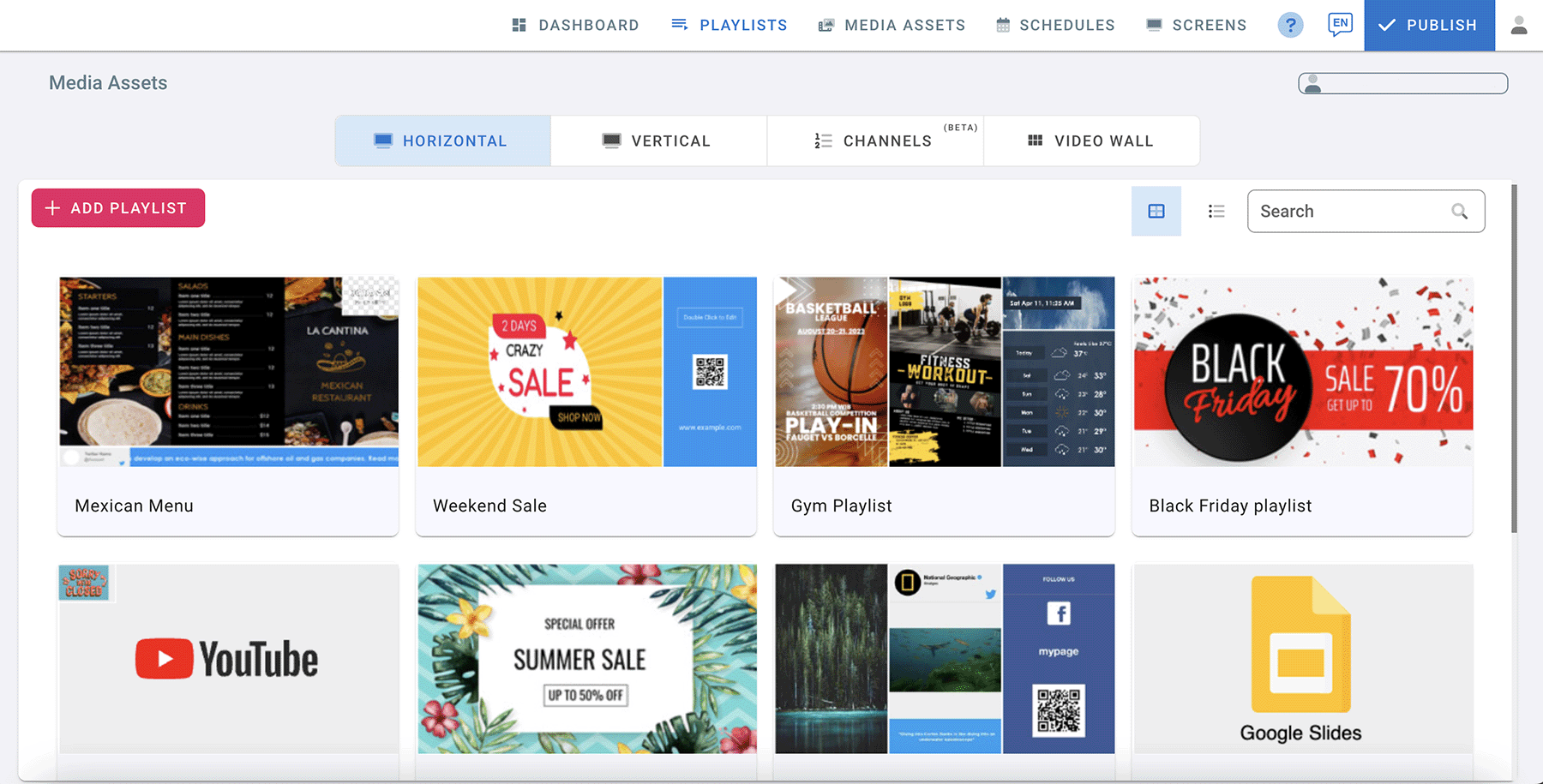
- Go to the Playlists page.
- Select Horizontal orientation tab for your playlist.
- Click on ADD PLAYLIST.
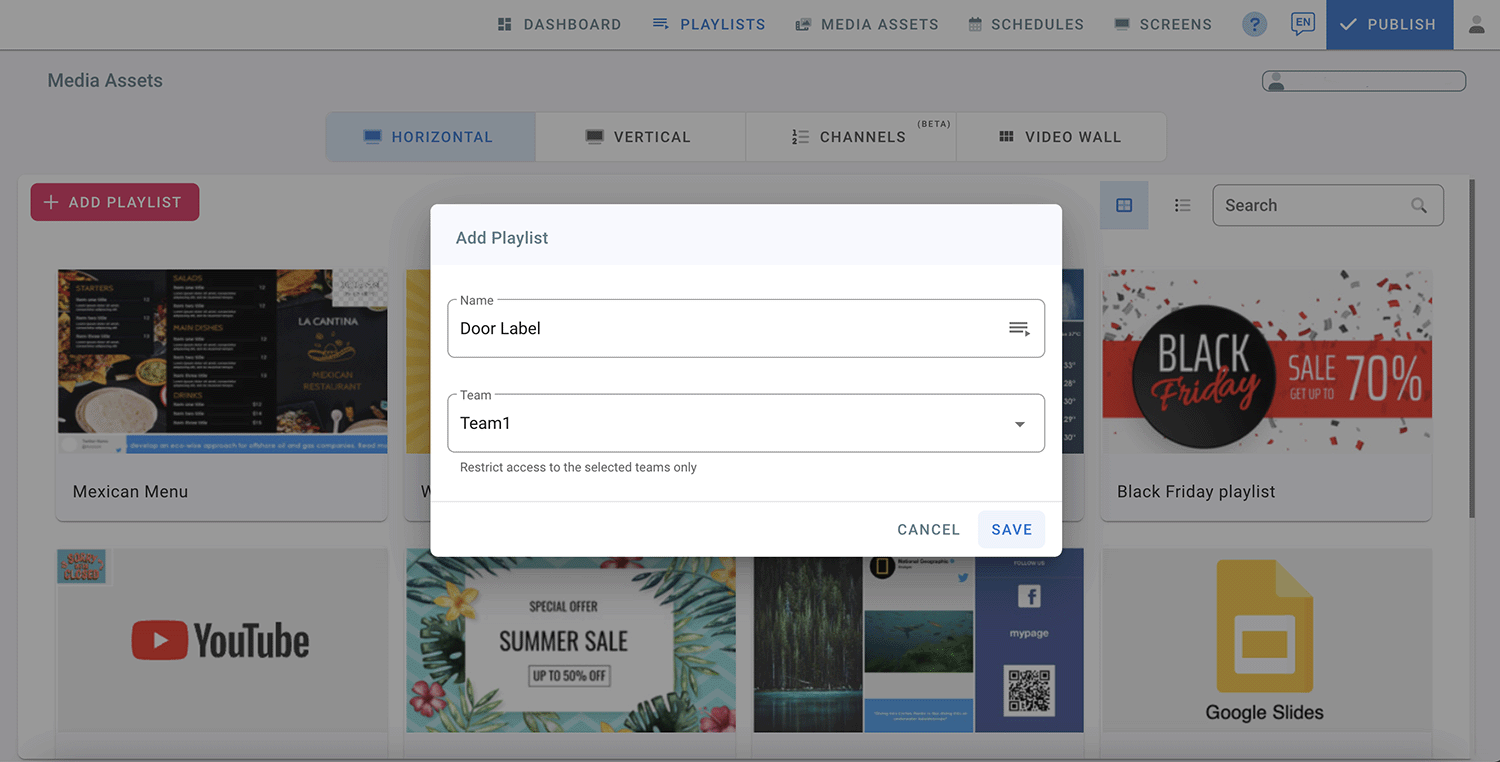
- Add Playlist and fill up the name of the playlist.
- Select a Team from the drop-down list. (Teams must be created before creating playlists. Check Teams in User Management)
- Click Save.
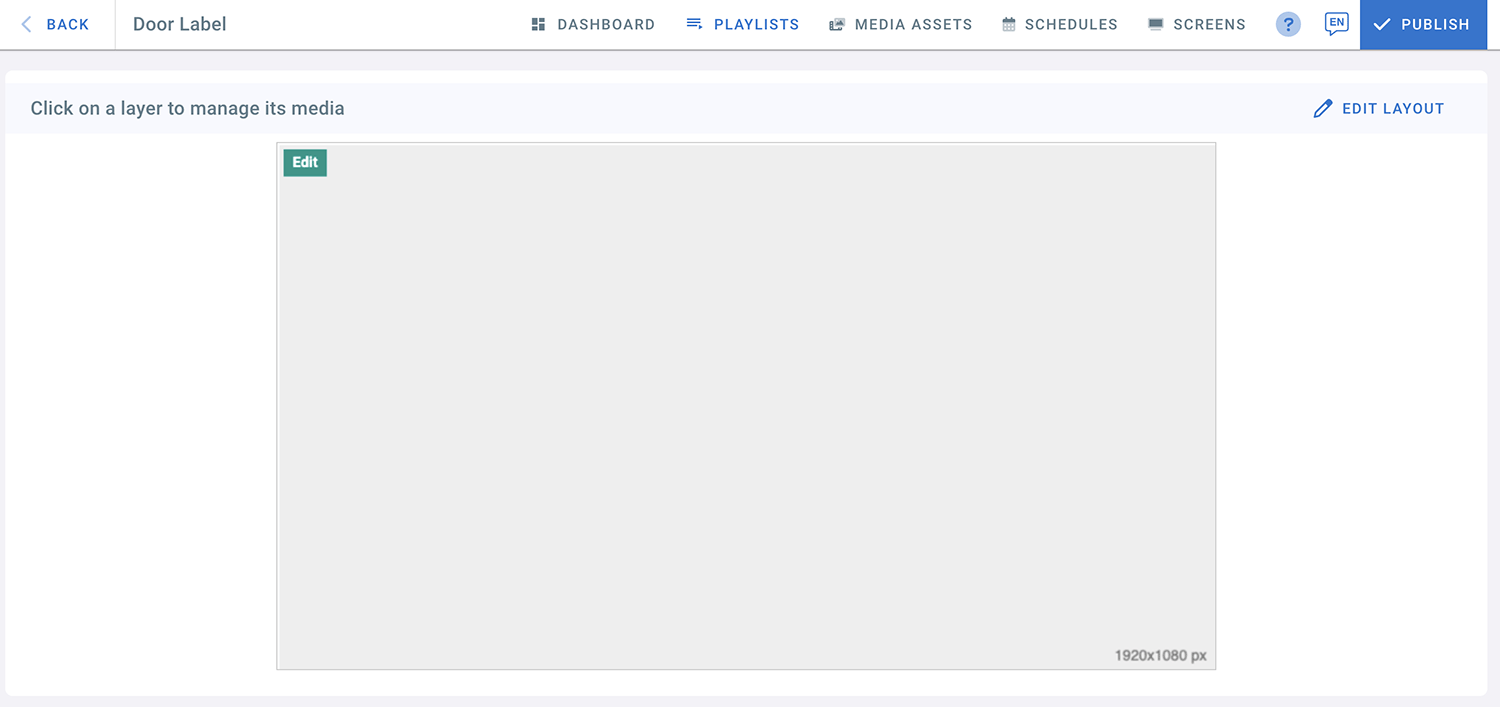
- Choose Full Layout 1 for your Door Label (1920x1080 px).
- Click on the layer to add media.
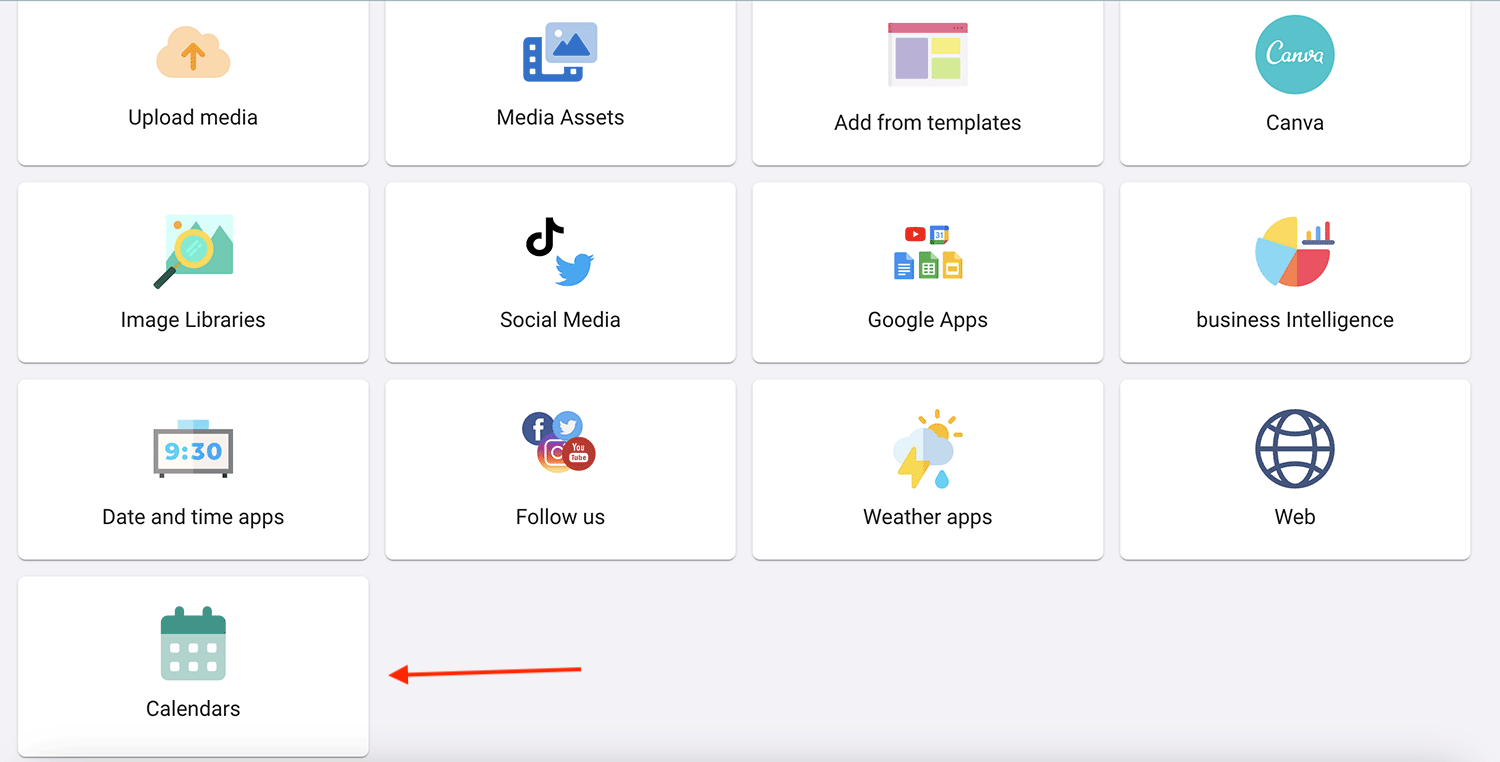
- From the Apps Page, select “Calendars”
- Choose one of the calendars: Microsoft Door Label or Google Door Label.
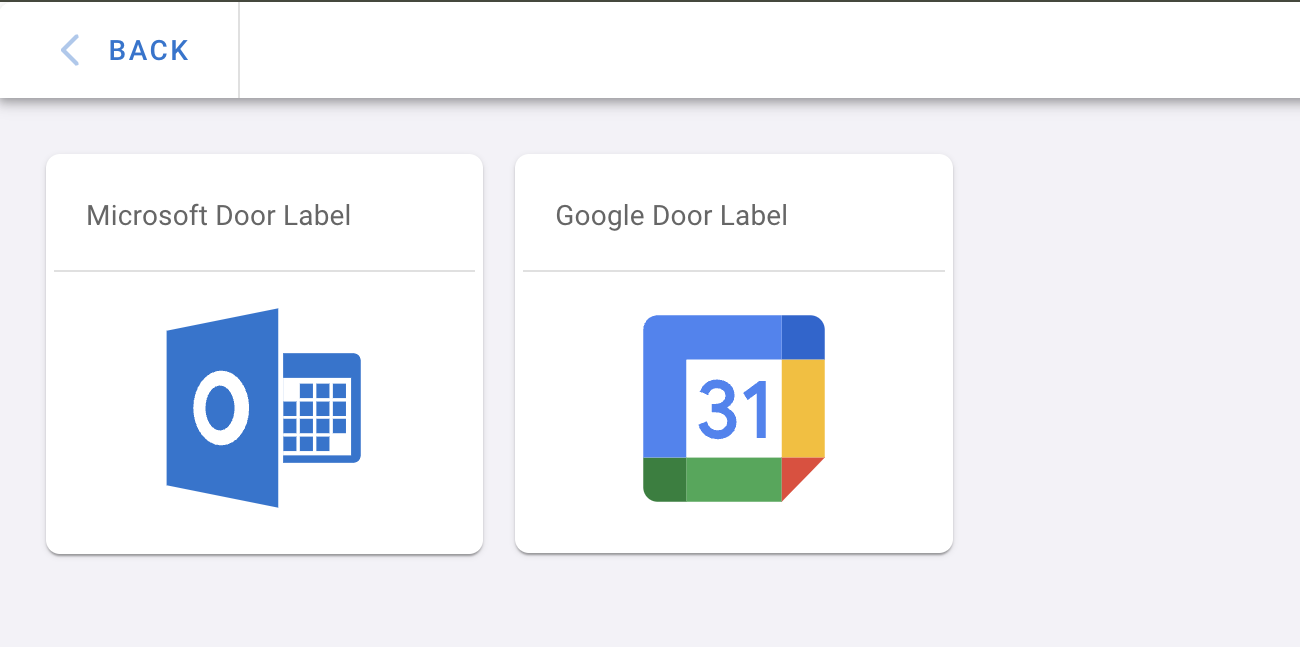
If you choose Microsoft Door Label:
- Fill in the details for the account you want to connect.
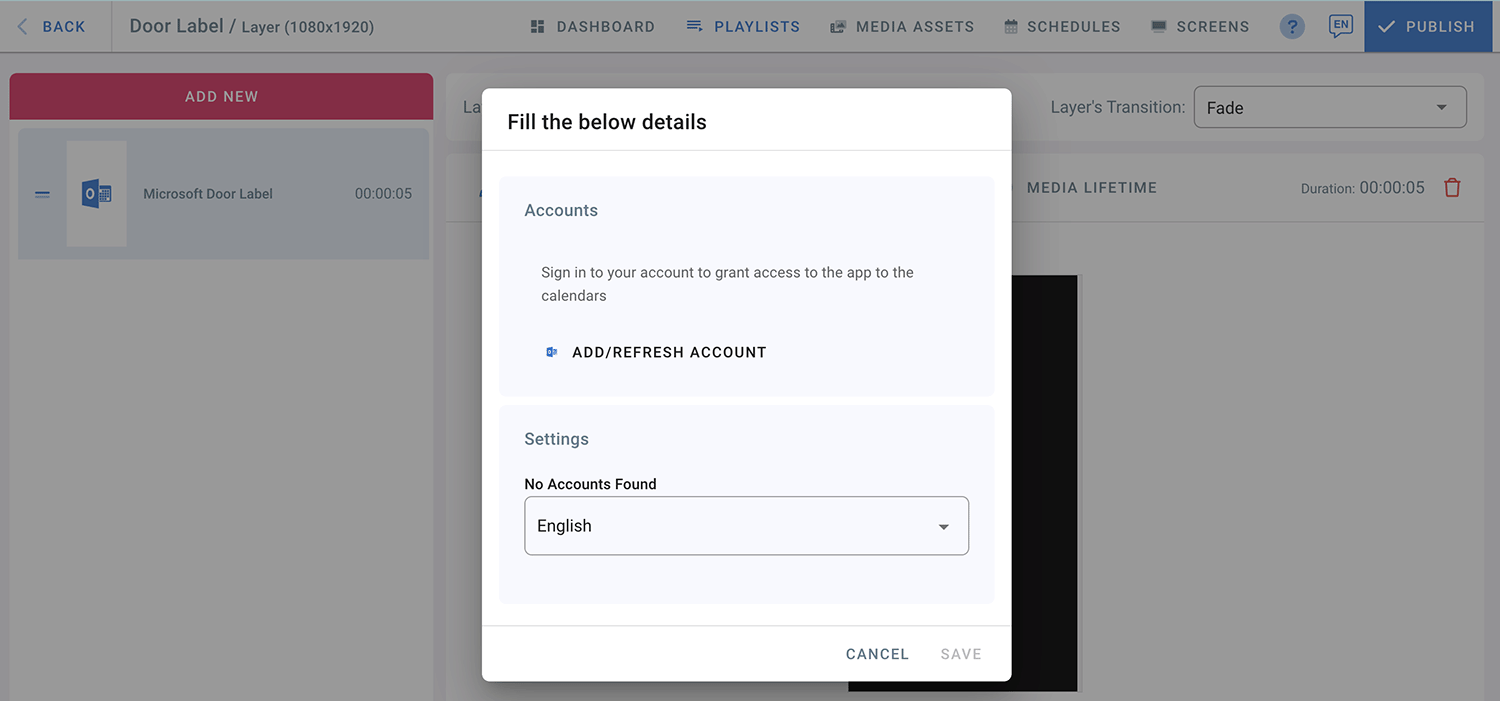
- Click on ADD/REFRESH ACCOUNT.
- A login page will open to sign into your Microsoft Account.
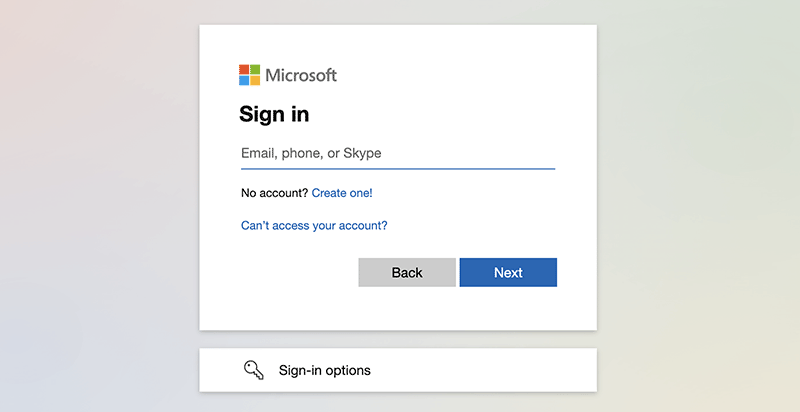
- Enter your email address.
- Click Next.
- Enter your email password.
- click sign in.
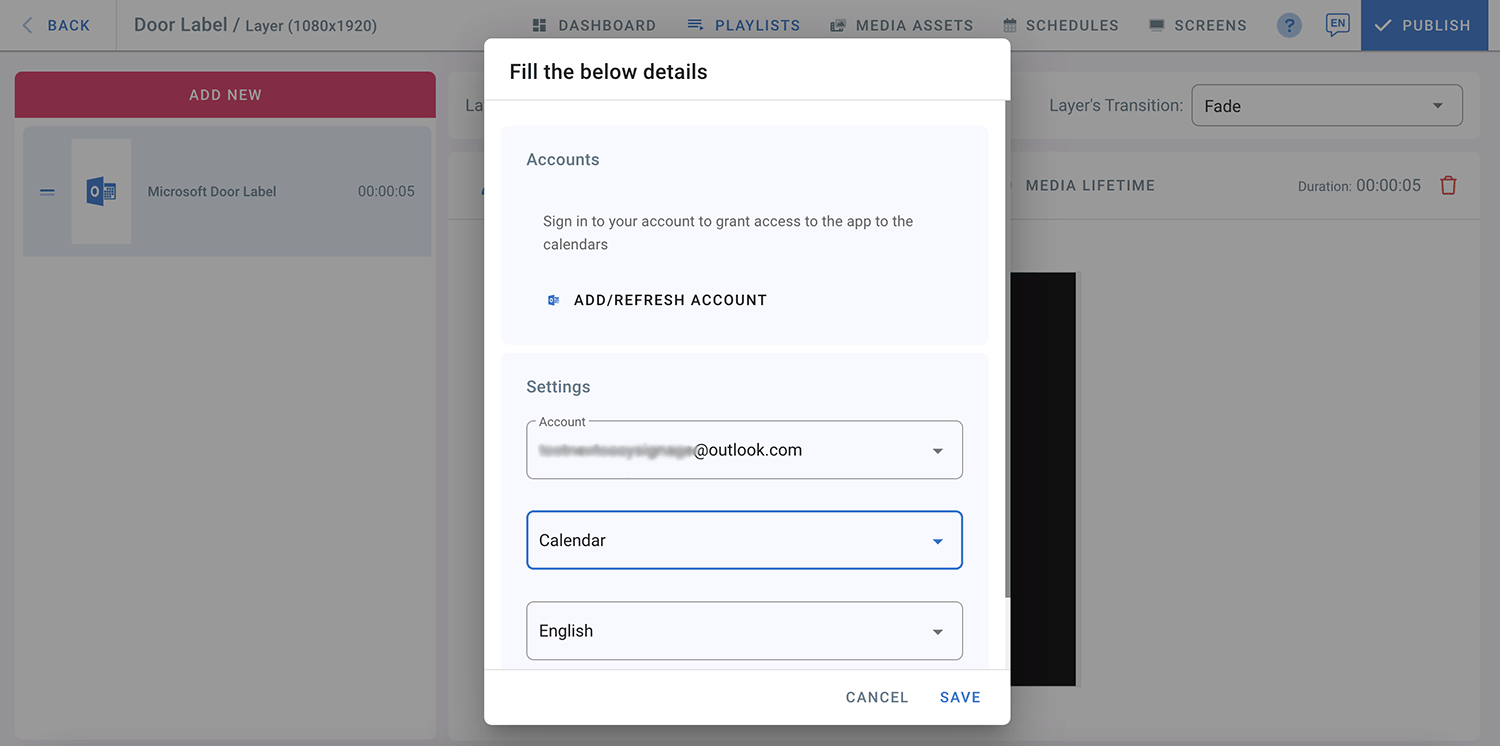
- Your Microsoft Account is now connected.
- From the drop-down list, select a calendar.
- Select a language for your Door Label.
- Click Save.
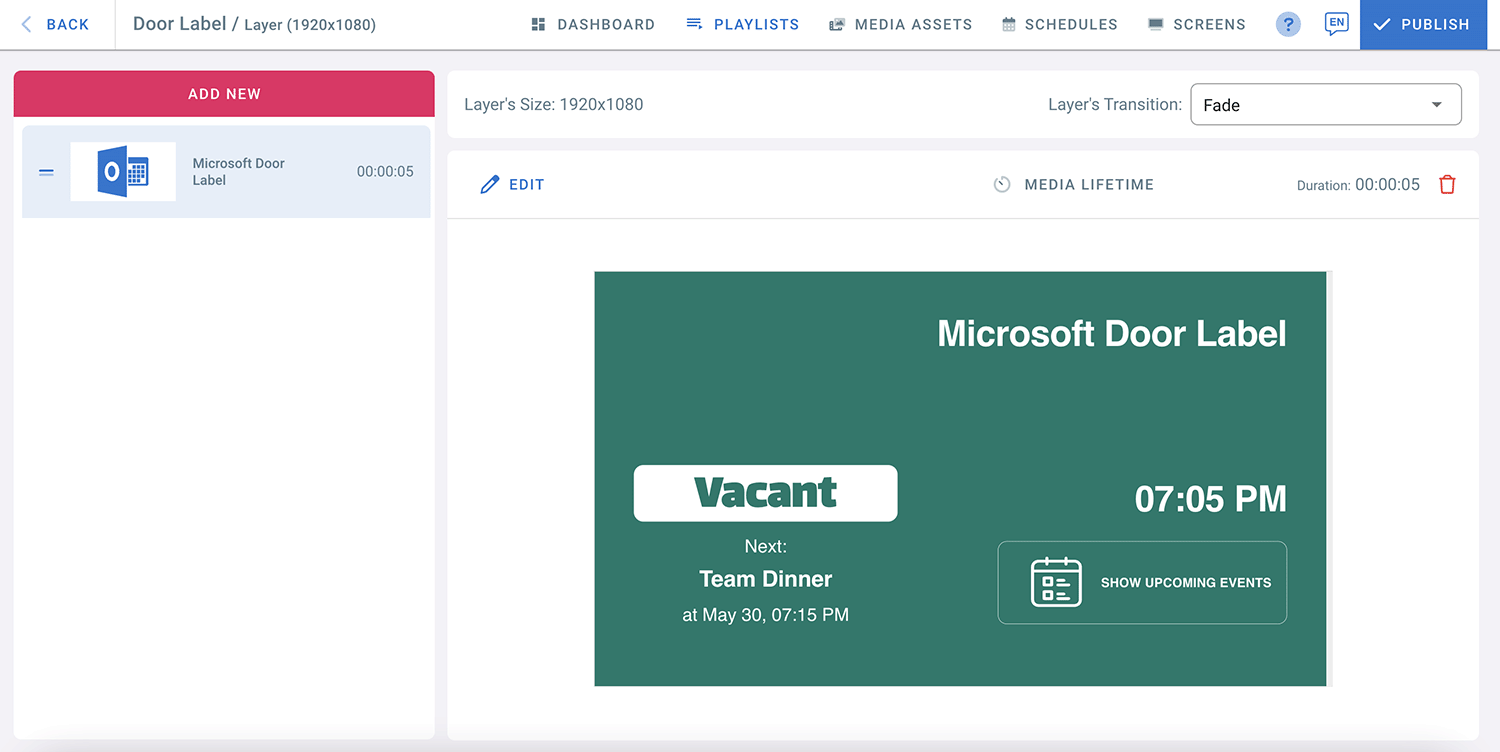
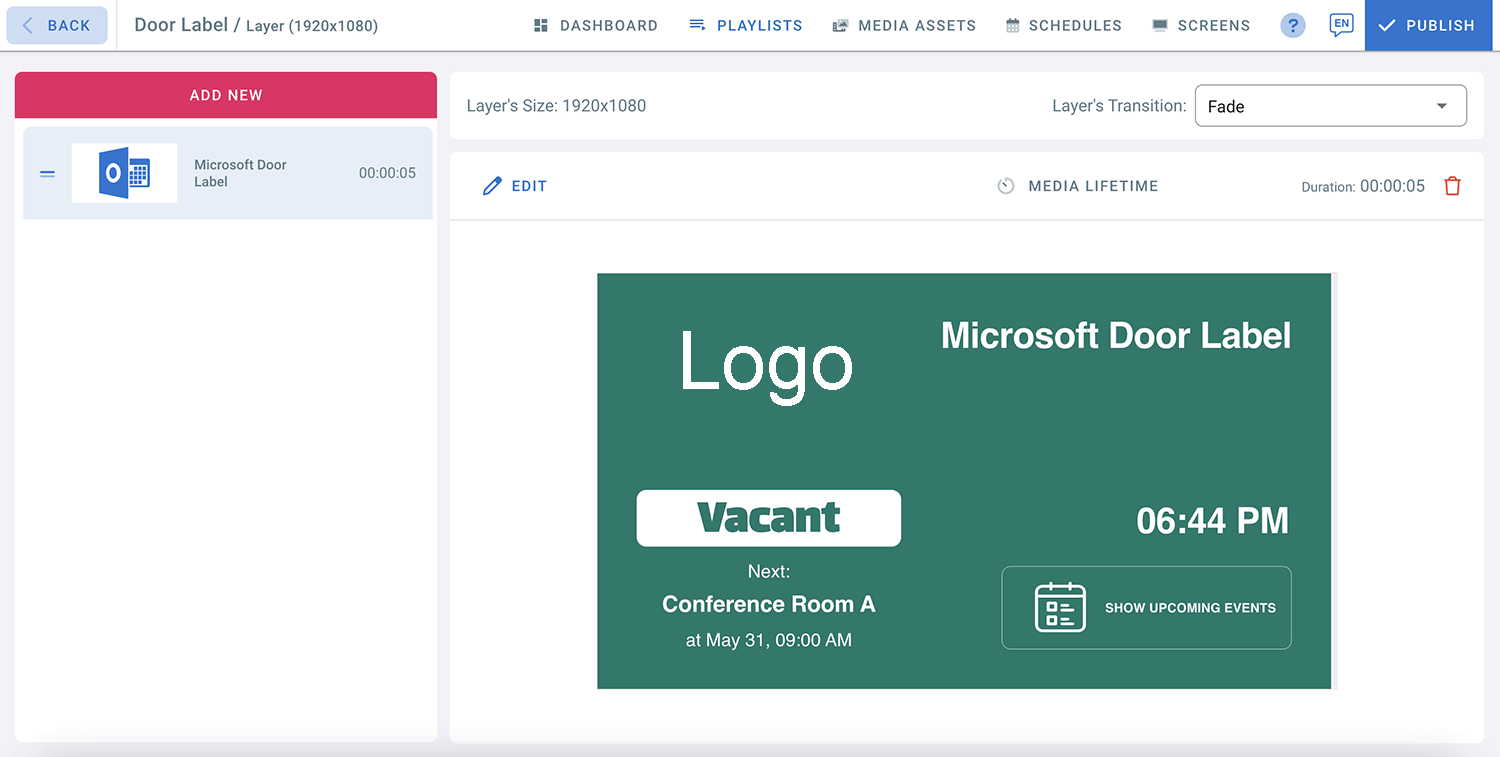
- Click on “Show Upcoming Events” to see what’s next on your calendar.
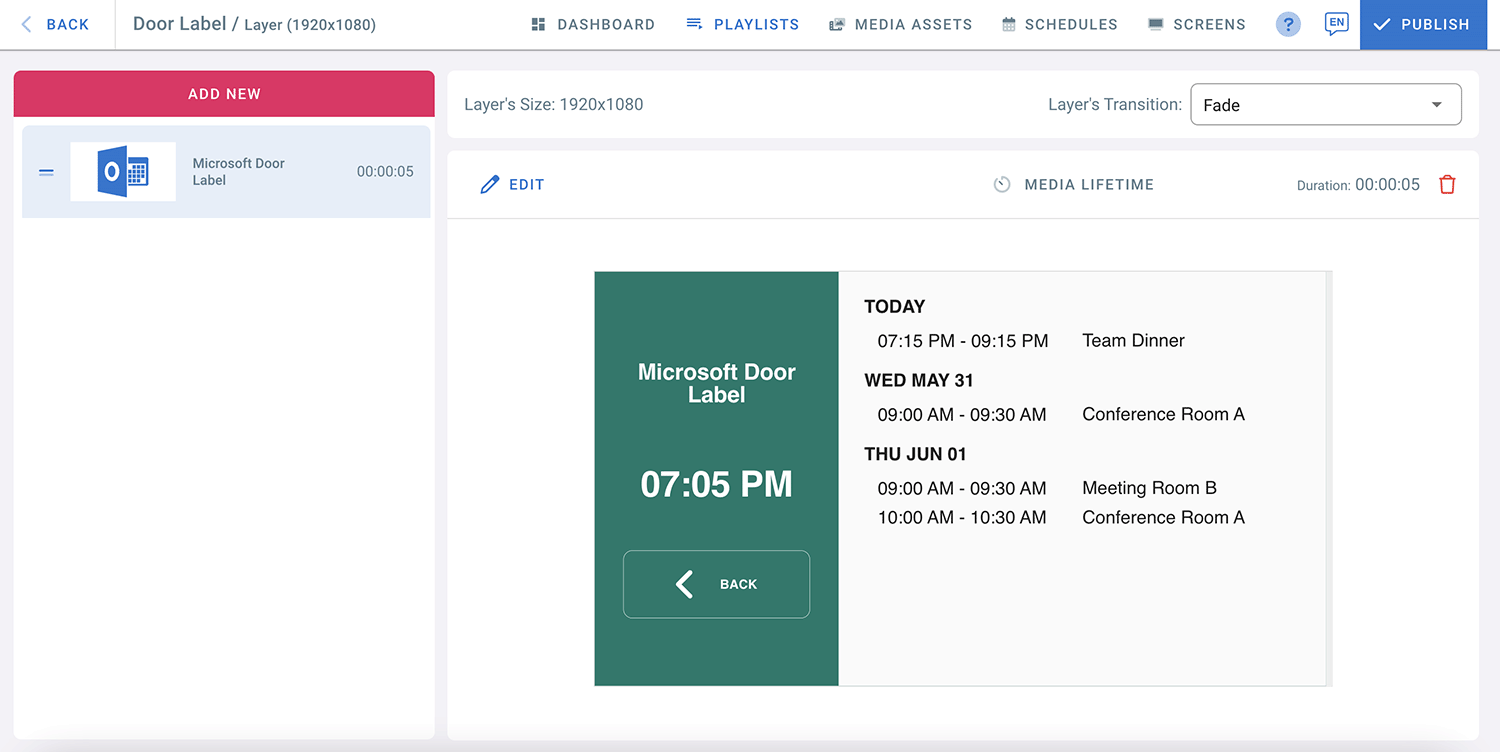
- When it is time for the event on your Calendar, your door label will change from vacant to occupied.
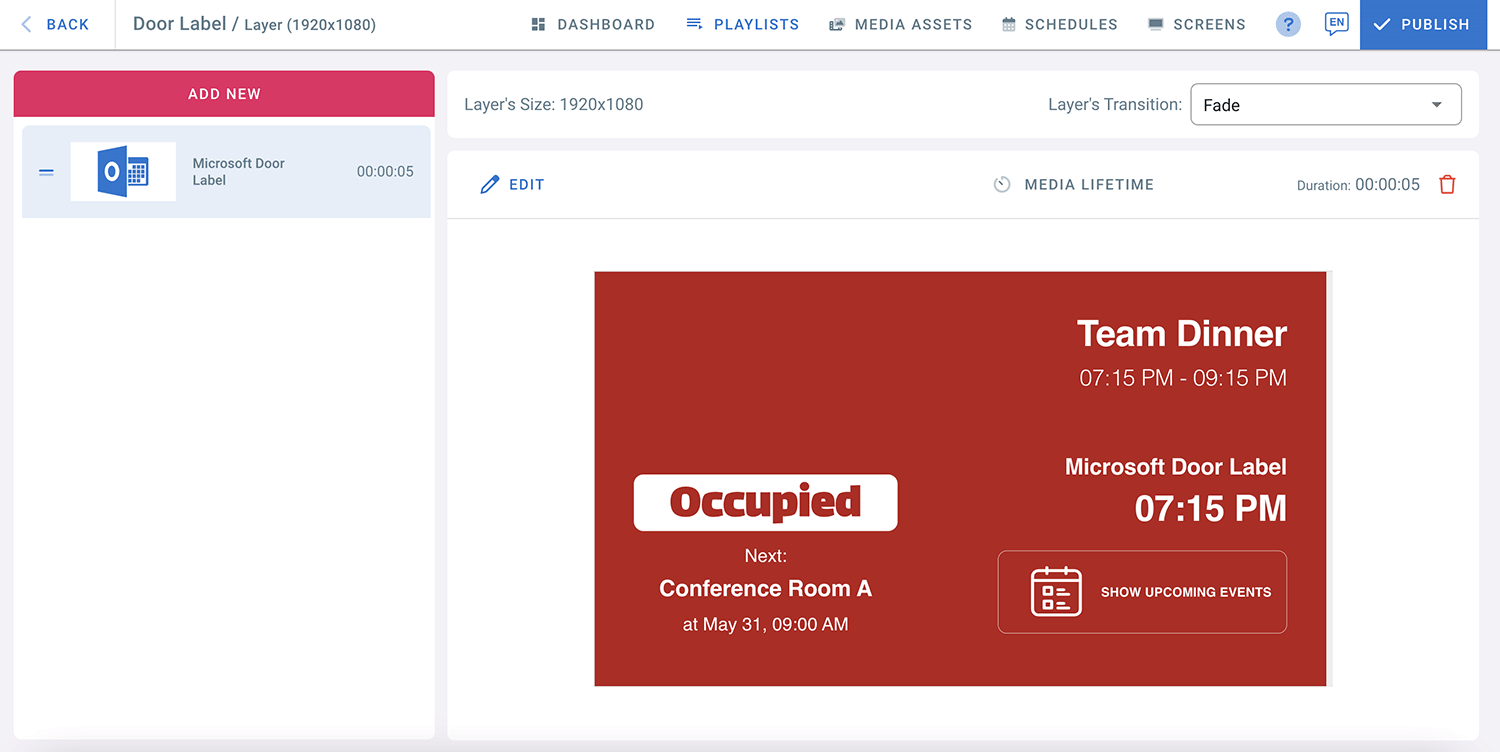
- To update your door label for any changes in your calendar, you need to refresh your account.
- Go to the door label layer.
- Click on EDIT
- Click ADD/REFRESH ACCOUNT in the media settings.
- Click Save.
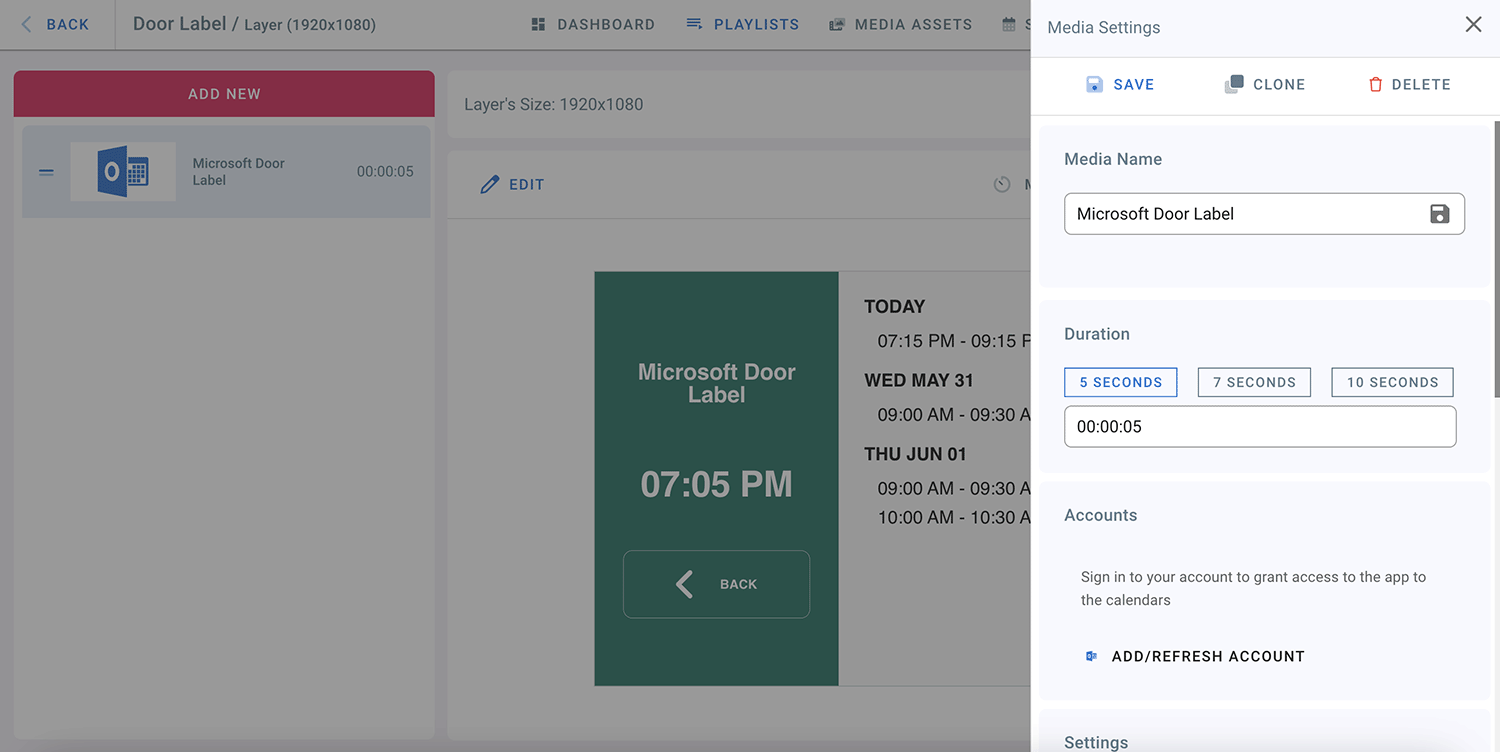
- To delete an account, click on EDIT.
- Click on REMOVE in media settings.
To add another Microsoft account to your Door Label:
- Sign out from your Microsoft account.
- Click on Edit in the Door Label Layer.
- Click again on ADD/REFRESH ACCOUNT.
- Log in Page will open.
- Sign in to another Microsoft Account.
- Enter the email Address and password and then click Sign in.
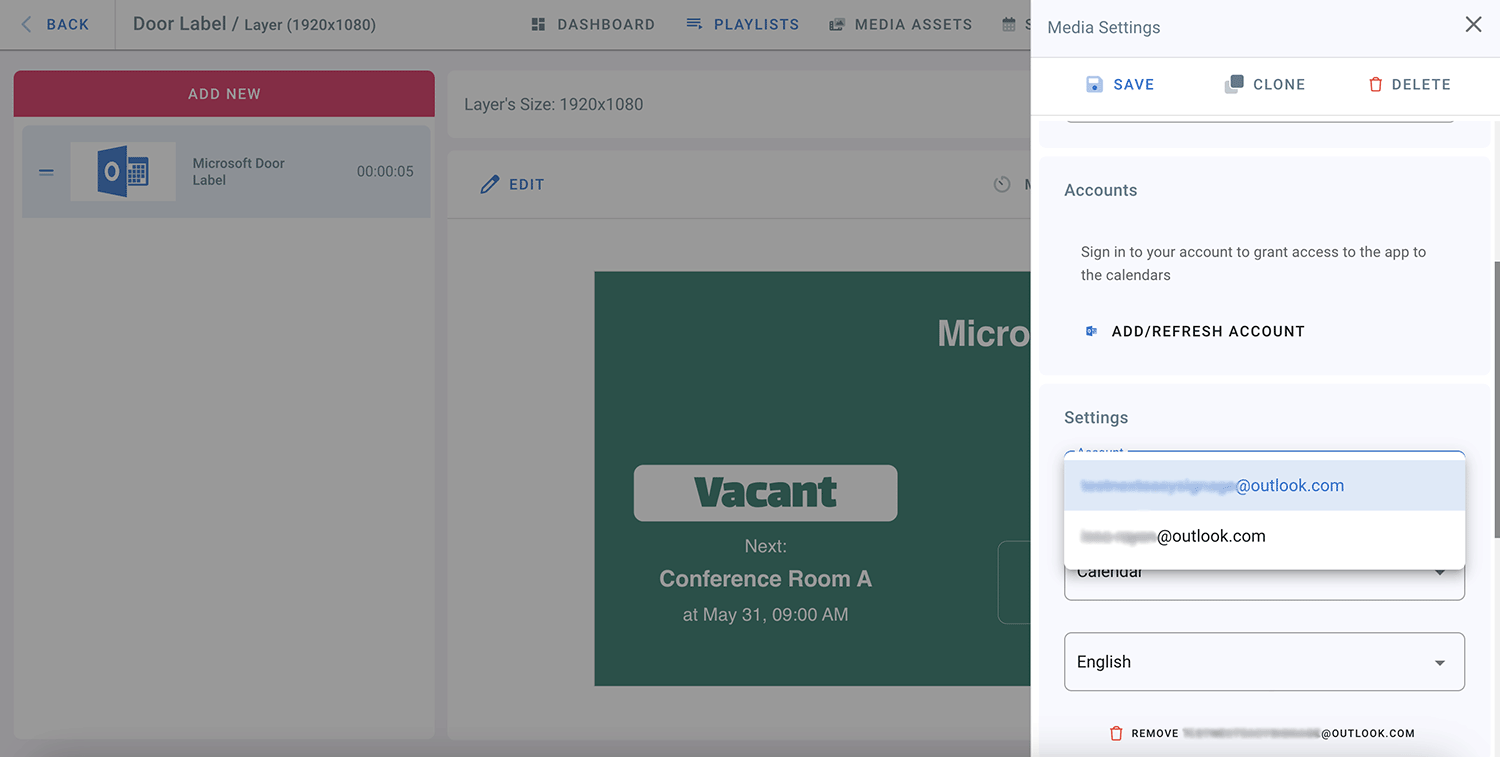
- The 2nd Microsoft Account is now connected to your Door Label.
- Select a Calendar for the new Microsoft Account added.
- From the Account drop-down list in the media settings, you can now switch between accounts.
If you choose Google Door Label:
- Click on “ADD/REFRESH ACCOUNT”.
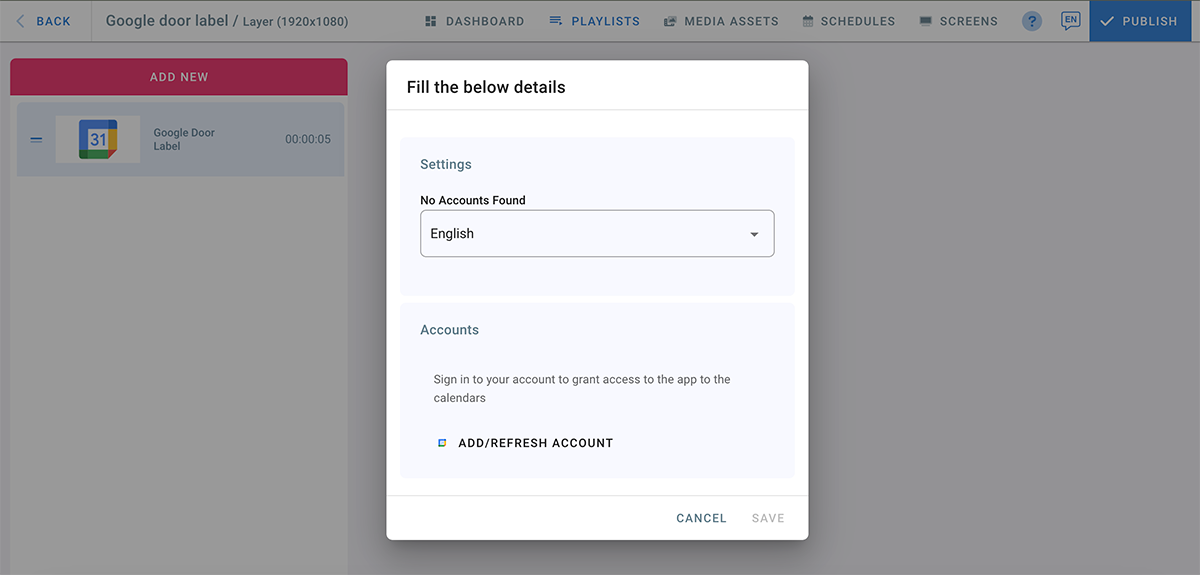
- Sign in with your Google Account.
- Click on “Continue” to allow digital signage to access your Google Account.
- Click on “Allow” to allow digital signage to see and download your Google Calendar.
- Your Google Account is now connected to the door label app.
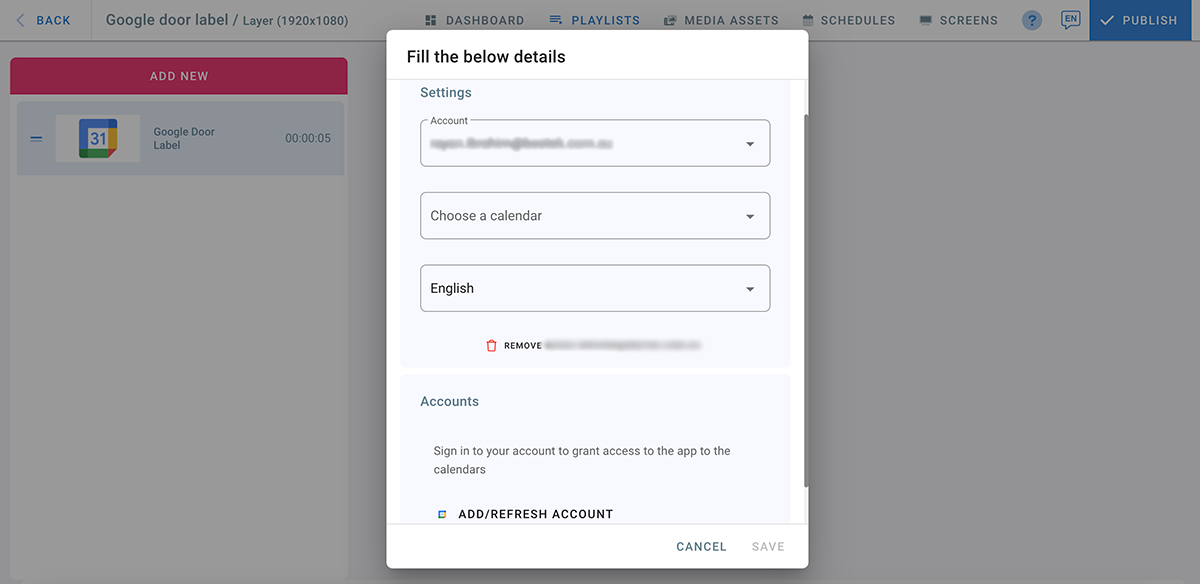
- Choose a calendar from the drop down list, then click on SAVE.
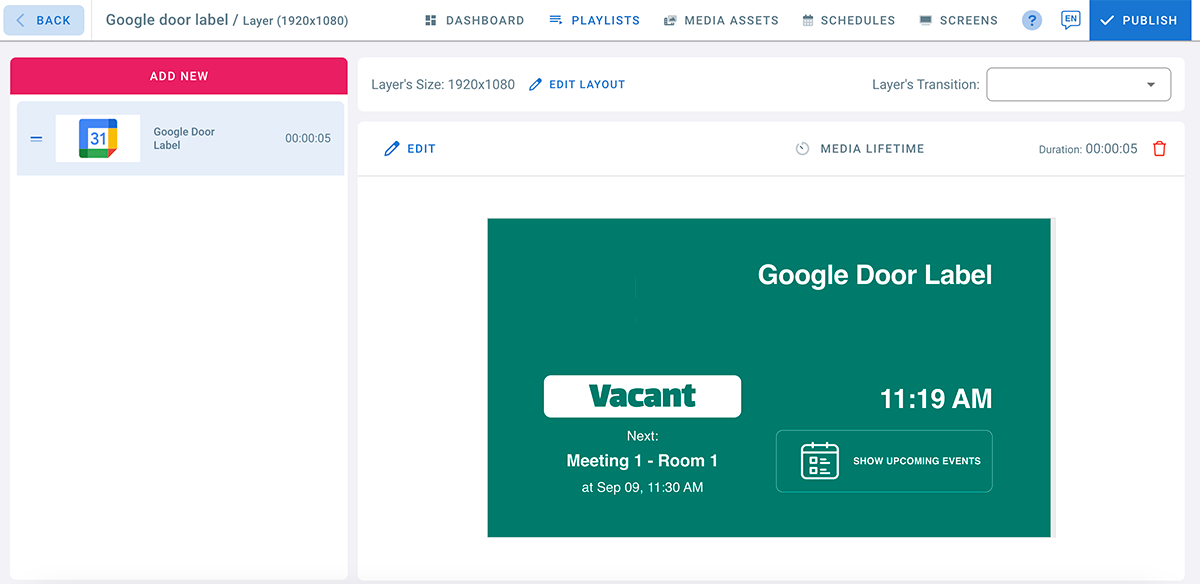
- You can click on “Show Upcoming Events” to see what’s next on you calendar.
- When it’s time for the event on your calendar, your door label status will change from vacant to occupied.
- To update your door label for any changes in the calendar, you need to refresh your account.
- To delete an account, click on Edit, and then click Remove in media settings.
To add another Google Account to your Door Label:
- Click on Edit in the Door Label Layer.
- Click on ADD/REFRESH ACCOUNT.
- “Sign in with google” Page will open.
- Enter the email address and password and then click Continue.
- Click on “Allow” to allow digital signage to see and download the Google Calendar.
- Select a Calendar for the new Google Account added.
- From the Account drop-down list in the media settings, you can now switch between accounts.
How to add a logo to your Door Label:
- Click on the profile icon on the top right corner of your page.
- Go to Settings.
- Go to Calendars tab.
- Click on UPLOAD LOGO to upload a logo to be used by the door label app. (Door Label logo must be Max width: 600px - Max height 300 px)
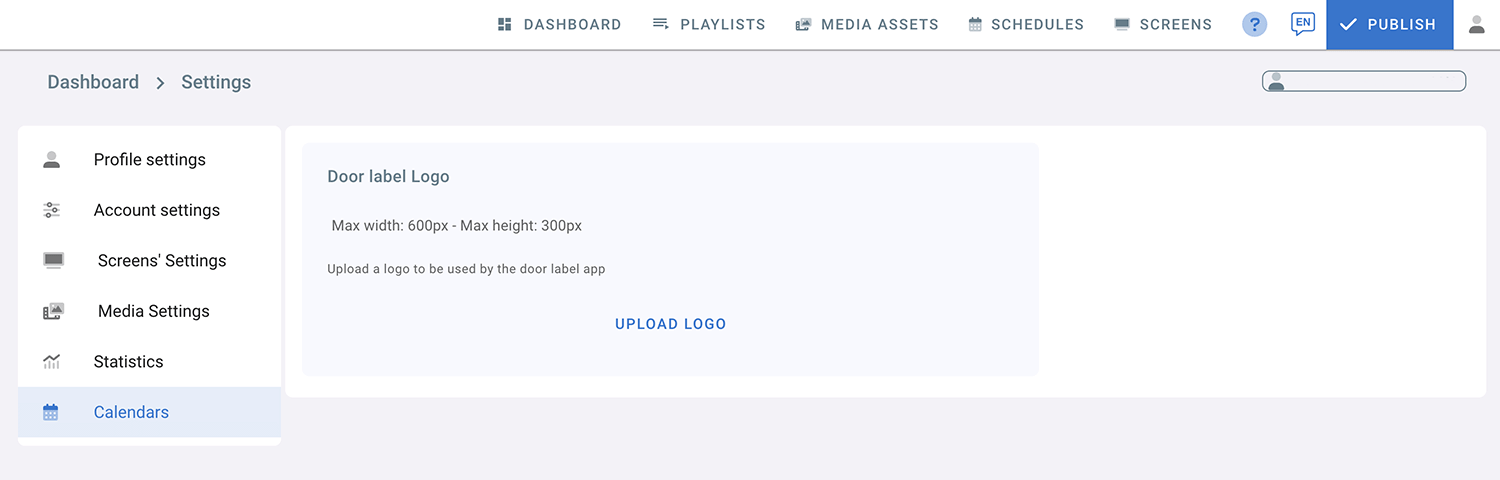
- Browse your files and choose the logo you want to upload.
- Once uploading is complete, click on Done.
- To Edit your logo, click on Edit -> Click on Replace Logo -> Choose the logo you want to upload -> Done.
- Go to the Door Label playlist and check your logo.
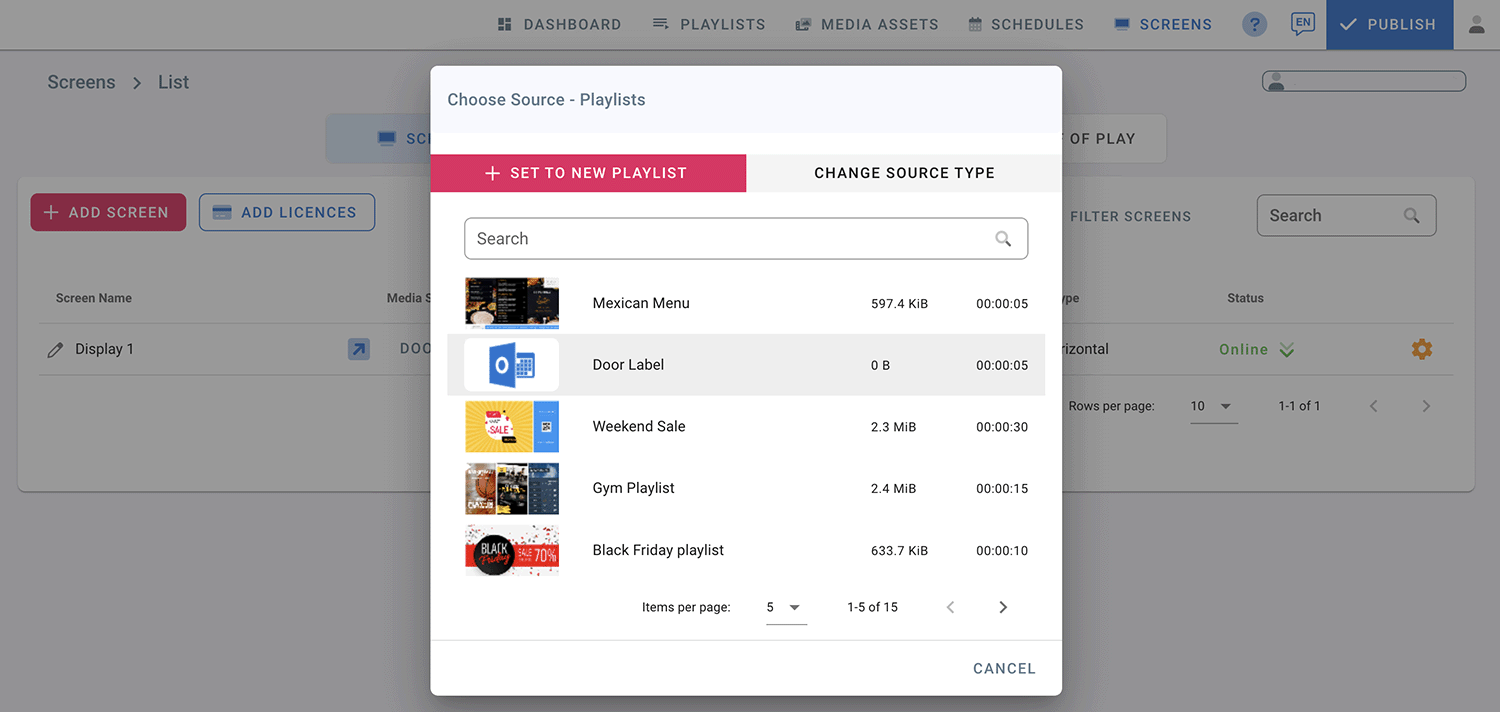
How to display your Door Label on your Screen:
- Go to SCREENS page.
- Click on the Media Source(Source Type) on your Screen.
- Choose “Playlists” from the Source Type page.
- Click on Door Label Playlist.
- Click Publish.
- Now, your events will display on your door label screen.
Caching
The door label remembers the room’s last known schedule, so a sign that has just been switched on can show whether the room is free straight away instead of waiting. That is what makes the status appear quickly, and it is why Disable cache is switched off to begin with. If the sign has been off for a while it waits for fresh data anyway, rather than showing an out-of-date status.
Turn it on only if one screen shows more than one calendar and they get mixed up — for example, a door label briefly showing another room’s meetings. The sign will then always wait for its own events, which takes a little longer to appear on the screen.
- Click on EDIT on the door label layer.
- Under Caching, check Disable cache (always wait for fresh calendar data).
- Click Save, then Publish.