The Black Friday Promo Code app shows one offer, your promo code and a QR code that opens your sale page. Someone walking past can scan the code with a phone camera, or type the promo code at the checkout.
The app runs on the screen without an internet connection, in landscape and portrait, and in any layer size. It has no sale dates: schedule the playlist item for the days of your sale.
Note: The Black Friday Promo Code app isn’t offered in video wall playlists.
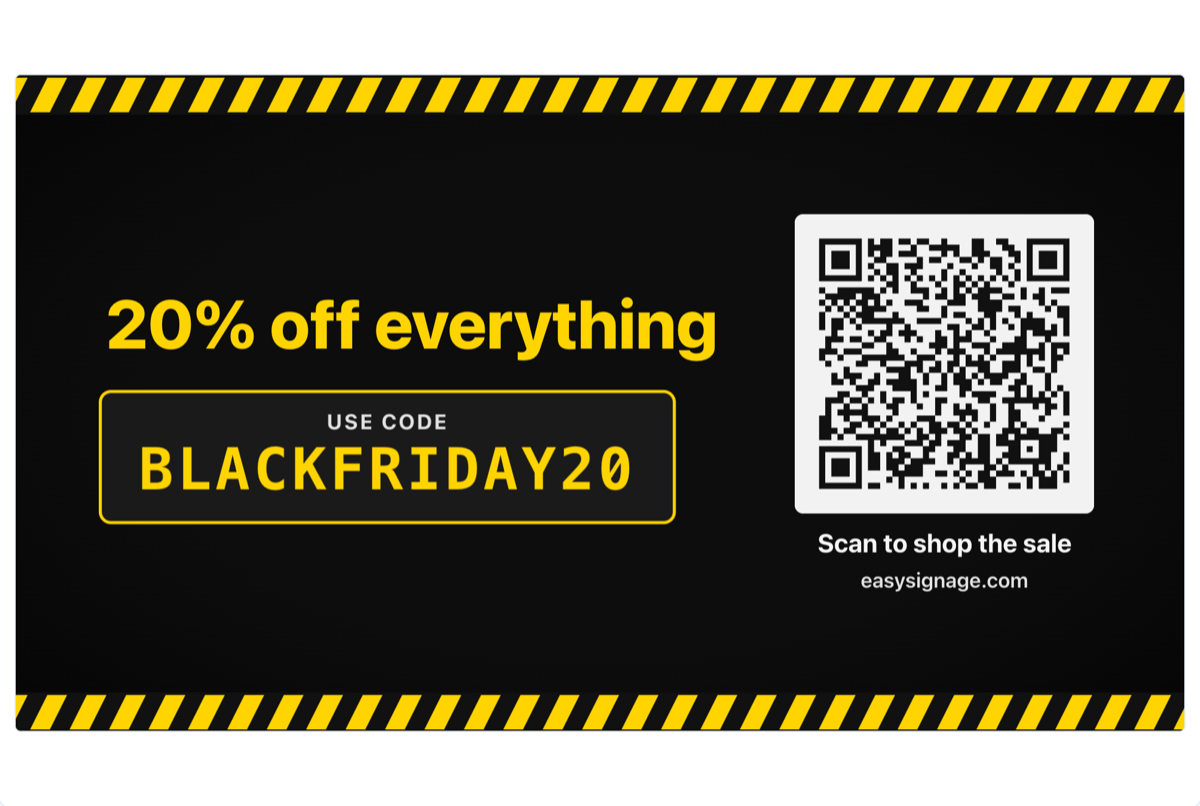
Add the Black Friday Promo Code app
- Open the playlist, then click the layer. See Playlist Media Management.
- If the layer is empty, the content apps open. If it already has media, click Add New.
- Click Seasonal & events or Business data, then Black Friday Promo Code. You can also type its name in Search Apps.
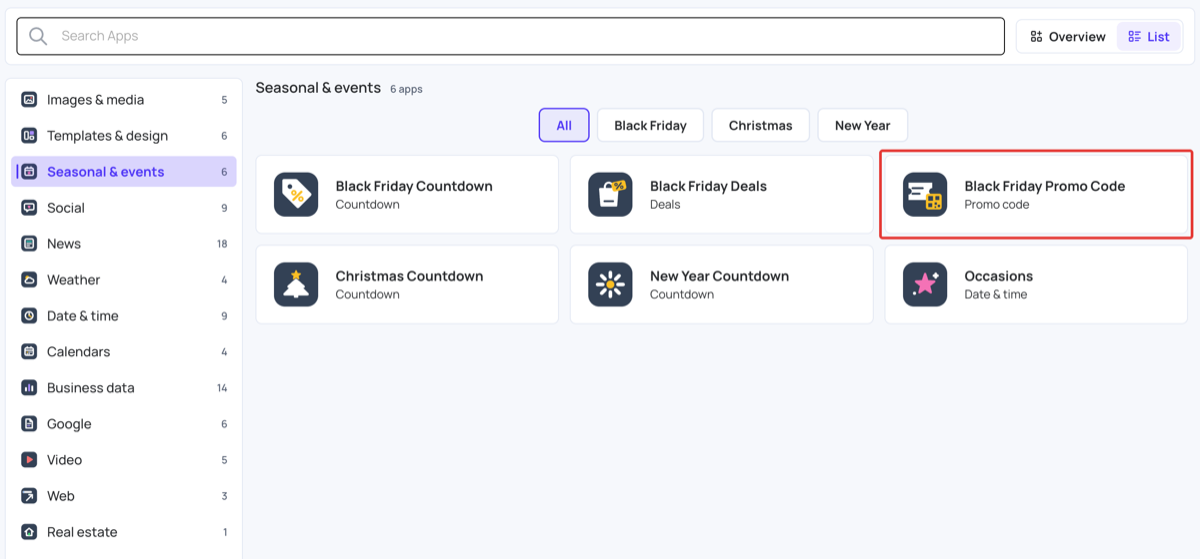
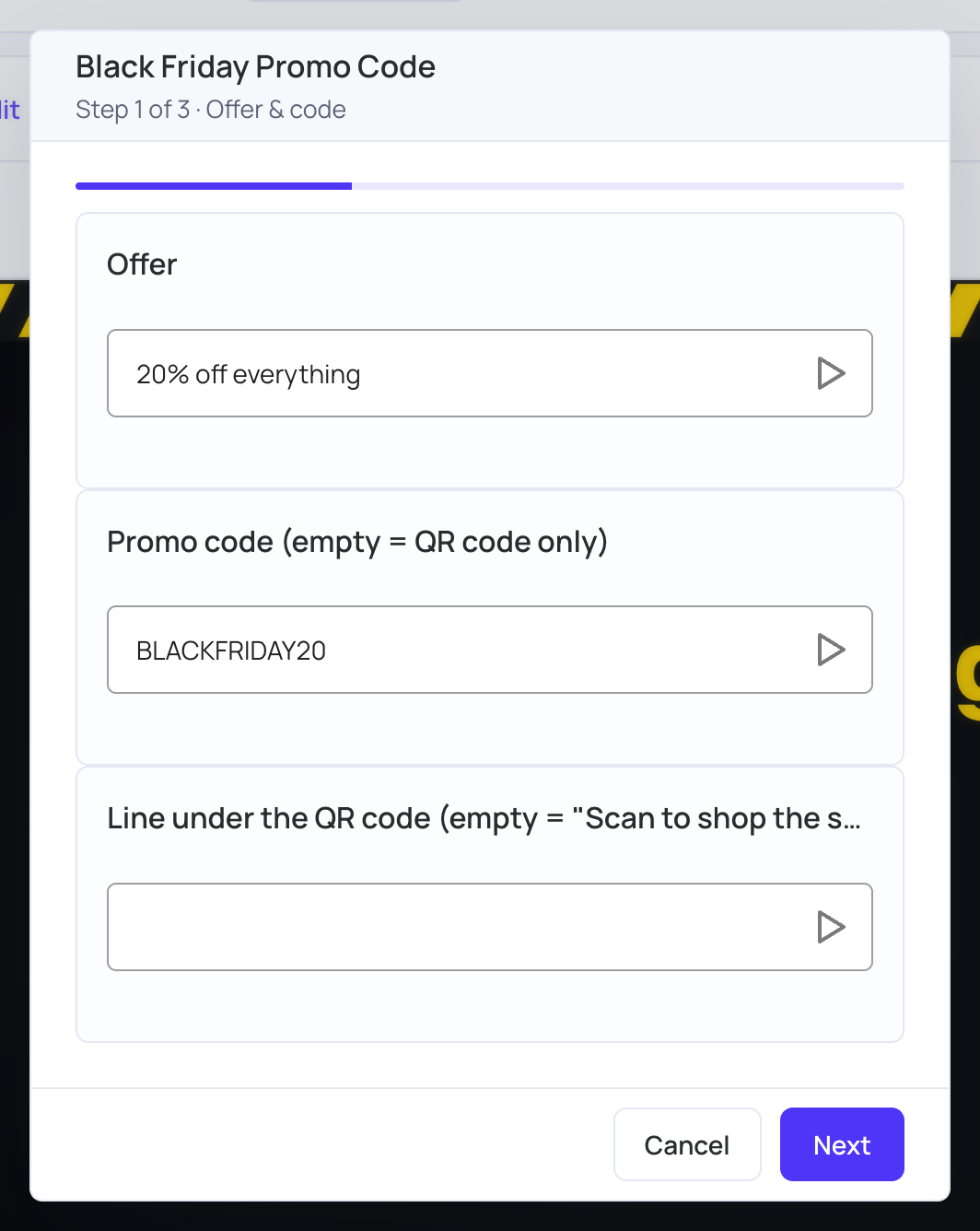
4. On the Offer & code page, type your offer and code. Click Next. 5. On the Link & QR code page, type the address the QR code opens. Click Next.
6. On the Theme & language page, choose Theme and Language. 7. Click Save. To change more settings first, click Advanced settings instead. See Advanced settings. 8. Click Publish changes of this playlist to send it to your screens.
Every setting has a ready-to-use default. See App Setup Pages for how the pages work.
To change the settings later, click Edit next to the item in the layer. All settings are then on one page.
Write the offer and the code
On the Offer & code page:
- Offer: the biggest line on the screen. Keep it to about seven words so it reads in two seconds.
- Promo code (empty = QR code only): shown in large monospaced letters and upper-cased. Avoid 0 and O, and 1, I and l, because they look alike on a screen. Leave it empty to show the QR code on its own.
- Line under the QR code (empty = “Scan to shop the sale”): your own wording for the line that tells people what to do.
Set the link and the QR code
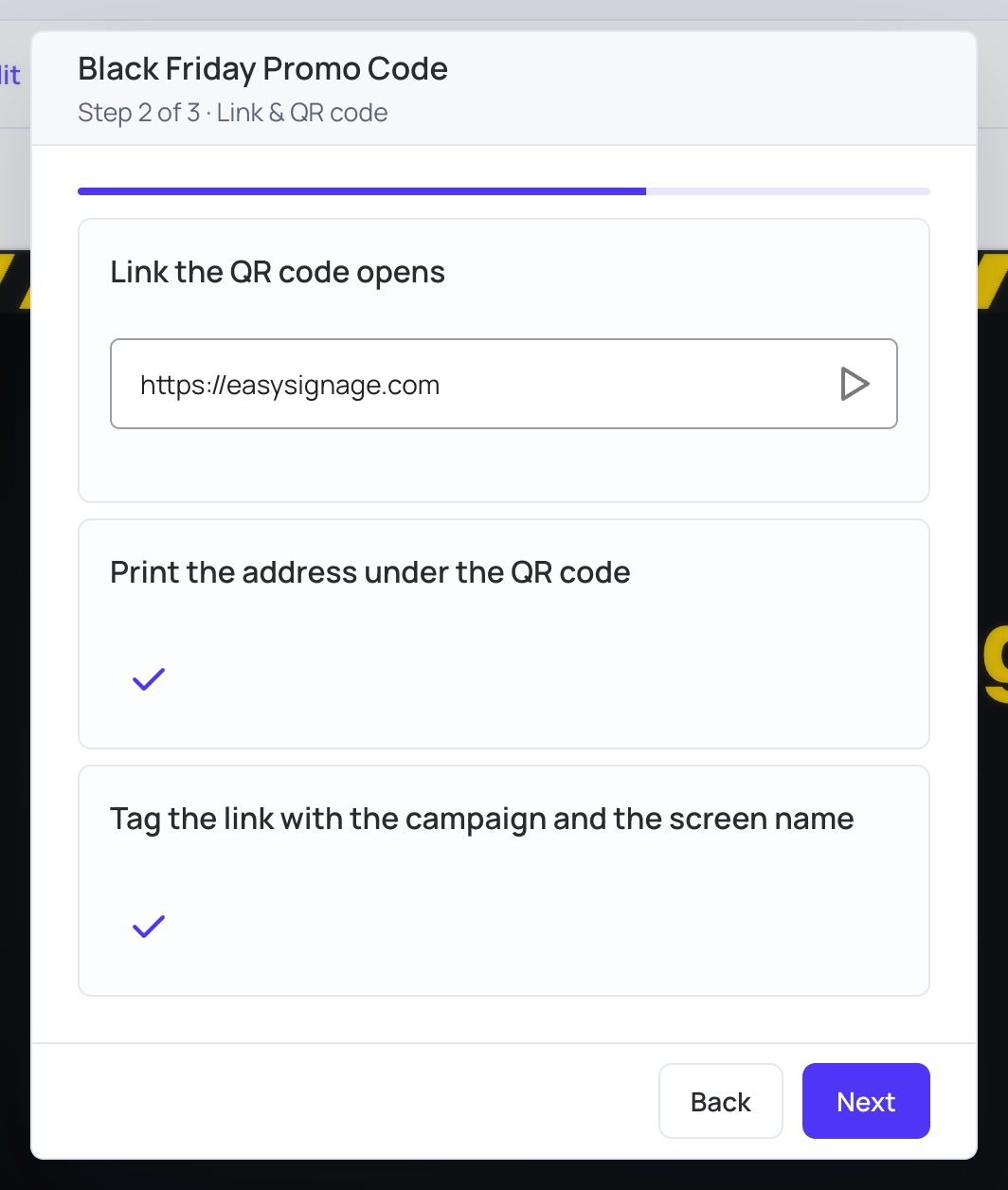
On the Link & QR code page:
- Link the QR code opens: the address of your sale page.
- Print the address under the QR code: shows the address as text as well, for people without a camera to hand. The address is shown short, without the campaign tags.
- Tag the link with the campaign and the screen name: adds
utm_source=easysignage,utm_medium=screen,utm_campaign=black_fridayand the screen’s name asutm_content, so your analytics show which screen the visit came from. Tags already in your link are kept.
Advanced settings
You can change these settings in Advanced settings when you add the app, or later when you edit the item.
QR code
- QR code color and QR code background: the two colours of the code. A QR code has to be dark on light with plenty of contrast, or phones can’t read it. A light-on-dark or low-contrast pair goes back to the default colours.
- QR error correction: how much of the code can be dirty or blocked and still scan: Low (smallest code), Medium, High or Highest (densest code). Higher means more squares in the same space, so keep Medium unless the screen is behind glass or far away.
Style
- Animation: the offer, the code, the expiry line and the QR code come in one after another, and the code block then breathes gently. When it’s off, the poster fades in as one.
- Entrance: how each element comes in: Pop, Breathe, Baseline, Drift, Tectonic or Tumble. Needs Animation on.
- Layout: Full screen, Card, Strip or Badge.
- Position: where a card, strip or badge sits in the layer: Center, Top, Bottom or one of the four corners.
Background
- Background: Style background (the theme’s colours), Solid color (pick it in Background color) or Transparent (the layers underneath show through).
- Background opacity (%): below 100%, whatever plays under this zone shows through. The code block and the QR code stay solid.
- Readability on a transparent background: adds a Text shadow, Text outline or Panel behind the text. Panel opacity (%) sets how solid that panel is, and applies only with a transparent background and the Panel option.
Colors & size
- Use my own colors: replaces the theme’s colours with your Text color and Accent color.
- Size (%): makes everything larger or smaller.
Choose the theme
Theme sets the look: Black & yellow, Neon, Clean or Minimal. Language sets the language of the wording the app supplies itself.