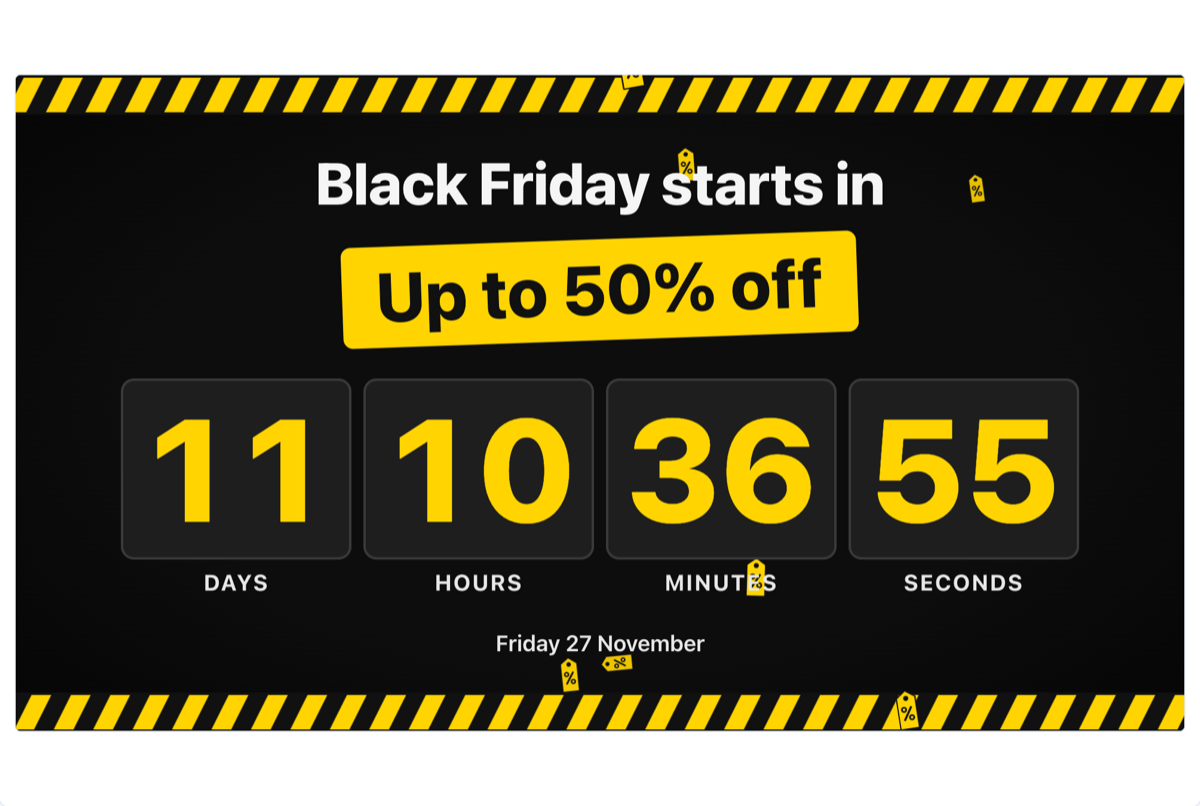
The Black Friday Countdown app shows how long is left until your sale starts. You don’t type a date: the app works out the next sale day itself. When the sale begins it counts down to the end of the sale, and once the sale is over it starts counting to next year’s, so you can leave it in a playlist all year.
The app runs on the screen without an internet connection, in landscape and portrait, and in any layer size.
Note: The Black Friday Countdown app isn’t offered in video wall playlists.
Add the Black Friday Countdown
- Open the playlist, then click the layer. See Playlist Media Management.
- If the layer is empty, the content apps open. If it already has media, click Add New.
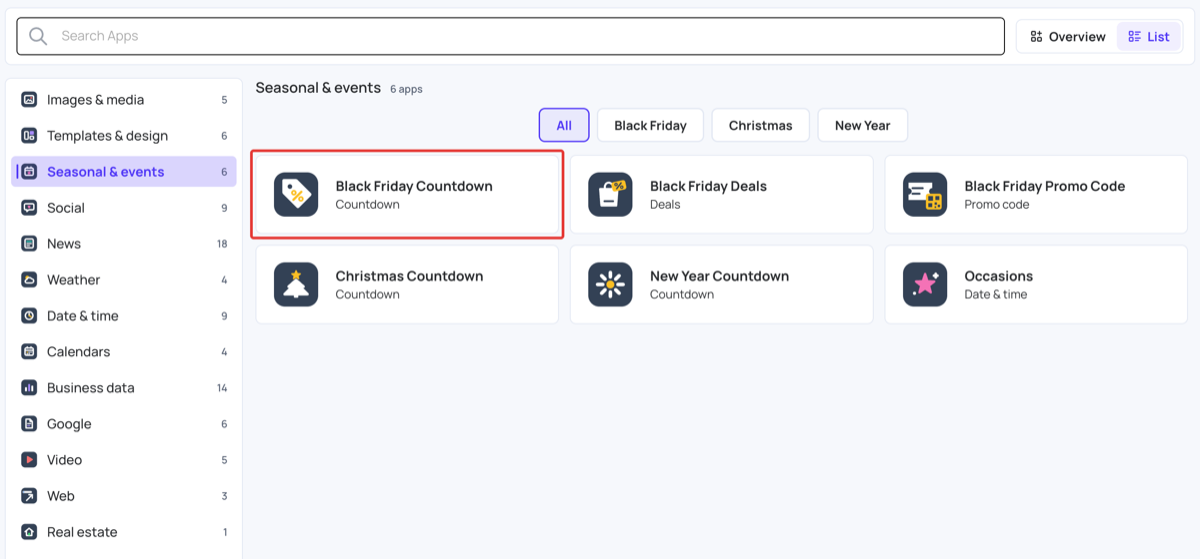
- Click Seasonal & events or Date & time, then Black Friday Countdown. You can also type its name in Search Apps.
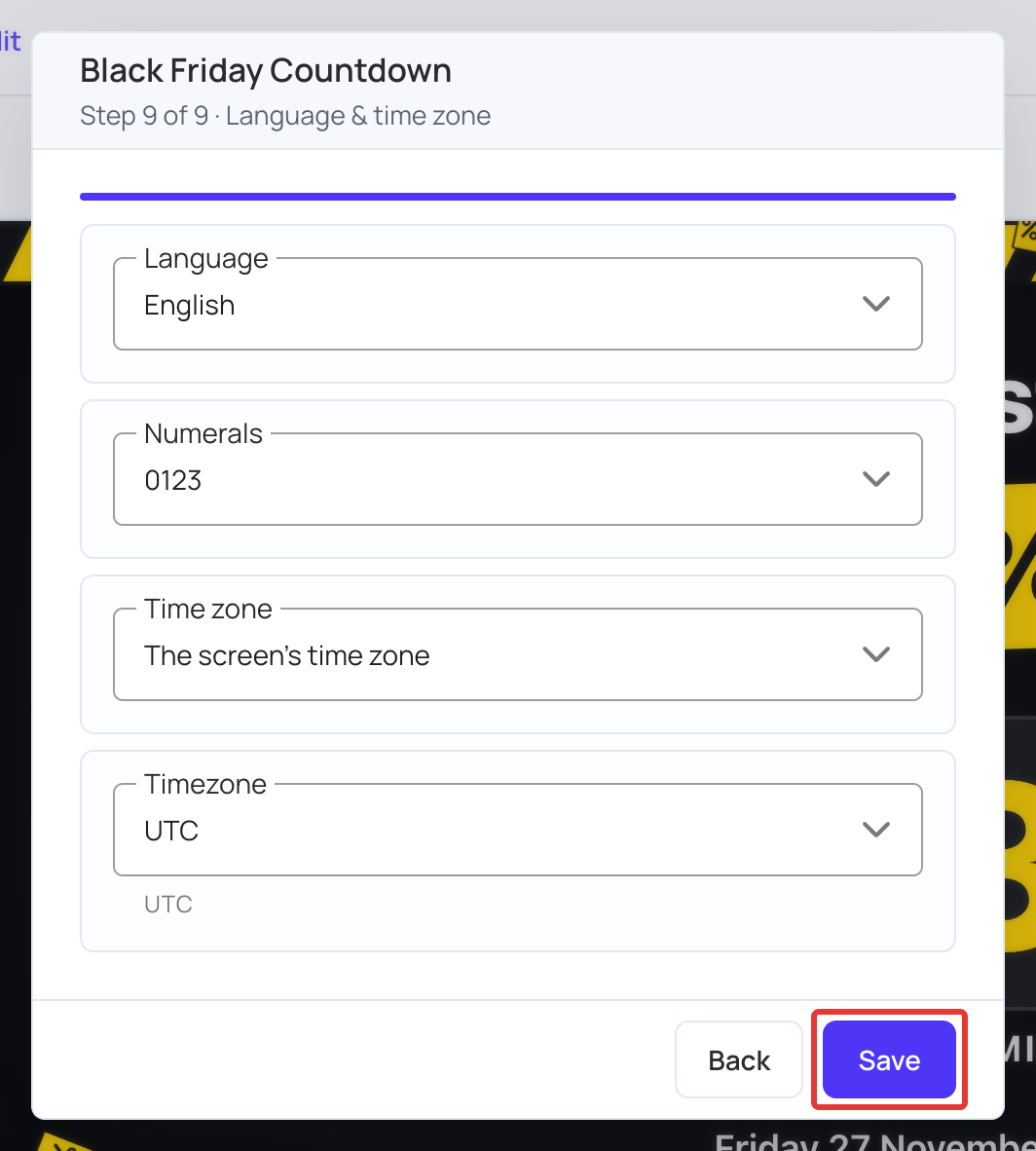
4. Work through the setup pages, clicking Next on each one. Every setting has a ready-to-use default. See App Setup Pages. 5. On the last page, Language & time zone, click Save. The countdown appears in the layer.
6. Click Publish changes of this playlist to send it to your screens.
To change the settings later, click Edit next to the item in the layer. All settings are then on one page.
Choose the sale day and times
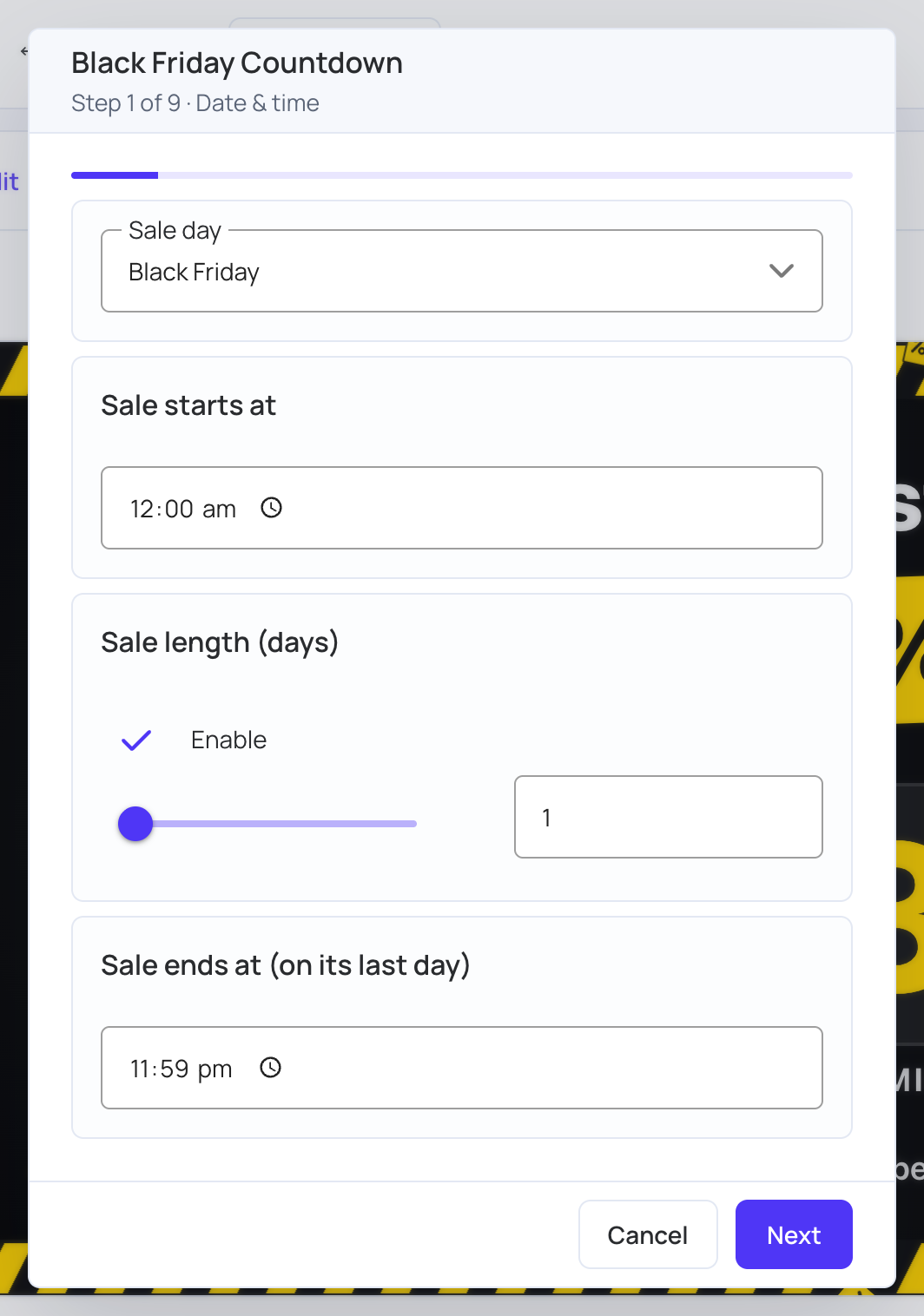
On the Date & time page:
- Sale day: Black Friday, Cyber Monday, Singles’ Day (11 November) or Boxing Day (26 December). The app works out the date of the next one.
- Sale starts at: the time the sale opens on that day.
- Sale length (days): how many days the sale runs. Turn on Enable, then set the number with the slider or the box beside it.
- Sale ends at (on its last day): the time the sale closes.
On the Custom date page:
- Use my own date, Date and Time: count down to a date and time you choose instead. With your own date, the countdown doesn’t move on to next year by itself.
Choose the text
On the Text page:
- Headline: the line above the countdown before the sale starts.
- Headline during the sale: the line shown once the sale is running.
- Offer (empty = hidden): a short line for the offer itself, such as “Up to 50% off”. Leave it empty to show no offer line.
On the When it ends page:
- Message at zero: what the screen shows when the countdown reaches zero.
- Hours after the sale before next year’s countdown: how long that message stays before the app starts counting to the next sale day.
Choose the countdown
On the Countdown page:
- Units: Automatic, Days, Days and hours, Days, hours and minutes, Hours, minutes and seconds, or Days, hours, minutes and seconds.
- Show weeks: counts in weeks as well as days.
- Show the date: shows the sale date under the countdown.
- Highlight the last 24 hours before the sale, its last hour and the last 60 seconds: makes the countdown stand out as the sale gets close.
Choose the look
On the Style page:
- Theme: Black & yellow, Neon, Clean or Minimal.
- Animated decorations: gentle motion that matches the theme — falling price tags and drifting caution tape with Black & yellow, rising neon percent signs and a glowing bag with Neon, confetti with Clean, and soft dots with Minimal. They aren’t shown with a transparent background or with the Strip and Badge layouts.
- Layout: Full screen, Card, Strip (for a footer or ticker layer) or Badge (a small block for a corner).
- Position: where a card, strip or badge sits in the layer: Center, Top, Bottom or one of the four corners.
- Timer style: Blocks, Inline or Ring.
On the Background page:
- Background: Style background (the theme’s colours), Solid color (pick it in Background color) or Transparent (the layers underneath show through).
- Background opacity (%): below 100%, whatever plays under this zone shows through. The number tiles stay solid.
- Readability on a transparent background: adds a Text shadow, Text outline or Panel behind the text. Panel opacity (%) sets how solid that panel is, and applies only with a transparent background and the Panel option.
On the Colors & size page:
- Use my own colors: replaces the theme’s colours with your Text color and Accent color.
- Size (%): makes everything larger or smaller.
Choose what happens at zero
On the When it ends page, At zero sets what the screen does when the countdown runs out:
- Show the message: shows your Message at zero for the hours you set, then starts the next countdown.
- Count up: counts the time since the sale day.
- Hide: shows nothing.
- Stay at zero: leaves the countdown on zero.
Choose the language and time zone
On the Language & time zone page:
- Language: the language of the day, hour and minute labels.
- Numerals: 0123 (Western digits) or ٠١٢٣ (Arabic-Indic digits).
- Time zone: The screen’s time zone, so each screen counts in its own local time, or A fixed time zone, so every screen counts to the same moment. With a fixed time zone, choose it in Fixed time zone.