When you add some apps, their settings open as a few short pages instead of one long form. Each page holds a few related settings, and a progress bar shows how far through you are. Every setting has a ready-to-use default, so the app works even if you change nothing.
These apps open their settings as pages:
- Black Friday Countdown
- Black Friday Deals
- Black Friday Promo Code
- Christmas Countdown
- LED Calibrate
- New Year Countdown
Every other app opens all of its settings on one page.
Move through the pages
- Add the app to a playlist layer. The first page opens, with the page name and Step 1 of the number of pages under the app name.
- Choose the settings on the page.
- Click Next for the following page. Next stays unavailable until the fields on the page are filled in correctly.
- Click Back for the previous page. On the first page the button is Cancel, which takes the app back out of the layer.
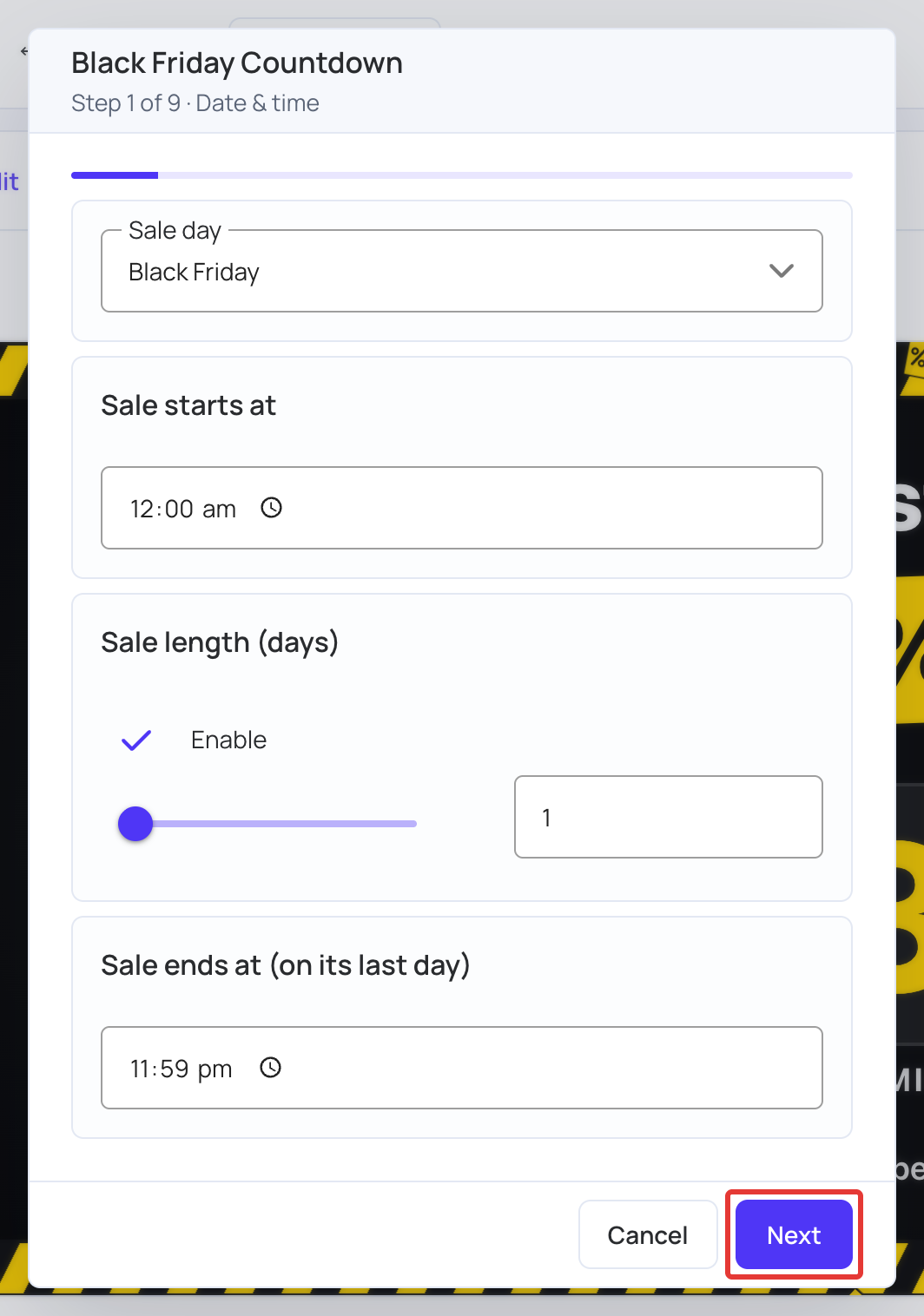
Pressing Enter in a field does the same as Next, and saves on the page where Save is offered.
Save the app
Where Save appears depends on the app:
- An app with one set of pages, such as the three countdowns: Save is on the last page.
- An app with advanced pages, such as Black Friday Deals and Black Friday Promo Code: the last everyday page offers Save and Advanced settings. Click Save to finish there, or Advanced settings to carry on. From then on Save is on every page, so you can stop whenever you like.
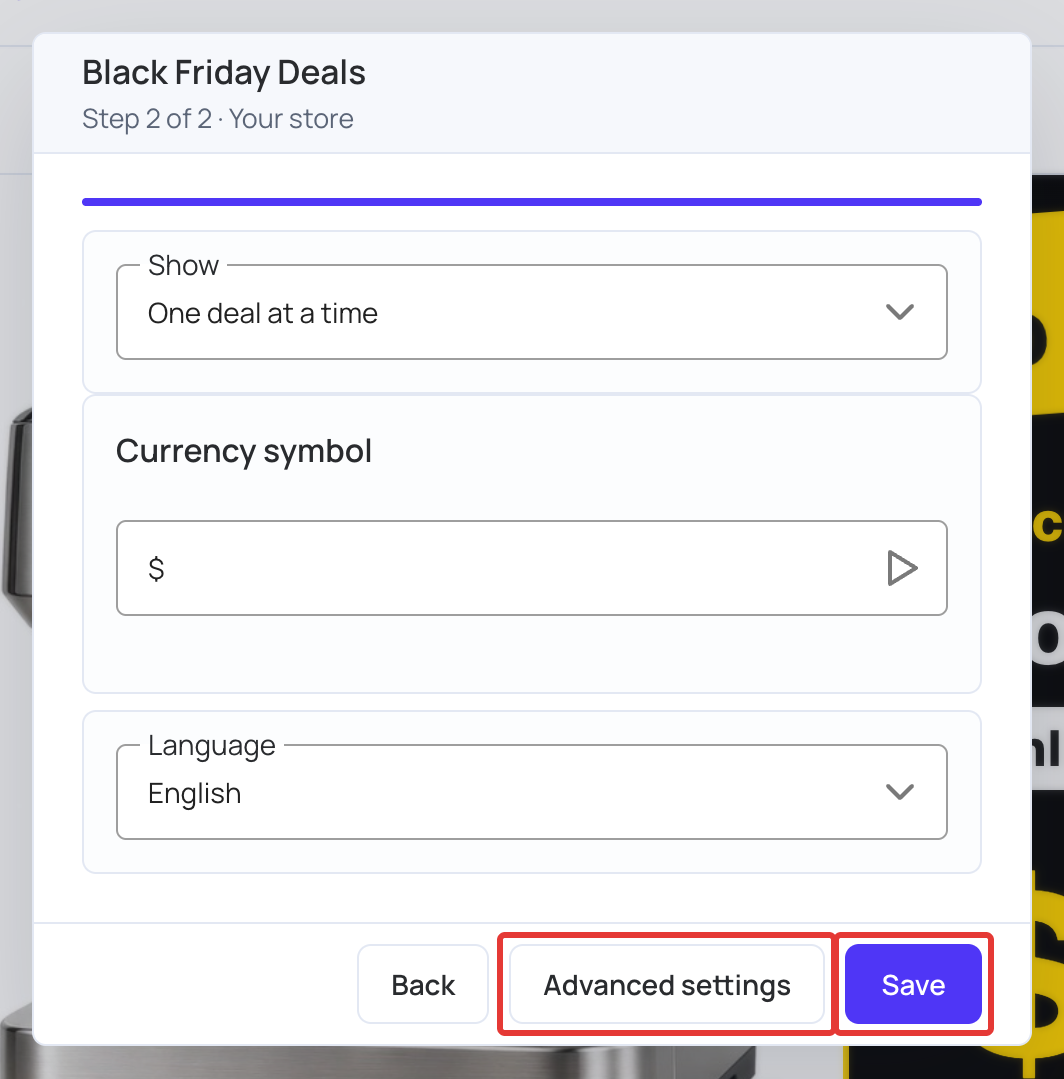
The progress bar and the step number restart at the first advanced page, and Advanced settings appears under the app name while you are in them.
Change the settings later
Click Edit next to the item in the layer. All of the app’s settings are then on one page, including the advanced ones, so you don’t have to step through the pages again.
Note: Changes to a playlist reach your screens only when you publish. Click Publish changes of this playlist when you have finished.