EasySignage AI is the app behind Advanced AI Analytics: it turns an Android device with a camera into an AI device. The AI device measures the audience in front of it: how many people it sees, how long they stay and how much attention they pay. It works on its own as standalone AI, or together with your digital signage screens. See AI Devices .
Note: AI devices are included on the Enterprise plan. Each AI device needs an AI licence, separate from your screen licences. To get AI licences, contact sales or support.
Requirements
Camera
Connect the camera before you install EasySignage AI:
- A built-in camera is detected automatically.
- For a USB camera, plug it in and check that the device recognises it.
For good results, use a 1080p (Full HD) camera that supports at least 10 frames per second.
AI device
- Processor: RK3588 edge AI device or equivalent (octa-core, 8 nm)
- Memory: at least 8 GB RAM
- Storage: at least 64 GB
- NPU: 6 TOPS (neural processing unit)
- Operating system: Android 13 or later, 64-bit
Install EasySignage AI
Step 1: Download the APK
On the device
- Open this link to download the APK: DOWNLOAD APK
- Go to Downloads and open the APK, or tap the dialog that appears when the download ends.
From a computer
- Download the APK from the same link: DOWNLOAD APK
- Copy the APK file to the device, then open it there.
Note: The APK file is larger than 1 GB. Make sure the device has a stable internet connection and enough free storage.
Step 2: Install the app
Tap INSTALL.
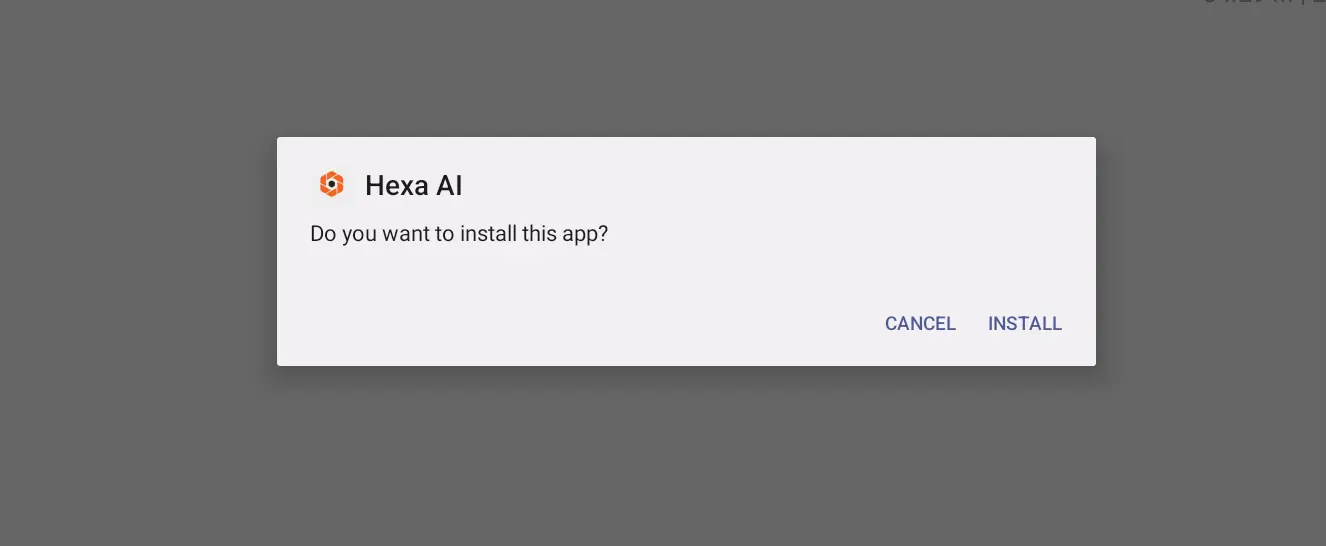
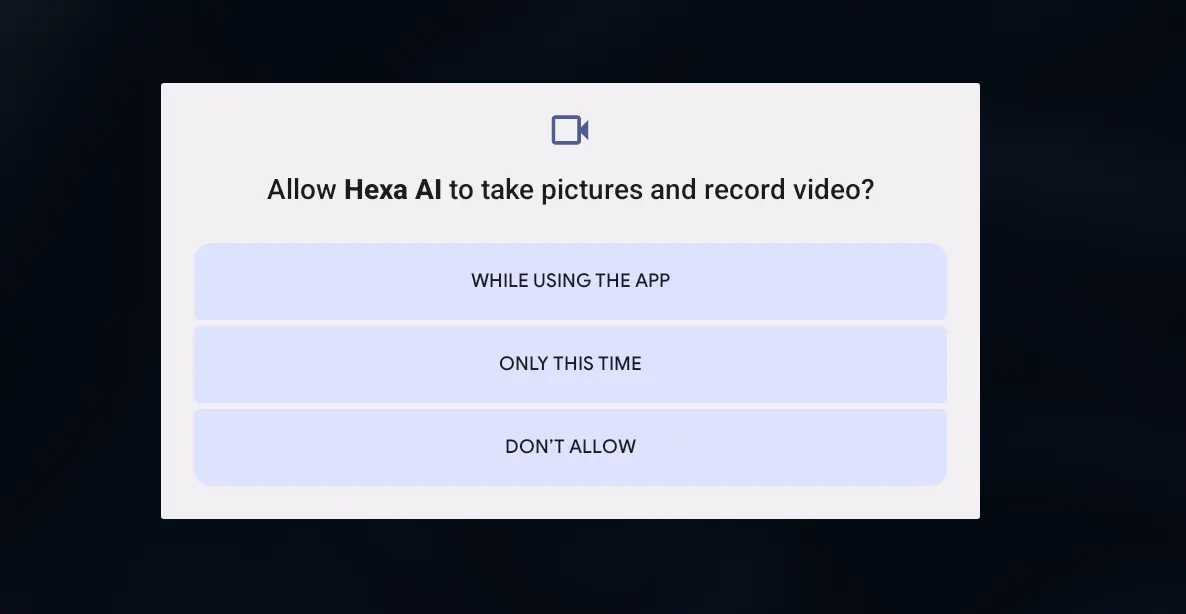
Step 3: Allow permissions
- When asked, tap WHILE USING THE APP to let the app take pictures and record video.
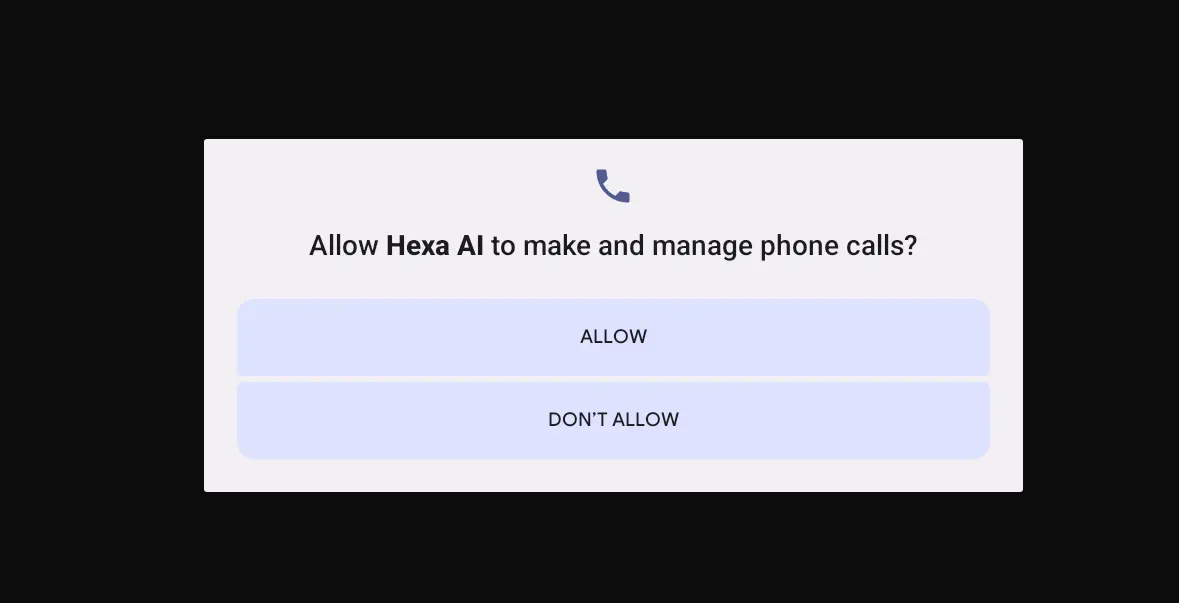
- Tap ALLOW.
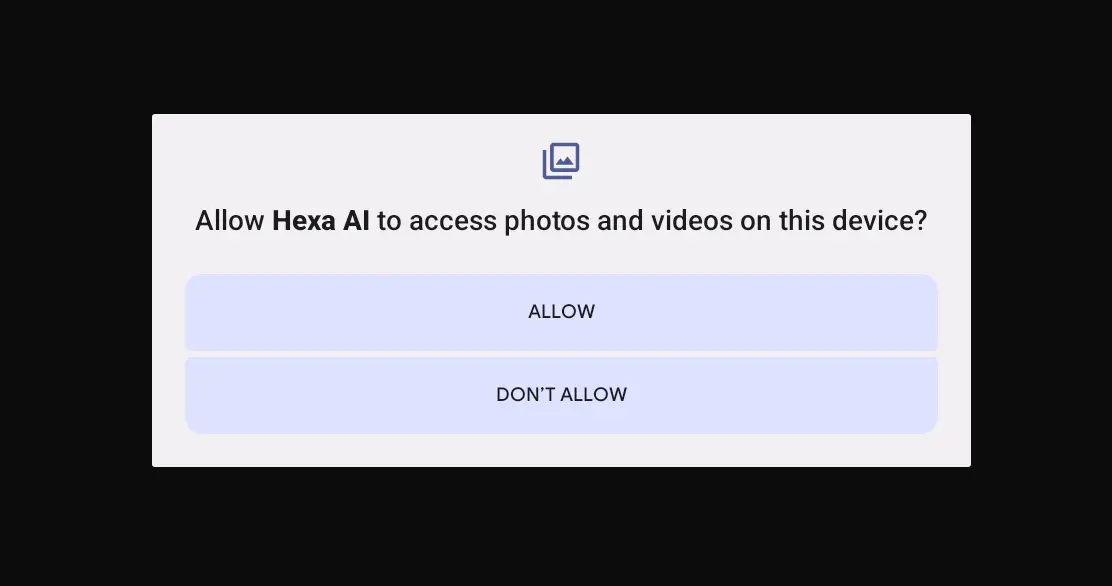
- Tap ALLOW again.
Step 4: Note the ID
After a few seconds, the app shows an ID on the device’s screen. You need it to add the device to the CMS. The ID is case sensitive.

Step 5: Add the device to the CMS
In the CMS, go to Screens > AI Devices, click Add Device and enter the ID. See AI Devices: Add an AI device .
After the first installation, it can take up to 15 minutes before the device starts collecting data.
Next steps
AI with digital signage: assign the AI device to up to five screens, so the audience is matched to what they played. See Use AI with digital signage .
Note: To use EasySignage AI and the EasySignage digital signage app on the same device, install EasySignage AI first.
Standalone AI: to use the AI device on its own, without a digital signage screen, contact support.
See the results: open the AI dashboard from the AI Devices tab. See Open the AI dashboard .