Lite AI measures the audience in front of your screens. Plug a USB camera into the signage player you already have, and the player watches the area in front of the screen while your content plays. It counts the people who stop in front of the screen, how long they stay and how long they look at it. The results appear next to your plays in the Proof of Play dashboard, so you can see which content, screens, and hours attract the most attention.
Lite AI runs on the same signage box that plays your content. You don’t need a separate AI device or any extra hardware, only a USB camera.
Note: Lite AI is included on the Enterprise plan.
What Lite AI measures
| Figure | What it means |
|---|---|
| Viewers | Each time the camera sees a person in front of the screen. One person seen twice counts twice. |
| Dwell time | How long a viewer stays in front of the screen, on average. |
| Attention | How much of that dwell time the viewer spends looking at the screen. |
The figures are linked to what was playing at the time, so you see them per media item, screen, playlist, tag and hour.
Privacy and GDPR
Lite AI is designed to comply with the GDPR. It collects no personally identifiable information (PII): the camera images are analysed on the player itself and are never saved or sent. Only anonymous measurements, such as how many viewers there were and how long they stayed, leave the screen. No faces, names or photos are stored, and a person can’t be identified from the figures.
Requirements
- Plan: Enterprise.
- Player: an Android signage player running the EasySignage app version 273 or later. You can see a screen’s software version in its Device Details. To update, see Download and Install the EasySignage APK .
- Memory: at least 4 GB RAM on the player. Device Details also shows the player’s memory.
- Camera: a USB camera plugged into the player. A 1080p (Full HD) camera is recommended, with at least 10 frames per second.
- Proof of Play: turned on for your account and for the media you want to measure. Audience figures are attached to plays, so media without proof of play isn’t measured. See Proof of Play .
Set up Lite AI on a screen
- Make sure the player runs version 273 or later.
- Plug the USB camera into the player. Place it on or near the screen, facing the people who watch it.
- Restart the player so it detects the camera.
- In the CMS, go to Screens and click the Screen Details (gear) icon on the screen’s row.
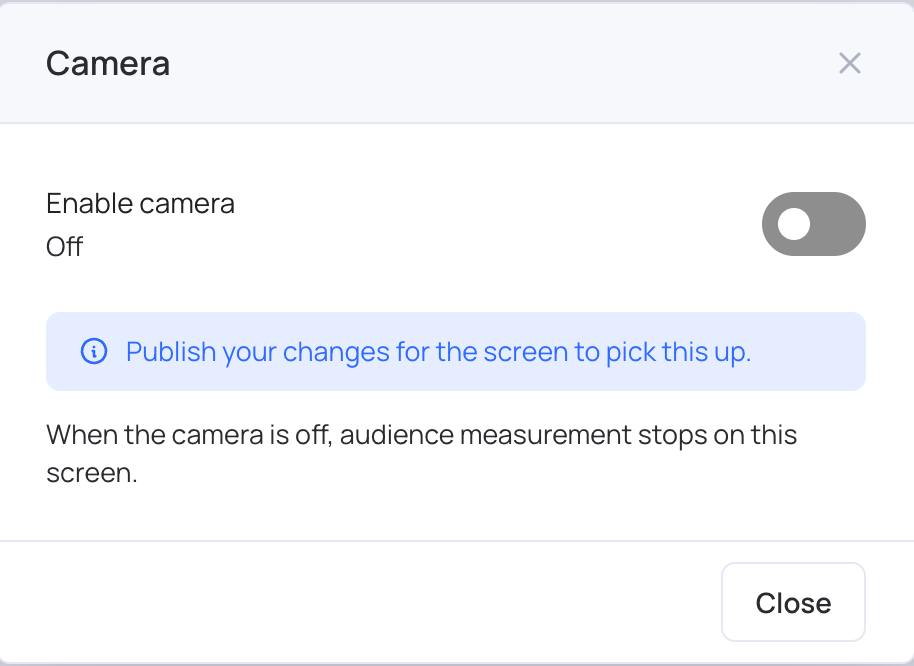
- Click More > Camera, and check that Enable camera is On. If it is Off, click the switch. The change is saved straight away; there is no Save button.
- Click Close, then click Publish to The Screen. The screen picks up the camera setting the next time you publish to it.
When the camera is working, a camera icon appears next to the screen’s status in the Screens list:
- Green: “Camera detected”. Lite AI is running on the screen.
- Grey: “Camera not detected”. The camera is switched on, but the player doesn’t see one. Check that the camera is plugged in, then restart the player.
The icon shows only while the screen is online and its camera is switched on.
In the Screens list, a screen with Lite AI also shows two figures under its name: total views in the last 30 days (eye icon) and the median attention time per view in the last 30 days (clock icon).
When the figures appear
The player sends its measurements to the CMS periodically, where they are matched to your plays and added to the Proof of Play dashboard. Allow about an hour after setup before the first audience figures appear.
See the audience figures
- Go to Screens > Proof of play.
- Click Dashboard. The Proof of Play dashboard opens in a new tab.
- Choose the date range. The audience figures are in these places:
- Audience (AI): Viewers, Viewers per play, Dwell time and Attention for the whole range.
- Highlights: Peak audience hour, the hour with the most viewers, and Most engaged hour, the hour viewers stayed longest.
- The rankings tables: the Measured, Viewers, Viewers / play, Dwell / viewer and Attention columns for each media item, screen, playlist and tag.
- Play records: Viewers, Dwell and Attention for each screen, media item and hour.

Only screens with Lite AI are measured. Plays from other screens are left out of the audience figures, and Measured shows the share of plays the figures cover. A dash means nothing was measured.
Turn Lite AI off on a screen
- Open the screen’s Screen Details and click More > Camera.
- Click the Enable camera switch so it shows Off.
- Click Close, then click Publish to The Screen.
Audience measurement stops on that screen after the publish. Each change to the camera switch is recorded in Account Logs .