Advanced AI Analytics uses an AI device: a dedicated device with a camera that measures the audience in front of it. It runs the AI app and is managed from the AI Devices tab in Screens.
You can use an AI device in two ways:
Standalone AI: the AI device works on its own, with no digital signage screen, wherever you want to measure people, such as a shop entrance or a lobby. To set up standalone AI, contact support.
AI with digital signage: assign the AI device to up to five of your screens. The audience it measures is matched to what those screens were playing, so you get proof of play and AI analytics together: which media played, and how many people watched it, how long they stayed and how much attention they paid.
Note: AI devices are included on the Enterprise plan. Each AI device needs an AI licence, separate from your screen licences. To get AI licences, contact sales or support.
Tip: To measure the audience of a screen without a separate device, use Lite AI : a USB camera plugged into the screen’s own signage player.
Privacy and GDPR
Advanced AI Analytics is designed to comply with the GDPR. It keeps no personally identifiable information (PII): the camera images are analysed on the AI device itself, used only briefly to tell people apart, and then deleted automatically. No images are kept or sent to the CMS. Only anonymous measurements, such as how many viewers there were and how long they stayed, leave the device, and a person can’t be identified from the figures.
Add an AI device
- Install the AI app on the AI device and connect its camera; see Install EasySignage AI . When the app starts, it shows an ID on the device’s screen.
- In the CMS, go to Screens > AI Devices.
- Click Add Device.
- Enter the ID shown on the device. The ID is case sensitive.
- Optionally, enter a Screen Name and a Screen Location.
- Click Add Device.
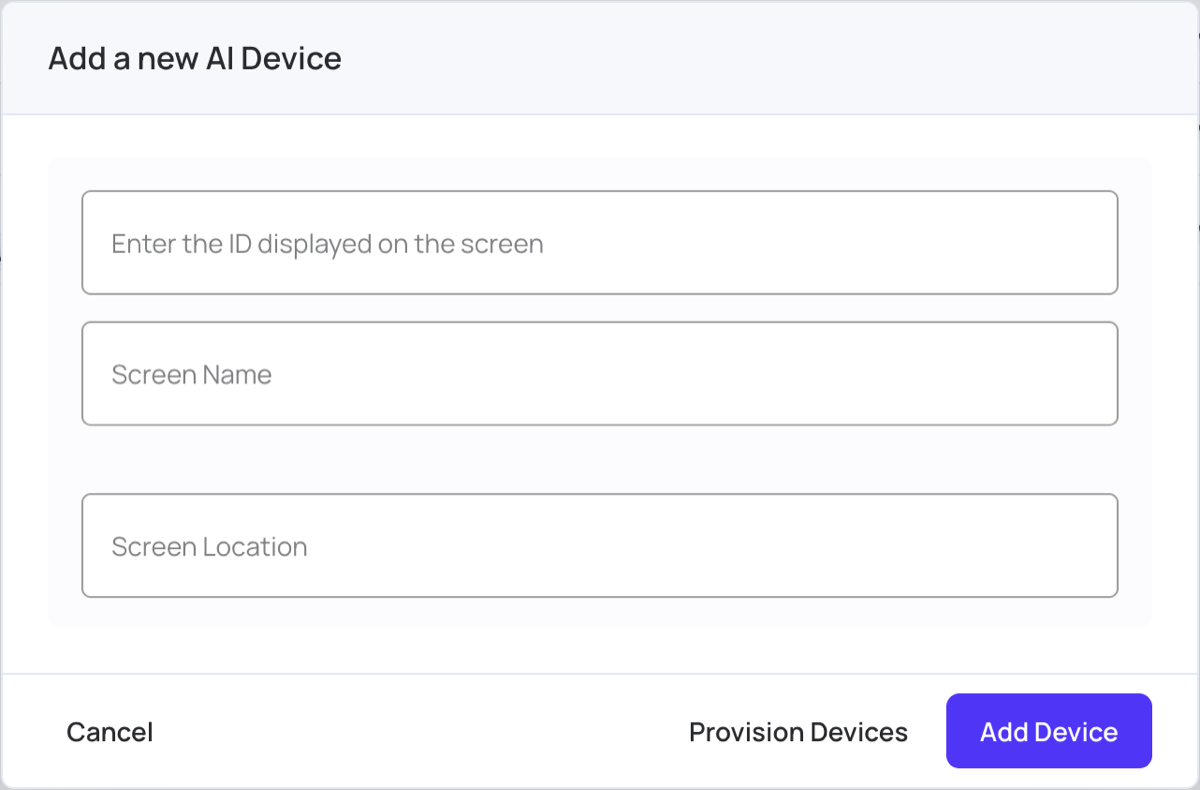
The device is added to the list. After the first installation, it can take up to 15 minutes before the device starts collecting data. Until then, its details show “The AI device is not collecting any data.”
The AI devices list
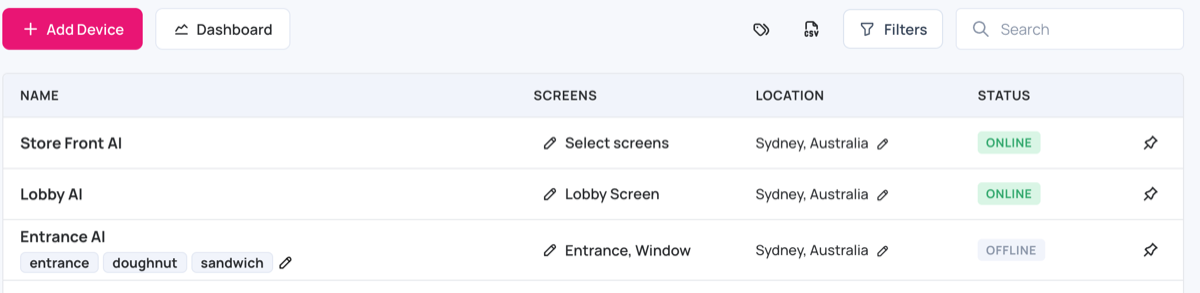
Each row shows the device’s Name and tags, the Screens it is assigned to, its Location and its Status. Use Search and Filters to find a device, and the pin icon to keep a device at the top of the list.
Use AI with digital signage
To get proof of play and AI analytics together:
- In the AI device’s row, click Select screens (or the names of the screens it already has).
- In Assign screens to the AI device., choose up to five screens. These are the screens the AI device’s camera watches the audience of.
- Click Save.
- Turn on proof of play for your account and for the media you want to measure. See Proof of Play.
The AI data is then matched to what the assigned screens played. To see it, open the AI dashboard: click Dashboard on the AI Devices tab. See Open the AI dashboard .
Device details and status
Click a device’s name to open its details. Here you can rename it, change its Assigned Screens and Location, and set its Screen Timezone.
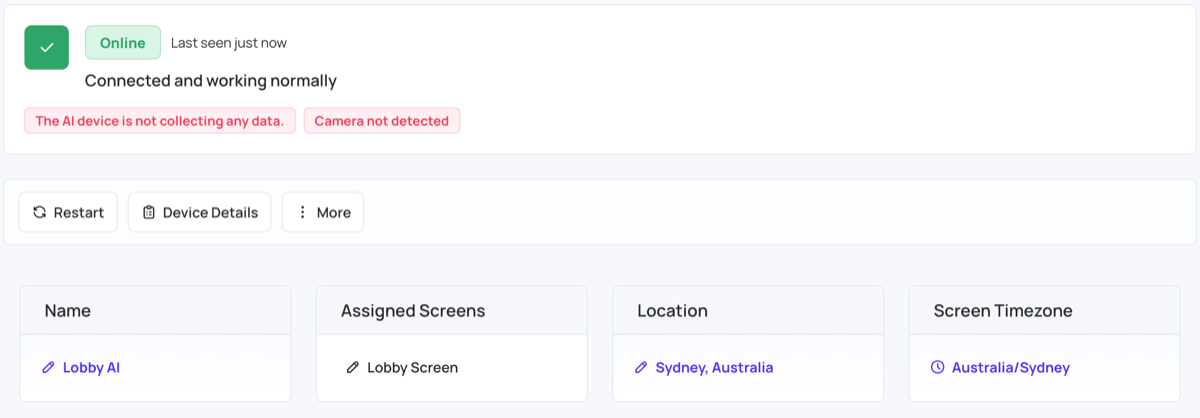
Under the status, the CMS warns you when something needs attention:
| Warning | What it means |
|---|---|
| The AI device is not collecting any data. | The device is online but hasn’t sent any data for 20 minutes. Check that the camera is connected and the AI app is running. |
| Camera not detected | The device doesn’t see its camera. Check the camera’s cable, then restart the device. |
| licence Expired, the device will not collect data | The device has no valid AI licence. Contact sales or support. |
The actions are:
- Restart: restarts the device.
- Device Details: shows hardware and software details.
- More > Tags: choose tags for the device.
- More > Update: updates the AI app on the device.
- More > Shutdown: turns the device off. Confirm with Yes. To turn it on again, use the device’s power button.
- More > Status History: a chart of when the device was online and offline. See Screen Status History .
- More > Delete: removes the device from your account.
Restart, Update and Shutdown are available only while the device is online.
Open the AI dashboard
Click Dashboard on the AI Devices tab. The AI dashboard opens in a new tab, already signed in, with the audience reports from your AI devices.
To download the AI data, click Export CSV in the dashboard’s Filters section. The file covers the selected date range and filters.
Only the account holder can open the AI dashboard from here. Other users see “You don’t have access to the AI dashboard. Please ask the account holder to grant you access using the AI dashboard link.”