Two-factor authentication (MFA / 2FA) adds a second verification step to your sign-in. Even if someone learns your password, they cannot access your account without the 6-digit code from your phone.
EasySignage uses free authenticator apps (TOTP), no SMS required, and it works even when your phone is offline. MFA is available on every plan except the free plan, and to every user on the account, including sub-users.
On this page you’ll find:
What you need
An authenticator app: Google Authenticator, Microsoft Authenticator, Authy, 1Password, Bitwarden, or any app with TOTP support.
A verified email address. If your email is not verified, the page shows “Verify your email address before enabling two-factor authentication.” and the button stays disabled. Verify your email first, then come back.
How to Enable 2FA
- Open Settings → My Account.
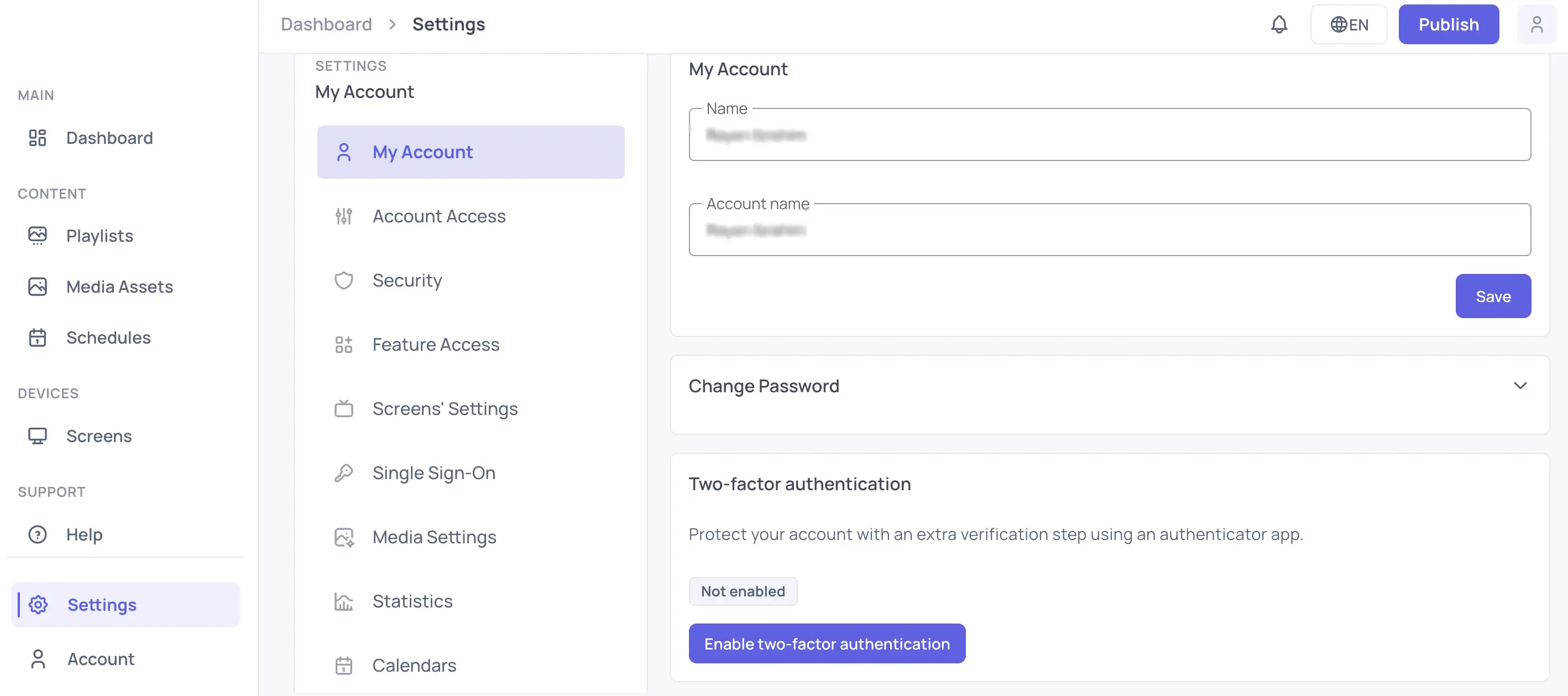
In the Two-factor authentication panel, click Enable two-factor authentication.
If you haven’t signed in recently, confirm it’s you before continuing:
- For Password sign-in: enter your Current Password and click Continue.
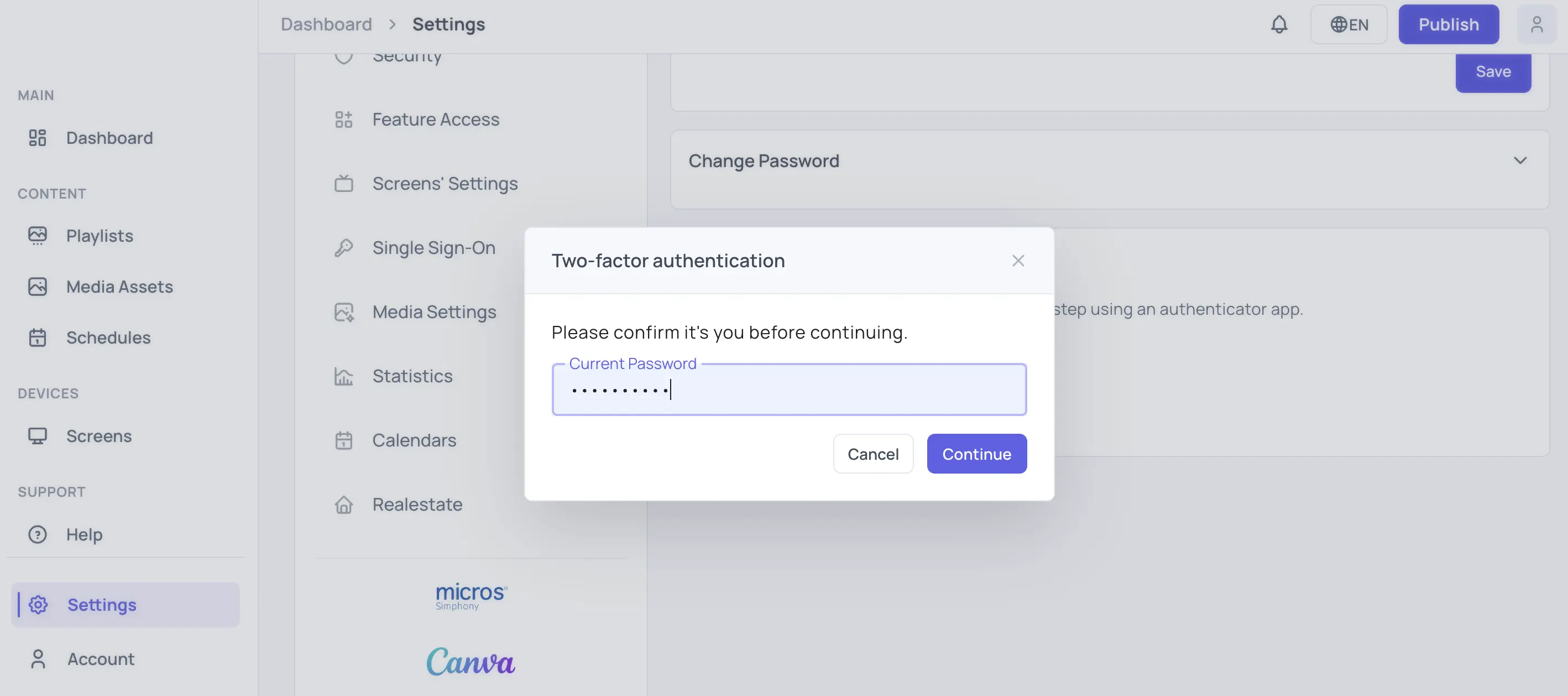
For Google / Microsoft / SSO sign-in: click Continue and confirm through the provider popup (allow popups if nothing appears).
If you signed in just a few minutes ago, this step is skipped.
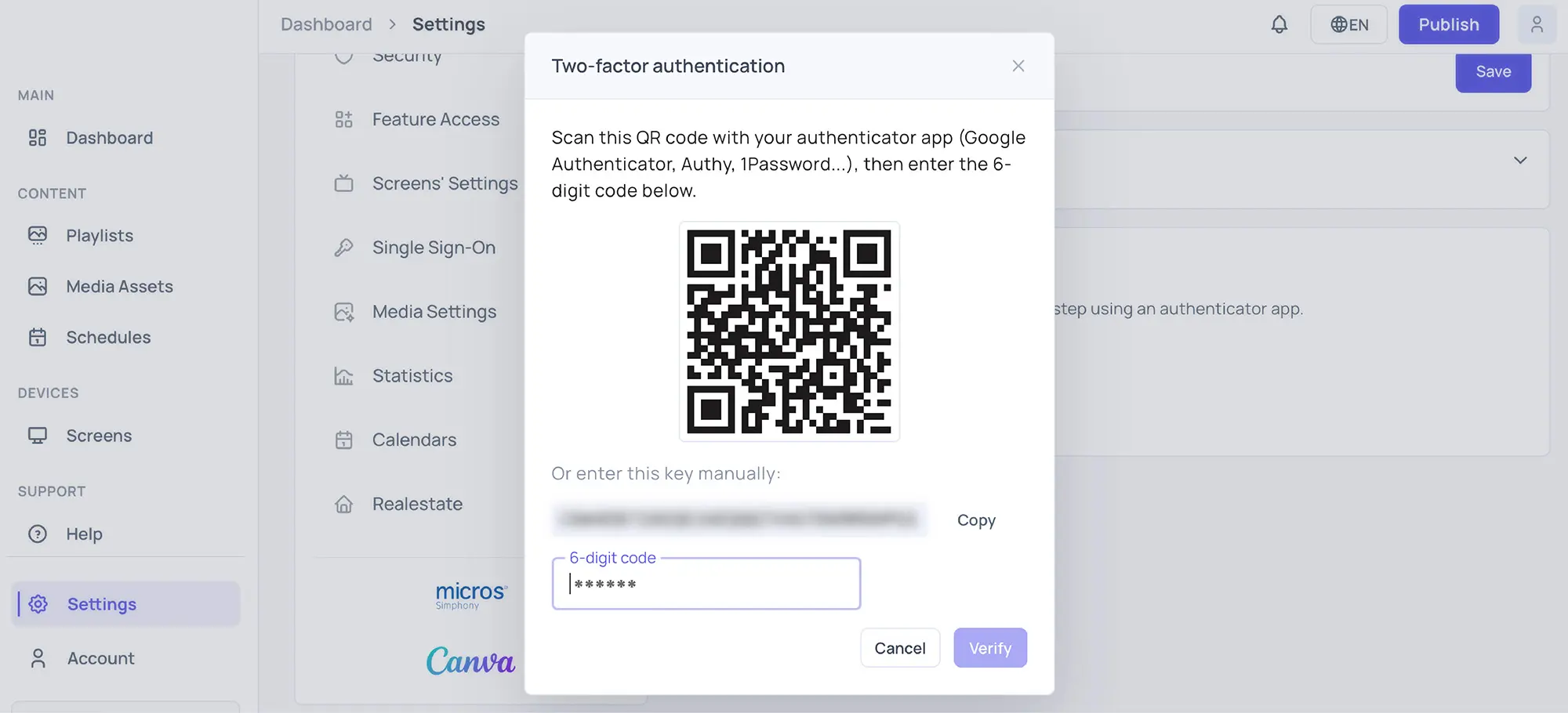
Scan the QR code with your authenticator app (tap + → Scan QR code). If you couldn’t scan, click Copy next to the key under Or enter this key manually and add it in your app via Manual entry (tap + → Enter a setup key → add the manual key).
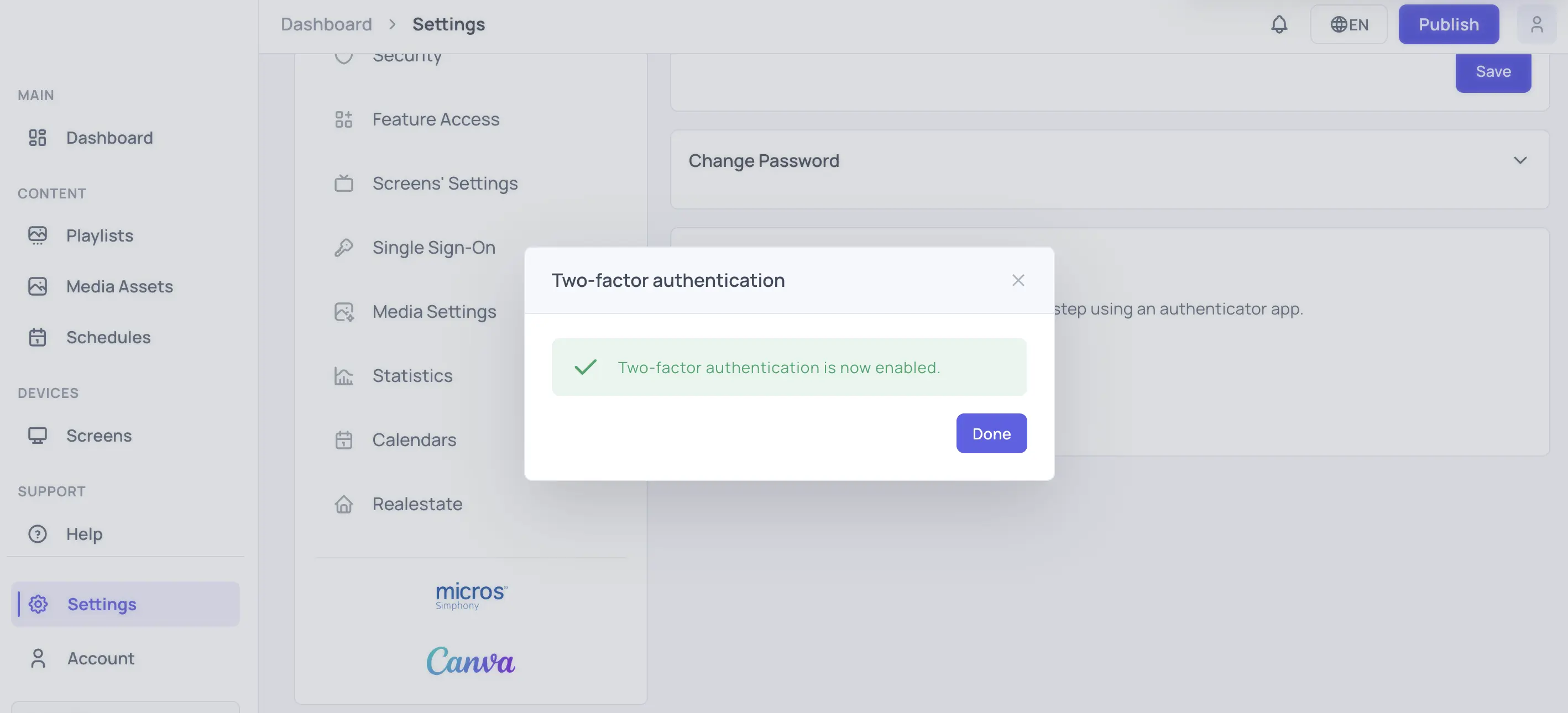
Type the current 6-digit code from your authentication app and click Verify. When you see “Two-factor authentication is now enabled.”, click Done.
The panel now shows a green Enabled badge with your enrollment date.
Signing in with MFA
- Sign in as usual, email and password, Google, Microsoft, or your company SSO.
- On the verification page, enter the current 6-digit code from your authenticator app.
- Click Verify.
Don’t refresh the verification page: refreshing sends you back to the sign-in page. To start again, click Back to sign in.
Codes change every 30 seconds. If a code is rejected, wait for the next one. Repeated “Invalid code” errors usually mean your phone’s clock is off. Enable automatic date & time in your phone settings.
How to Disable 2FA
- Open Settings → My Account.
- Click Disable in the Two-factor authentication panel.
- Confirm it’s you before continuing:
- Enter your current password (or provider popup)
- Enter the current 6-digit code from your authentication app on your phone.
- Click Disable.
The badge returns to Not enabled. You can then remove the EasySignage entry from your authenticator app. If your account administrator requires MFA, you will be asked to set it up again the next time you use the app.
For Account Administrators: Require MFA for Sub-users
Main account holders can force every sub-user to use MFA:
- Open Settings → Security.
- Tick Require MFA for all sub-users. The setting is saved immediately.
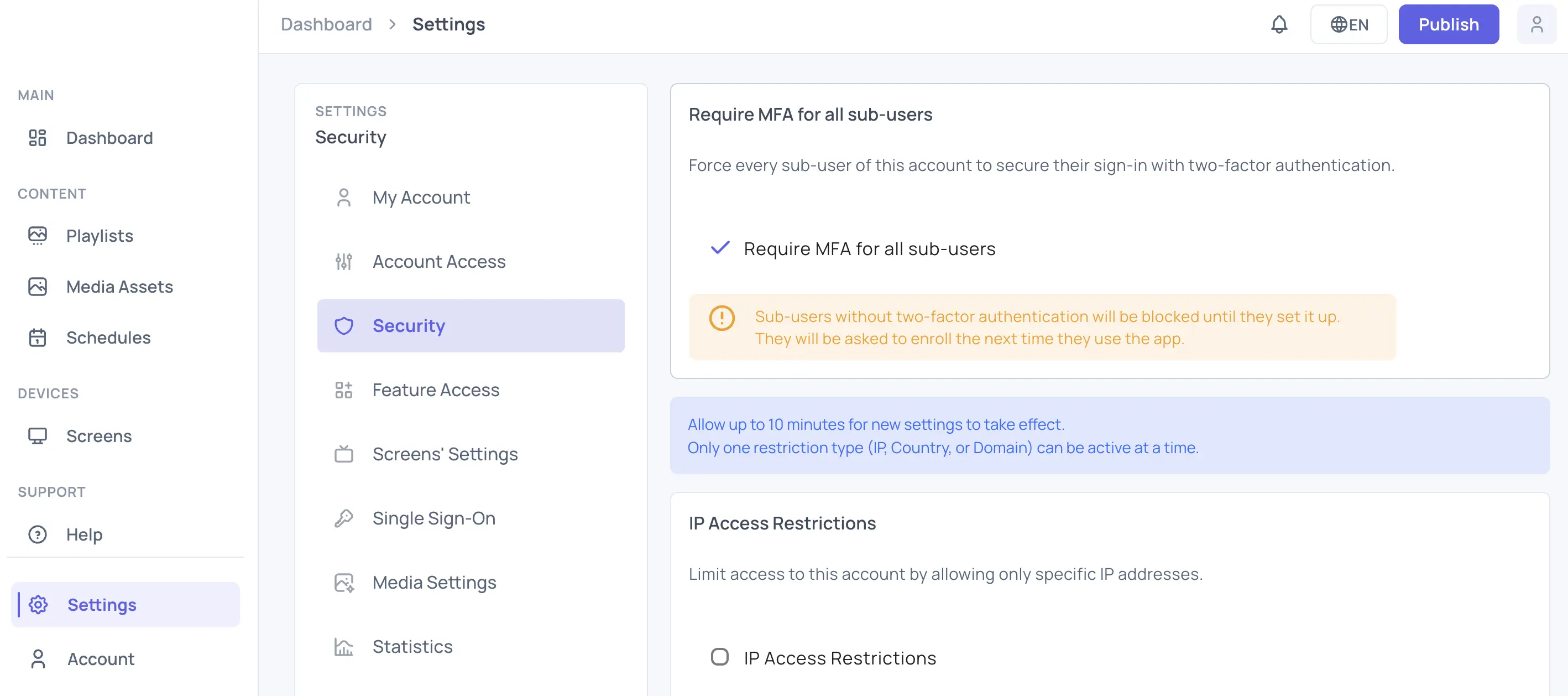
What happens next:
- Sub-users who already use MFA notice nothing.
- Sub-users without MFA are blocked from the app and land on a “Set up two-factor authentication” screen at their next sign-in (or within ~10 minutes if already signed in). Once they complete the setup, they continue straight to the dashboard. If they cancel, they are signed out.
- You (the main account holder) are never blocked by this setting. You cannot lock yourself out. We still strongly recommend enabling MFA on your own account.
To turn enforcement off, untick the checkbox. Already-enrolled sub-users keep their MFA unless they disable it themselves.
Troubleshooting
| Problem | Solution |
|---|---|
| “Invalid code. Check your authenticator app and your phone’s clock, then try again.” | Enable automatic date & time on your phone, wait for the next code, retry. |
| QR code expired | If you waited too long, Verify fails and a new QR code and key appear in the same window. Scan the new one, delete the old entry in your app, and enter the new code. |
| No provider popup appears | Allow popups for the EasySignage site and click the button again. |
| “Verify your email address before enabling two-factor authentication.” | Verify your email address, then reload the My Account page. |
| SSO already asks for MFA | If your account also enforces EasySignage MFA, both checks apply. Ask your account admin if this is unnecessary. |
| Lost your device | Contact EasySignage support. After verifying your identity, support removes the second factor so you can sign in and re-enroll. Account admins cannot reset a sub-user’s MFA. Recovery always goes through support. |
Note: MFA protects user sign-ins to the management console only. Registered display players are unaffected.
Frequently Asked Questions
Q: Which apps can I use?
A: Any TOTP authenticator app, Google Authenticator, Microsoft Authenticator, Authy, 1Password, Bitwarden, FreeOTP, and more. No SMS or phone number is required.
Q: I got a new phone. How do I move 2FA?
A: If your authenticator app supports backup/transfer (Authy, 1Password, Google Authenticator account sync), restore it on the new phone, your EasySignage codes come with it. Otherwise, disable 2FA from a signed-in session before wiping the old phone, then re-enable it on the new one.
Q: I lost my phone and can’t sign in
A: Contact EasySignage support. After verifying your identity, support removes the factor so you can re-enroll. Your account administrator can’t reset it.
Q: My codes are always “invalid”
A: 6-digit codes change every 30 seconds and are time-based. Make sure your phone’s clock is set to automatic (network) time. A clock that’s off by more than a minute makes every code invalid.
Q: The QR code expired while I was setting up
A: If you wait too long on the QR step, Verify fails and a fresh QR code and key are shown in the same window. Re-scan with your app, delete the old entry, and verify with the new code.
Q: Does 2FA work together with SSO?
A: Yes. You can add app-based 2FA on top of any sign-in method. Note that if your organization uses SSO, your identity provider may already enforce its own MFA, in that case you may not need EasySignage 2FA as well.
Q: Can I require 2FA for everyone on my account?
A: Account-wide 2FA enforcement asks each sub-user to set up an authenticator app before they can continue using the dashboard. If this option is enabled on your account, users without 2FA are taken to a setup screen at sign-in and guided through enrollment.
Q: Does 2FA affect my screens/players?
A: No. Two-factor authentication protects dashboard sign-in only. Your displays keep playing content normally and don’t need codes.