The tag manager shows every tag in your account and indicates where each one is used: media, screens, provisioning records and team access scopes. From it you can add a new tag and rename, merge, or delete existing tag everywhere it appears in one step.
Use it to answer “why isn’t this media playing on that screen?” without checking each item by hand.
Before you begin
- You need full access to the account. The tag manager is available to the account holder and to members of the Administrators team.
- Tags are included on the Premium and Enterprise plans.
How to Open the Tag Manager
You can access the tag manager from:
Account Menu: Open the Account menu and select Tag manager.
Settings Menu: Go to Settings > Tag manager.
Screens Page: On the Screens page, select the Tag manager icon next to Export as CSV. If the list is filtered by one tag, the tag manager opens on that tag.
- Select a tag in the screens list or in a screen’s details. The tag manager opens on that tag.
- When editing tags, select the tags icon next to a suggested tag. The tag manager opens on that tag.
- In the tag filter on the Media Assets or Screens page, select Manage tags.
How tags are matched
Tags are matched exactly, including capital letters. Media tagged SYD doesn’t play on a screen tagged syd when Tags playback restriction is on, because the system treats them as two different tags.
New tags are always saved in lower case. Tags saved before that change can still contain capitals, so an account can hold look-alike tags such as SYD and syd. The tag manager shows these as one row and lets you merge them.
For how tags control playback, see Control media playback by tags .
Find a tag
The list shows one row per tag, with the number of screens that carry it.
- To find a tag by name, enter it in Search tags.
- A tag that is only on media, and not in your tag list, doesn’t get a row.
- To narrow the list, select a filter:
- All: shows every tag
- Needs attention: shows tags with look-alike spellings, and tags that are no longer in your tag list
- On no screens: shows tags that no screen carries
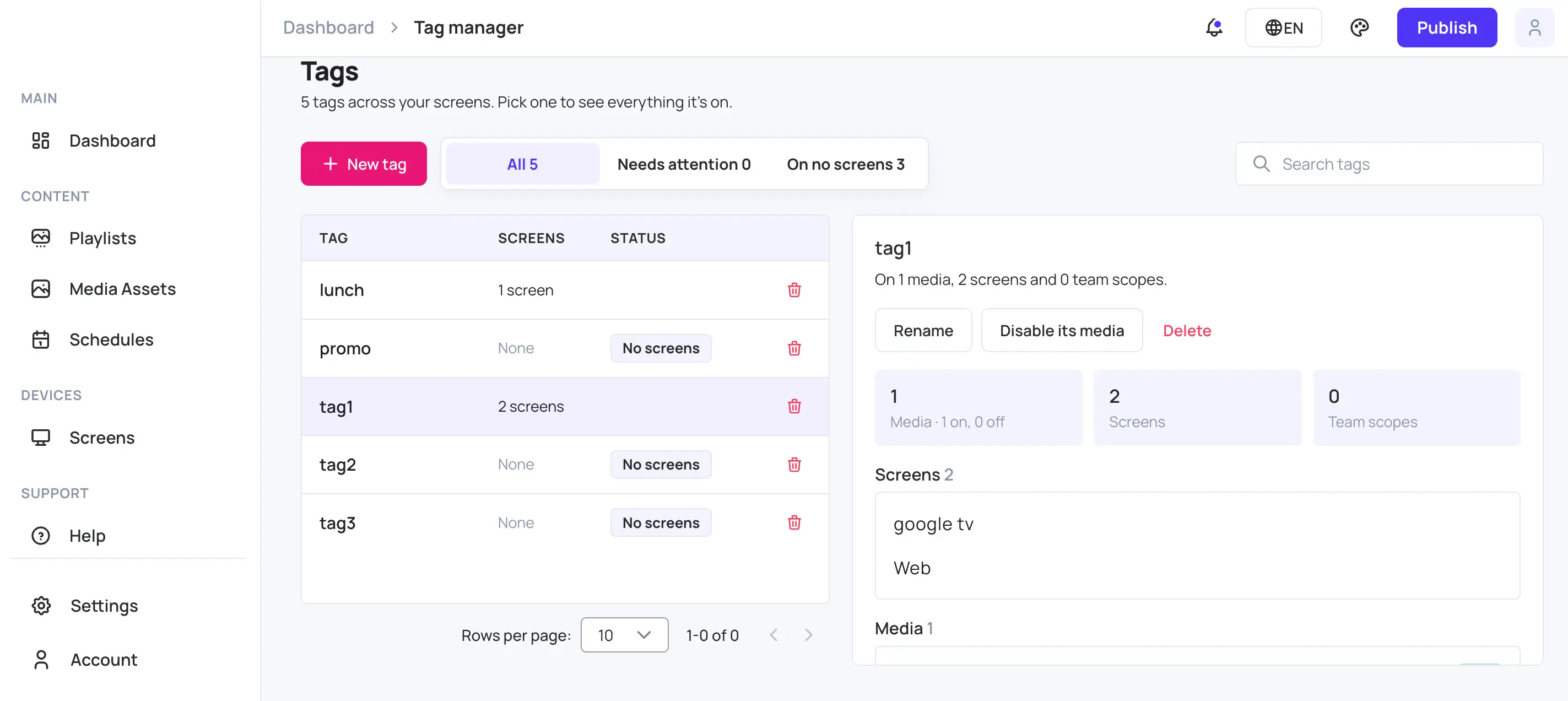
A row can show one of these statuses:
| Status | What it means |
|---|---|
| Merge | The tag also exists with other capitalisation, for example SYD beside syd. The row notes each other spelling. |
| Not in tag list | Screens carry the tag, but tag pickers no longer offer it. This usually happens when a tag was deleted from the picker in an earlier version. |
| No screens | No screen carries the tag. Media might still carry it. |
See where a tag is used
Select a tag in the list. Its details show:
- How many media items carry it, and how many of them are on or off.
- How many screens carry it.
- How many team access scopes include it.
- The screens, media, team access scopes and provisioning records that carry it. Select a screen, media item or team to open it.
The counts cover your whole account. The screens, media and provisioning records lists show up to the first 100 items.
When a tag has more than one spelling, each screen and media item shows the spelling it carries. A screen that carries a different spelling from its media is why that media doesn’t play there.
Add a tag
- Select New tag.
- Enter a Tag name.
- Select Add tag.
The tag is added to your tag list, so every tag picker offers it. It isn’t on any media or screen until you add it to them.
A tag name:
- Is saved in lower case.
- Can be up to 200 characters.
- Can’t contain
,or/. - Can’t match an existing tag, whatever the capitalisation.
Merge look-alike tags
Merging replaces each spelling with its lower-case name on every media item, screen, provisioning record and team access scope.
To merge every look-alike tag in your account:
- In the notice about look-alike tags, select Merge all.
- Review the tags that will be merged.
- Select Start merge.
To merge one tag, select Merge on its row, or select the tag and then select Merge into its lower-case name. Then select Start merge.
Each spelling shows its progress: Waiting, Updating, Done or Failed.
Rename a tag
- Select the tag.
- Select Rename.
- Enter the New name.
- Select Rename.
The new name replaces the tag on every media item, screen, provisioning record and team access scope, for every spelling of the tag. If the new name already exists, the two tags are merged.
Turn a tag’s media on or off
To take every media item with a tag off your screens, select the tag and then select Disable its media. The media stays in your library, in its playlists, with its settings.
To put it back, select Enable its media.
Only ready media is disabled, and only disabled media is enabled. Media that is still processing, or that failed to process, isn’t changed. A message shows how many items were updated.
Delete a tag
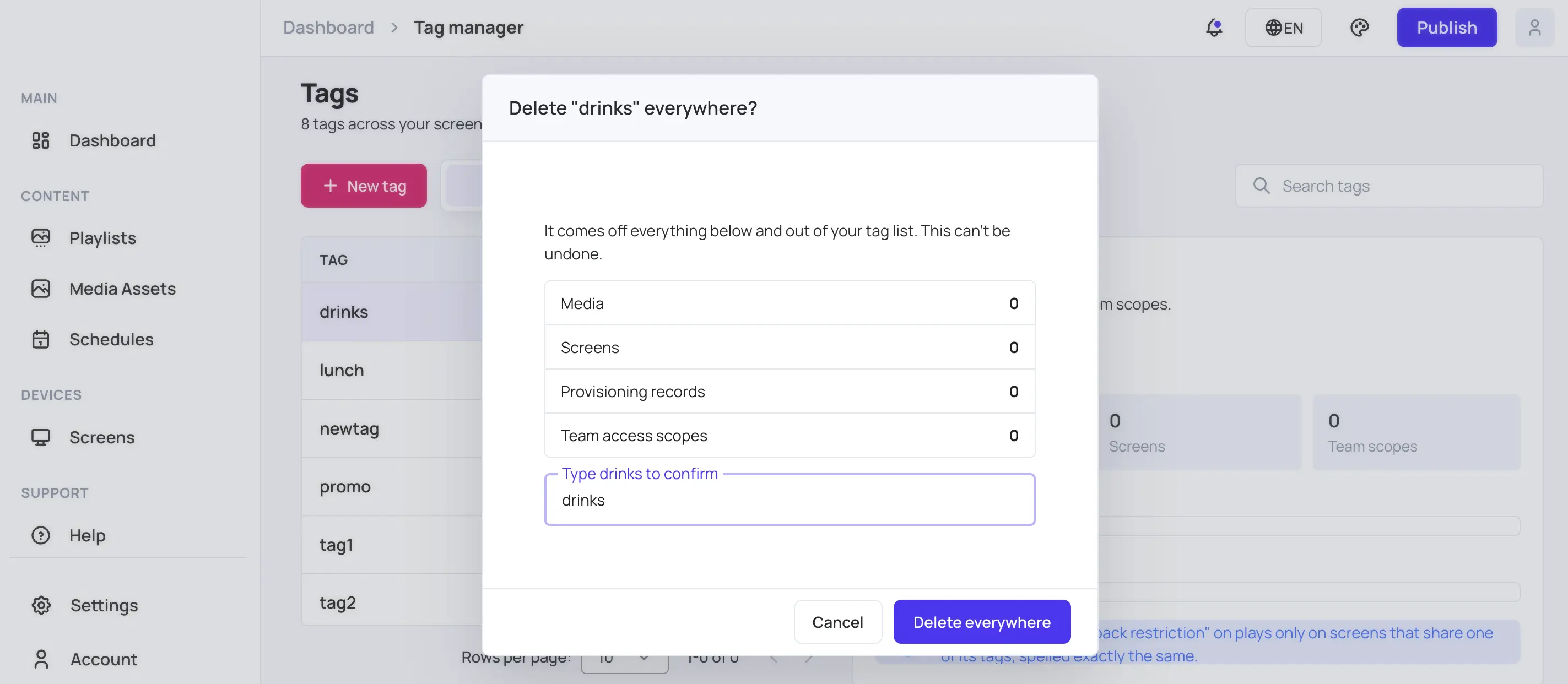
Deleting removes the tag from every media item, screen, provisioning record and team access scope, and from your tag list. Every spelling of the tag is deleted.
- Select the delete icon on the tag’s row, or select the tag and then select Delete.
- Review what the tag will be removed from.
- Type the tag’s name to confirm.
- Select Delete everywhere.
Warning: Deleting a tag can’t be undone. If a team can only see screens with this tag, its members see no screens after the tag is deleted. The confirmation names any team this affects.
What happens next
Screens pick up tag changes on their next publish. After you rename, merge or delete a tag that affects what plays, publish the affected screens. To publish only those screens, see Publish to selected screens .
Merging, renaming and deleting continue while the tag manager page is open. You can close the progress dialog while it runs. If an operation stops, for example because you left the page, run it again. It continues from where it stopped.
Related articles