Feature Access lets you choose which parts of EasySignage your account shows. Switch off what you don’t use, for example the Dashboard, Schedules or apps you never add, and the menus and app picker get shorter for everyone in the account.
Your plan sets what is available. Feature Access can only switch off features your plan includes; it can’t add features your plan doesn’t include.
Note: Only users with full access to the account see Feature Access in the Settings menu.
Open Feature Access
Go to Settings > Feature Access.
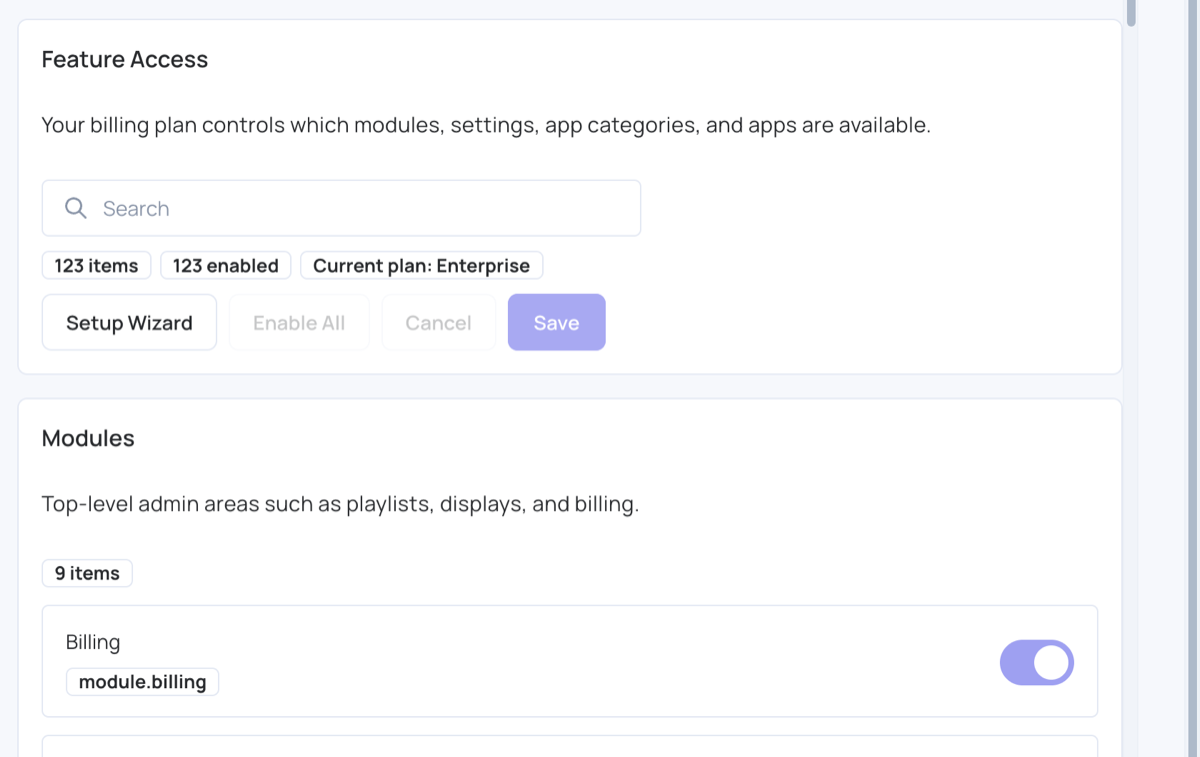
At the top you see:
- Search: type part of a feature’s name or key to filter the list.
- {n} items and {n} enabled: how many features there are and how many are on.
- Current plan: your plan.
Below, the features are grouped:
| Group | What it covers |
|---|---|
| Modules | The main menu areas, such as Playlists, Screens and Billing. |
| Playlist Types | The playlist and screen modes available, such as video walls and channels. |
| Capabilities | Features used across the CMS, such as tags and teams. |
| Settings Sections | The sections in the Settings menu. |
| App Categories | The categories in the app picker. |
| Apps | Each app you can add to a playlist. |
Each row shows the feature’s name, its key (for example module.dashboard) and a switch. A row can also show:
- The parent’s name: the area the feature belongs to. An app, for example, shows its app category.
- Always on: the feature can’t be switched off. Settings is always on, so you can always get back to Feature Access.
- {Plan} required: your plan doesn’t include the feature. The switch is greyed out and the row says “Upgrade to {Plan} to enable this feature.”
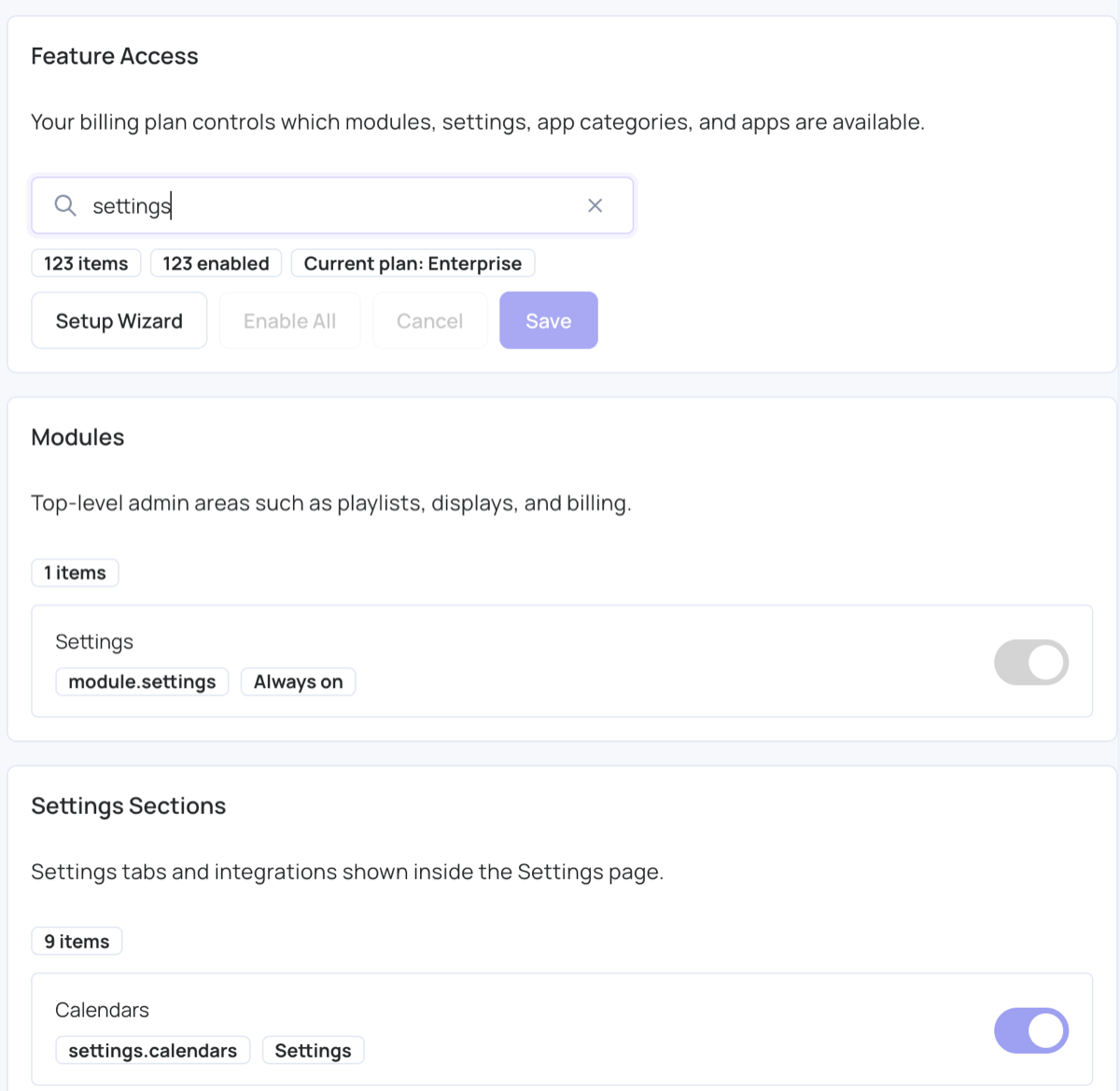
Switch Features On or Off
- Click the switch next to each feature you want to change.
- Click Save. Save is greyed out until you change something. Click Cancel to undo your changes before saving.
To switch on everything your plan includes, click Enable All, then Save.
What happens when a feature is off:
- It is hidden for every user in the account: its menu item, settings section or app no longer appears.
- Nothing is deleted. Switch it back on and everything is where you left it.
- An app needs its app category on as well. If you switch off a category, its apps are hidden too.
A feature your plan doesn’t include stays visible with a lock, so you can see what an upgrade would add.
Use the Setup Wizard
The wizard switches features on or off for you based on a few answers.
Click Setup Wizard.
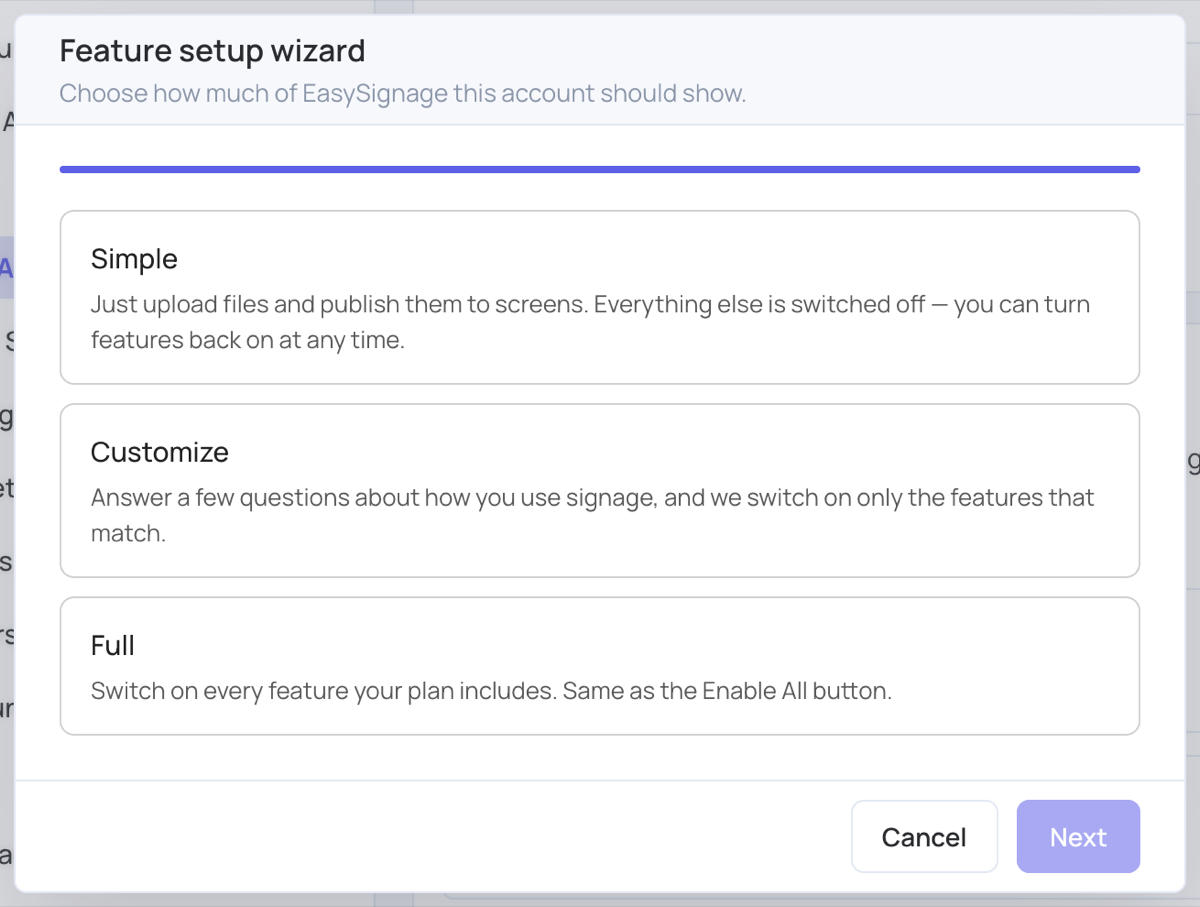
Choose how much the account should show:
- Simple: just upload files and publish them to screens. Everything else is switched off.
- Customize: answer a few questions, and only the matching features are switched on.
- Full: switch on every feature your plan includes, the same as Enable All.
Click Next.
Answer Do you want the Dashboard? with Yes, show the Dashboard or No, open straight on Playlists. This question is asked whichever option you chose.
If you chose Customize, answer each question by ticking everything you expect to use, then click Next:
- What will you show on your screens? For example images and videos, templates, Canva designs, web pages, social media feeds or calendars.
- How will you manage your screens? For example screen groups, tags, video walls or channels.
- How should content be timed? For example schedules, expiry dates or play count limits.
- Who else works in this account? Users and roles, activity logs, billing, and statistics.
Check Review your setup. It shows how many features will be on and how many are switching on or off.
Click Apply. The changes are saved straight away.
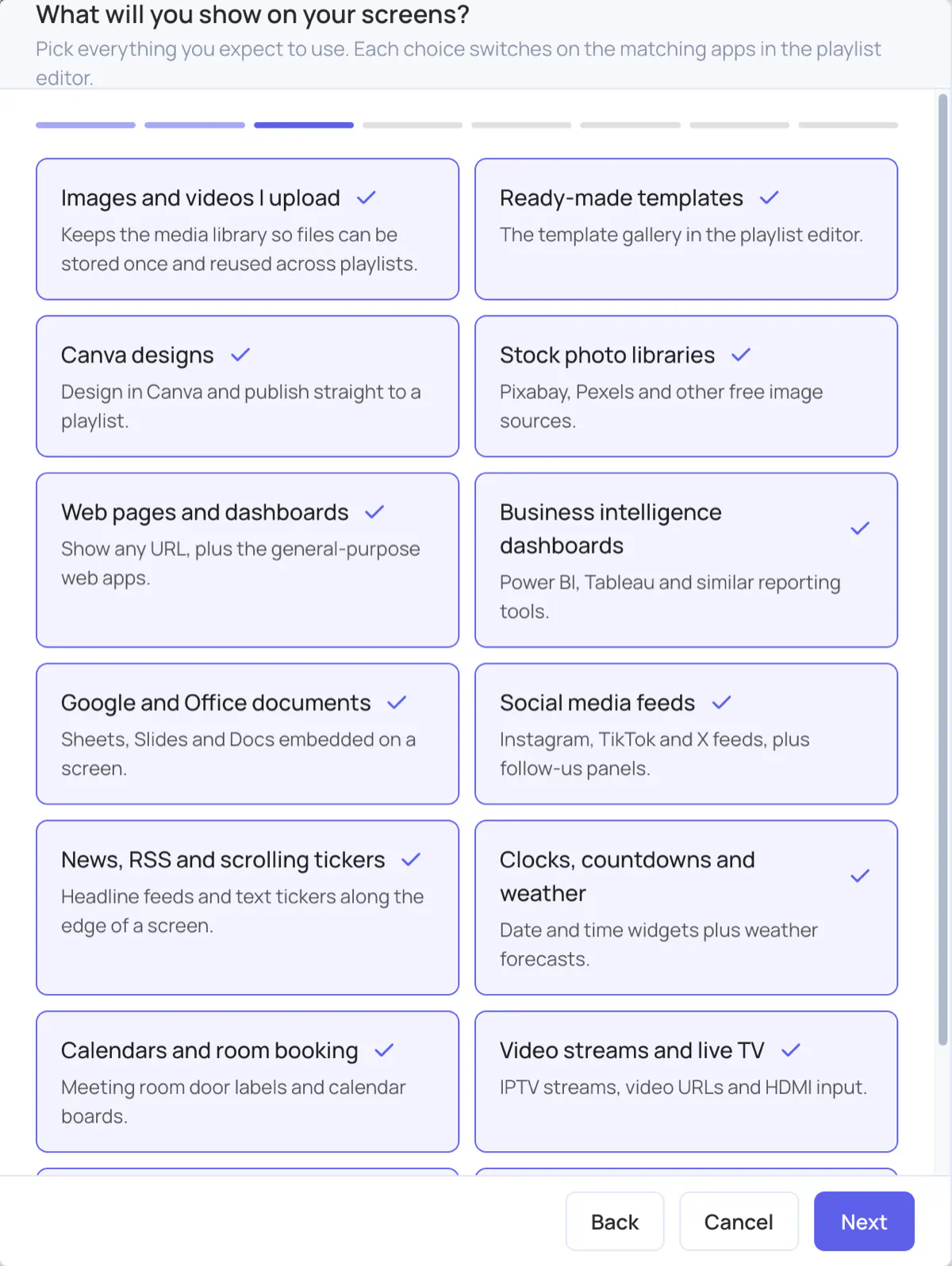
Options your plan doesn’t include show {Plan} required and can’t be ticked. Click Back to change an answer, or Cancel to close the wizard without changing anything. You can run the wizard again at any time, or change any switch by hand.