EasySignage can send two kinds of email notifications:
- Approval emails: to approvers when media waits for review, and to uploaders when their media is approved or rejected. See Media Approval.
- Screen status emails: a summary of the screens that went offline and the screens that came back online.
Administrators choose which emails the account sends. Each person can then turn off the emails they don’t want.
Set up notifications for the account
Note: Only members of the Administrators team see Notifications in Settings.
- Go to Settings > Notifications.
- Turn Approval emails on or off. It is on by default.
- Turn Screen status emails on or off. It is off by default.
- In How often, choose Every 10 minutes, Every hour or Once a day.
- In Recipients, type each email address and press Enter or a comma after it. You can add up to 50 addresses, including people outside your account.
- Click Save to save the recipients.
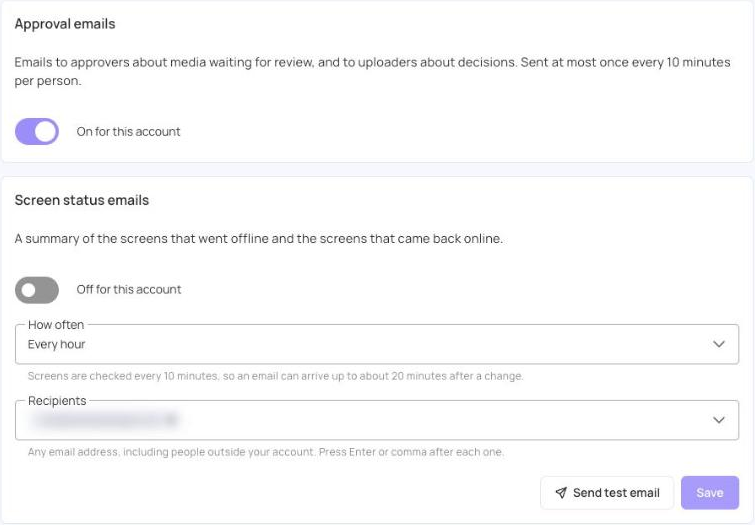
- The switches and How often are saved as soon as you change them. Only Recipients needs Save.
- To check the setup, click Send test email. A sample screen status email goes to the addresses in Recipients.
- Screens are checked every 10 minutes, so an email can arrive up to about 20 minutes after a screen goes offline or comes back.
- Once a day sends the email at 12:00 UTC. The list shows that time in your own time zone.
- Approval emails are sent at most once every 10 minutes per person.
A recipient who has turned off screen status emails in their own settings is shown with a muted bell, and doesn’t receive them.
Choose your own email notifications
Every user can turn off the emails they don’t want to receive.
- Go to Settings > My Account.
- Under Email notifications, turn Approval requests and decisions or Screen status alerts on or off.
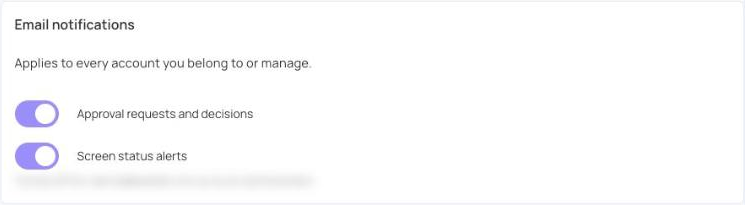
- Your choice applies to every account you belong to or manage.
- If an administrator has turned an email off for the account, the switch shows “Turned off for … by an administrator”. You don’t get that email from that account, whatever your own setting is.