A transition is the effect that plays when one media item changes to the next, similar to a slideshow. The default transition is the effect that EasySignage applies to every new playlist, layer, and video wall you create. If you don’t set one, no transition plays.
Set the default transition
Go to Settings > Media Settings.
Under Default Transition, choose a transition from the drop down.
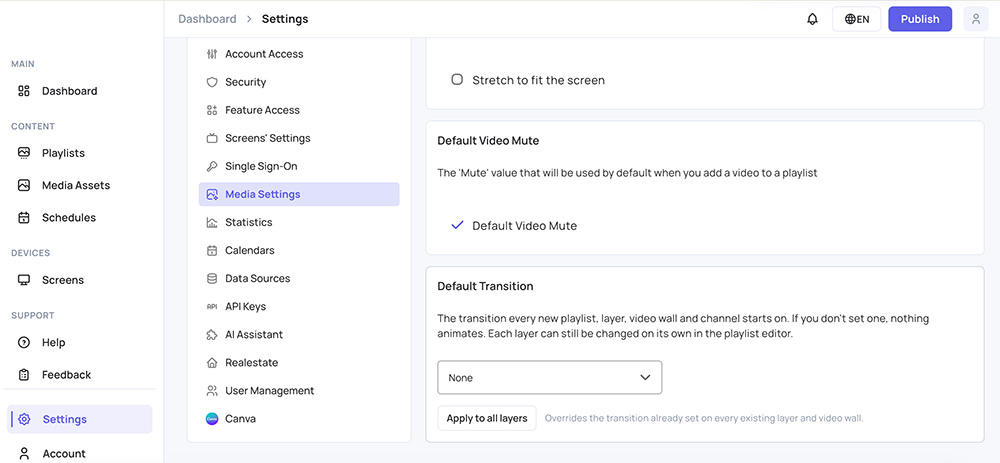
The setting saves as soon as you choose it.
Note: The default transition applies to content you create afterwards. It does not change layers you already have. To change those, see Apply the transition to existing layers .
Available transitions
| Transition | Effect |
|---|---|
| None | The next media item appears immediately. |
| Fade | One media item fades out as the next fades in. |
| Accordion | The next media item folds into view. |
| Background To Foreground | The next media item grows from the background. |
| Depth Page | The current media item drops back as the next comes forward. |
| Foreground To Background | The current media item shrinks away as the next appears. |
Check a screen to preview the effect. The transition plays between media items in the same layer.
Change the transition for one layer
Each layer keeps its own transition, so you can set one layer differently from the rest of the playlist.
- Go to Playlists and open your playlist.
- Select the layer you want to change.
- Under Layer’s Transition, choose a transition from the drop down.
Only the transition set on the layer plays. Changing one layer does not affect the others, and it does not change your default transition.
Apply the transition to existing layers
Use this when you want every layer you already have to match your default.
- Go to Settings > Media Settings.
- Under Default Transition, choose the transition you want.
- Select Apply to all layers.
- Select Yes to confirm.
Warning: This replaces the transition on every existing layer and video wall in your account. You can’t undo it. To change only one layer, see Change the transition for one layer .
Publish your screens to send the change to them.
Troubleshoot transitions
1. A video stutters or the screen goes black for a moment between media items.
Some screens can’t play a transition and a video smoothly at the same time. Set the transition to None on the layer that plays video. For Philips screens, see How to fix the black screen between videos on Philips screens .
2. A layer still plays the old transition after you changed it.
The screen keeps playing its current content until it receives an update. Publish the screen, then check it again.
3. A layer plays no transition even though you set a default.
The default applies to layers created after you set it. Use Apply to all layers to update the layers you already have.
Related articles