Data Sources let you pull content from an external JSON API and show it on your screens. You connect an API once in your account settings, and then reuse it in as many templates as you like.
EasySignage fetches the data on its servers and keeps a copy, so:
- Your screens (players) never call your API directly: they only show the copy.
- Your API isn’t called once per screen.
- Credentials (tokens, API keys) are stored encrypted and are never sent back to a browser or a player.
Note: Data Sources is a BETA feature and is available on the Enterprise plan. Today it supports showing a repeating list of records as a dynamic table.
How it works
- You add a JSON API as a data source (URL + optional authentication).
- EasySignage fetches the API and keeps a copy of the response.
- In the template editor you pick the data source, choose which list to repeat and which columns to show, and add a dynamic table to your design.
- When you save the template, the table is filled from the data source’s latest copy.
Part 1 — Configure a data source
Open the Data Sources page
- Click Settings in the menu on the left.
- Choose Data Sources.
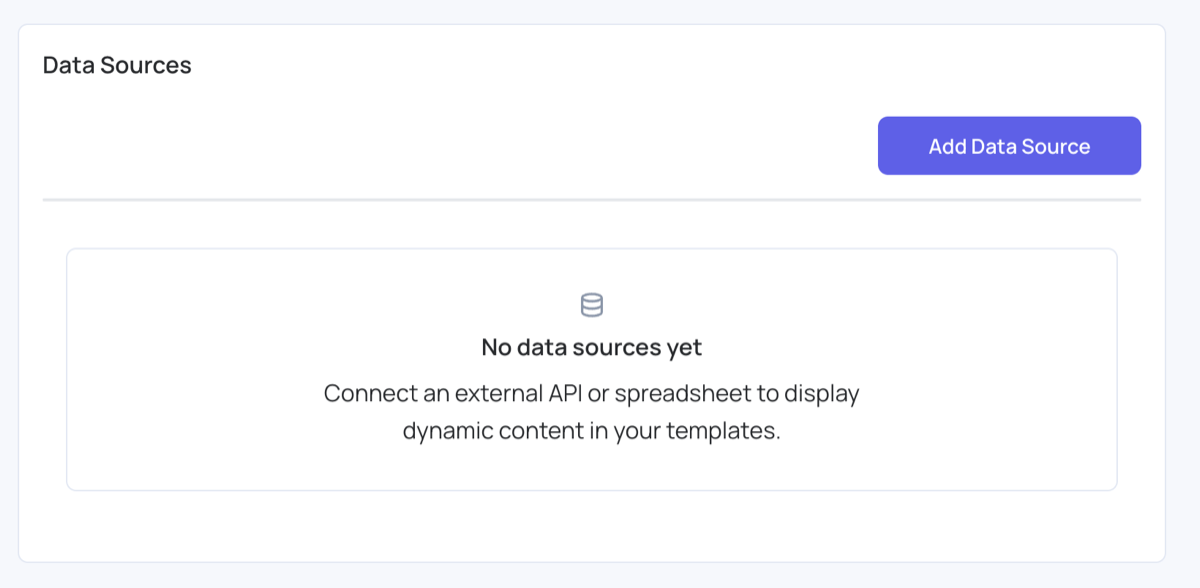
- Click Add Data Source.
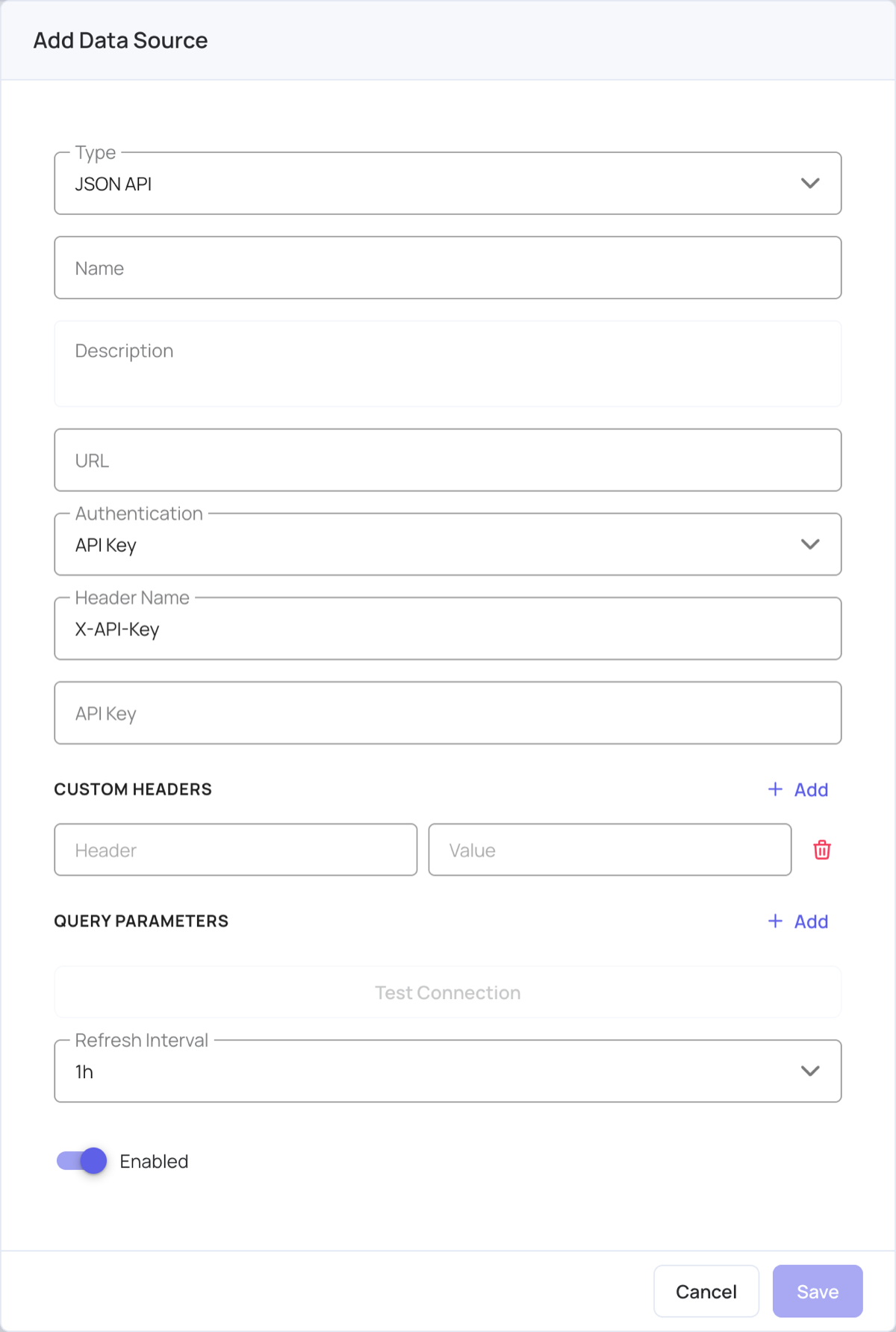
Fill in the connection details
| Field | What to enter |
|---|---|
| Type | Choose JSON API. |
| Name | A label you’ll recognise later (e.g. Cafeteria Menu API). Required. |
| Description | Optional note about what this source is for. |
| URL | The full HTTPS address that returns JSON (e.g. https://example.com/menu.json). Required. |
| Authentication | How EasySignage should sign in to your API: No Auth, Bearer Token, or API Key. See below. |
| Custom Headers | Optional extra request headers: click Add to enter a header and its value. |
| Query Parameters | Optional values added to the URL: click Add to enter a parameter and its value. |
| Refresh Interval | How often the data is fetched again: 5m, 15m, 30m, 1h (the default), 6h, 12h, or 24h. |
| Enabled | Turn the source on or off without deleting it. |
Important: The URL must use HTTPS. Plain
http://addresses, links that redirect elsewhere, addresses with a username and password in them, and internal/private addresses are not allowed.
Authentication options
- No Auth: the API is public; nothing extra is sent.
- Bearer Token: EasySignage sends an
Authorization: Bearer <token>header. Paste your token in the Bearer Token field. - API Key: EasySignage sends your key in a header you choose. Enter the Header Name (e.g.
X-API-Key) and the API Key value.
Note: Credentials, custom header values and query parameter values are encrypted when you save and are never shown again. When editing a source, leave the token/key field blank to keep the existing one, or type a new value to replace it.
Test the connection
Enter the URL, then click Test Connection before saving. EasySignage makes a live request and shows:
- Connected or Failed, the HTTP status code, the response time (ms) and the response size (bytes).
- A field explorer of the returned JSON so you can check the data looks right.
In the field explorer you can:
- Expand objects and lists to see their structure.
- See each field’s type and a sample value.
- Spot collections (lists of records): these are marked collection and are what you’ll repeat in a table.
- Search for a field by name.
- Copy a field’s path with the copy icon.
- Switch between Explore fields and View raw JSON.
When everything looks right, click Save.
Manage existing sources
On the Data Sources list each source shows its type, whether it is active or disabled, its refresh interval and the time of its last sync. The icons on the right let you Explore data (browse the last fetched data), Edit, Duplicate (the copy starts disabled), Disable/Enable or Delete a source.
Other types
Google Sheets is also in the Type list: paste the sheet’s link and share the sheet with the email address shown. The CMS says the sheet is connected when you save, but its tabs and data sync are not available yet. To show a Google Sheet in a template today, use the Google Sheets connector in the template editor.
Part 2 — Use a data source in a template
- Open or create a template and click Open Editor.
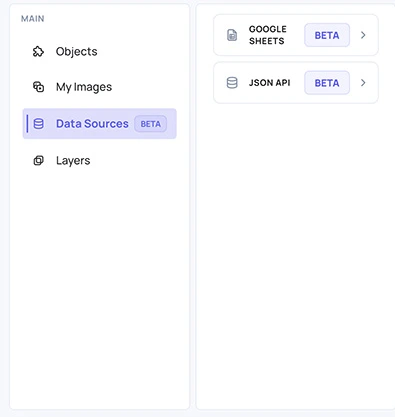
- In the left menu choose Data Sources, then open the JSON API connector.
- From Choose a data source, select the source you configured.
- If the source has not been fetched yet, click Fetch now to load its data.
- If the source has more than one list, pick the List to repeat (the collection of records).
- Under Columns, untick the fields you don’t want (all are ticked to begin with).
- Click Add to template. A dynamic table is added to your design: one row per record, one column per field you kept.
- Position and style the table like any other object, then Save.
Important: Once you save a template with a data source, that template is locked to that data source. When you reopen the editor the source is already selected and can’t be changed. You can still change the list and the columns. To use a different source, remove the table from the design and add a new one.
Showing newer data
The table is filled from the data source’s latest copy when you save the template. If the data has changed since, open the template in the editor and save it again.
Technical details
Data flow
You configure a source  ─▶  EasySignage fetches it and keeps a copy
                                     │
        You save the template ─▶  rows are built from the copy
                                     │
                              Players show the rows
                              (your API is never called by a screen)
Fetch on the server: the API is fetched by EasySignage, not by your screens, so your API only sees EasySignage’s requests.
One collection per table: each table repeats one list of records (like one sheet/tab). If your JSON has several lists, add a separate table for each.
Columns: the first row is the header, using the field names. Columns appear in the order the fields appear in your data.
Security and limits
HTTPS only.
http://, redirecting URLs, embedded credentials (user:pass@…), and internal/private hosts are rejected.Credentials are encrypted at rest using managed encryption keys and are never returned to the browser or sent to players.
Size limit: responses larger than 10 MB are rejected.
Timeout: requests time out after 30 seconds.
Supported response shapes
EasySignage works best with a JSON object that contains a list of records, for example:
{
  "resource": [
    { "name": "Cereals", "price": "3.00", "day": "Monday" },
    { "name": "Toast",   "price": "2.50", "day": "Monday" }
  ]
}
Here resource is the collection you’d repeat, and name, price, day are the columns. Records that leave out a field simply show an empty cell. A single object with no list is shown as one record.
Troubleshooting
| Problem | What to check |
|---|---|
| Authentication failed / Unauthorized (401) | Re-enter the token/API key; check the header name for API-key auth. |
| Only HTTPS URLs are allowed. | Change the URL to https://. |
| Couldn’t reach the data source after a URL that redirects | Use the final, direct URL; redirects aren’t followed. |
| The response isn’t valid JSON. | Open the URL in a browser and check it returns valid JSON (no HTML error page, no missing brackets). |
| The request timed out (30s limit). / The response is too large (10 MB limit). | Ask your API provider for a faster or smaller endpoint, for example with a query parameter that limits the results. |
| This source has no fetched data yet in the editor | Click Fetch now, or run Test Connection in Settings → Data Sources. |
| No repeatable list (an array of records) was found in this source. | Your JSON has no list of records; the table needs a list (collection) to repeat. |
| Table shows but the background is missing in preview | The design image is still rendering; give it a moment and refresh the preview. |
Tip: If a cell shows raw JSON instead of a value, that field is a nested object or list. Pick a specific sub-field (e.g. a price inside a details object) as a column instead.