In Calendar Settings you manage the Google and Outlook calendar accounts that your calendar and door label apps use, and the logo shown on your door label screens.
To open it, go to Settings > Calendars.
Manage calendar accounts
Calendar accounts lists every Google and Outlook account signed in for the calendar and door label apps. Each row shows the account’s email address and how many calendars it has.
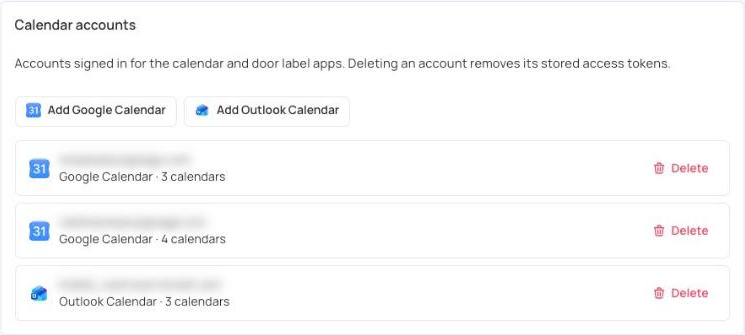
Add a calendar account
- Click Add Google Calendar or Add Outlook Calendar. The sign-in page opens in a new browser tab.
- Sign in with the account and allow access.
- Go back to the EasySignage tab. The account appears in the list once it is connected.
Accounts you sign in to from a calendar or door label app in a playlist also appear here.
Delete a calendar account
- Click Delete next to the account.
- Click Delete to confirm.
Warning: Deleting an account removes its stored access. Calendar and door label apps that use the account stop updating.
If an account shows “No calendars were found for this account”, sign in to it again or delete it.
Upload a logo for the Door Label app
The logo is shown on your Google and Microsoft door label screens, so your meeting room signs carry your branding.
- Under Door label Logo, click Upload Logo and choose your logo. Keep it within 600 px wide and 300 px high so it displays correctly.
- To change it later, click Edit, then Replace Logo. To remove it, click Delete and confirm.
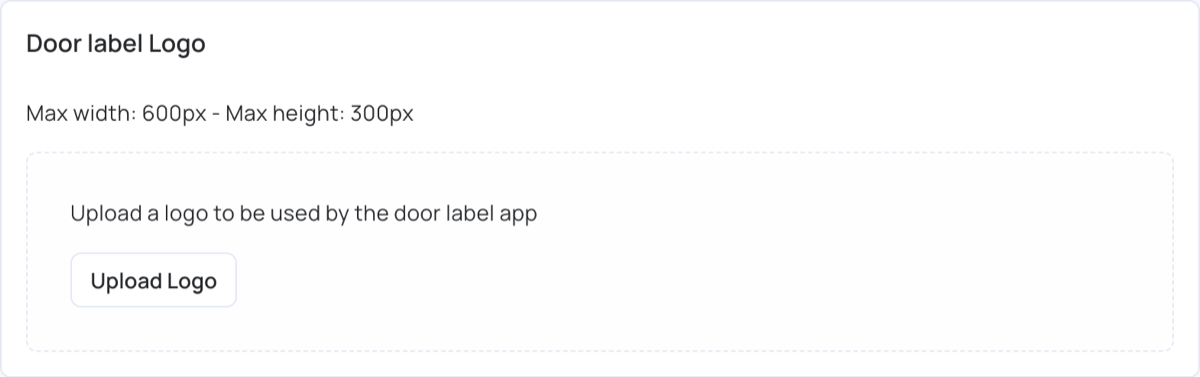
The account has one logo, used by every door label. A new or changed logo reaches your screens the next time you publish them.
For setting up the door label itself, see Door Label.