AI Assistant (MCP)
Connect Claude, ChatGPT, or Gemini to your account and manage screens, playlists, and schedules by asking.
- Connect Claude, ChatGPT, or Gemini CLI
- Ask how EasySignage works and get answers from the product documentation
- Create and update playlists, schedules, and screens in plain language
- Set read-only or full access for each area of your account
- Disconnect any assistant at any time



Why connect an AI assistant?
EasySignage includes an MCP (Model Context Protocol) server, the open standard AI applications use to work with an external service. Connect your account once and your assistant can answer questions about the platform and carry out real work on your screens, within the access you grant. Available on the Premium and Enterprise plans.




Security You Control
Every connection is scoped, verified, and yours to revoke.
You choose what it can reach
Set screens, playlists, schedules, and every other area to no access, read only, or full access before the connection is made.

Nothing is ever deleted
Even with full access, an assistant can create and update content but cannot delete a screen, playlist, or media file.

Verified, one-time requests
A consent link works once and expires, and EasySignage checks it against your account and its own server before anything connects.

Disconnect in one step
Every connection is an API key on your account. Delete the key and the assistant loses access straight away.
Chat with the AI Assistant You Already Use
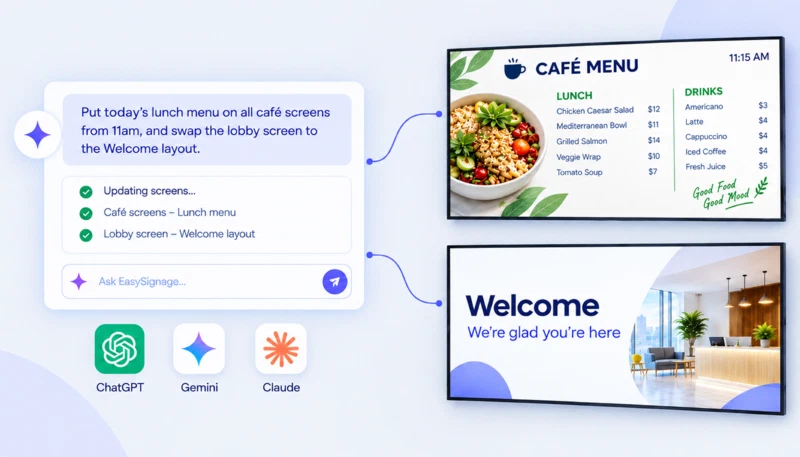
Ask in plain language, and it carries out the task on your screens.
How It Works
Connect an AI Model
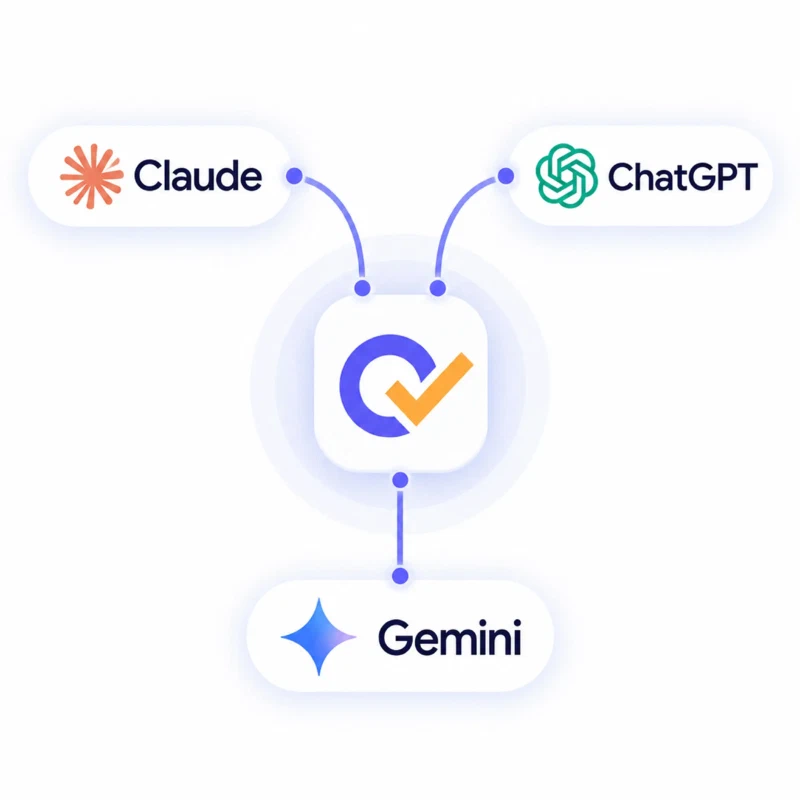
Connect Claude, ChatGPT, or Gemini to your EasySignage account.
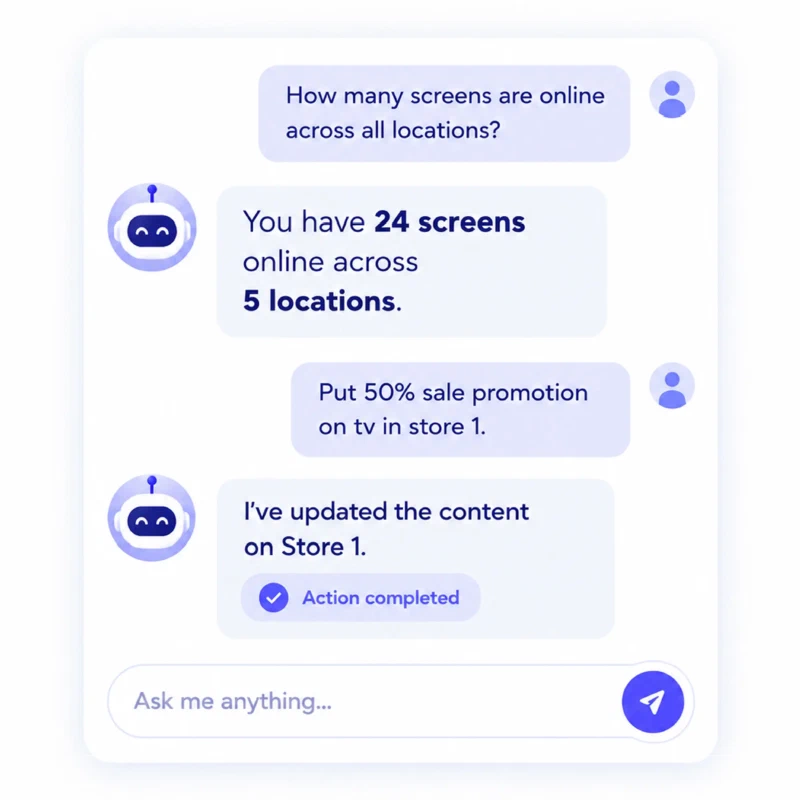
Chat and Specify Your Needs
Chat with your favourite AI agent and ask in plain language for what you want changed on your screens.
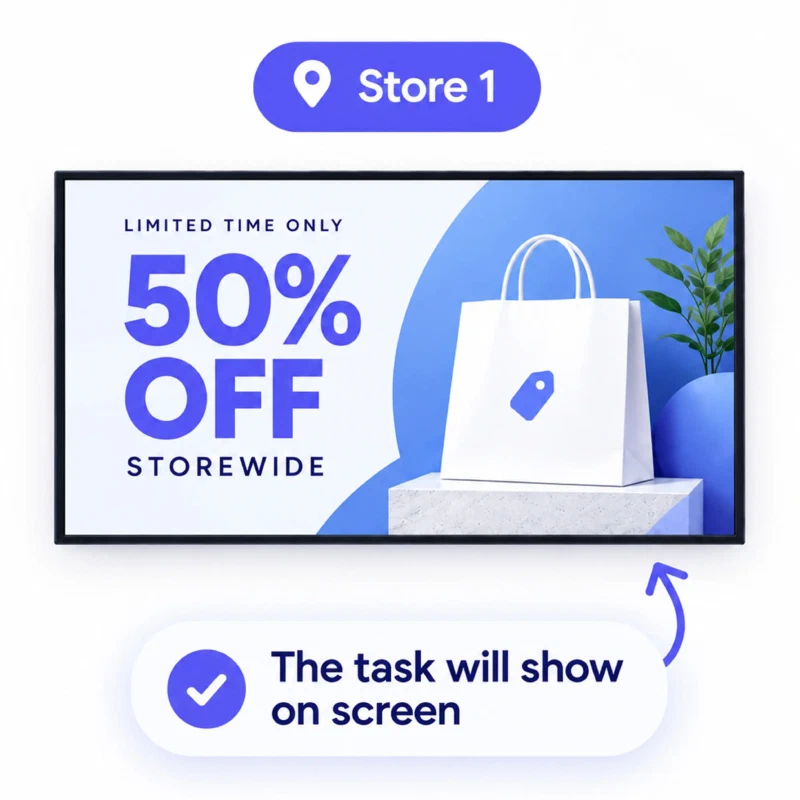
See It Happen on Your Screens
The AI assistant carries out the request, and your screens update.