Digital Signage CMS for ViewSonic Commercial Displays
EasySignage is a cloud-based digital signage content management system (CMS) that runs natively on ViewSonic commercial displays powered by Android. EasySignage transforms your ViewSonic display into a fully managed digital signage screen.
To get started, you simply install the EasySignage app on the display, pair it with your account, and manage everything through the cloud dashboard. From the dashboard, you can upload images and videos, schedule content, and publish updates from any web browser, without needing physical access to the display.
This guide provides detailed information on how EasySignage works with ViewSonic screens and includes instructions for setting it up.
What Is a Digital Signage CMS?
A digital signage CMS (content management system) is the software you use to manage what shows on your digital signage screens. Instead of manually uploading files to each display, you can control all your content from a single online dashboard.
With a CMS like EasySignage, you can:
- Change content on any screen from anywhere.
- Schedule what content plays and when.
- Group and manage screens across multiple locations.
- Keep every display automatically updated.
Using a CMS saves time, reduces travel, and keeps your messaging consistent across every location.
About ViewSonic Commercial Displays
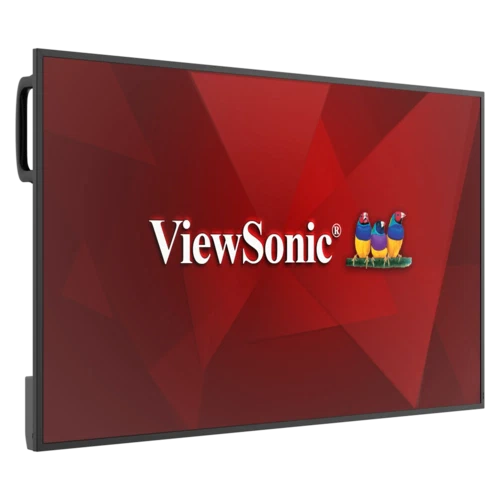
ViewSonic is a well-known name in visual display technology, offering a wide range of commercial displays built for business use. Their commercial screens are designed for continuous, all-day operation and deliver sharp 4K visuals, making them a reliable choice for retail stores, offices, hotels, schools, and public spaces.
Many ViewSonic commercial displays run on Android, so digital signage software like EasySignage installs directly on the screen, with no external media player needed. This combination of durable, business-grade hardware and built-in Android makes ViewSonic displays a strong foundation for professional digital signage.
Why Choose EasySignage With ViewSonic Displays?
Android-based ViewSonic commercial displays are designed for continuous, all-day use. When paired with EasySignage, they give you a complete and user-friendly digital signage solution.
Here is what the combination offers:
Runs natively on the display: EasySignage is an Android application that installs directly onto ViewSonic screens. No external PC or media player required.
Full remote control: You can schedule playlists, push updates, and monitor screens from any web browser.
4K Ultra HD visuals: ViewSonic commercial displays deliver native 4K resolution for sharp and clear content.
Built for business: These displays are built with commercial-grade panels, specifically designed for long-term, continuous operation.
Easy network setup: Built-in Wi-Fi and Ethernet make connecting the displays easy.
Autolaunch on boot: EasySignage can start automatically every time the display powers on, so your content keeps playing after a restart or power cut.
This combination makes ViewSonic and EasySignage an excellent choice for retail stores, corporate lobbies, hotels, schools, healthcare facilities, and transport hubs.
Supported ViewSonic Displays
EasySignage works with Android-based ViewSonic commercial displays. Because these screens run Android, the EasySignage app installs directly on the display, with no external media player needed.
ViewSonic’s Android-based commercial series include:
- CDE14 Series: Android 14 commercial displays.
- CDE31 Series: Android 14 commercial displays.
- CDE30 Series: Android 11 commercial displays.
- CDEUW Ultrawide Series: Android 13 ultrawide displays.
The setup steps below apply to Android-based ViewSonic commercial displays, in any size.
How to Set Up EasySignage on ViewSonic
Setting up EasySignage is a straightforward process that takes just a few minutes. Here is the full process.
Step 1: Download the EasySignage APK
On a computer, go to the EasySignage APK and download the latest Android APK file. Save the file onto a USB drive.
Step 2: Plug the USB Drive Into the Display
Insert the USB drive into a USB Type-A port on your ViewSonic display, which is usually located on the side or back of the screen.
Step 3: Allow App Installation
By default, the display restricts the installation of apps from outside its store. To enable app installation, follow these steps:
- Go to Settings > Device > Signage Display.
- Under Security, enable the following options:
- External Storage: lets the display read your USB drive.
- Install from Storage: allows app installation from USB.
- Unknown Sources: allows the display to install .apk files.
Step 4: Install the App
- Press the Home button on the remote to return to the Home Screen.
- Open the Folders app and select your USB drive from the storage list.
- Locate and select the EasySignage APK file.
- Tap Next, then select Install.
Step 5: Set EasySignage to Autolaunch on Boot
This step makes EasySignage open automatically every time the display powers on, so you never need to touch the remote after a restart.
- Press the Settings button on the remote to open the On-Screen Display Menu.
- Go to Advanced > Boot on Source > Custom.
- Select EasySignage from the list.
Note: ViewSonic displays also have a Source Setting > Custom App option. However, this option only opens the app when you manually switch the input source to “Custom” and does not launch it automatically on boot. For true autolaunch functionality, always use Advanced > Boot on Source > Custom.
Step 6: Pair Your Screen
When EasySignage opens for the first time, a pairing code appears on the screen.
- Sign in to your EasySignage dashboard.
- Go to the Screens page.
- Enter the pairing code shown on your ViewSonic display.
Your screen is now connected and ready to display content!
Managing Your ViewSonic Screens From the Cloud
Once your display is paired, you can manage everything through the EasySignage dashboard. You can:
- Upload content: add images, videos, and ready-made templates.
- Build playlists: arrange content in the desired sequence for playback.
- Schedule content: set specific times for when content is displayed, down to the day and hour.
- Manage many screens: control one display or hundreds across different locations from a single account.
- Monitor remotely: check if each screen is online and displaying the right content.
Since it is cloud-based, you can update your ViewSonic screens from any web browser, whether you are in the same building or on the other side of the world.
Frequently Asked Questions
Is EasySignage a full digital signage CMS for ViewSonic?
Yes. EasySignage is a cloud-based content management system that runs natively on Android-based ViewSonic displays. You manage all your content, playlists, and screens from one online dashboard.
Which ViewSonic displays work with EasySignage?
EasySignage works with Android-based ViewSonic commercial displays: CDE14, CDE31, CDE30, CDEUW. Because these screens run Android, the app installs directly on the display in any size.
Which ViewSonic series run Android?
ViewSonic’s Android-based commercial series include the CDE31, CDE30, CDE14, CDE12, and CDEUW Ultrawide ranges. As a rule, CDE models without a “G” in the name run Android and support EasySignage. The CDEG3 Series is OS-free and would need an external media player.
Do I need a separate media player?
No. Android-based ViewSonic displays have Android built in, so EasySignage runs directly on the display. You do not need an external media player or PC.
How do I make EasySignage start automatically?
Go to Settings on the remote, then Advanced > Boot on Source > Custom, and select EasySignage. The app will then launch automatically every time the display turns on.
Can I manage many ViewSonic screens at once?
Yes. From the EasySignage dashboard, you can manage one screen or hundreds across different locations. Schedule content, push updates, and check screen status remotely.
Get Started Today
EasySignage gives your Android-based ViewSonic displays a powerful, easy-to-use CMS. Install the app, pair your screens, and manage all your content from the cloud.
Try EasySignage for free and get your ViewSonic screens up and running today.