Digital Signage Folder Sync: Update Screens by Dropping Files in a Folder
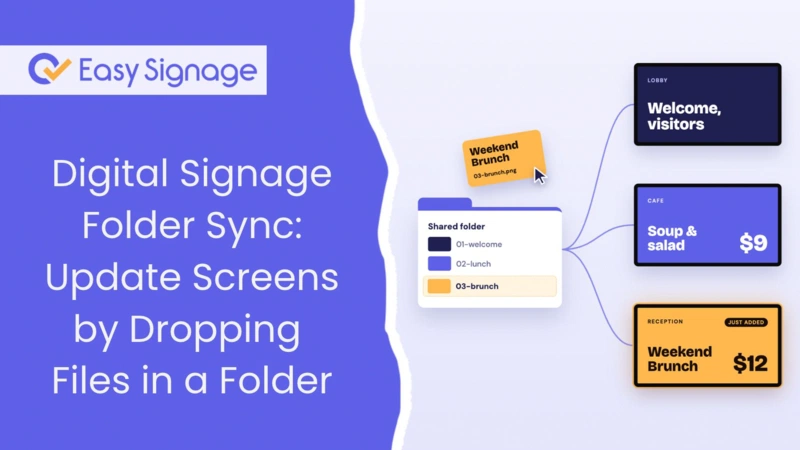
Everyone knows how to use a folder on their computer. Not everyone wants to learn new digital signage software just to change a menu image or add this week’s notice.
With this example, you can update your screens by changing the files in a folder:
Add a file to a folder and it appears on every screen playing the playlist.
Rename a file to change the play order.
Save a new version over a file and the screens show the new one.
Delete a file and it comes off the screens.
It is free and open source on GitHub: Digital Signage Folder Sync. The app is a small Node.js program built on the EasySignage Open API and the official @easysignage/sdk package.
EasySignage acts as a headless CMS: the folder is the source of truth, and EasySignage stores the content and delivers it to the players.
Who This Is For
Folder sync suits teams who already keep their content in files and want the screens to follow, without giving everyone a dashboard login:
Marketing or design teams who export finished artwork to a shared folder.
Offices and schools that run notices and slideshows from a shared drive.
Restaurants and cafes whose menu boards are a set of images updated each season.
Resellers and integrators who want to hand clients a simple way to update content.
Point the app at a folder that is already synced to the computer, such as SharePoint, OneDrive or Dropbox, and anyone who can drop a file there can update the screens.
Using Google Drive? You may not need this example at all. EasySignage has a built-in Google Drive app that syncs a shared Drive folder to a playlist with no code and nothing to install. See Google Drive Integration with Digital Signage and the Google Drive help article.
For PowerPoint and PDF files you don’t need the folder at all: EasySignage accepts them directly, as explained below.
How It Works
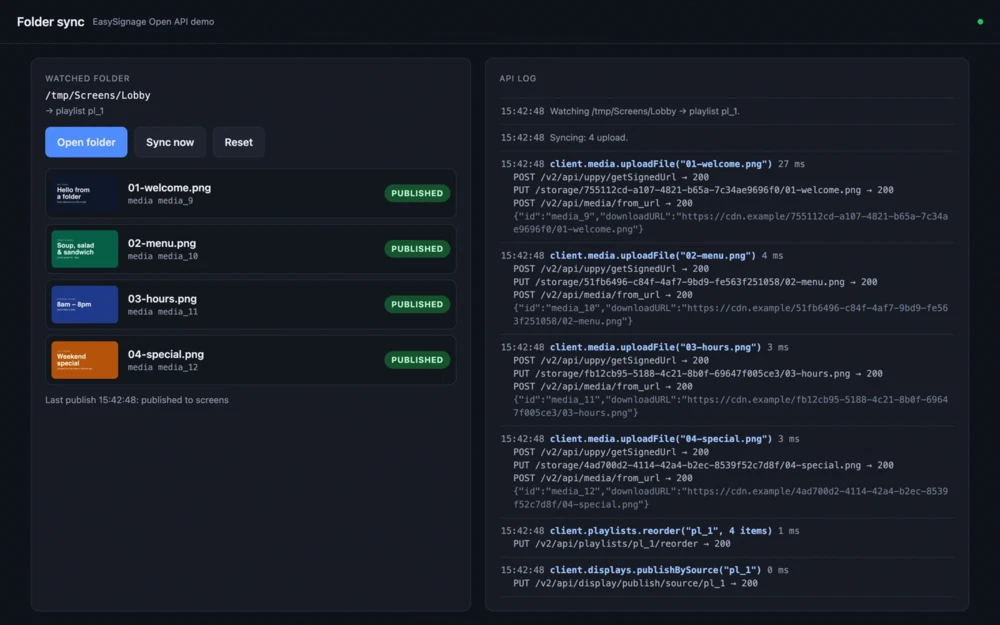
The app watches one folder. When files change, it waits until the folder has been quiet for a few seconds, compares the folder with what it uploaded before, and applies the differences:
| You do this in the folder | The app does this | API call |
|---|---|---|
| Add a file | Uploads it into the playlist | media.uploadFile(path, { playlist }) |
| Save a new version over a file | Uploads the new version, then removes the old one | media.uploadFile, then media.delete |
| Rename a file | Keeps the same media item and moves it, with no new upload | media.update |
| Delete a file | Removes it from the playlist | media.delete or playlists.unassignMedia |
| (after every batch) | Sets the play order from the file names, then publishes once | playlists.reorder, then displays.publishBySource |
Play order follows the file names. The playlist plays as a loop in natural order, so 01-welcome.png, 02-menu.png and 10-hours.png play in that order. Number prefixes are all it takes to arrange content.
One publish per batch. Dragging ten files into the folder makes ten uploads but only one reorder and one publish, so screens update once, with everything in place.
The app’s web page shows the watched folder, each file with its thumbnail and status (queued, uploading, stored, published or error), and an API log of every SDK call with its HTTP route and response.
Built for Real Folders
Real folders are messy. The app handles the cases that would otherwise put the wrong thing on a screen:
Half-copied files. A file is only picked up once it has stopped growing, so a large video is not uploaded while it is still copying.
Renames without re-uploading. A file whose content matches one that just disappeared is treated as a rename.
No gaps on screen. When a file changes, the new version is uploaded before the old one is removed.
Catching up after a restart. On startup the app compares the folder with what it uploaded before and applies anything that changed while it was off.
Your other content is left alone. The app only removes media it uploaded itself. Items added to the playlist by hand stay where they are.
Junk files are ignored. Hidden files,
.DS_Store, Office lock files and partial downloads are skipped.
Supported files are PNG, JPG, GIF and WebP images and MP4, MOV, WebM and M4V videos. Images play for a set number of seconds (10 by default); videos play for their own length.
The Code Behind It
The heart of the app is short:
import { EasySignage } from "@easysignage/sdk";

const client = new EasySignage(); // reads EASYSIGNAGE_API_KEY from the environment

// A new file in the folder becomes a new item in the playlist...
const media = await client.media.uploadFile("./content/02-menu.png", { playlist: playlistId, duration: 10 });

// ...and one publish updates every screen whose content is that playlist.
await client.displays.publishBySource(playlistId);
uploadFile handles the whole upload and waits until the file is stored, and publishBySource updates every screen whose content is that playlist. The rest of the repository is the batching, comparing and safety logic described above, written to be read and changed.
Setting It Up
The README on GitHub has the full steps. In short:
Install it. You need Node.js 20.12 or newer. Clone the repository and run
npm install.Create an API key in the dashboard under Settings > API Keys, with the media, playlists and displays permissions. The API Keys help article shows each step.
Add the key to
.env. Copy.env.exampleto.envand paste the key in. The file is ignored by git, so the key is never committed.Tag your screens
automationin the dashboard.Create the playlist with
npm run setup. It finds or creates a “Folder sync demo” playlist, saves its ID to.env, and assigns it to your tagged screens.Run it with
npm run dev, openhttp://localhost:3001, click Open folder and drop in the sample images.
One detail matters: publishBySource updates screens whose content is the playlist directly. A screen that gets the playlist through a group, channel or schedule has a different source, so npm run setup assigns the playlist straight to the tagged screens.
Taking It Further
Point it at a shared folder: Set
WATCH_DIRto a SharePoint, OneDrive, Dropbox, Google Drive or network folder, and anyone with access can update the screens without a CMS login.One folder per location: Run one copy per playlist, each with its own folder, so the lobby, the cafe and the reception desk are each a folder.
Run it unattended: Keep it running with a process manager such as pm2 or systemd, or as a Windows service.
Use another source: The sync logic only needs a list of file names, sizes and hashes, so the same approach works for a cloud bucket, a CMS export or a product feed.
For Digital Signage Resellers and Integrators
Folder sync is an easy win to offer clients who find a full digital signage content management system too much. You set it up once and they keep using the folders they already have.
The code is MIT licensed. Use it, adapt it and run it for clients, including in paid projects.
It works with white label accounts. If you run EasySignage under your own brand through the white label partner program, set
EASYSIGNAGE_BASE_URLto your API host.It fits cloud based digital signage. The players and content live in the cloud; the app is a thin bridge from the client’s folder, with one API key per client account.
What You Need
An EasySignage Premium or Enterprise plan, which include API access. See pricing.
An API key with the media, playlists and displays permissions. The API Keys help article shows how to create one.
At least one screen in your account. A browser player is fine for testing.
Node.js 20.12 or newer on the computer or server that can see the folder.
Frequently Asked Questions
Can I use a SharePoint, OneDrive, Dropbox or Google Drive folder?
Yes, as long as the folder is synced to the computer running the app. The app watches the local copy, so whatever the sync client writes there is picked up and uploaded. For Google Drive there is a simpler option: the built-in Google Drive app syncs a shared folder straight to a playlist, with nothing to run.
Can I show PowerPoint, PDF or Google Slides on digital signage?
Yes, and you can upload them straight into EasySignage. PowerPoint (PPT, PPTX), PDF, Word and OpenDocument files are accepted in the dashboard, and each page becomes an image in your playlist.
For Google Slides, download the deck as PPTX or PDF and upload that. The Upload Media help article lists every supported format. This folder sync example syncs images and videos, so upload decks and documents through the dashboard.
What is a loop playlist in digital signage?
A loop playlist plays its items one after another and starts again from the top when it reaches the end. The folder becomes that loop, in file name order.
Does deleting a file delete it from my account?
By default, yes: the media item is removed. Set DELETE_MODE=unassign if you would rather only take it out of the playlist and keep it in the media library.
Will it remove content I added to the playlist in the dashboard?
No. The app only removes media it uploaded itself. Items you added by hand stay in the playlist.
What happens if the computer is off when files change?
Nothing is lost. When the app starts again it compares the folder with what it uploaded before and applies any changes made while it was off.
Is it free to use commercially?
Yes. The example is MIT licensed, so you can use it and include it in paid client work as long as the license notice stays with the code.
Which EasySignage plan do I need?
API access is included with the Premium and Enterprise plans.
Get Started
Clone the Folder Sync repository, create an API key, and drop a few files into the folder on a test screen.
For more on what the API can do, read How to Automate Digital Signage with EasySignage Open API, or try the companion example, Sales-Driven Promotions, which turns promotions on and off from live sales data.