How to Manage Digital Signage with Claude, ChatGPT, or Gemini
Scheduling a campaign across your screens currently takes too many steps. First, you need to log in, then find the right playlist, add your media, navigate to the scheduling section, set the dates, assign the playlist, select the screens, save your changes, publish the campaign, and finally check each display to confirm everything is working. That’s ten steps and several minutes spent on each location. If you manage multiple locations, you have to repeat most of the steps for each site.
Now imagine doing the same thing in one sentence:
“Schedule the holiday playlist on all store screens from December 15 to January 2.”
Done. The campaign is live.
Manage Your Digital Signage Screens with an AI Assistant
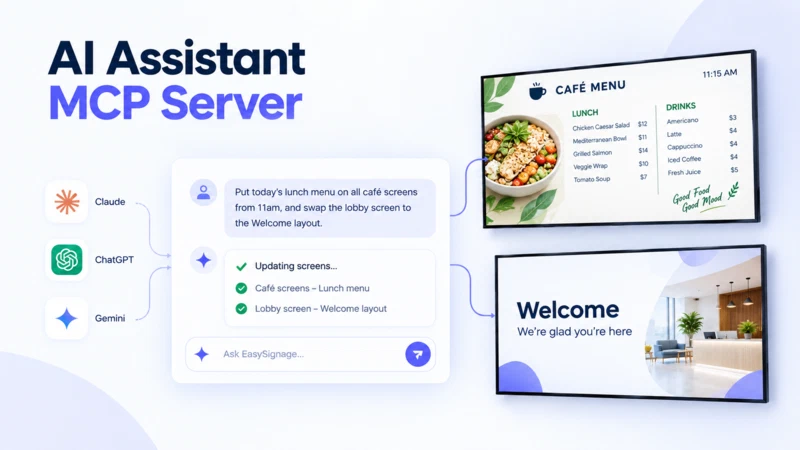
Connect Claude, ChatGPT, or Gemini to your EasySignage account to manage screens, playlists, and schedules using simple language requests. This connection uses MCP (Model Context Protocol), an open standard that lets AI assistants work directly with external tools.
Instead of navigating dashboards and doing the work manually, you simply describe what you want in the chat and the AI assistant does it on your behalf.
What Is MCP and Why Is It Important for Digital Signage?
MCP stands for Model Context Protocol. It is an open standard, created by Anthropic and currently maintained by the Linux Foundation, that gives AI assistants a structured way to connect to external services. Think of it as a universal plug that allows any compatible AI application to communicate with any compatible tool.
For digital signage, this means that your AI assistant is no longer limited to answering general questions. It can access live data from your account, create playlists, schedule campaigns, and check which screens are online, all through a single conversation.
EasySignage operates its own MCP server. Once you connect, AI assistants like Claude, ChatGPT, or Gemini can perform real tasks on your screens, based on the access you provide.
What Can the AI Assistant Do?
A connected AI assistant handles two separate tasks: answering questions about the EasySignage platform and assisting with your account.
Answer Questions About EasySignage
The AI assistant can search the EasySignage product documentation and answer your questions in chat. It does not need to access your account information to do this. You can ask questions like:
- “How does publishing work in EasySignage?”
- “What is the difference between a playlist and a channel?”
- “How do I set up a video wall?”
This functionality is similar to the product knowledge behind the “Ask AI” button in the EasySignage dashboard, which is available within any AI app you are currently using.
Manage Screens
You can ask about which screens are currently online, which ones have been offline since yesterday, or rename a screen. You can also change what a group of screens is displaying without needing to access the dashboard.
Example: “Which screens in the Office 1 group have been offline for more than a day?”
Build and Update Playlists
Create a new playlist, add media from a specific folder, and reorder items. You can describe what you want in your own words instead of assembling the playlist manually.
Example: “Create a playlist called ‘Reception Loop’ and add the images from the Lobby folder.”
Schedule Campaigns
Set a campaign to run on a group of screens for a specified date range. The assistant will create the schedule for you.
Example: “Schedule the ‘Summer Sale’ playlist on all Shop-1 screens from 1 December to 31 December.”
Get Help While You Work
The AI assistant is familiar with the EasySignage documentation, so you can ask how to perform a task and act on the answer immediately, all within the same conversation.
Remember that documentation provides general information about the product. For information specific to your account, such as your screens, playlists, or schedules, ask direct questions about your live data instead. For example, “How do schedules work?” pulls info from the documentation. “What is scheduled on my lobby screen this week?” retrieves information specific to your account.
How Permissions Work
When you connect an AI assistant, EasySignage displays a consent screen that shows the AI application requesting access along with the account it will connect to. You can set each area of your account, like screens, playlists, schedules, or folders, to one of three access levels: No access, Read only, or Full access.
Every area starts at the highest level requested by the AI application, so be sure to adjust the access level before you confirm. If the AI app only requested read-only access, then full access will not be available for any area.
There are two important safety rules to keep in mind, regardless of which access level you choose:
- The AI assistant can never delete a screen, playlist, or media file, even if granted full access.
- You can disconnect the assistant at any time by deleting its API key.
If you only want the AI assistant to provide answers and perform status checks, grant Read-only access. If you want the assistant to create and update content on your behalf, grant Full Access.
How to Connect Your AI Assistant
The setup is the same across all three supported assistants: Claude, ChatGPT, or Gemini. You copy the EasySignage server URL from Settings > AI Assistant, paste it into the AI app, sign in, and choose your permissions.
How to Connect Claude
- In Claude, open Customise, then Connectors.
- Select +, then Add custom connector.
- Paste the server URL from your EasySignage Settings page.
- Sign in and choose what the assistant can access.
- In a new chat, select +, then Connectors, and switch EasySignage on.
On Claude Team and Enterprise plans, an organisation owner adds the connector first under Organisation settings > Connectors > Add > Custom > Web.
How to Connect ChatGPT
- In ChatGPT, go to Settings, then Connectors, then Advanced settings, and turn on Developer mode.
- Return to Connectors and select Create.
- Enter a name, paste the server URL, and choose OAuth as the authentication method.
- Sign in and choose what the assistant can access.
On ChatGPT Business and Enterprise workspaces, an admin must allow custom connectors first under Workspace settings > Permissions & Roles.
How to Connect Gemini
Install Gemini CLI, then run this command in your terminal:
gemini mcp add --transport http signage https://mcp.easysignage.com/mcp
Then start Gemini CLI and run /mcp auth signage to sign in and set permissions.
The Gemini web and mobile apps do not accept custom servers yet. In Gemini Enterprise, an administrator adds EasySignage as a custom MCP server connection instead.
For full setup instructions, see the AI Assistant help page.
Practical Examples
Here are real requests you can make once connected:
| What you ask | What happens |
|---|---|
| "Which screens are offline?" | The assistant checks live screen status and lists any offline screens. |
| "Create a playlist called Holiday Promos" | A new playlist is created in your account. |
| "Add the images from the December folder to Holiday Promos" | Media files are added to the playlist in order. |
| "Schedule Holiday Promos on the Melbourne group from 15 Dec to 2 Jan" | A schedule is created with the right dates and screen group. |
| "How do I set up a video wall?" | The assistant answers from the EasySignage documentation. |
Each request takes only a few seconds to complete. Completing the same tasks manually would require navigating multiple dashboard screens, selecting items, filling in date fields, and clicking through confirmation steps.
Who Benefits Most?
An AI assistant for digital signage is beneficial for anyone who manages screens, but some teams see the biggest time savings.
IT Managers: Those overseeing large screen networks can quickly check the status of dozens of screens with a single question instead of scrolling through a dashboard. They can rename screens, reassign groups, and troubleshoot offline devices faster.
Marketing Teams: Teams running seasonal campaigns can schedule content across multiple locations by describing dates and screen groups in one sentence. No need to repeat the same steps for each location.
Multi-site operators: Operators in retail, hospitality, or corporate offices can make bulk changes without having to navigate through separate screen settings for each site.
Security and Control
EasySignage treats the AI connection like any other API integration. Here is what that means in practice:
Each connection is associated with a unique API key: The key name starts with “MCP:” followed by the AI app name and the email of the person who approved it, so you can easily identify who made the connection.
Permissions are set before the connection is made: The AI assistant will only access the permissions you allow.
Content cannot be deleted: Even with full access, the assistant can create and update content, but it cannot remove screens, playlists, or media files.
Each approval allows for only one connection: If multiple team members connect the same AI app, each will receive their own API key. One person’s connection does not impact another’s.
The connection is linked to a single account: The connection applies only to the account you are managing when you connect, not to every account you can access. Each account must be connected separately.
Frequently Asked Questions
Which AI assistants work with EasySignage?
Claude, ChatGPT, and Gemini all connect through the same EasySignage MCP server.
Do I need a specific plan?
Yes. The AI Assistant feature requires the Premium or Enterprise plans, which provide API access.
Can the AI assistant delete my content?
No. Even with full access granted, the assistant can create and update content but cannot delete screens, playlists, or media files.
How do I disconnect an assistant?
Go to Settings, then API Keys. Find the key that starts with MCP: and delete it. The assistant loses access immediately.
Can I limit what the assistant sees?
Yes. The consent screen lets you set each area of your account (screens, playlists, schedules, media, and more) to no access, read-only, or full access.
Can I change the permissions after connecting?
No. Permissions are locked when the API key is created. To modify what an assistant can access, go to Settings > API Keys, delete the existing MCP key, and connect the assistant again with different permissions.
The connection is not working. What should I check?
The most common issues include an expired consent link, being signed in to the wrong account, or reaching the 10 API key limit. To resolve this, start the connection again from within the AI app instead of reopening an old consent link. Make sure you are signed in to the correct EasySignage account, and remove any unused API keys if you have reached the limit. For detailed error messages and solutions, see the troubleshooting section in the help centre.
Get Started
Connect your favourite AI assistant to EasySignage and start managing your screens easily. Sign up for free with one screen included, or explore the Premium plan to unlock the AI Assistant and API access.