Interactive Kiosk for Digital Signage: What It Is and How to Build One
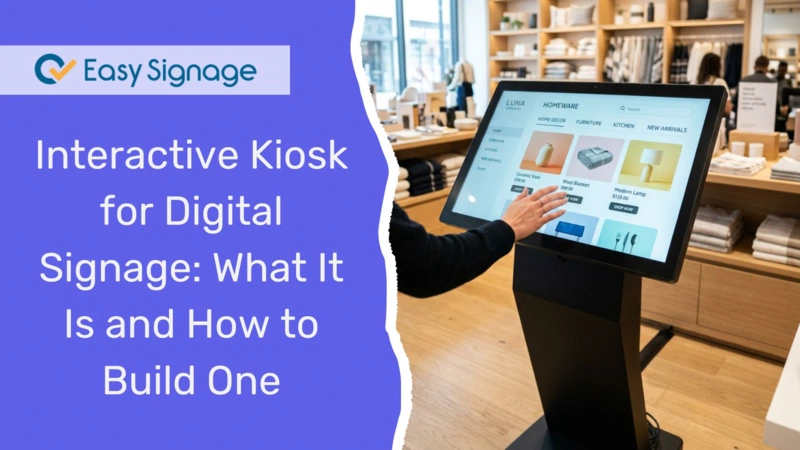
What Is an Interactive Kiosk and How Can It Work for Your Business?
An interactive kiosk is a touchscreen display that lets people tap, browse, and find information on their own, without needing help from staff.
Instead of showing content on a loop like a regular digital sign, an interactive kiosk puts your audience in control. They can explore product catalogues, navigate directories, browse menus, and more, all by touching the screen.
With the EasySignage Interactive Kiosk App , you can build multi-page interactive experiences directly from your dashboard. No coding needed. Just pick a template, add your content, and publish it to your screen.
In this guide, you’ll learn what an interactive kiosk is, how it works, where businesses use it, and how to set one up with EasySignage.
What Is the Difference Between Digital Signage and an Interactive Kiosk?
Standard digital signage displays content automatically. It plays videos, images, or slideshows on a loop. The viewer watches but can’t interact.
An interactive kiosk flips that. It turns your screen into a self-service tool that lets people tap, swipe, and navigate through pages of content at their own pace.
Here’s a simple breakdown:
- Digital signage = one-way communication. You show, they watch.
- Interactive kiosk = two-way communication. They tap, they explore.
Both are useful. But if you want your audience to engage with your content, not just glance at it, an interactive kiosk is the way to go.
Why Use an Interactive Kiosk?
Interactive kiosks are growing fast. About 1 in 5 digital signage displays worldwide are now interactive, and that number keeps climbing.
Here’s why businesses are making the switch:
Higher engagement:
People spend more time with content they can interact with. Tapping through a product catalogue is far more engaging than watching a slideshow.Less pressure on staff:
Kiosks handle common questions like “Where is the conference room?” or “What’s on the menu?”, so your team can focus on higher-value tasks.Better customer experience:
Visitors get the information they need instantly, without waiting in line or asking for help.Modern brand image:
A touchscreen kiosk tells visitors your business is forward-thinking and customer-friendly.Self-service convenience:
From browsing products to checking in at a hotel, kiosks let people help themselves, and most customers prefer it that way.
Where Can You Use Interactive Kiosks?
Interactive kiosks work in almost any setting where people need quick access to information.
Here are some of the most common use cases:
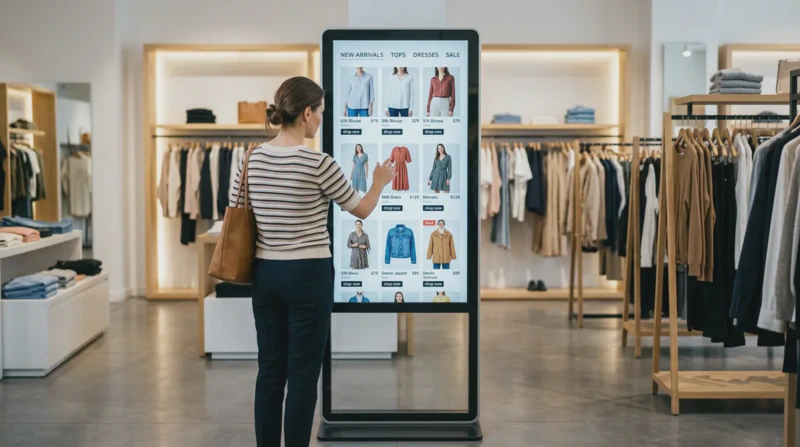
1. Retail Stores
Let customers browse your full product range, check prices, view product details, and find items in-store, all from a touchscreen. It’s like giving every shopper their own personal assistant.
2. Restaurants and Cafes
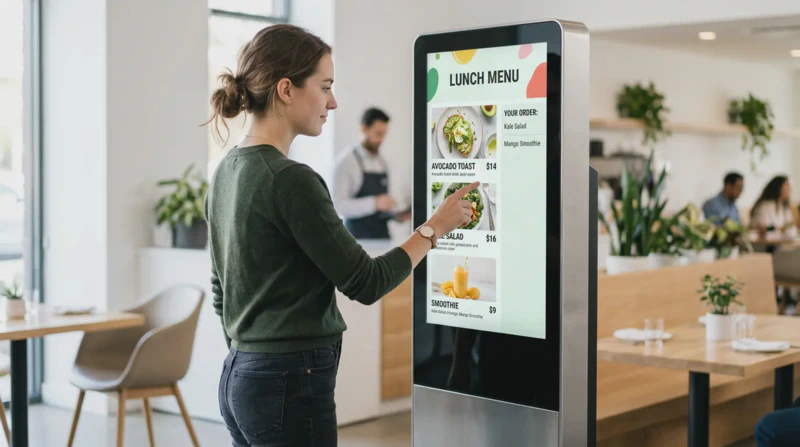
Replace printed menus with a digital touchscreen menu. Customers can tap through categories, see images of dishes, check ingredients, and even place orders without waiting for a server.
3. Hotels and Hospitality
Turn your lobby screen into a digital concierge. Guests can explore local attractions, check hotel services, view event schedules, and find directions around the property.
4. Corporate Offices
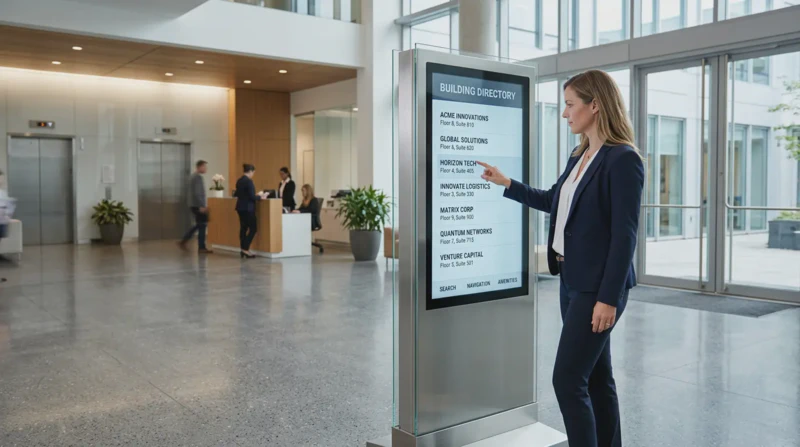
Use kiosks for visitor check-in, meeting room directories, building wayfinding, or internal company communications. Staff and visitors both benefit.
5. Exhibitions and Conferences
Give attendees an interactive guide with schedules, speaker bios, exhibitor directories, and venue maps, all at their fingertips.
6. Healthcare Facilities
Help patients find their way around, check in for appointments, or access information about services, reducing front desk workload and wait times.
7. Education
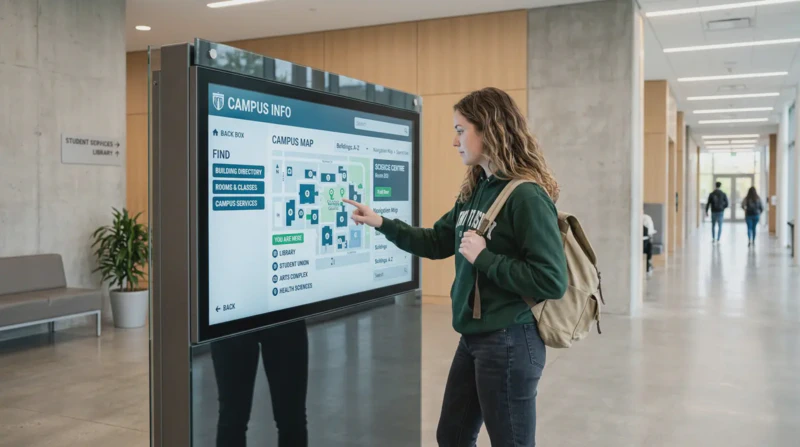
Schools and universities can use kiosks for campus maps, event boards, student directories, and department information.
How the EasySignage Interactive Kiosk App Works
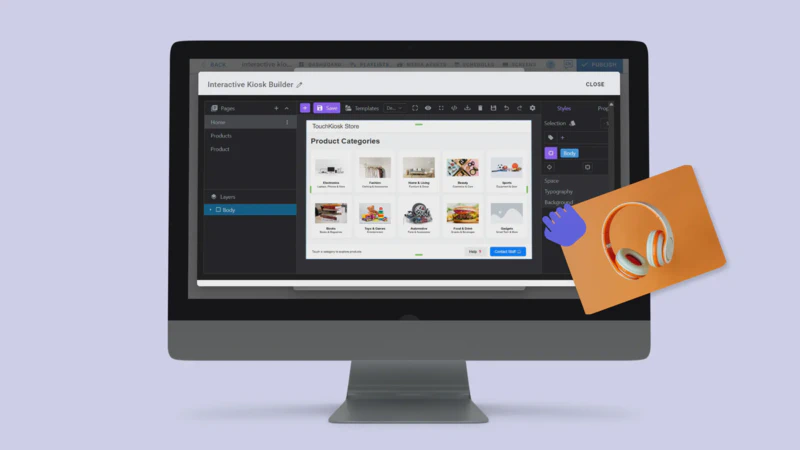
The EasySignage Interactive Kiosk App is a built-in site builder inside your EasySignage dashboard. It lets you create multi-page interactive experiences and publish them to any touchscreen connected to your account.
Think of it as a simple website builder, but designed specifically for digital signage screens.
Important: To turn your screen into an interactive kiosk, your display must support touch input. The screen itself needs to be a touchscreen; without touch capability, viewers won’t be able to tap or navigate through your kiosk pages. If your current screen doesn’t support touch, you need to upgrade to a touchscreen display.
Here’s what you get:
A visual site editor:
Design pages with images, text, links, and custom layouts using a drag-and-drop canvas. No coding required.
Multi-page support:
Create as many pages as you need. A panel on the left lets you add, rename, duplicate, or delete pages.
Ready-made templates:
Start fast with pre-built kiosk templates. EasySignage comes with several ready-made templates to help you get started fast. Options include:
- Retail Product Kiosk: Perfect for showcasing product categories and details.
- AutoShowcase Kiosk: Ideal for car dealerships or product showrooms.
- City Explorer: Great for tourism, hotels, and visitor centres.
- Building Directory: Simple and clean for offices and commercial buildings.
- Kiosk Touch Website: A general-purpose multi-page layout.
Each template comes with multiple pre-built pages. Just open one, swap in your own content and images, and you’re ready to go.
Layers panel:
Manage the hierarchy of your page elements for precise control over your design.
Styles and properties panel:
Customise the look and feel of every element on your page.
Code editor:
For users who prefer to work with code, a built-in code editor is also available.
Tappable images and links:
Make any image or element tappable so users can navigate between pages by touching the screen.
How to Set Up an Interactive Kiosk with EasySignage
Setting up an interactive kiosk is straightforward. Here’s how to do it step by step:
Step 1: Open Your Playlist
Log in to the EasySignage Management Console . Click on the playlist and layer where you want to add the kiosk.
Step 2: Add the Interactive Kiosk App
Click Add New, then go to General Apps and select Interactive Kiosk from the list.
Step 3: Create a New Site
In the Interactive Sites dialogue, click + Add New Site. Give your site a name, something like “Product Catalogue” or “Visitor Guide”, and click Save.
Step 4: Design Your Pages
The site editor will open. From here, you can:
- Choose a template to get started quickly
- Add images, text, and links to your pages
- Create new pages using the + button in the pages panel
- Make images tappable by wrapping them in a Link block and setting the link to another page.
Step 5: Save and Assign
Click the Save button in the toolbar. Then go back to the Interactive Sites dialogue, click Use This Site to assign it to your kiosk, and click Publish to send content to your screen.
Your kiosk is now live. The content will appear on your connected touchscreen.
For more details, please refer to the Interactive Kiosk App help page .
Tips for a Great Interactive Kiosk Experience
Getting your kiosk set up is just the start. Here are some practical tips to make sure it works well for your audience:
Use high-quality images. Blurry or low-resolution images make your kiosk look unprofessional. Use clear, sharp visuals.
Keep navigation simple. Don’t overload your kiosk with too many pages. Make it easy for users to find what they need in just a few taps.
Test on the actual screen. What looks good on your laptop might not look the same on a large display. Always test touch responsiveness and content layout on the real screen.
Set up a screensaver. When nobody is using the kiosk, show a screensaver playlist with promotional content or eye-catching visuals to draw people in.
Use the auto-refresh feature. Enable the refresh setting so your kiosk reloads content at set intervals; perfect for keeping information up to date.
Adjust the zoom factor. Use the zoom setting (0–200%) to scale your content to fit different screen sizes and resolutions.
Use Touchscreen feature. Pair your kiosk with EasySignage’s touchscreen feature like screensavers, navigation arrows, and tap-to-start for a polished self-service experience.
Frequently Asked Questions
What is an interactive kiosk in digital signage?
An interactive kiosk is a touchscreen display that lets people tap and navigate through content on their own. Unlike regular digital signage that plays content on a loop, a kiosk gives the viewer control to browse pages, explore products, find directions, and more.
Do I need coding skills to build an interactive kiosk?
No. The EasySignage Interactive Kiosk App has a visual drag-and-drop editor that lets you design pages without writing any code. Templates are also available for a quick start. A code editor is available if you prefer to work that way.
What hardware do I need for an interactive kiosk?
You need a touchscreen display and a media player that runs EasySignage. The app works on Android devices, Amazon Fire TV Stick, Windows PCs, and more. The key requirement is that your screen supports touch input.
Can I use templates for my kiosk?
Yes. EasySignage includes several pre-built templates such as Retail Product Kiosk, City Explorer, Building Directory, and more. You can customise them with your own content, images, and branding.
How do I make images clickable on my kiosk?
In the site editor, select an image, wrap it in a Link block, and set the link to the page you want to navigate to. When a visitor taps the image on the touchscreen, they’ll be taken to that page.
Does the kiosk work offline?
The Interactive Kiosk App requires an internet connection to load content on the screen. Make sure your device stays connected for the kiosk to work properly.
Can I update my kiosk content remotely?
Yes. Since EasySignage is cloud-based , you can edit your kiosk content from anywhere using the management console. Changes go live on your screen after you save.
What industries use interactive kiosks?
Interactive kiosks are used in retail, hospitality, healthcare, education, corporate offices, exhibitions, restaurants, real estate, and many other industries. Any business that wants to give visitors self-service access to information can benefit from one.
Turn Your Screen Into a Touchscreen Experience
Interactive kiosks are one of the fastest-growing areas in digital signage, and for good reason. They boost engagement, reduce staff workload, and give your audience a modern, self-service experience they’ll remember.
With the EasySignage Interactive Kiosk App , you can build your own multi-page kiosk in minutes. Pick a template, add your content, and publish it to your screen. No coding, no complexity.
👉 Get started free with EasySignage ; one screen is always free, no credit card needed.