MCP Use Cases for Digital Signage: Promotions, a Live Dashboard and Audit Logs with Claude or ChatGPT
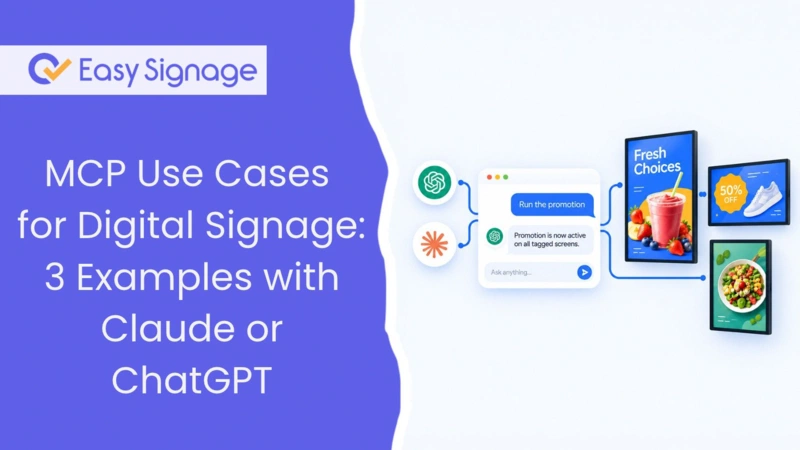
Once Claude or ChatGPT is connected to the EasySignage MCP server, the useful question is what to do with it. Here are three MCP use cases for digital signage that we built and documented end to end:
Media control: promotions on and off with one word. Type “promo” and a promotion joins the normal content on your screens. Type “normal” and it comes off again.
Reporting: a live screen status dashboard. The assistant refreshes the status of every player every five minutes, and the dashboard runs on a screen in your office.
Diagnosis: who changed what, from the audit log. Ask who published to a screen or deleted a video, and get a timeline in plain language. This one needs the Enterprise plan.
Everything here is in a public GitHub repository, Digital Signage AI Assistant MCP . It contains the step-by-step guides, the dashboard code, and a set of project instructions you can paste into Claude, ChatGPT or Gemini so the assistant knows all three tasks.
Each one is a complete MCP server example: the tools the assistant calls, the order it calls them in, and the safety checks around them. If you haven’t connected an assistant yet, start with How to Manage Digital Signage with Claude, ChatGPT, or Gemini . It covers what MCP is, the permission screen, and the setup steps for each app.
What you need
An EasySignage Premium or Enterprise plan. The AI Assistant (MCP) needs API access, which these plans include.
The audit log for the third use case. On the pricing page the audit log is an Enterprise feature.
Claude, ChatGPT or Gemini CLI, connected to the EasySignage remote MCP server at
https://mcp.easysignage.com/mcp.In Claude, add it under Connectors as a custom connector, or straight from the Claude connector directory .
In ChatGPT, add it under Connectors with Developer mode on.
Claude Code users can run
claude mcp add --transport http easysignage https://mcp.easysignage.com/mcp.
Use case 1: Switch a promotion on and off with one word
Store staff often need to run a promotion for a few hours: a flash sale, a happy hour, an event announcement. Doing it in the dashboard means finding the right media, switching it on, publishing to the right screens, and remembering to reverse all of it later. With the assistant it becomes two words, promo and normal.
How it works
The recipe uses one tag, promo, in two places:
- On media. The promotional images and videos sit inside the playlists your screens already play. They carry the tag
promoand stay disabled until a promotion runs. A disabled item keeps its place and settings in the playlist but does not play. - On screens. Every screen that should take part in promotions is tagged
promo.
When you type promo, the assistant enables every media item tagged promo, then publishes to every screen tagged promo. The screens keep playing their normal loop with the promotion added in. When you type normal, it disables the promo media and publishes again, and the screens are back to normal content only.
| You type | Tools the assistant calls | What the screens show |
|---|---|---|
| promo | enable_media_by_tag (promo), then publish_display_by_tag (promo) | Normal content plus the promotion |
| normal | disable_media_by_tag (promo), then publish_display_by_tag (promo) | Normal content only |
Publishing is always the second step. Enabling or disabling media changes the plan in your account, and publishing is what sends that plan to the players. A screen that is offline at the time picks up the change when it reconnects.
If several screens share one playlist but only some should ever show the promotion, turn on Tags playback restriction for the promo media. Then it only plays on screens with a matching tag. The tags help article shows where the setting is.
Setting it up
- Upload the promotion and add it to the playlists your screens play, in the position you want.
- Tag each promotion item
promoand disable it. The Media Assets help article covers tagging and disabling several items at once. - Tag the participating screens
promoand publish once. - Paste the project instructions from the repository into your AI project.
Test it on one screen first. Tag a single screen promo, type promo and normal, and watch the result before tagging the rest.
The project instructions add a few safety checks. Before publishing, the assistant counts how many screens carry the tag. It stops if that number is zero or higher than a limit you set. It always reports what it changed and how many screens it published to.
Use case 2: A live digital signage dashboard, running on a screen
The first question for anyone running a screen network is whether everything is playing. This use case answers it on a wall-mounted screen, so remote management of the network doesn’t depend on someone logging in and scrolling through the screen list.
How it works
The assistant reads player status with list_displays, a read-only tool that returns each player’s online status, power state, platform, software version, current playlist and licence state. There are two ways to turn that into a dashboard on a screen.
Option 1: Let Claude build and host the dashboard
The quickest route needs no web server. In a Claude chat with the EasySignage connector on, ask:
Build a full-screen player status dashboard for a 1920x1080 signage screen from my EasySignage players, refresh it every 5 minutes, and publish it.
Claude reads your players, builds the page, and publishes it with a claude.ai link. You can keep refining it in the same chat, for example “use a dark theme”, “add our logo” or “group the screens by city”, and Claude updates the same link. Add that link to EasySignage as a web page, put it in a playlist and publish it to your operations screen.
Before you rely on it, open the link on the player itself. Claude pages are private by default, so check that it loads on a device that isn’t signed in to Claude, and confirm that the numbers update on their own after a few minutes.
Option 2: Host the dashboard yourself
For a permanent setup under your own domain, the repository includes a ready-made dashboard. Here the assistant is the data pipeline. Every five minutes it calls list_displays and writes the results into a small file called status.json.
The dashboard is a single HTML file with no API keys and no build step. It reads status.json once a minute and shows:
- totals for players online, offline, powered off, and with licence problems
- a “needs attention” list with offline players first
- the full player list, which pages automatically when there are more players than fit on the screen
- a warning banner if no new data has arrived for 15 minutes, so a stopped refresh never looks like a healthy network
You host the two files on any static web host, add the dashboard URL to EasySignage as a web page, and play it on your operations screen. The layout works in both landscape and portrait.
Keeping it fresh every five minutes
A chat window doesn’t run on its own, so the refresh needs something that repeats. The repository describes three options. Claude Code’s /loop command is the quickest for a demo. A scheduled task in your AI app keeps running between sessions. For a permanent setup, a cron job can run a command-line assistant and upload the file. Use a read-only connection for this job, so the task that runs every five minutes can never change content.
Five minutes means 288 runs a day. If your network changes slowly, a 10 or 15 minute refresh is usually enough, and the dashboard’s warning threshold can be adjusted to match.
Use case 3: Find out who changed a screen from the audit log
Something unexpected is on the lobby screen, or a video has disappeared. The digital signage audit log has the answer, but without help the investigation means filtering the audit log by hand and matching resource IDs to names. The assistant does that through the list_logs tool and answers in plain language.
What the audit log records
Each audit log entry records the person or API key that made the change, the action (such as publish, set source, update or delete), and the type of item it affected. It also stores the old and new values, the time, the city and country of the request, the channel (the web app or the API), and whether the request succeeded. Changes made by an AI assistant appear under the name of its API key, which starts with “MCP:” and includes the AI app and the approver’s email. So you can always trace what an assistant did.
Example
You: Why is the Lobby screen showing the wrong playlist since this morning?
Assistant: At 08:41, “jane@example.com ” changed the Lobby screen’s source from “Main Loop” to “Test Playlist” in the web app and published it straight after. There have been no changes since. To fix it, set the source back to “Main Loop” and publish. Do you want me to do that?
The assistant reads only during an investigation. It suggests a fix and asks before acting. The repository includes playbooks for the common questions:
- who published to a screen
- who deleted a media item
- what changed in a playlist this week
- every change made through the API or an AI assistant today
- a seven-day security summary of logins, API keys and failed requests
Audit logs contain email addresses and IP addresses, so treat the answers like any other account data.
Put all three in one AI project
Claude Projects, ChatGPT Projects, Gemini Gems and Claude Code’s CLAUDE.md all accept standing instructions. The repository’s project instructions file
defines the trigger words for each task, the exact tool sequence, the safety rules and the answer formats. Create a project called “Signage Ops”, paste the instructions, enable the EasySignage connector, and type promo, normal, report, or a who-changed-what question.
You can rename the triggers to suit your business, for example “breakfast” and “lunch” for a menu board.
Permissions for each task
Choose access levels on the consent screen when you connect. Permissions are fixed once the connection is made, so pick them for the job.
| Task | Access it needs |
|---|---|
| Promotion on and off | Full access to media and screens, so it can enable media and publish |
| Status dashboard | Read only |
| Audit investigations | Read only, on an Enterprise account |
A practical setup is two connections: one with full access for promotions, and a read-only one for the dashboard and investigations. Even with full access, the assistant cannot delete screens, playlists or media. To disconnect, delete the key starting with “MCP:” in Settings > API Keys.
Frequently Asked Questions
What is an MCP server?
An MCP server is a service that exposes tools an AI assistant can call, using the open Model Context Protocol. The EasySignage MCP server gives Claude, ChatGPT and Gemini tools such as list_displays, enable_media_by_tag, publish_display_by_tag and list_logs, limited to the permissions you approve. How to Manage Digital Signage with Claude, ChatGPT, or Gemini
explains it in more detail.
How do I add the EasySignage MCP server to Claude or ChatGPT?
In Claude, open Customise > Connectors, add a custom connector with https://mcp.easysignage.com/mcp, or add EasySignage from the Claude connector directory
. In ChatGPT, turn on Developer mode under Settings > Connectors > Advanced settings, then create a connector with the same URL and OAuth. The AI Assistant help page
has the full steps.
Do I need to write code?
No. The promotion and audit use cases work entirely in chat once the project instructions are in place. For the status dashboard, Claude can build and host the page for you, or you can host the ready-made dashboard from the repository yourself.
Does the promotion replace my normal content?
No. The promotion media sits inside your normal playlists, so screens show it alongside their usual content. Typing normal disables it again.
What happens to screens that are offline when I type promo?
They receive the change the next time they connect. The assistant tells you which promo screens were offline when it published.
Can I run more than one promotion?
Yes. Give each campaign its own media tag, such as promo-breakfast, and keep the shared promo tag on the screens. The repository explains how to adjust the instructions.
Is the audit log available on every plan?
No. The audit log is part of the Enterprise plan. The promotion and dashboard use cases work on Premium.
Which AI assistant should I use?
All three supported assistants work for promotions and investigations. For the dashboard, Claude can build and host it for you. If you host it yourself, use an assistant that can run scheduled or repeating tasks, such as Claude Code, for the five-minute refresh.
Get started
Clone or browse the Digital Signage AI Assistant MCP repository , connect your assistant using the AI Assistant help page , and try the promotion use case on a single test screen. If you’d rather connect your own systems directly, the EasySignage Open API gives you the same building blocks over REST.