How to Build a Custom Digital Signage App with AI (Claude Code, ChatGPT, Cursor)
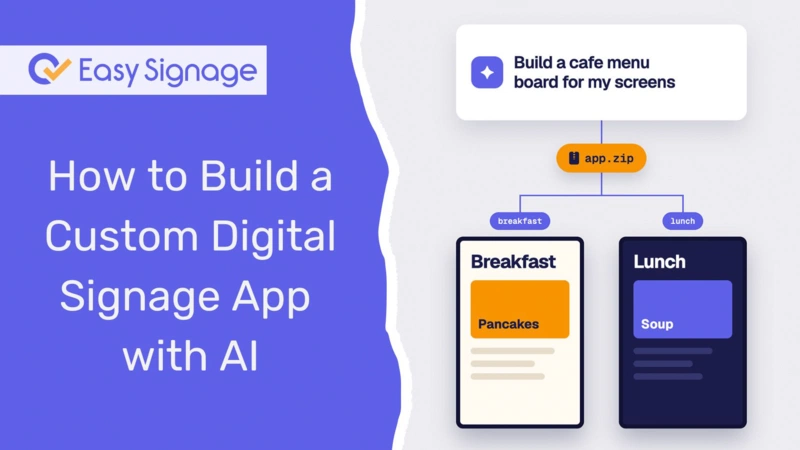
You can build a custom digital signage app
without writing code yourself. Describe the screen you want to an AI agent such as Claude Code, ChatGPT, Cursor, Codex, or GitHub Copilot, and it writes the app for you. You then upload one .zip file to EasySignage, and it plays on every screen, even when the internet drops.
The part that makes this work is our free, open-source Digital Signage Custom Apps toolkit on GitHub. It gives the AI the rules that signage screens need, so the app it builds runs on real players and not only on your laptop.
New to custom apps? Read “What Are Custom Digital Signage Apps and When Should You Build One” first. This guide is the hands-on part.
What you need before you start
An EasySignage account on the Premium or Enterprise plan: Custom apps are included in those plans. See pricing .
An AI tool: Any of the ones below works. You do not need a paid developer tool if you use a chat assistant.
The toolkit: Download it from GitHub , or let your AI tool fetch it.
You don’t need to know HTML or JavaScript. If you use a coding agent such as Claude Code, you will copy and paste a couple of commands.
Why not just ask any AI to “make a signage app”?
You can, but the result often shows a blank screen once it reaches the player. A web page built for a laptop browser usually breaks on signage hardware in a few predictable ways:
Modern JavaScript: Many screens run older built-in browsers on Samsung Tizen, LG webOS, and BrightSign. Code written for the latest Chrome can fail on them.
Files loaded from the internet: Fonts from Google Fonts or scripts from a CDN don’t load when the screen is offline.
Wrong file layout: EasySignage needs
index.htmlat the top level of the.zip. A file inside a subfolder won’t play.Secrets in the code: An AI may paste an API key into the app. The app is copied onto every screen, so anyone with access to a device can read that key.
The toolkit’s skill file tells the AI to avoid all of these. It also tells the AI how to read each screen’s details and tags, so one app can show different content on different screens.
How to Connect the toolkit to your AI tool
Step 1: Pick the setup that matches the tool you use.
| AI tool | How to set it up |
|---|---|
| Claude Code | Install the plugin once. It works in every project after that. |
| Codex, Cursor, GitHub Copilot | Clone or download the repository and open the folder. These tools read the AGENTS.md file automatically. |
| ChatGPT, Claude.ai, other chat assistants | Upload SKILL.md and easysignage.js into the chat, then ask for your app. |
- Claude Code. Run these two commands inside Claude Code:
- Codex, Cursor, or GitHub Copilot. Download the repository:
Then open the Digital-Signage-Custom-Apps folder in your tool. No other setup is needed.
ChatGPT or Claude.ai. Download two files from the repository and add them to your conversation:
skills/easysignage-custom-app/SKILL.md, the rulessdk/easysignage.js, the small script that reads each screen’s details
On Claude.ai you can also zip the easysignage-custom-app folder and add it as a custom skill.
Step 2: Describe the screen you want
Write your request the way you would brief a designer. The more specific you are, the fewer rounds of changes you need. A good prompt covers:
What the screen shows: A menu, a welcome message, a countdown, a promotion.
Orientation: Landscape, portrait, or both.
What changes per screen: These become tags, the labels you set on each screen in EasySignage, such as
menu: lunchorzone: north.Your brand: Colours, logo files, and fonts you can include in the package.
Where the content comes from: Text in the prompt, a spreadsheet you paste in, or images in a folder.
Here is a template you can copy:
And three real examples:
A coding agent such as Claude Code or Cursor creates the files in a folder for you. A chat assistant gives you the files to save into one folder yourself.
Step 3: Preview it in your browser
Before you upload anything, open the app’s index.html in your browser. To see what a specific screen would show, add test values to the end of the address:
index.html?name=Lobby&resolution=1920x1080&tags.menu=lunch
Change tags.menu=lunch to tags.menu=breakfast and reload to check the other version. Resize the window to check portrait too.
If your browser blocks the page from loading its scripts, ask your AI agent to “serve the app locally so I can preview it”. It will start a small local web server and give you a link.
Not happy with something? Keep the conversation going: “Make the prices bigger”, “Move the logo to the top right”, “Add a gluten-free label next to these items”. Each change takes one more message.
Step 4: Check and package the app
If you use a coding agent inside the toolkit folder, ask it to “check and package the app”. It runs the toolkit’s check.sh script, which looks for the problems that break apps on signage players, then creates a .zip in the dist folder with index.html at the top level.
You can also run it yourself:
With a chat assistant, zip the contents of your app folder, not the folder itself. On a Mac, select all the files inside the folder, right-click, and choose Compress. On Windows, select the files, right-click, and choose Send to > Compressed (zipped) folder.
Step 5: Upload it and set your tags
Sign in to the EasySignage Management Console and upload the
.zipfile in one of two ways:In a playlist: open the playlist, click the layer, click Add New > Upload media, and choose the
.zip. It is added to the layer straight away. See how to upload media .In Media Assets: go to Media Assets, click Add Media > Upload Media Assets, and choose the
.zip. Then add it to a playlist from Add New > Media Assets. See Media Assets .
Assign the playlist to your screens.
Add the tags your AI listed to each screen, for example
menu=breakfaston the screens by the entrance andmenu=lunchon the counter screens. See how to tag screens , or tag several screens at once .
The app is stored on each screen, so it keeps playing if the connection drops. When you want to change it, ask the AI for the change, repackage, and upload the new version.
Tip: if a screen isn’t showing what you expect, upload the ready-made player-info.zip to it. It shows every detail and tag that screen sends to custom apps, which makes a typo in a tag name easy to spot. Tag names are case-sensitive.
Start from a ready-made example instead
If your idea is close to one of the examples in the toolkit, start there. Each one is a complete app you can upload as it is, or hand to your AI with “change this to…”.
| Example | What it does | Tags it reads |
|---|---|---|
| Clock | Full-screen clock and date, fully offline | clock_format, greeting, accent |
| Countdown | Countdown to an event set per screen | event_name, event_date, done_text |
| Menu board | Menu from a local data file, chosen per screen | menu, special |
| Zone promo | Different promotion and image per store zone | zone |
Download links for each one are in the toolkit’s README .
What AI won’t do for you
AI makes building a custom app much faster, but you still own the result. Keep these limits in mind:
Test on a real screen before rolling out: A browser preview is a good check, but the real player is the final one. Try the app on one screen of each model you own.
Review what the AI built: Read the text on screen carefully. AI can get prices, dates, or spelling wrong, and it will confidently say it’s done when it isn’t.
Never give the AI real API keys or passwords to put in the app. If you need live data from your own system, use a public, read-only feed with no key, or a small server you control that adds the key. For a live web page, a regular website media item is often the simpler choice.
Live data still needs internet: The app itself plays offline. Anything it pulls in from the internet, such as weather or stock levels, needs a connection, so ask the AI to show the last saved data when the screen is offline.
Moving from Broadsign?
The toolkit includes a second skill for converting Broadsign HTML5 creatives. Point your agent at the old creative with a prompt like “Here is our Broadsign HTML5 creative in ./old-creative. Migrate it to an EasySignage custom app and tell me which tags to set on each player.” EasySignage uses Broadsign-compatible field names, so most creatives need a small update rather than a rebuild.
Build your first app today
Pick a screen you want to improve, write a one-paragraph prompt, and let your AI tool build it. Install the toolkit from GitHub , then upload the result to your EasySignage account .
Developers who want the full technical reference can find it on the Digital Signage Custom Apps help page , and the manual, no-AI route is in our guide to creating a custom digital signage app .
Frequently asked questions
Do I need to know how to code to build a digital signage app with AI?
No. You describe the screen in plain language and the AI writes the code. You will need to save files, zip a folder, and upload it to EasySignage. A coding agent such as Claude Code can also do the packaging for you.
Which AI tool should I use?
Use the one you already have. Coding agents such as Claude Code, Cursor, Codex, and GitHub Copilot create and package the files for you. Chat assistants such as ChatGPT and Claude.ai work too, but you save and zip the files yourself.
Is the EasySignage custom apps toolkit free?
Yes. The toolkit is open source under the MIT license and free to use. Playing custom apps on your screens requires an EasySignage Premium or Enterprise plan.
Will an AI-built app work without internet?
Yes, if everything it needs is inside the package. The toolkit tells the AI to bundle every image, font, and script, so the app keeps playing during an outage. Only data the app fetches live from the internet needs a connection.
Can one app show different content on each screen?
Yes. Each screen sends its name, resolution, and tags to the app. Ask the AI to use a tag, such as zone or menu, and set a different value on each screen in EasySignage.
Which EasySignage plans include custom apps?
Custom apps are available on the Premium and Enterprise plans. Compare plans on our pricing page .